Assigning a Task to a Team
A Task can be assigned to both Private teams and Public teams.
To assign a Task to a Team:
On the main menu, go to > .
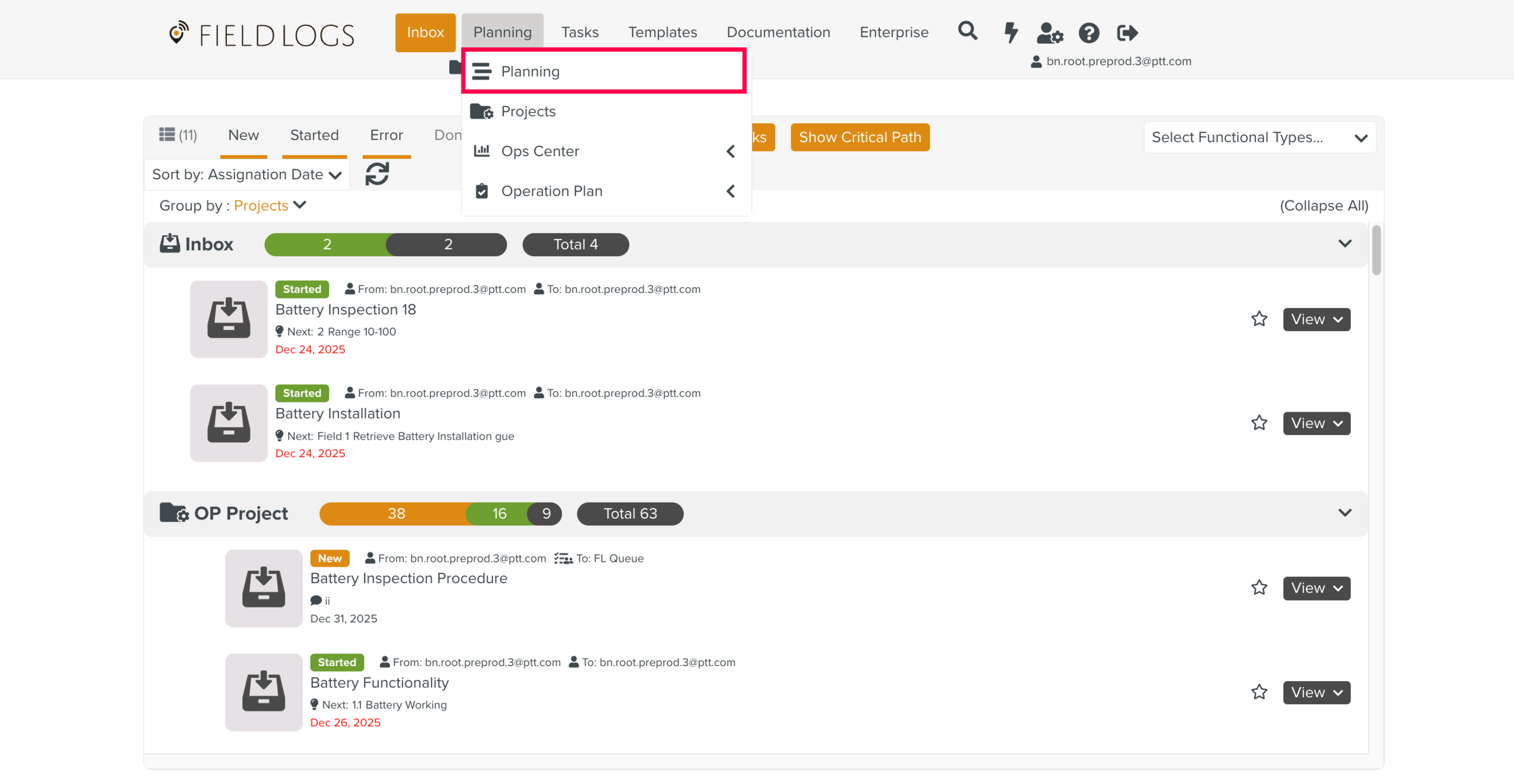
Click
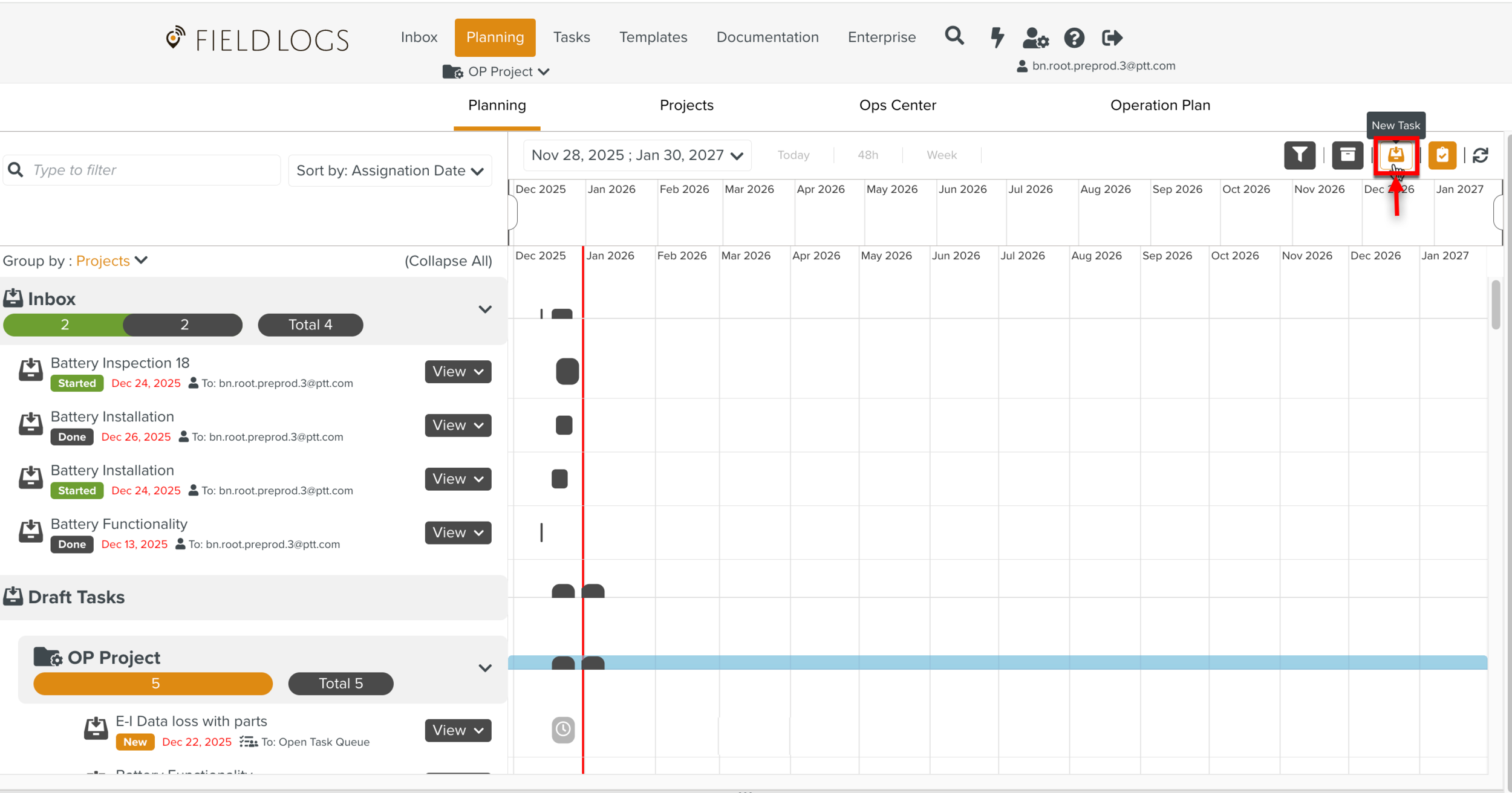
Create a new Task dialog appears.
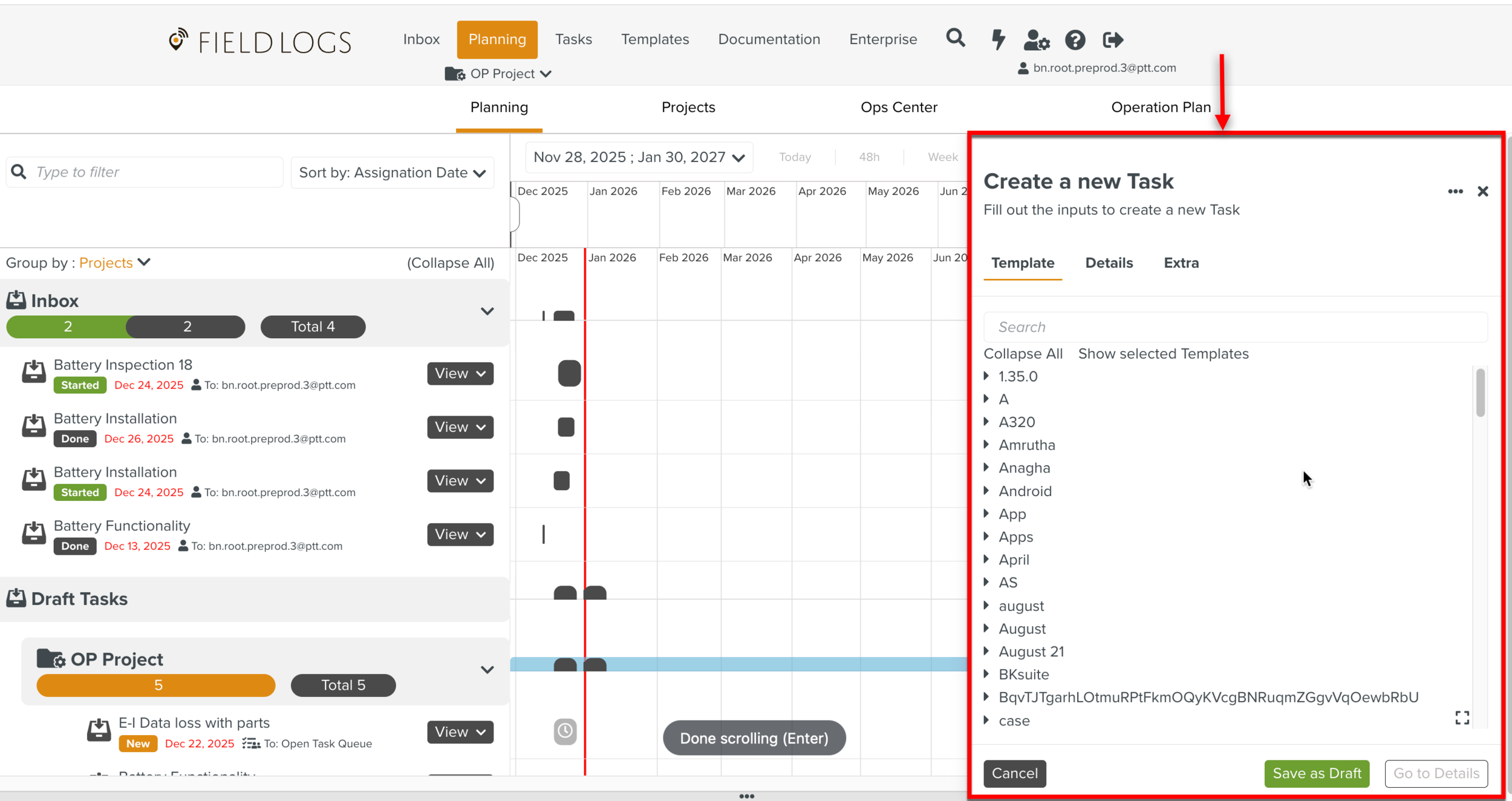
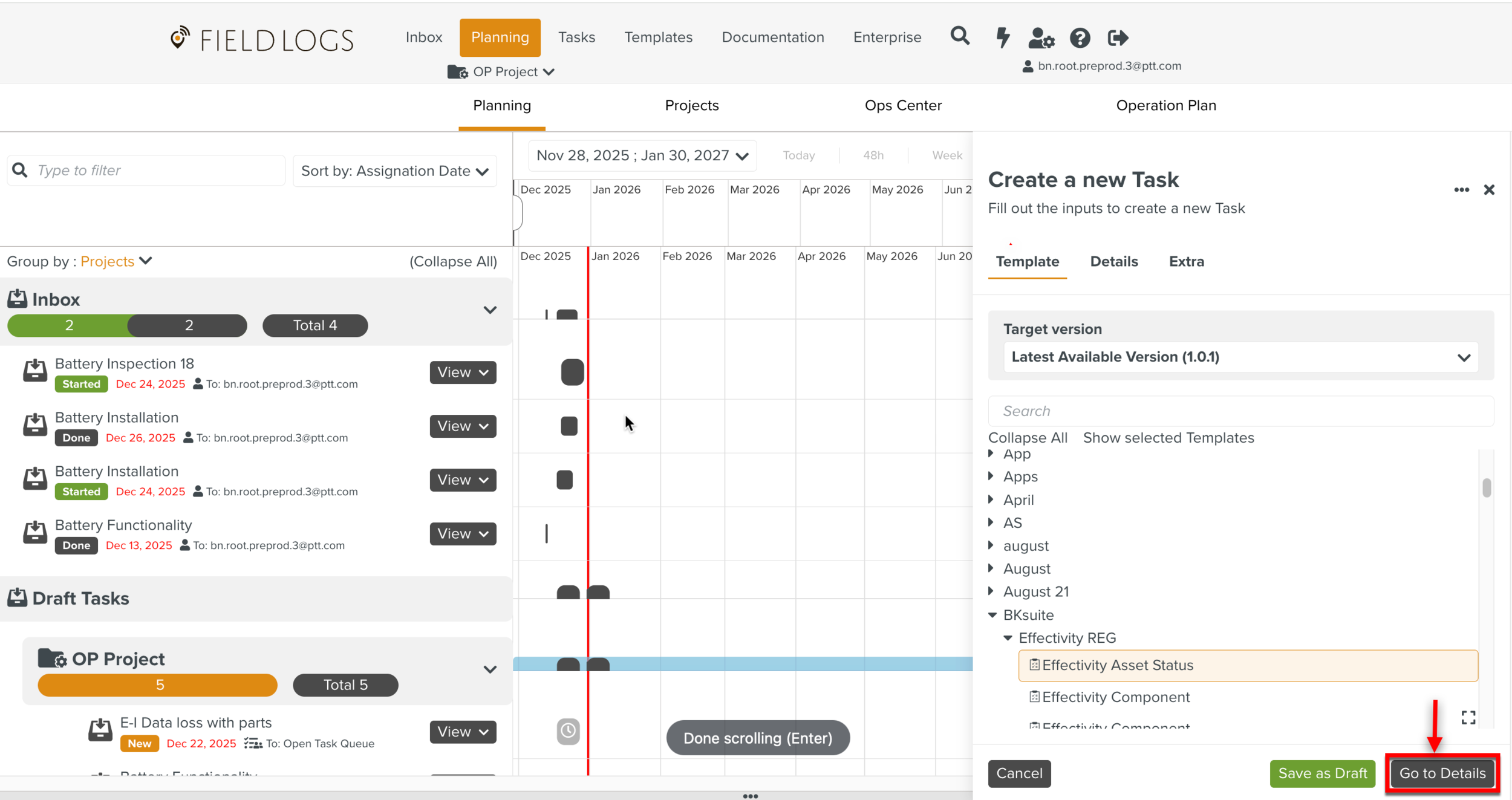
Select a Template from the list of Templates as shown below.
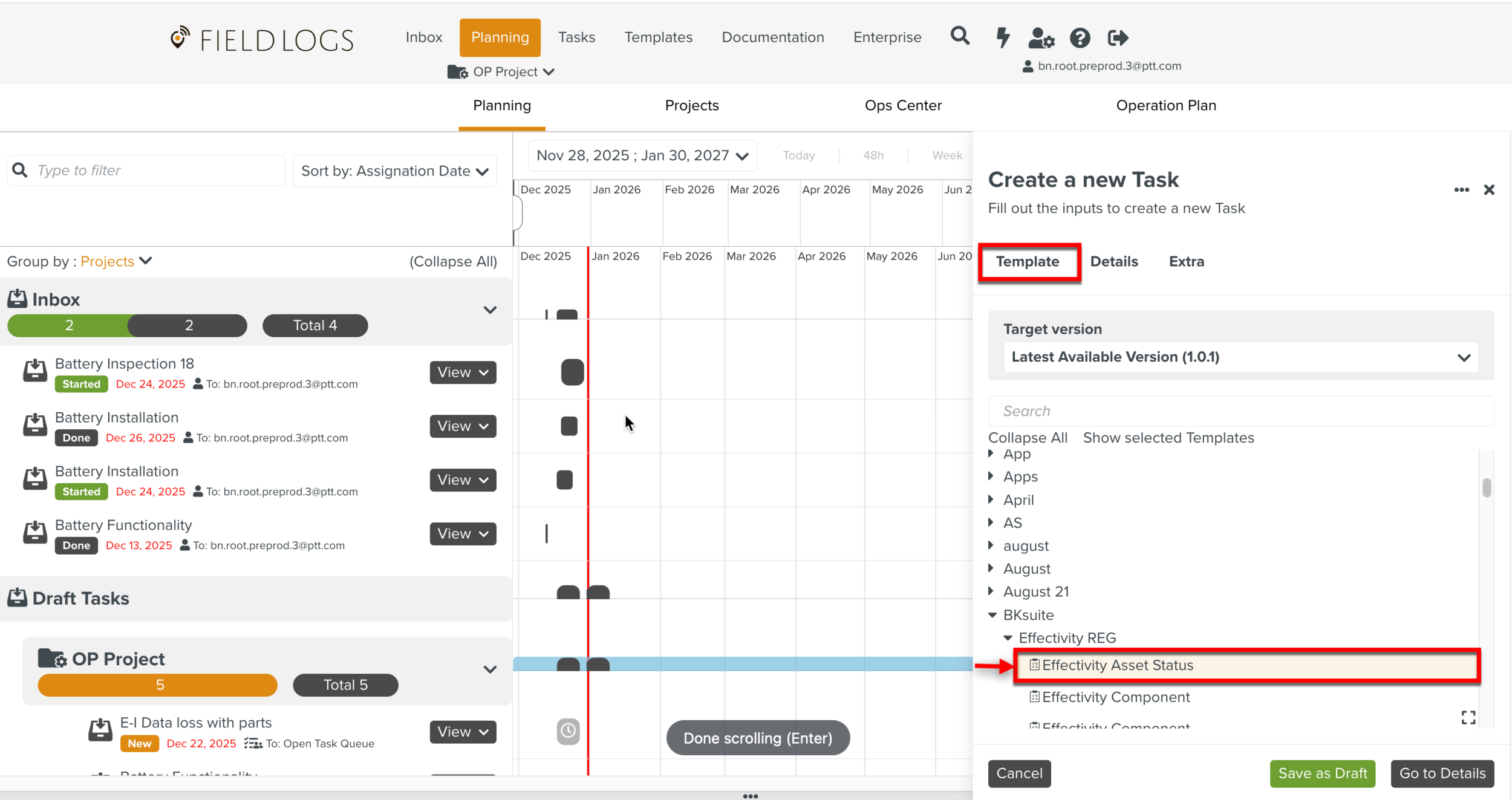
[Optional] Select the required Template version from the Target version dropdown. By default, the latest available version is selected.
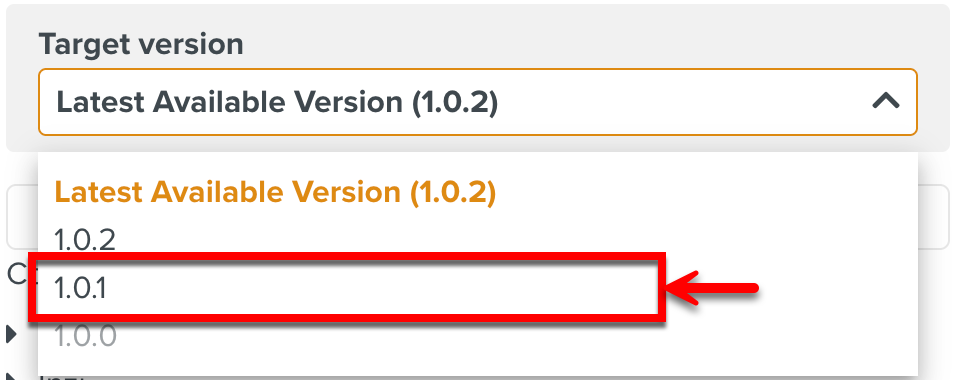
The unavailable versions of the Template are disabled and cannot be selected.
Click .
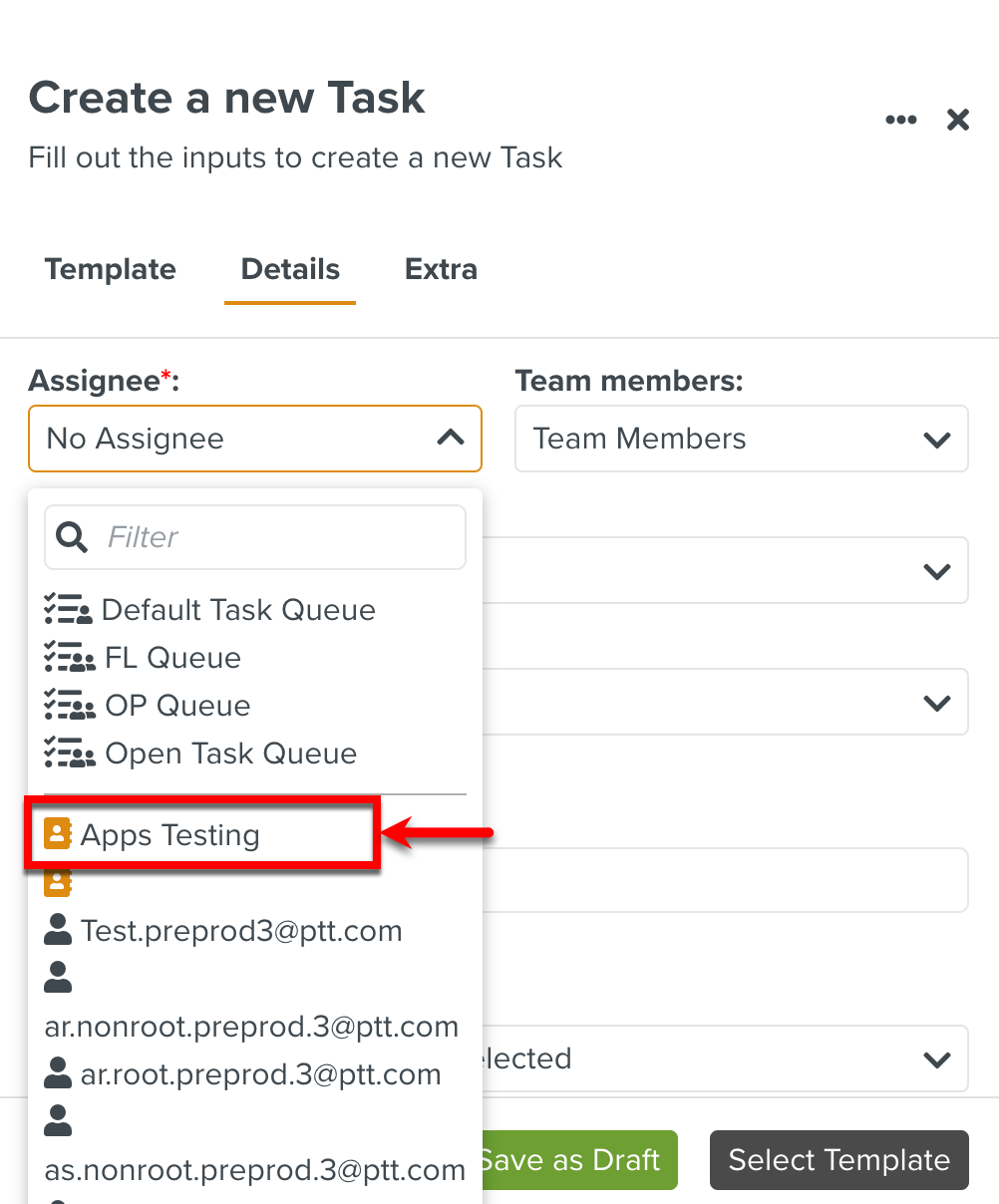
Select the Team from the list.
The Assignee can also be a Member or a Task Queue.
Note
Orange Teams are Public. Blue Teams are Private.
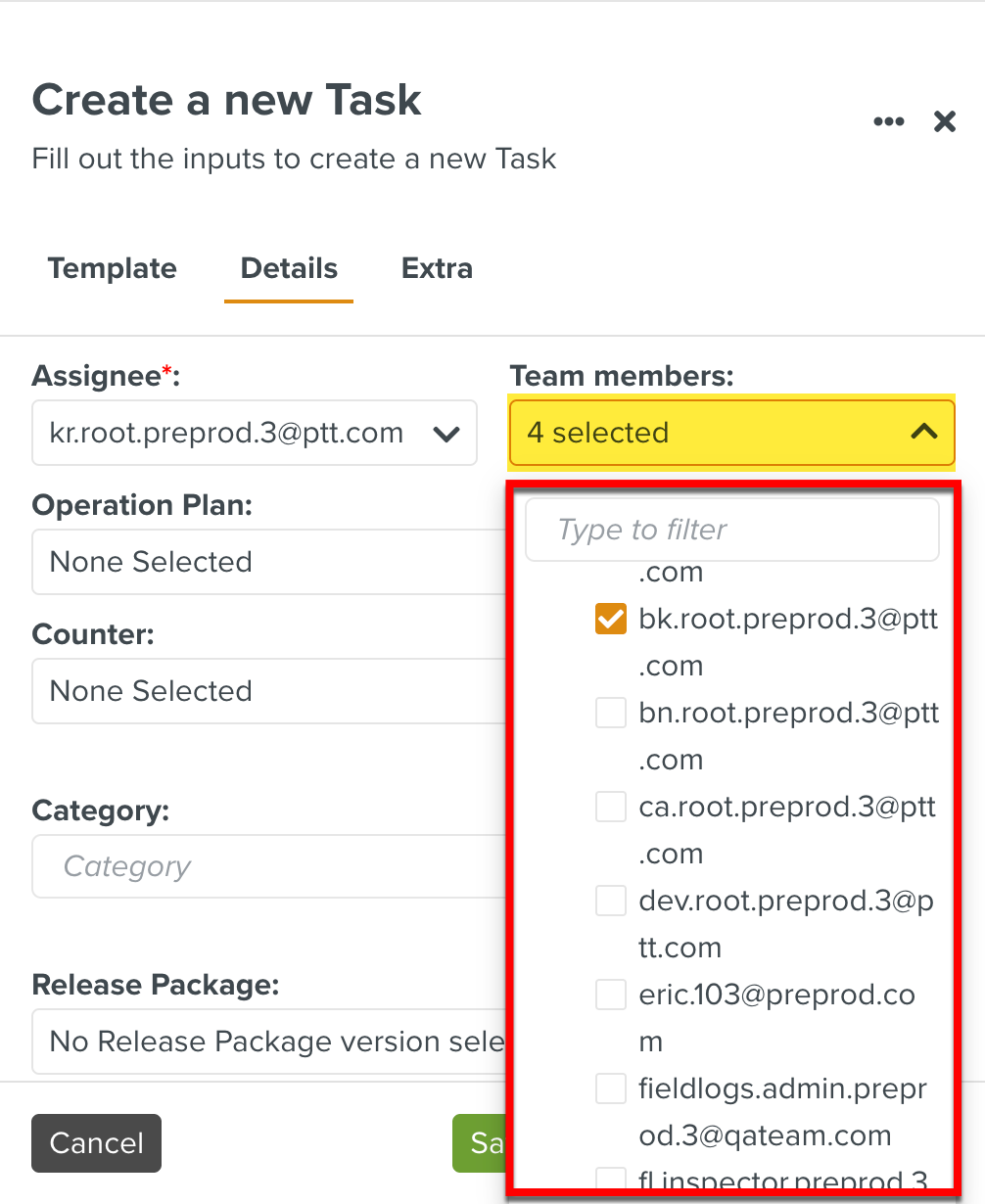
Whenever you select a Team, the Team Members associated with that Team will be selected by default.
[Optional] If required, you can modify the Team members selection in the dropdown list.
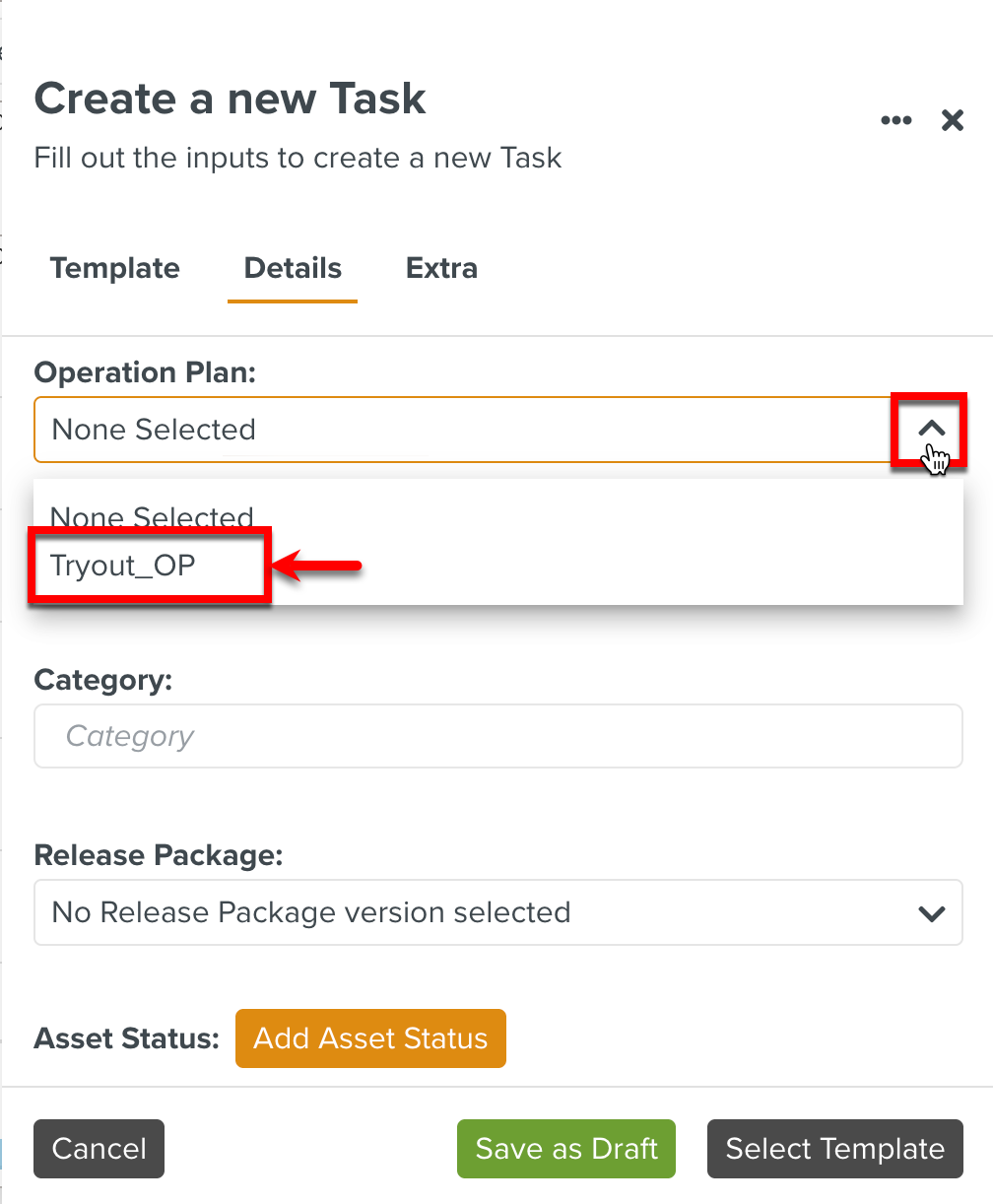
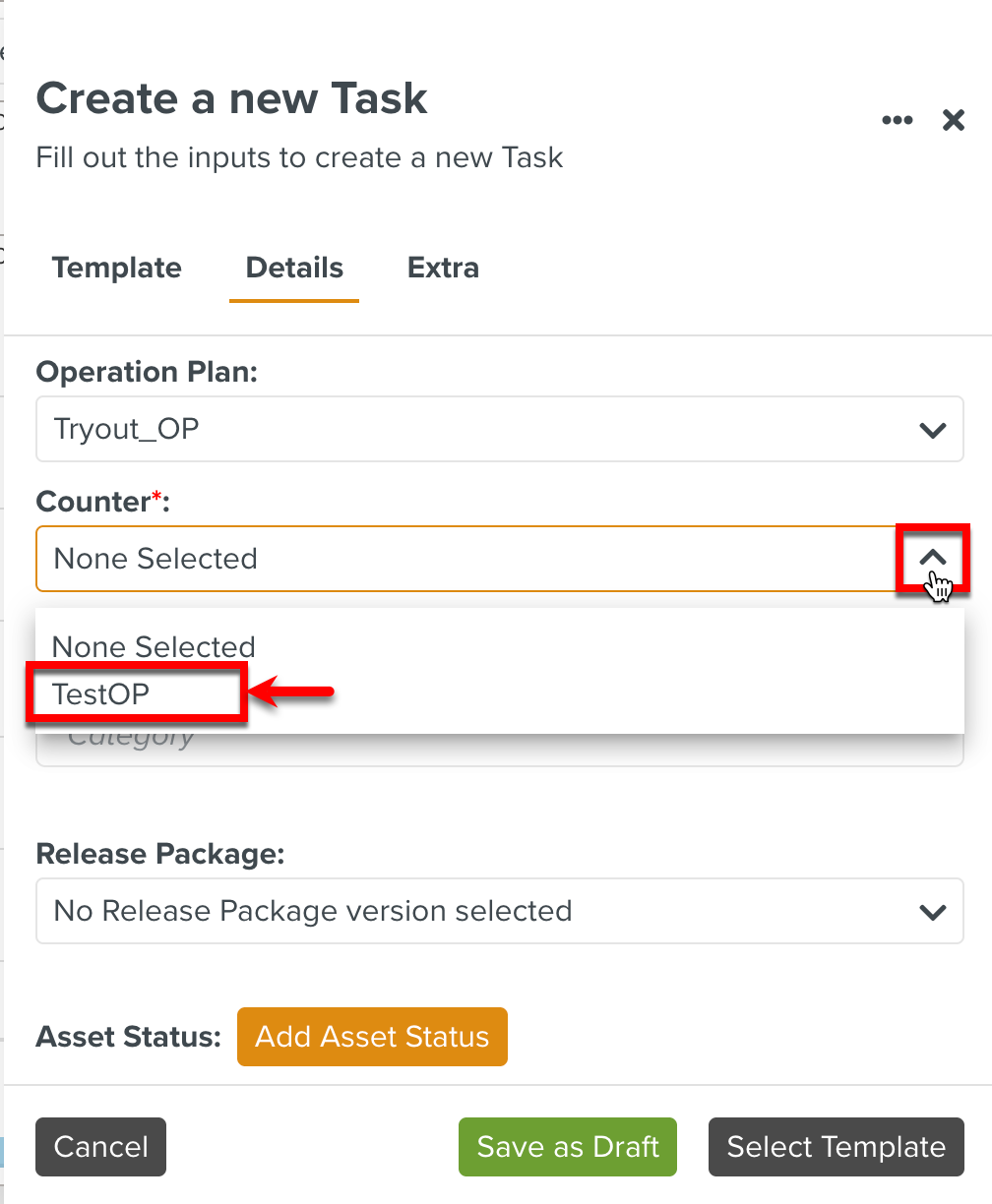
[Optional] Select an active Operation Plan and Counter to add this Task.
Caution
You cannot add Tasks to the following types of Operation Plans:
With Event Triggers of type Task Progress, Multiple Task Done, and Measure Point.
With Use JS Scripting option enabled.
[Optional] Add a Category to group the Tasks.
[Optional] Select a version from the dropdown list.
Release packages have Reference Manual versions defined as rules. Choosing a specific Release Package version while Assigning a Task places an execution constraint that ensures that a particular Reference Manual version is used.
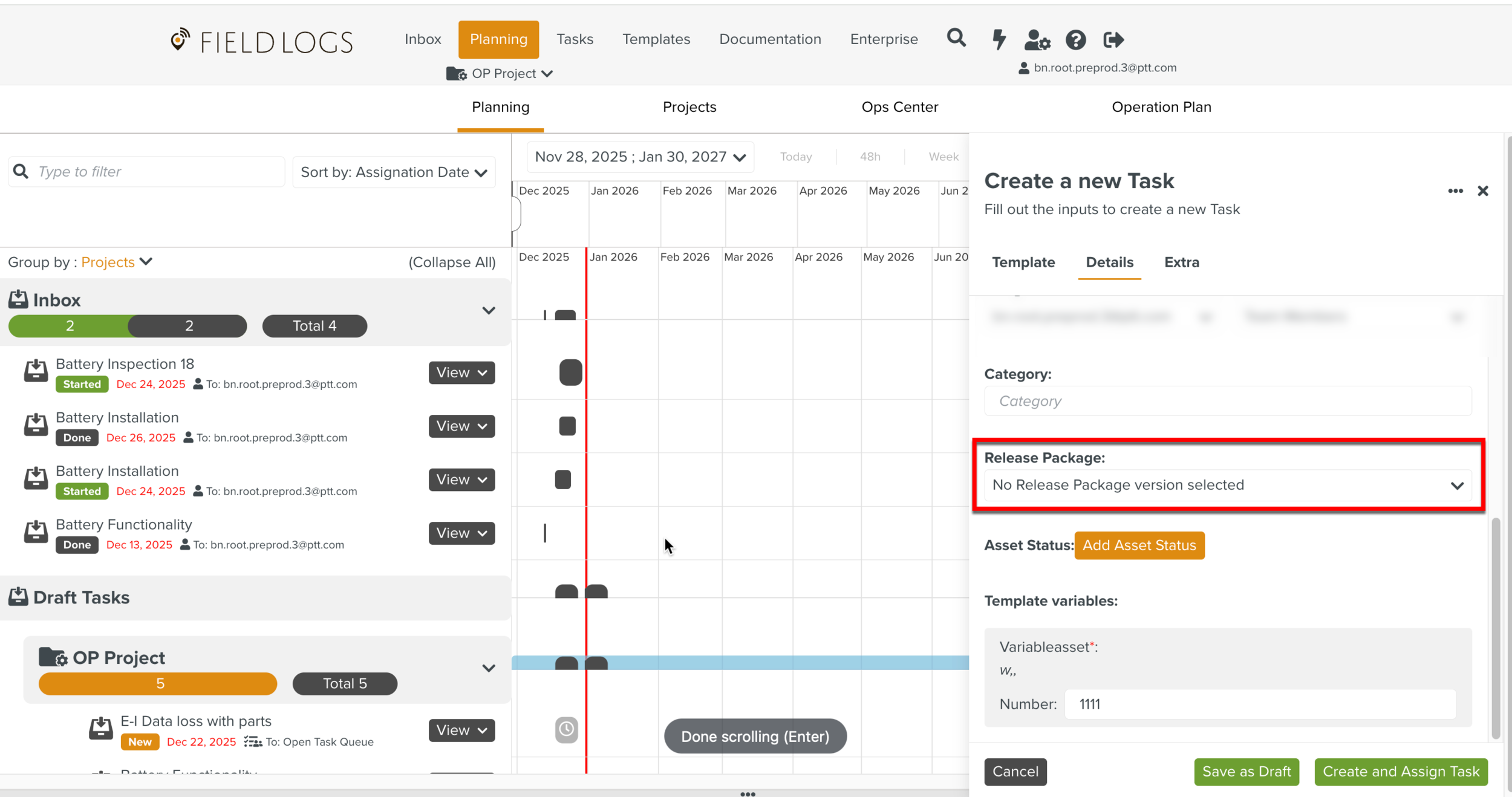
When the Release Package is selected, the Template version to be used is automatically selected based on the Manual linked. If the selected Template version is unavailable, the latest active version from the available versions is selected.
Note
The Release Package selection overrides the Template Target version selected in the Template section mentioned in step 4.
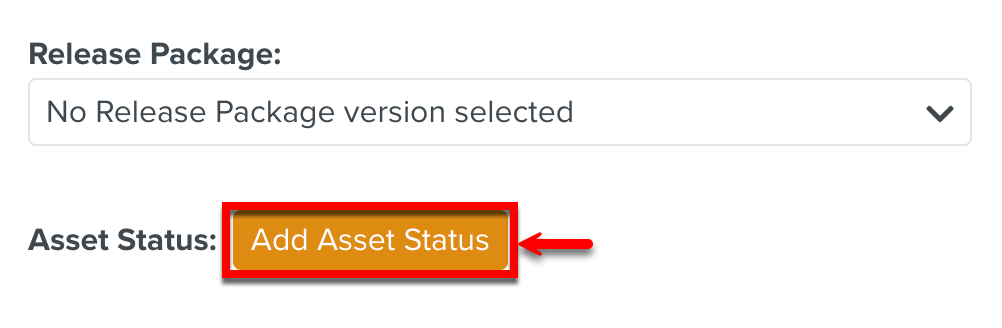
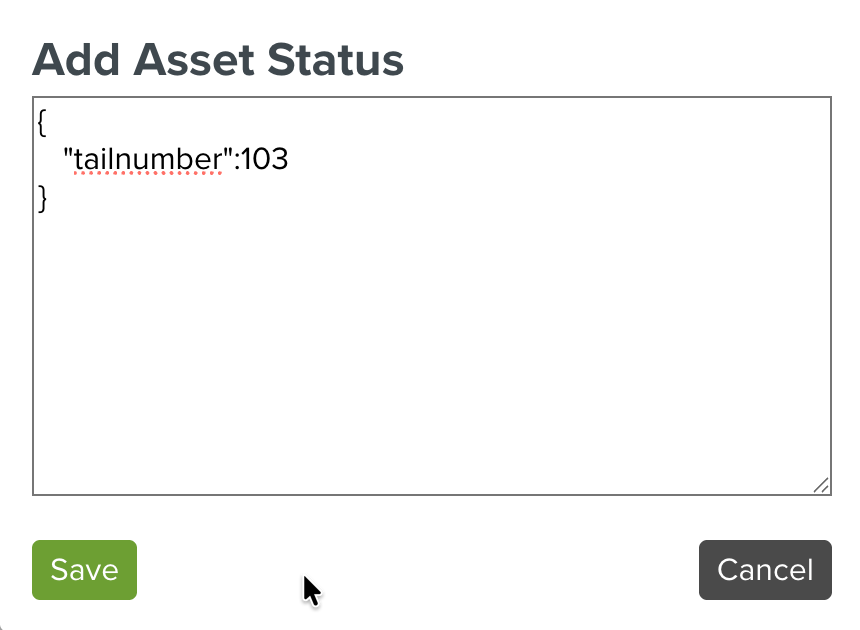
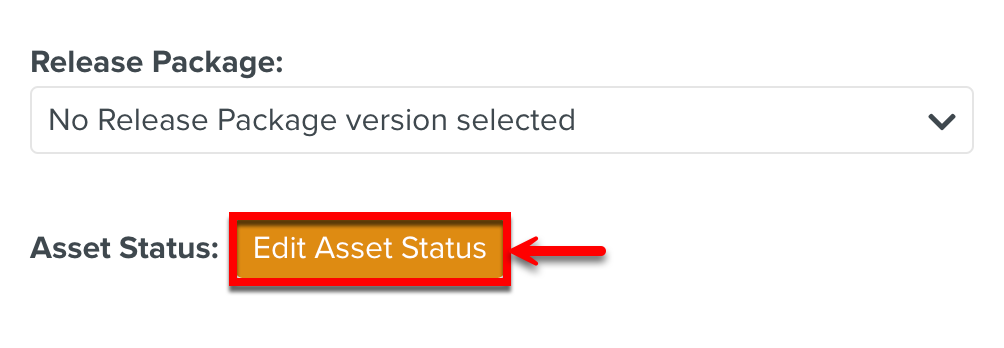
Click to add Effectivity Rules and save it. It is added to the Task as a variable of type FLAssetStatus.
Warning
The field supports only Json format.
To edit the values use the button.
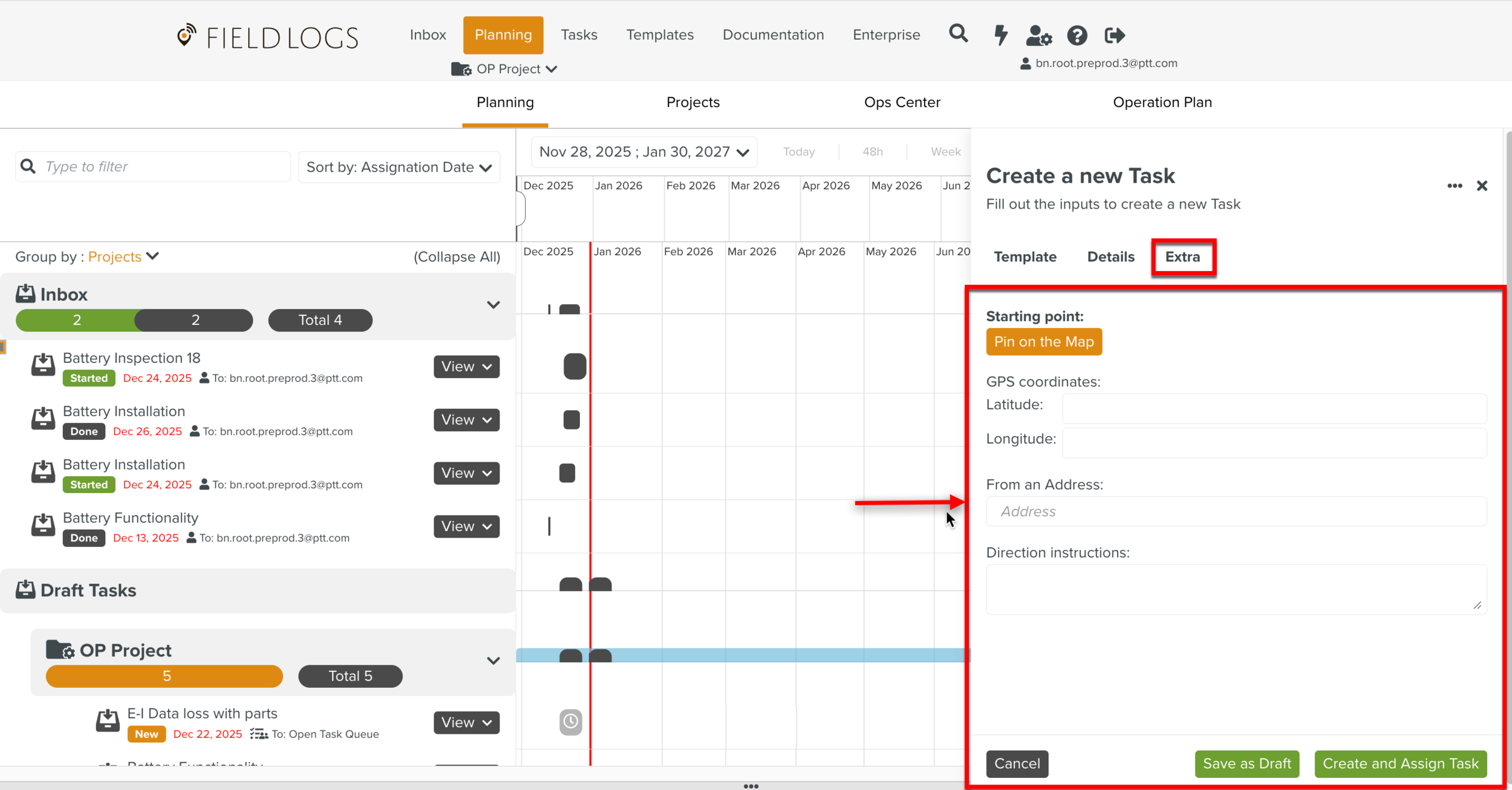
[Optional] Click to fill in the Starting point.
The Starting point shows the pin on the map for GPS purposes.
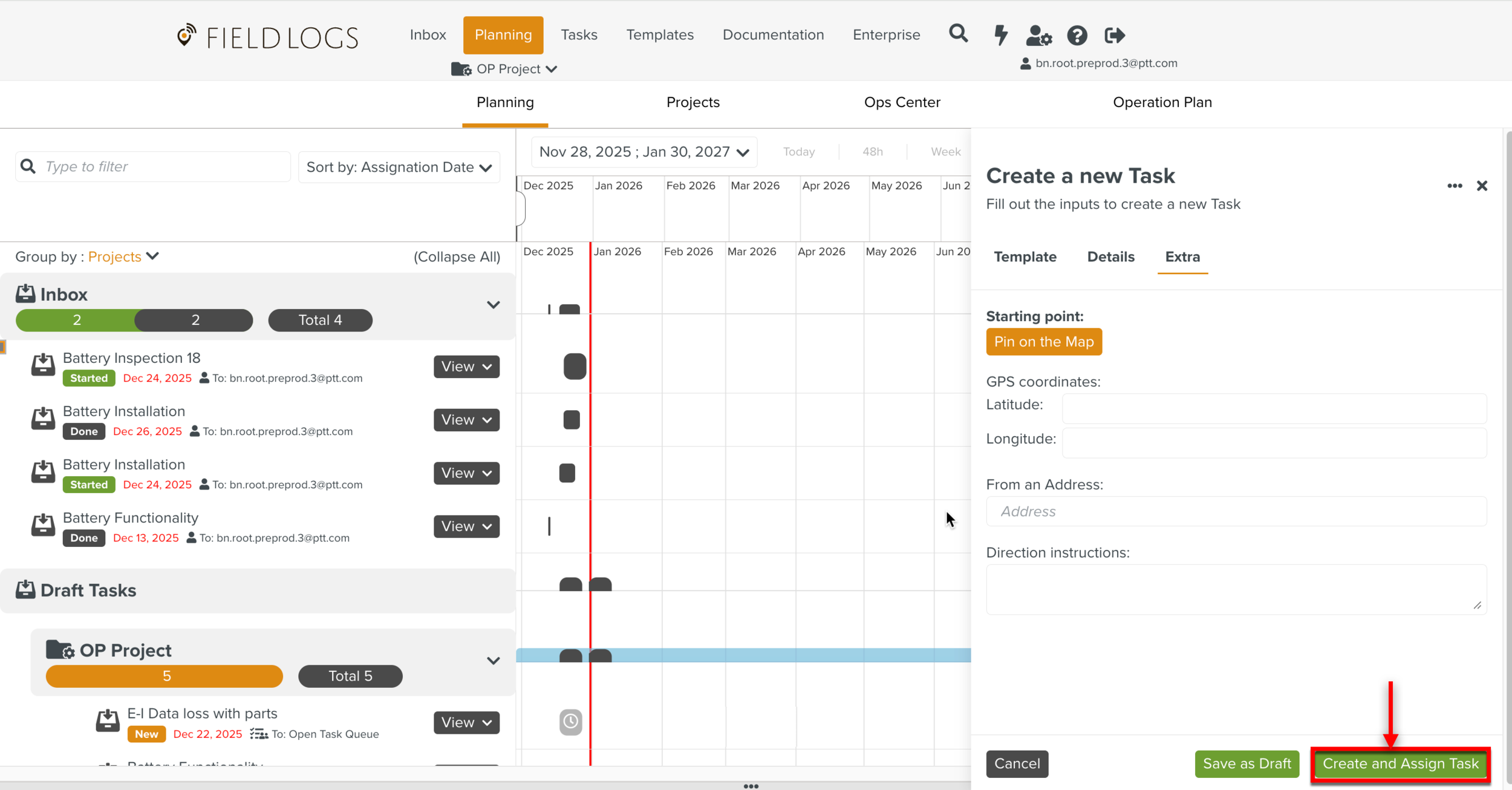
Click .
Warning
If all the versions of the selected Template are unavailable, the button is greyed out.
The Assignment is created and assigned to the selected Team.