Creating a Case Definition
A Case is a type of Incident that can be raised from a Template or Template Step. Cases can be raised from published Templates, non-published Templates, and Templates under edition.
A Case definition determines the structure of a Case. Cases are used to capture and resolve issues related to Templates. Every Case must be defined by the administrators using the page Incident Definition.
Note
You must have the appropriate access rights to create a Case Definition.
You can create a Case Definition to configure the Case structure, context and resolution process.
To create a new Case Definition:
On the main menu, go to Enterprise > Flagging & More > Incident Definition.
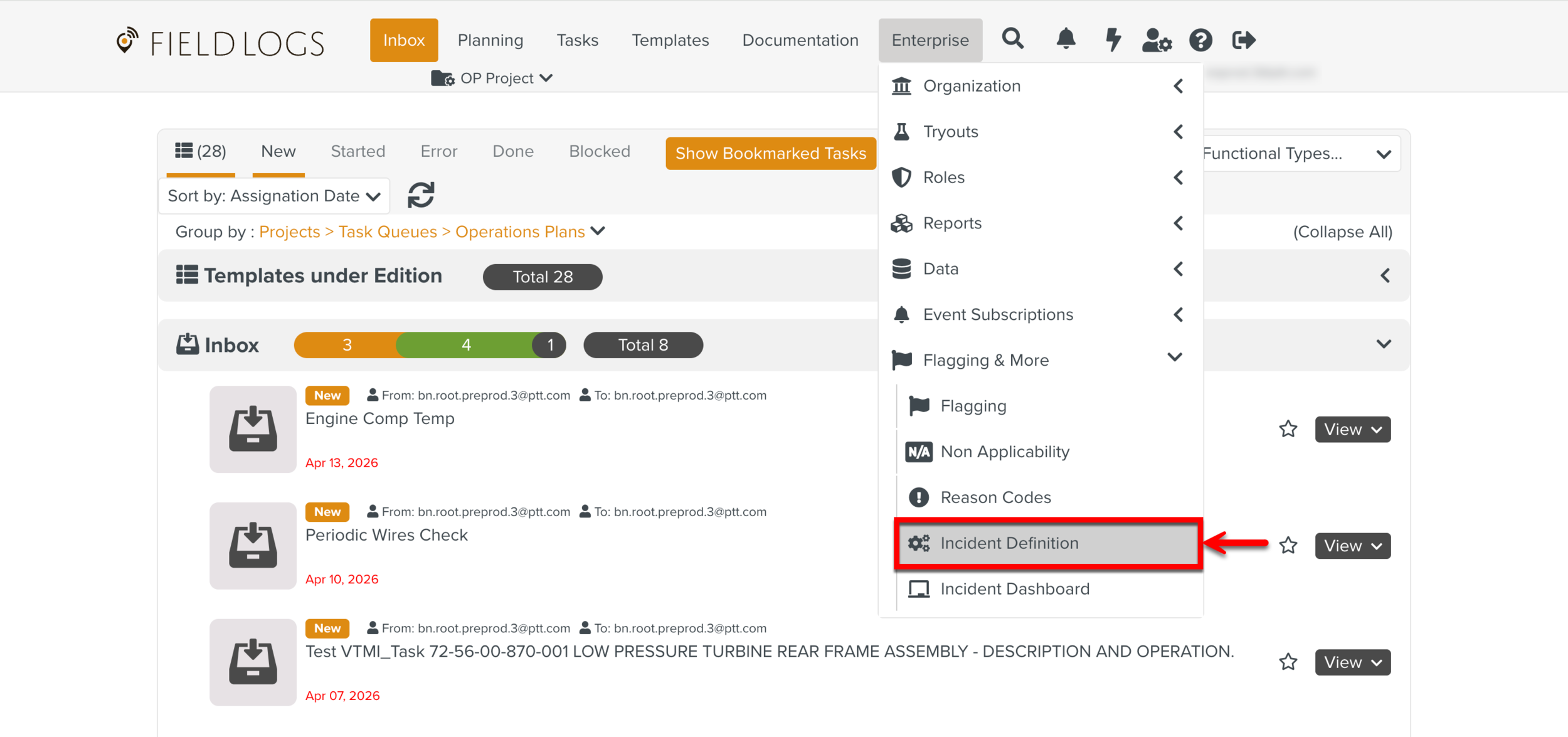
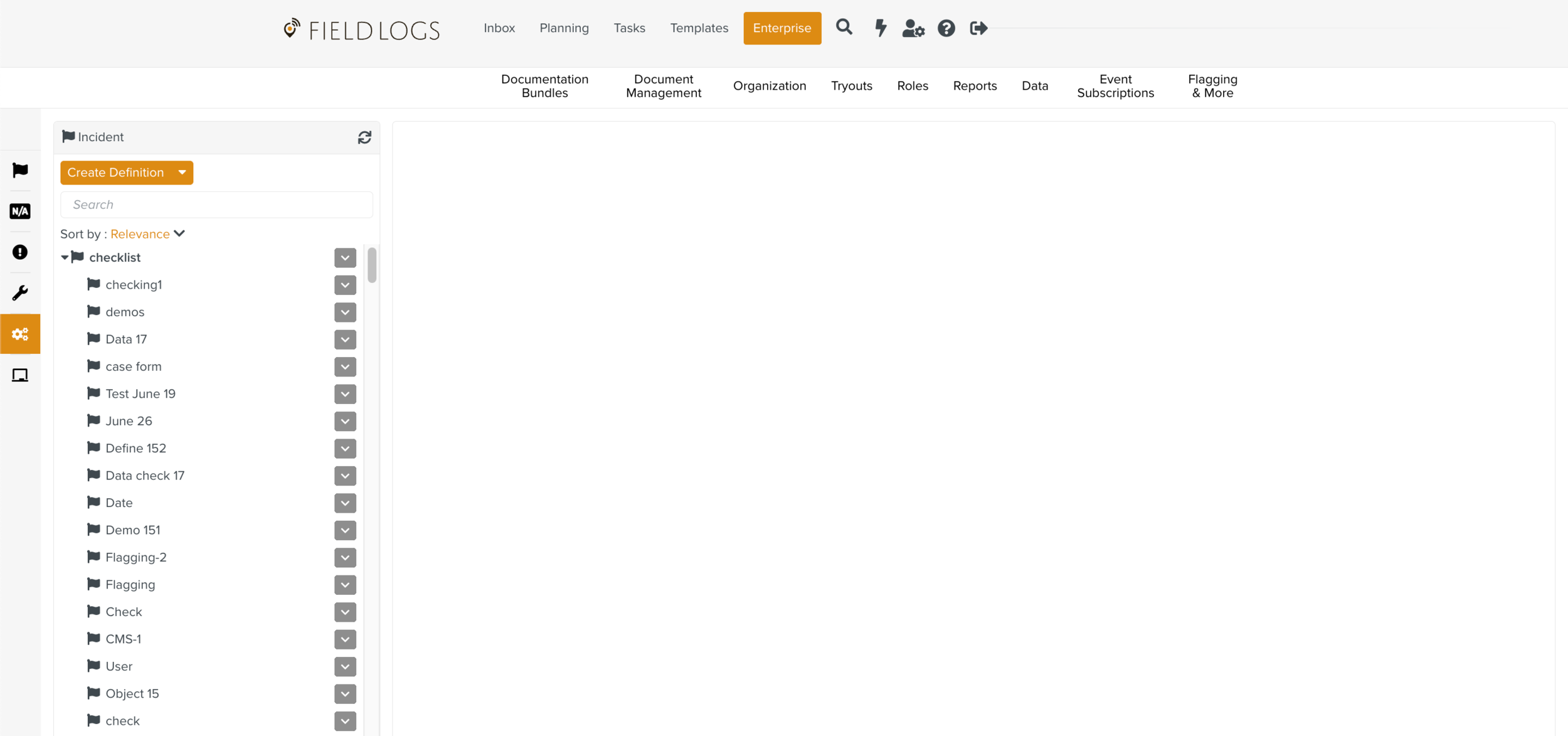
The page Incident Definition opens.
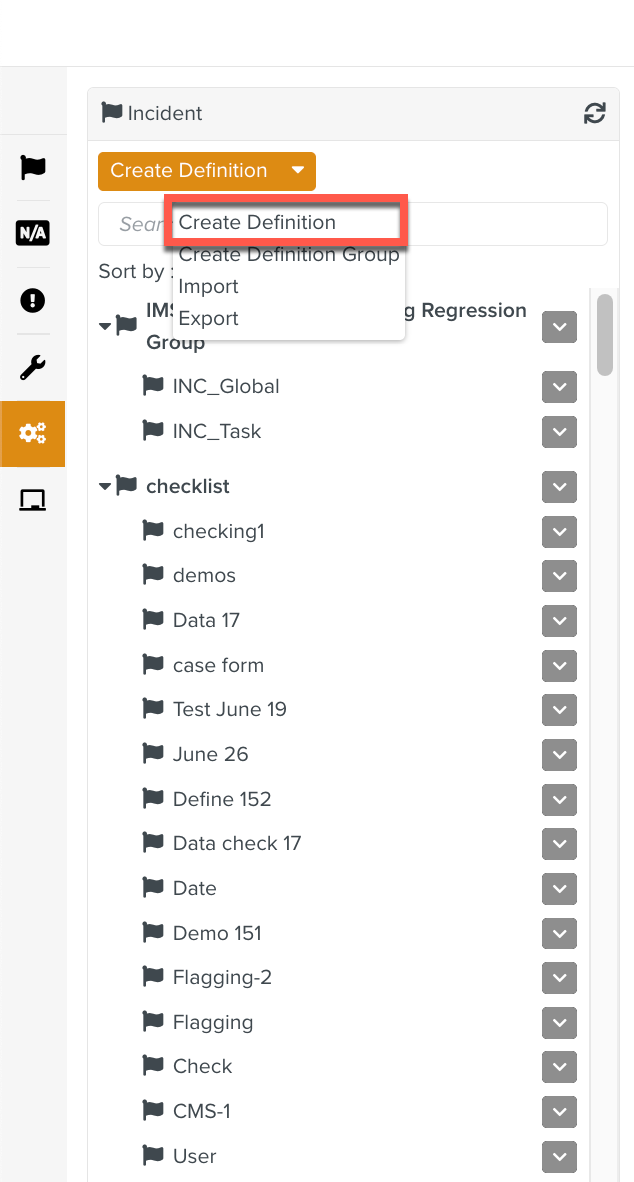
Click .
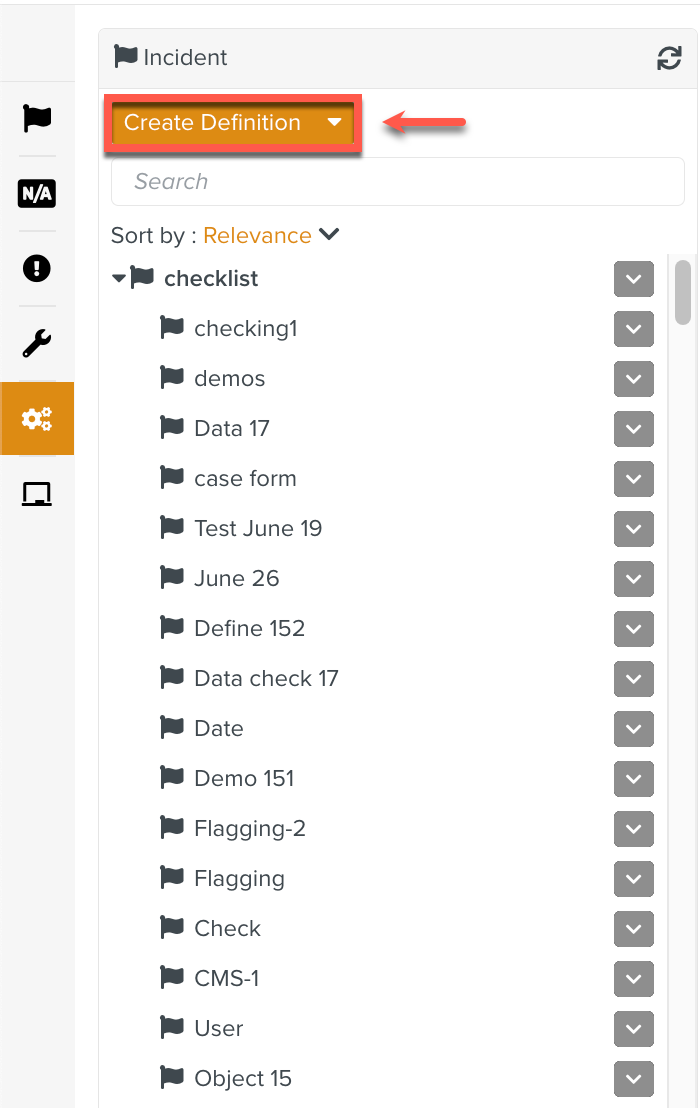
You can also expand the dropdown to select the Create Definition option.
The page Create Definition opens.
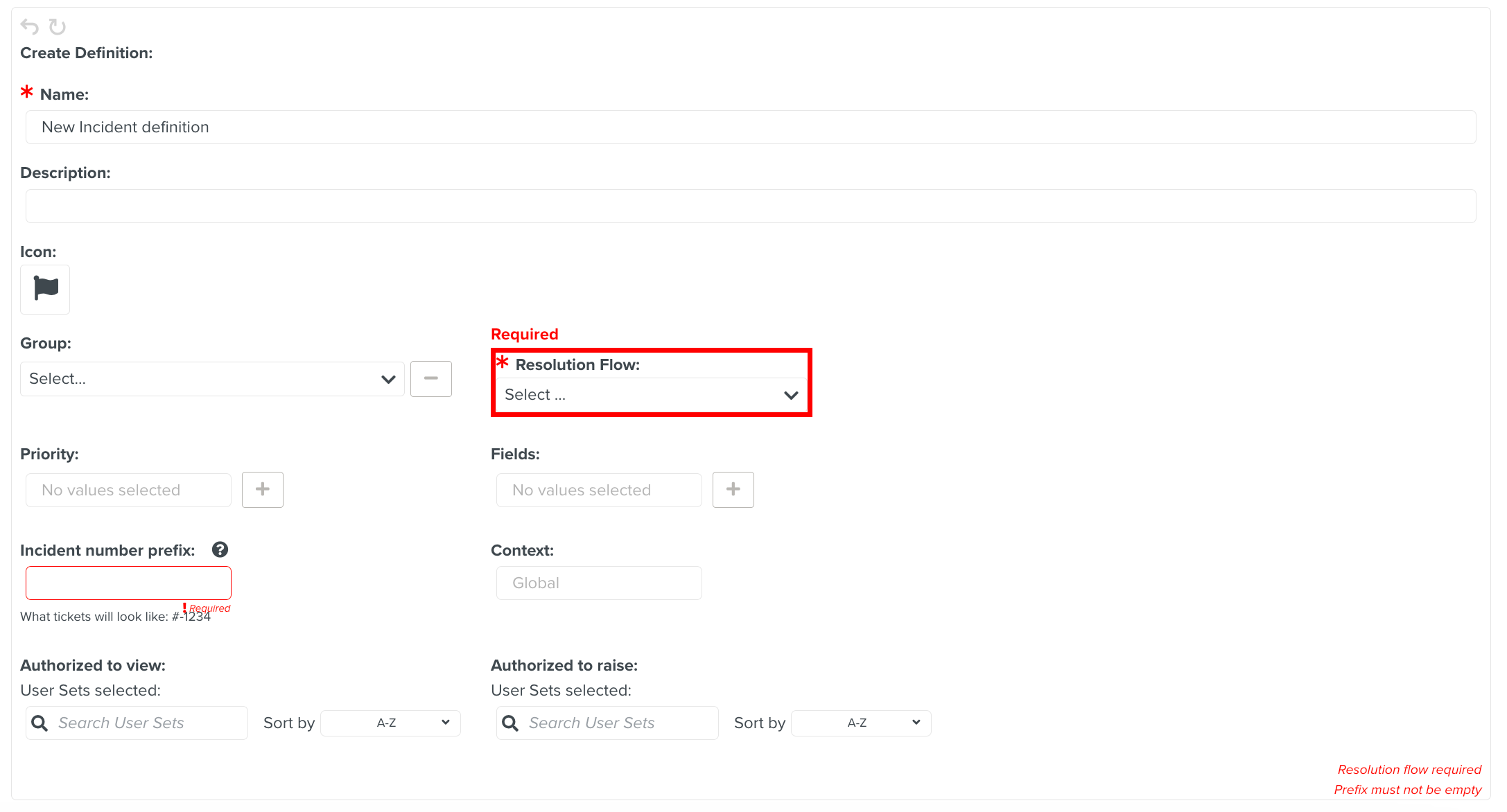
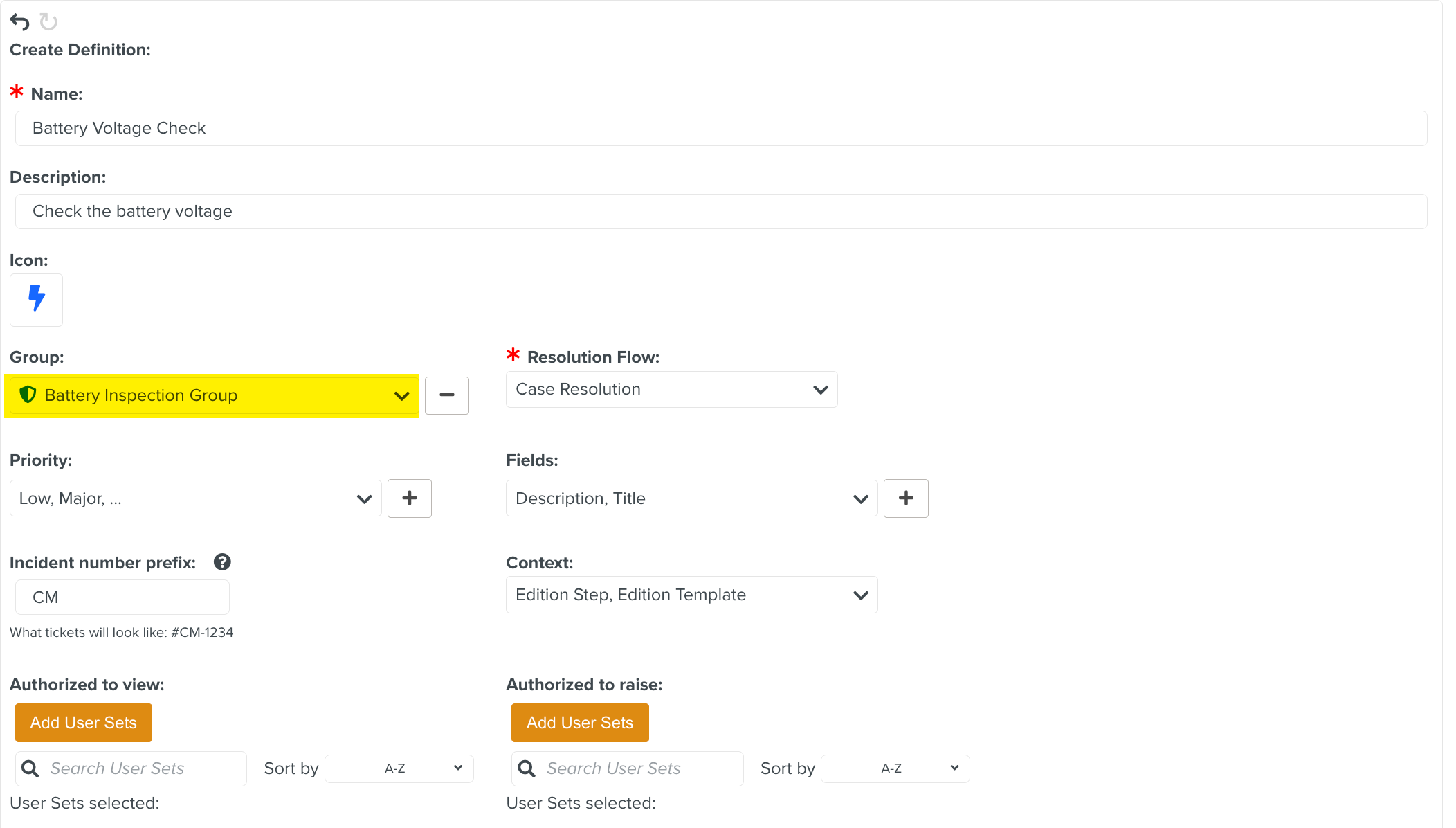
[Mandatory] Enter a Name.
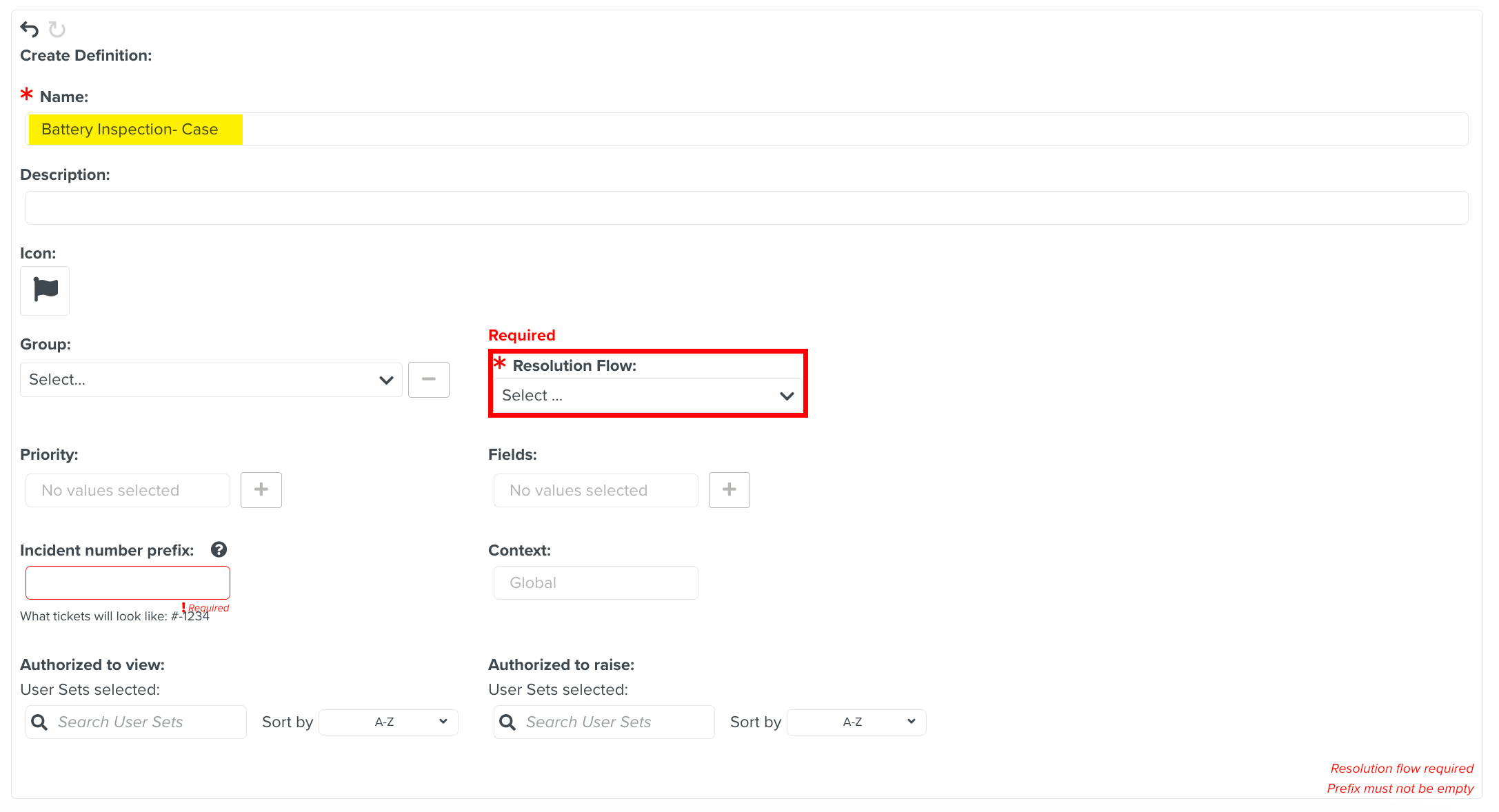
[Optional] Enter Description.
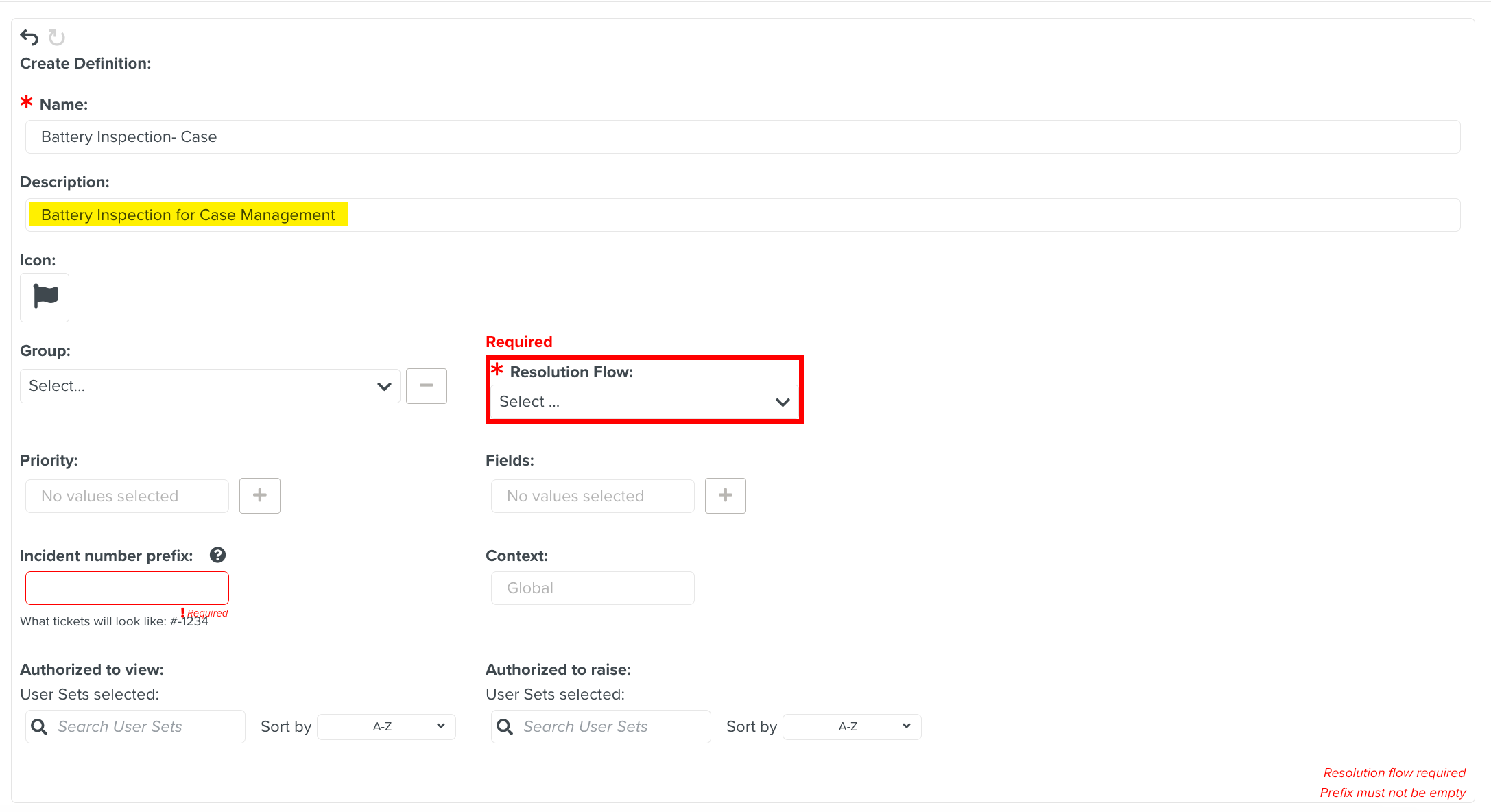
Click
 to select an icon.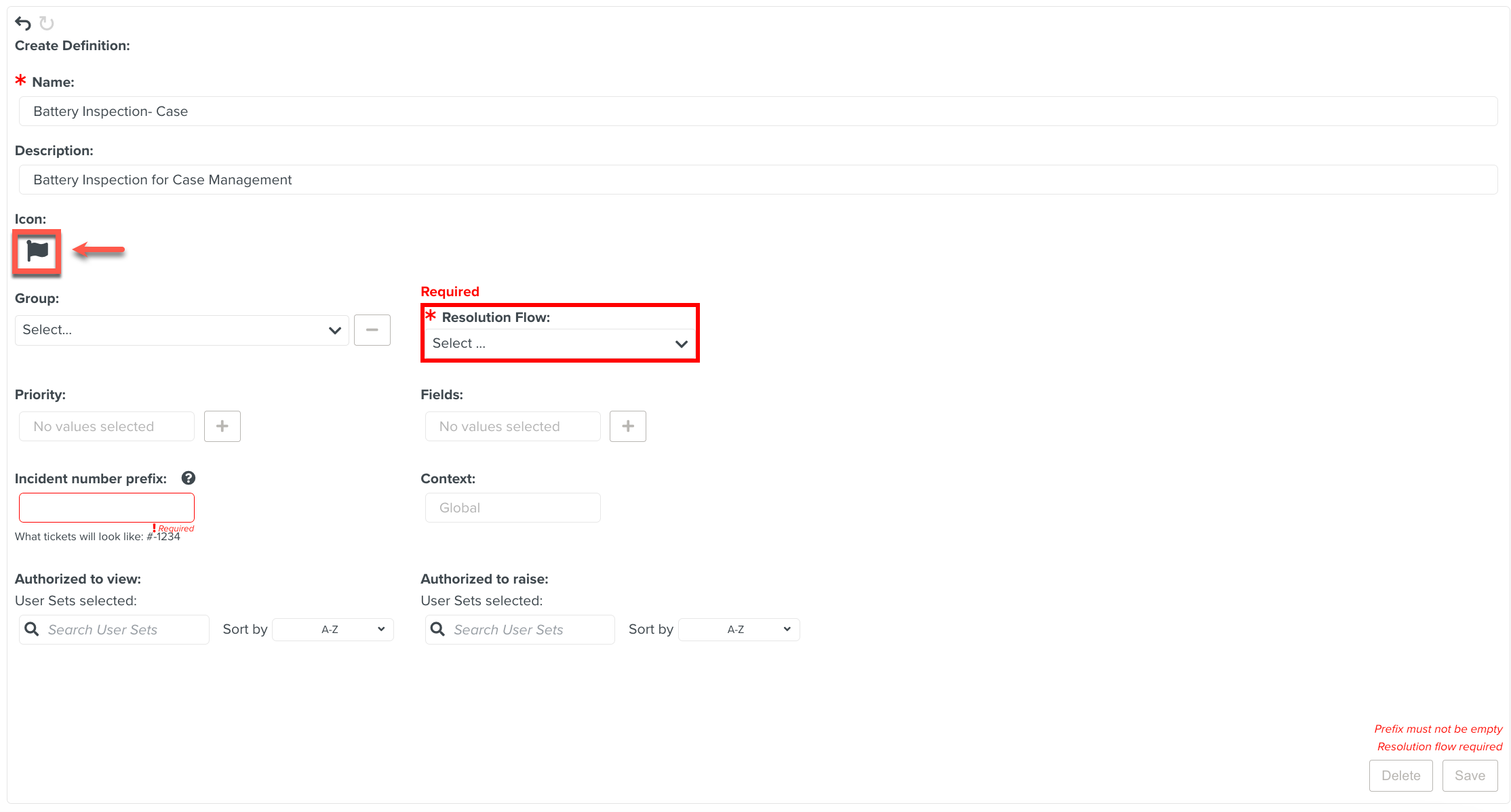
Select an icon from the list or search through the search option as shown below.
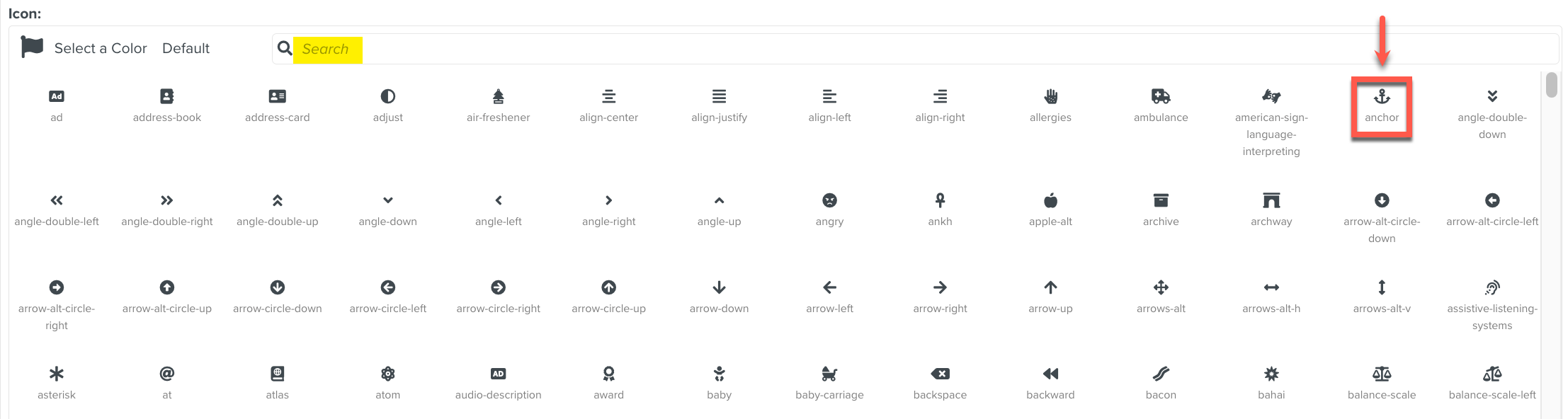
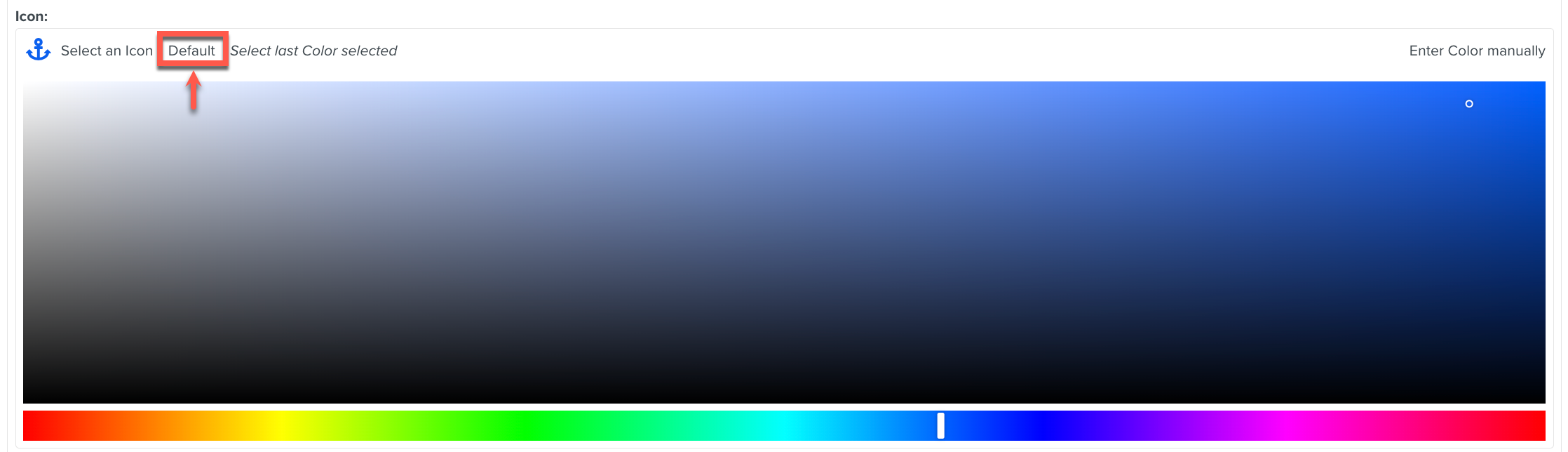
To add color to an icon, click Select a Color.
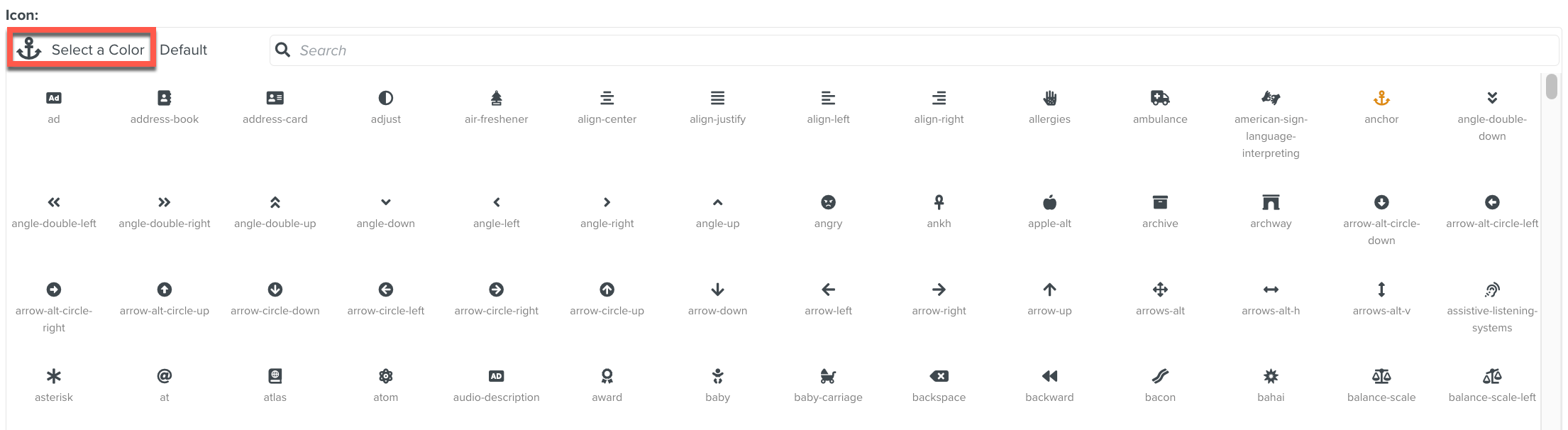
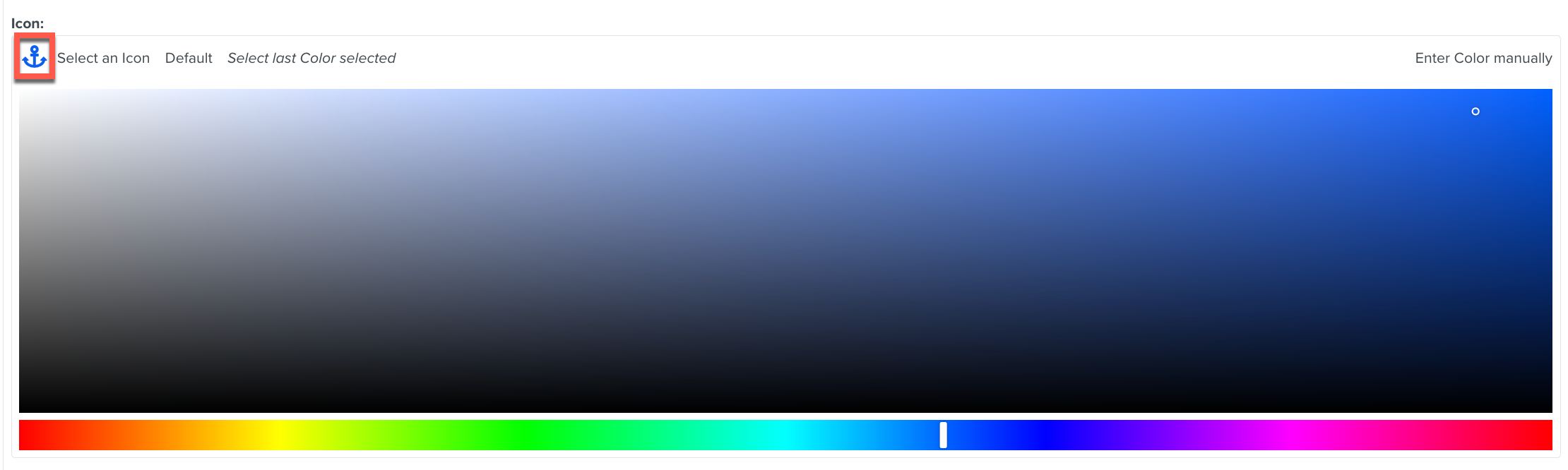
To use the last color selected for an icon, click Select last Color selected.
To select the previous icon, click Default.
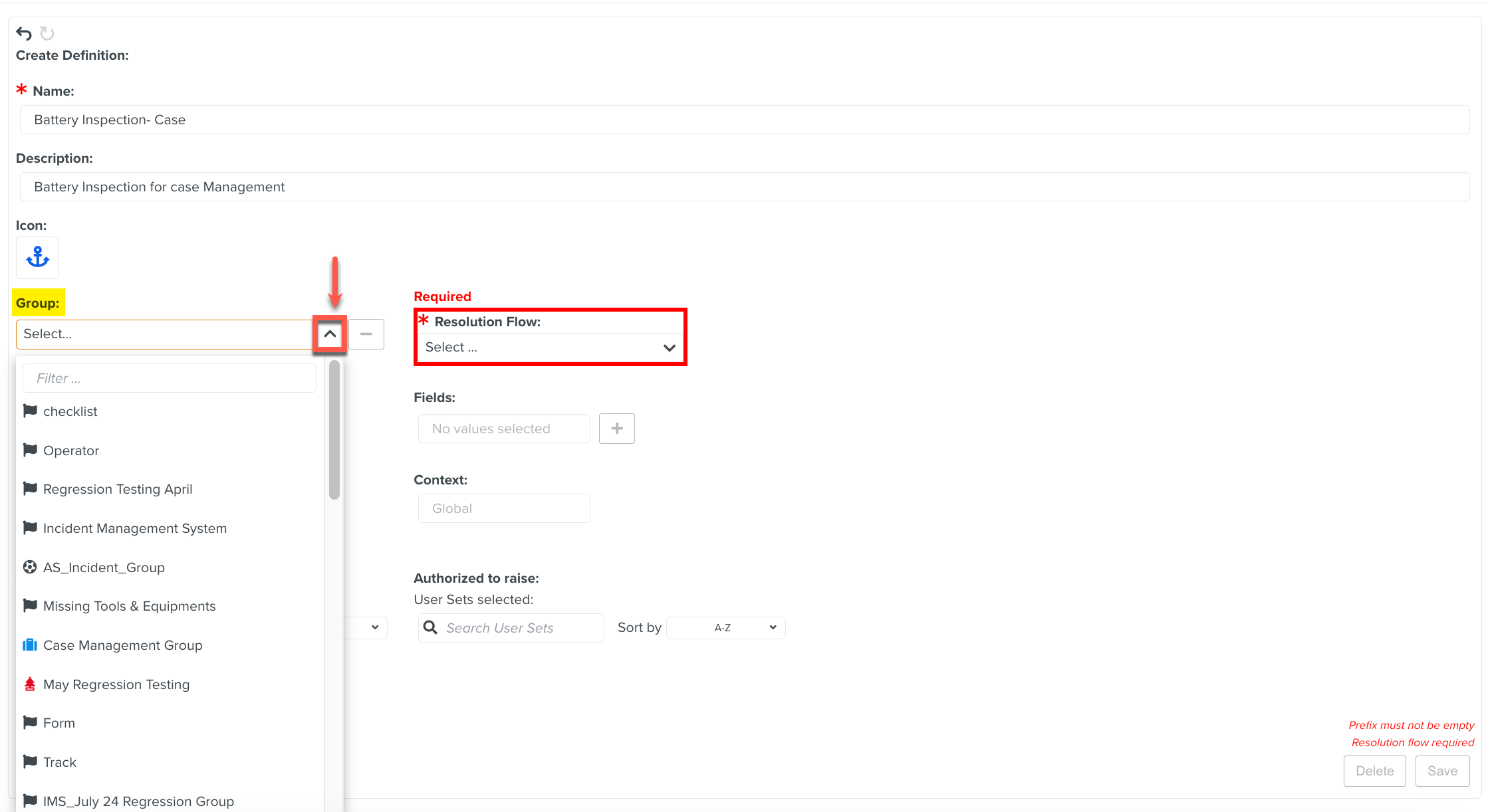
Select a Group from the dropdown list as shown below.
The Group is used to logically group related Case Definitions.
[Mandatory] Select an appropriate Lifecycle from the Resolution Flow dropdown list.
Resolution Flow determines how a Case is resolved.
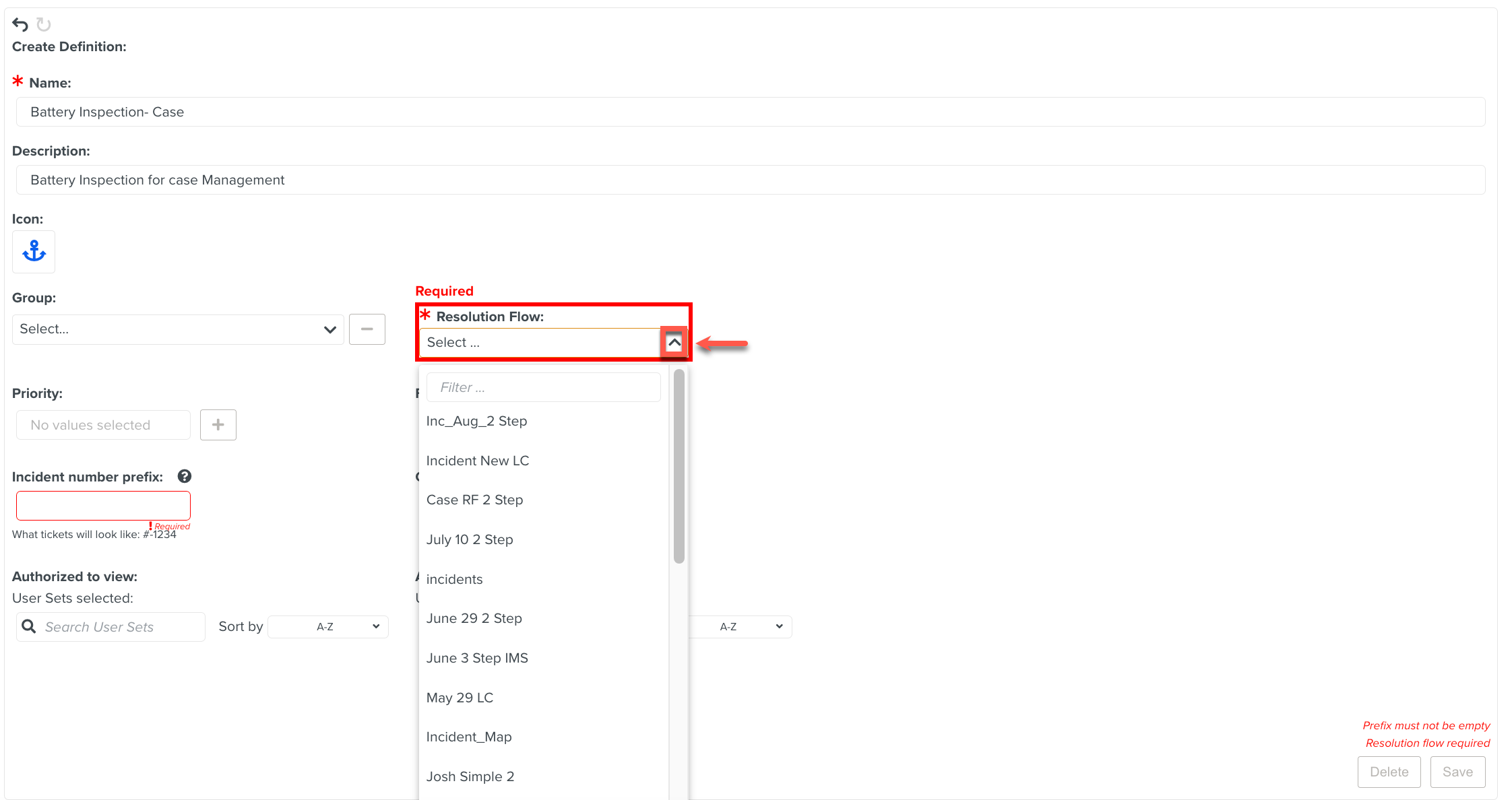
The Custom Lifecycle which is selected as the Resolution Flow is created before defining the Case.
The Priority and Fields can be created once the new Definition is created.

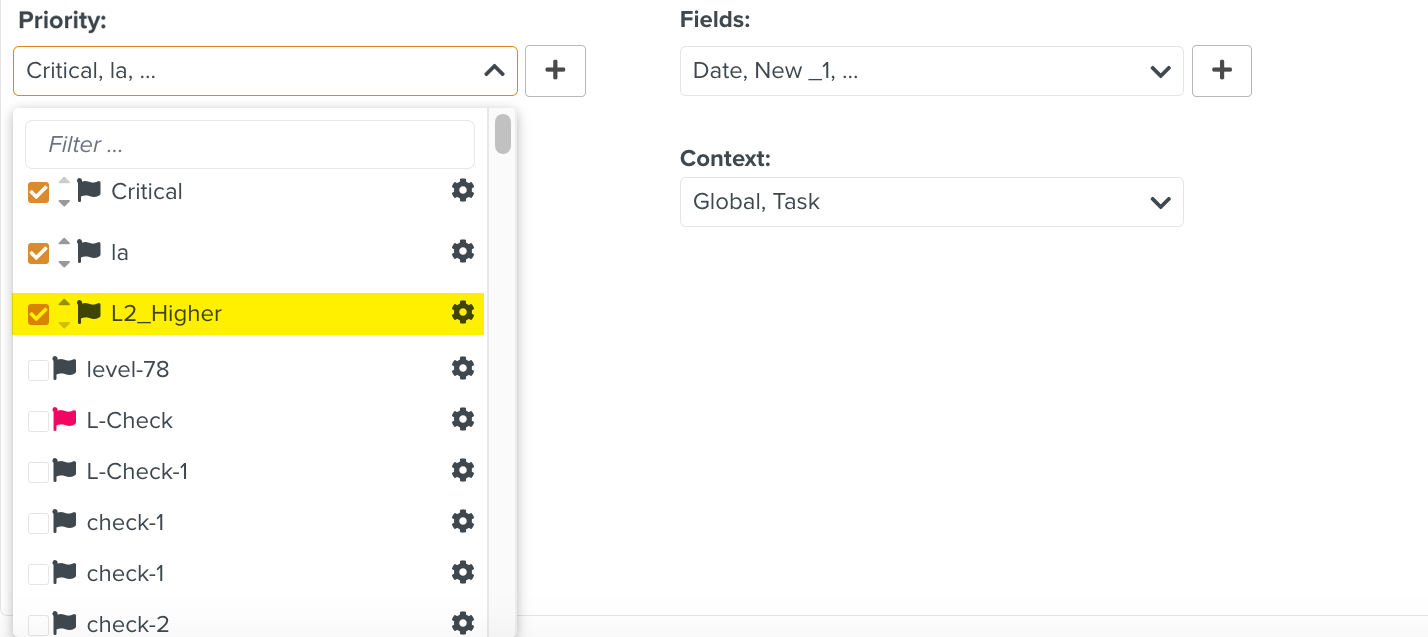
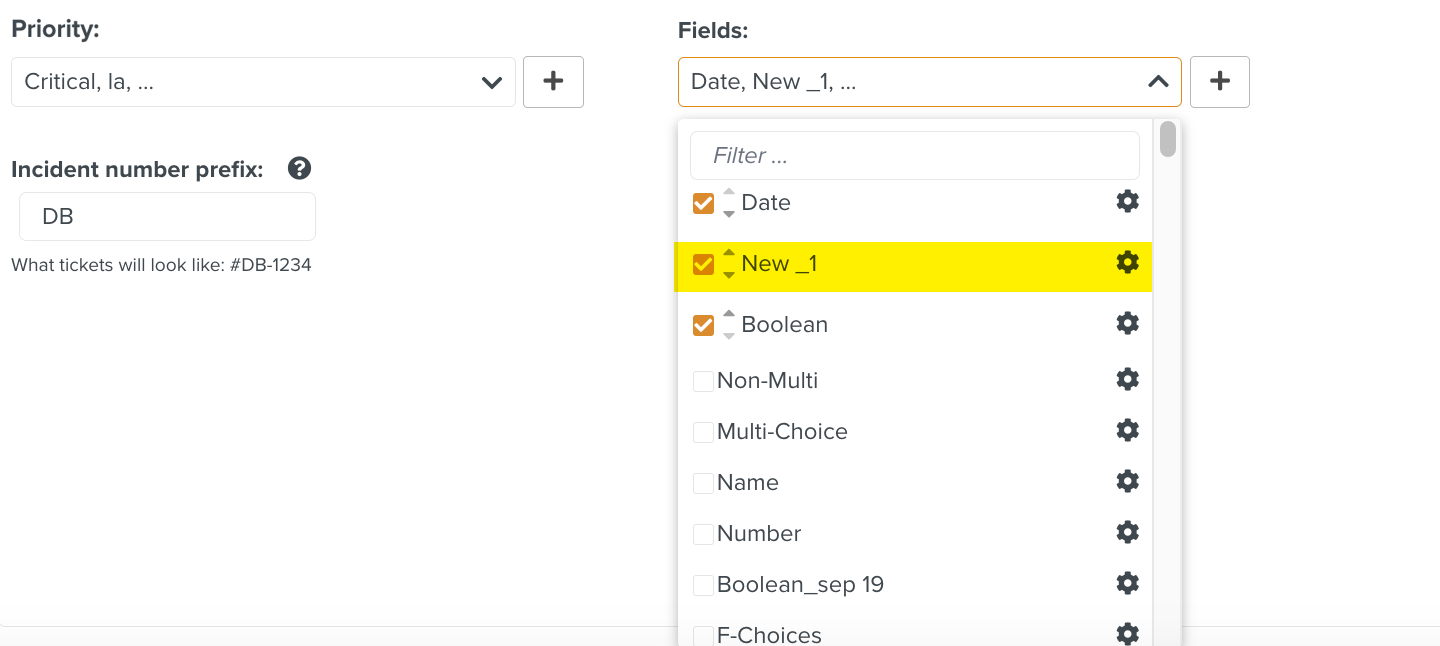
Priority and Fields can be re-ordered. When you select multiple Priority or Fields, use the up and down arrows or drag and drop to reorder the Priority and Fields list.
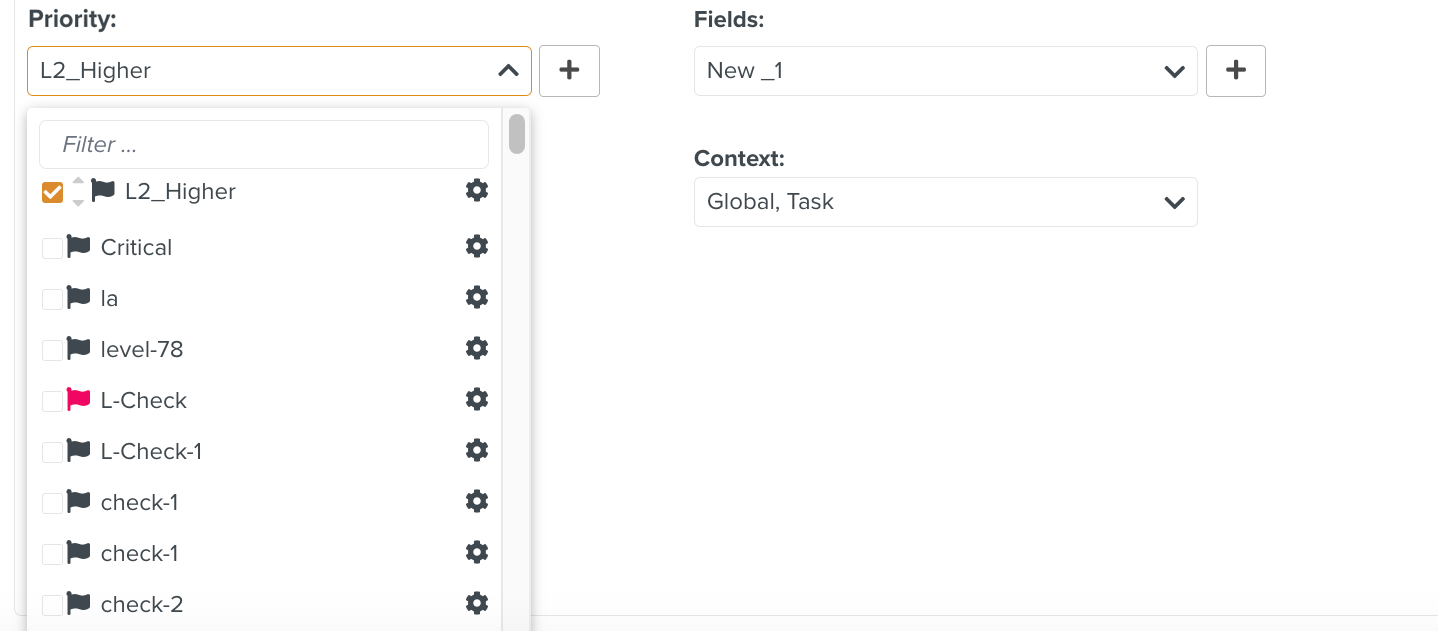
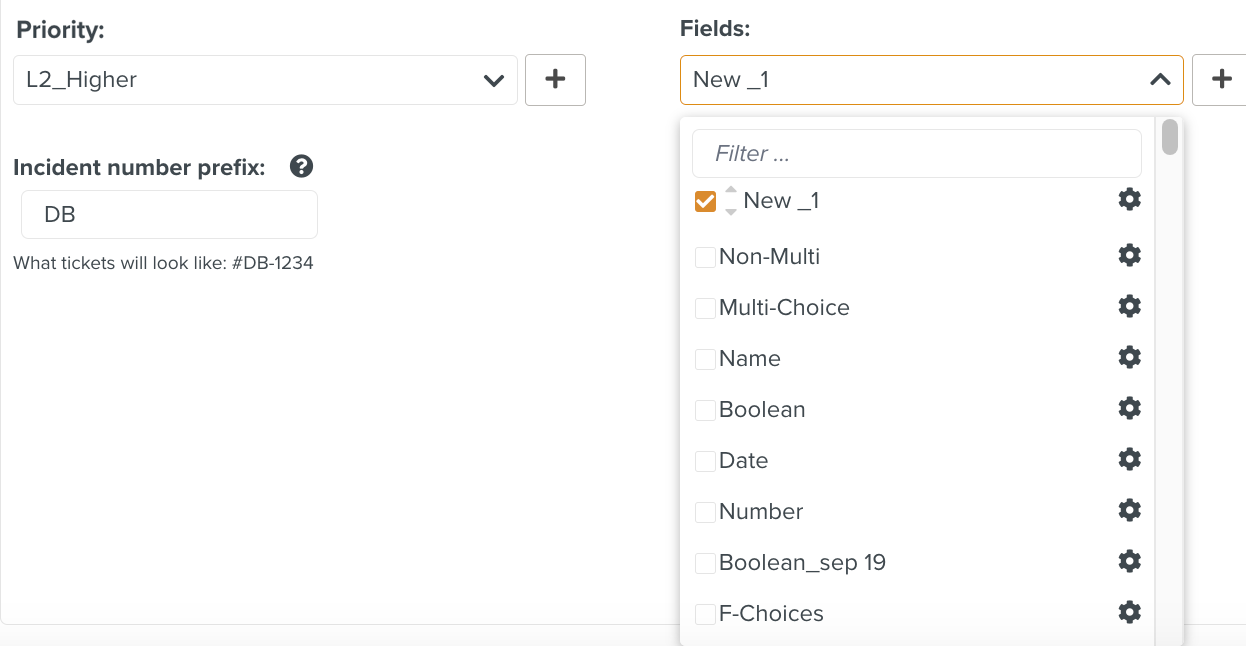
In the example below, Priority L2_Higher and Field New_1 are reordered as highlighted.
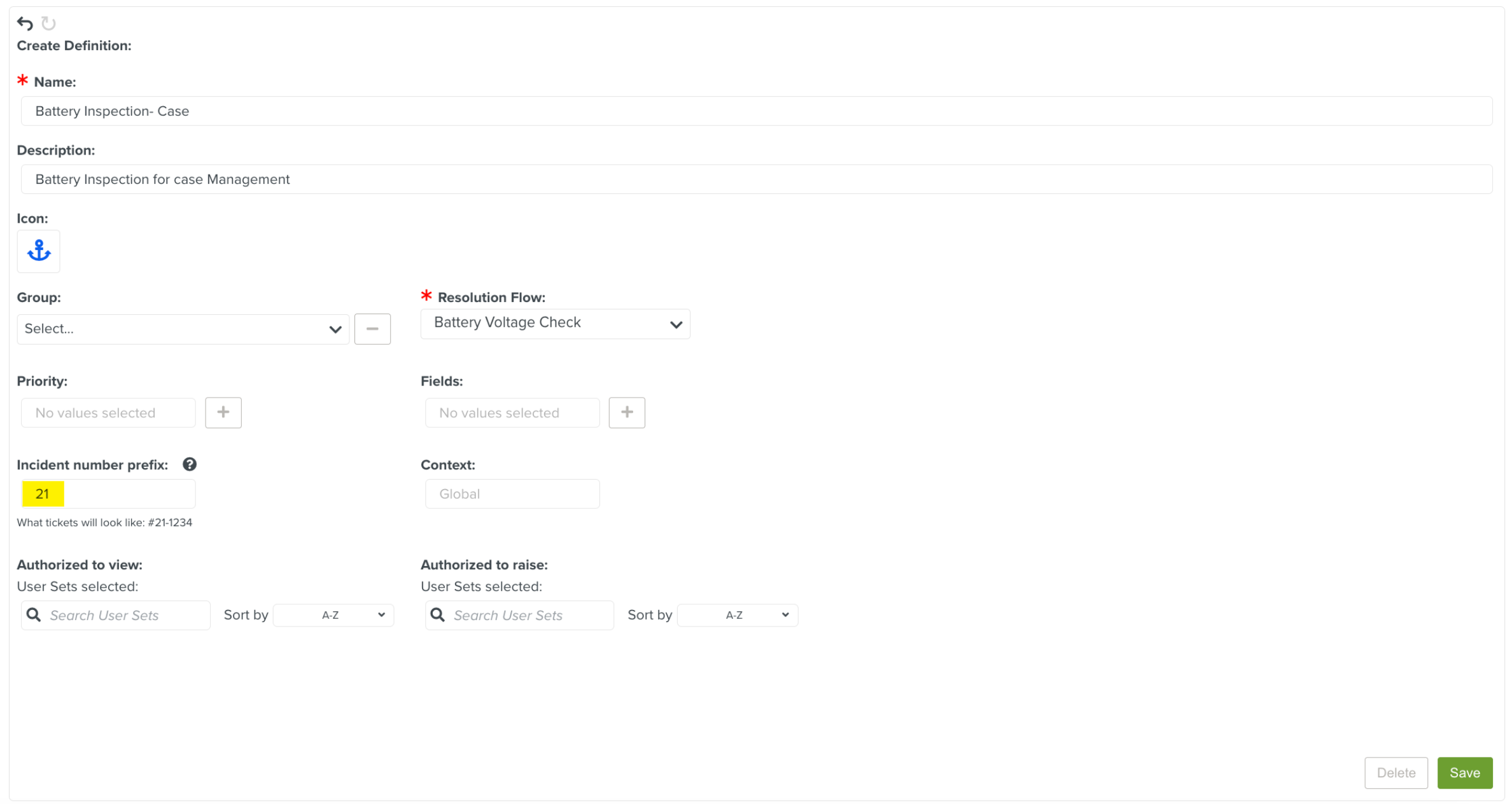
Enter a Case number prefix.
A Case number is created from the Definition for every Case raised.
Note
The Case number value can be alpha-numeric.
Click .
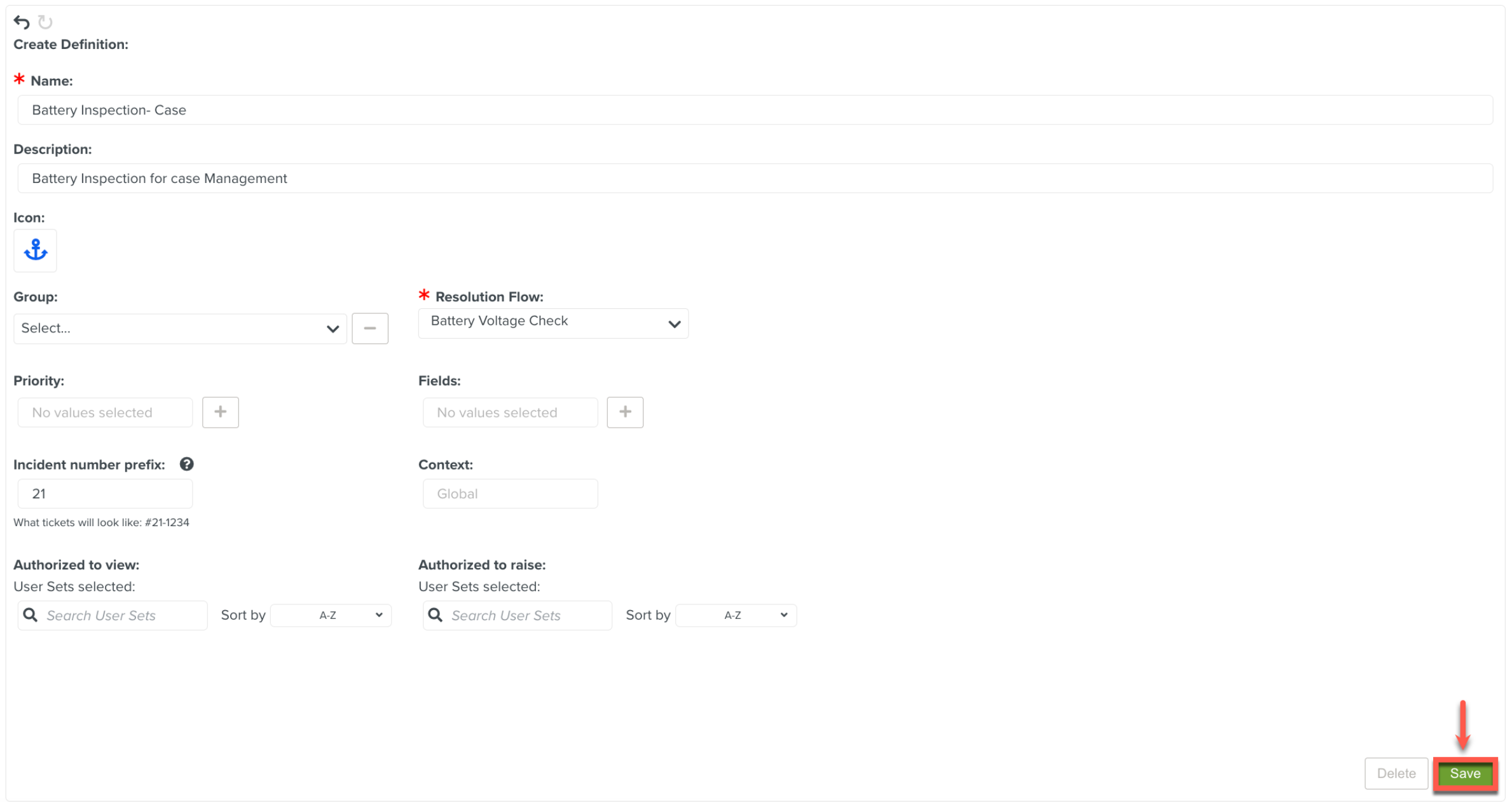
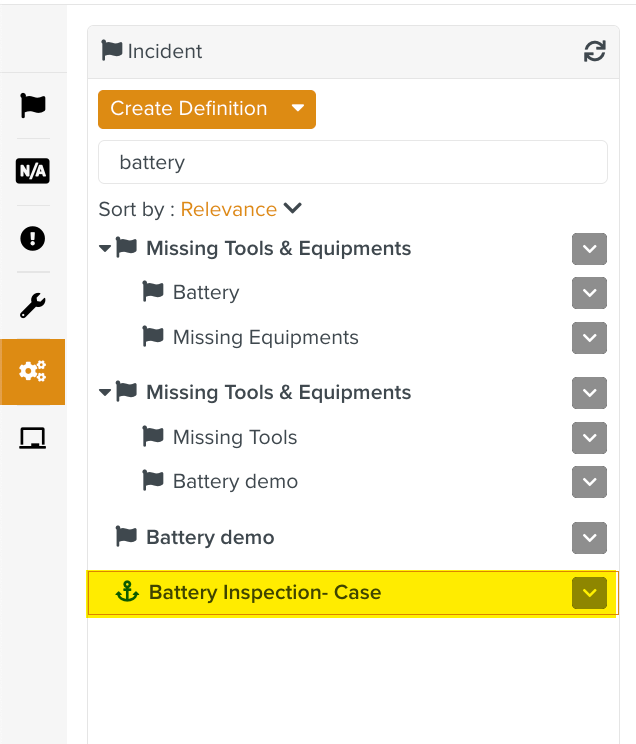
The Case Definition is created.
Select an option from the Context dropdown list.
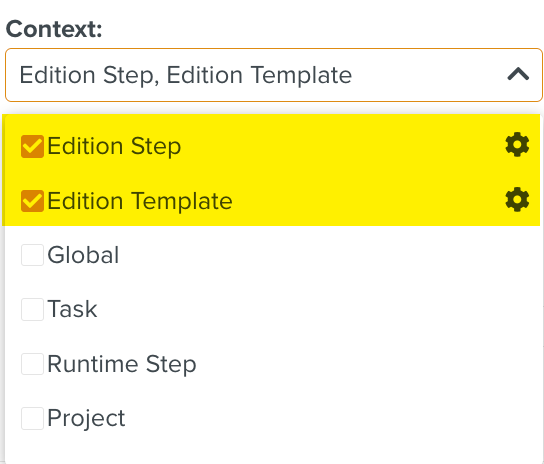
The two Contexts available for Case are listed below:
Edition Step: Allows you to raise a Case for a specific Step within the Template.
Edition Template: Allows you to raise a Case for the entire Template.
Clicking
 on the Context allows you to configure the fields to be displayed in the section Context while raising a Case: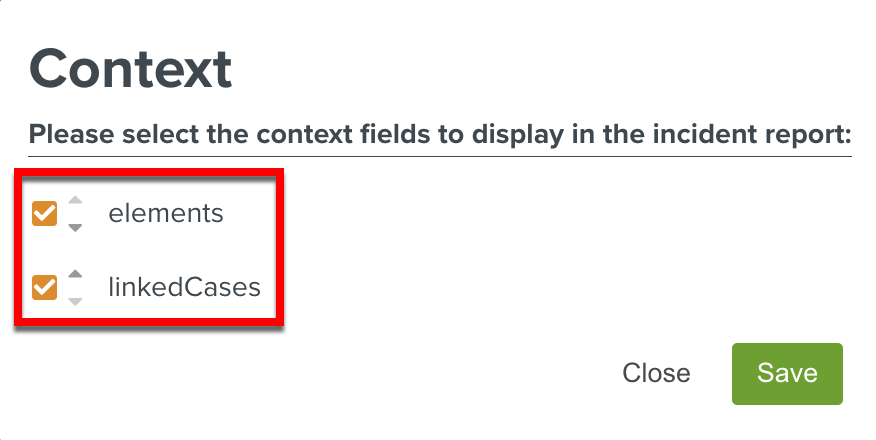
elements: Displays the Template ID and Step ID details for the which the Case is raised.
linked cases: Displays the Case ID details of linked Cases.
[Optional] Select the Priority of a Case from the Priority dropdown list.
A Case Definition determines the Priority that can be assigned to the Cases when raised.
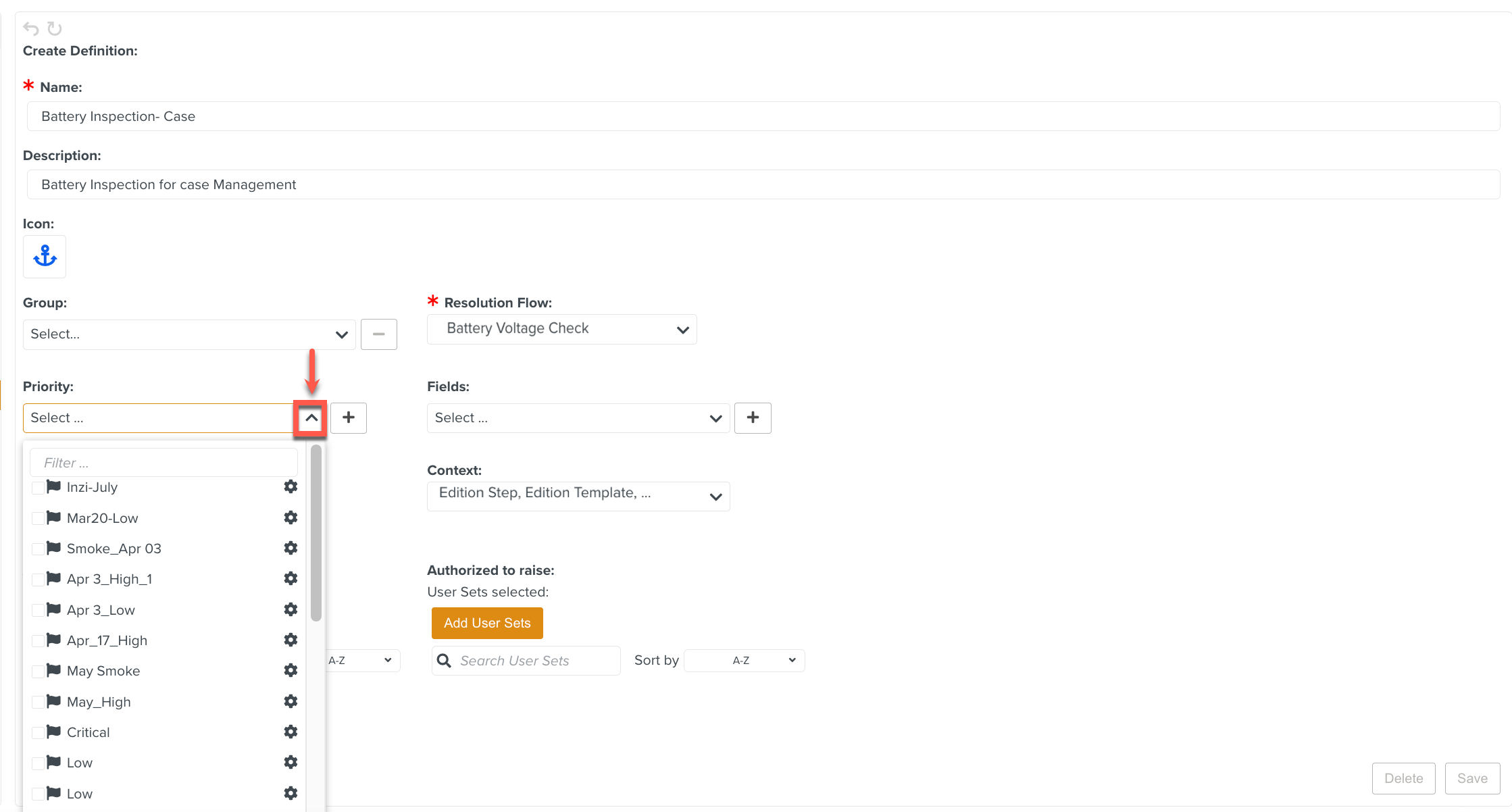
If required, you can create a new Priority.
Click
 as shown below.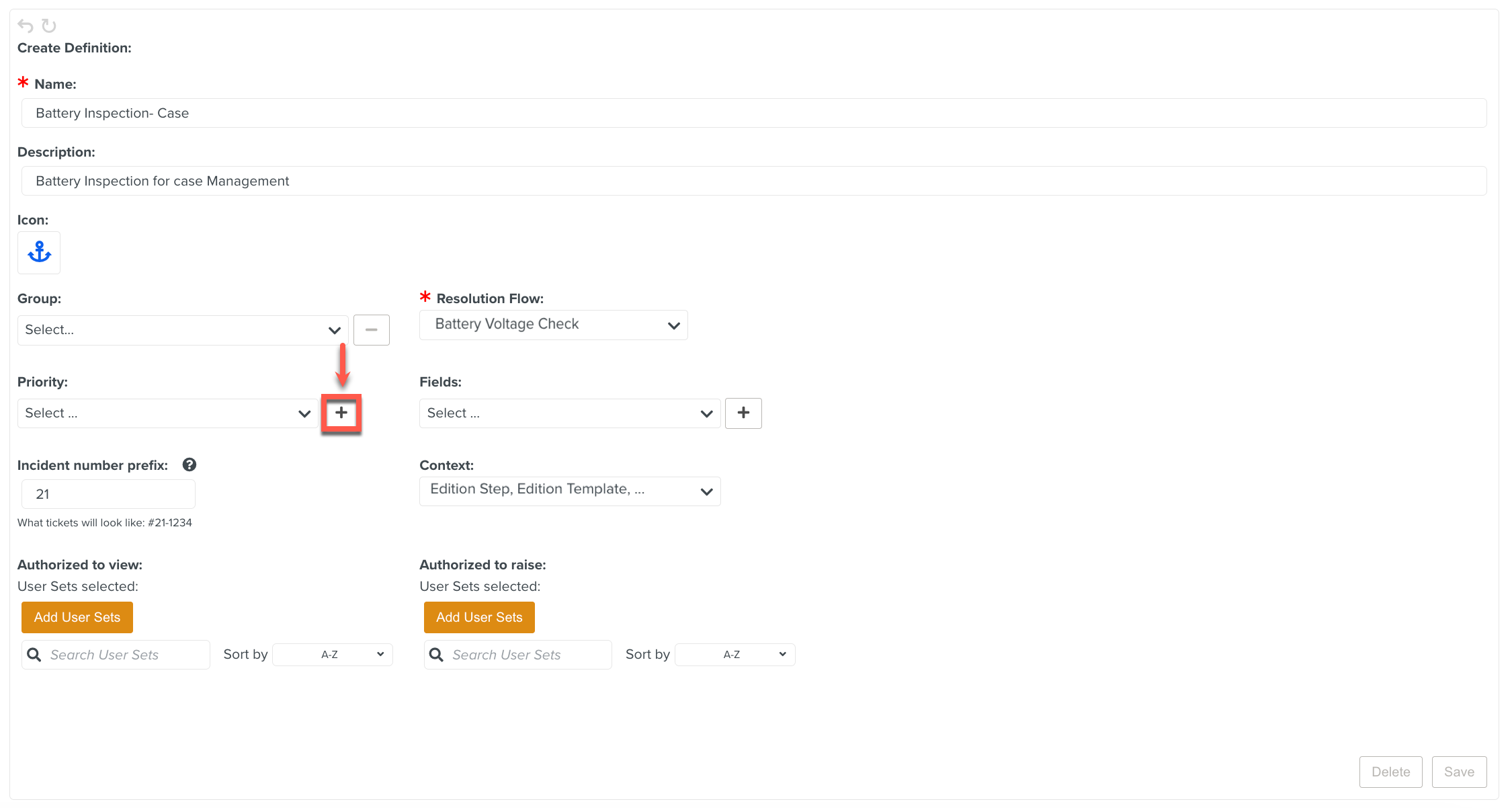
A dialog Priority opens.
Enter the Name for the Priority. You can add a Description and select an Icon.
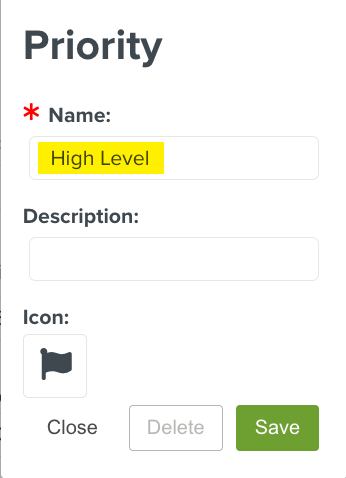
To save the new Priority, click .
The created Priority is automatically selected and added to the list.
Selecting the gear icon
 opens the dialog where you can delete the created Priority.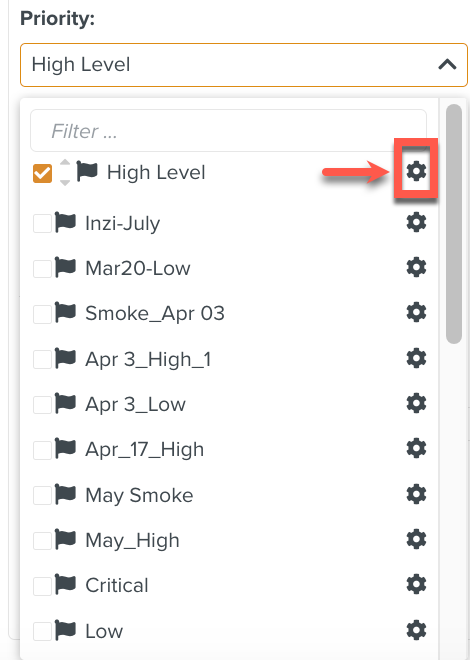
[Optional] Select an appropriate option from Fields.
The user is prompted to fill in these Fields while raising the Case.
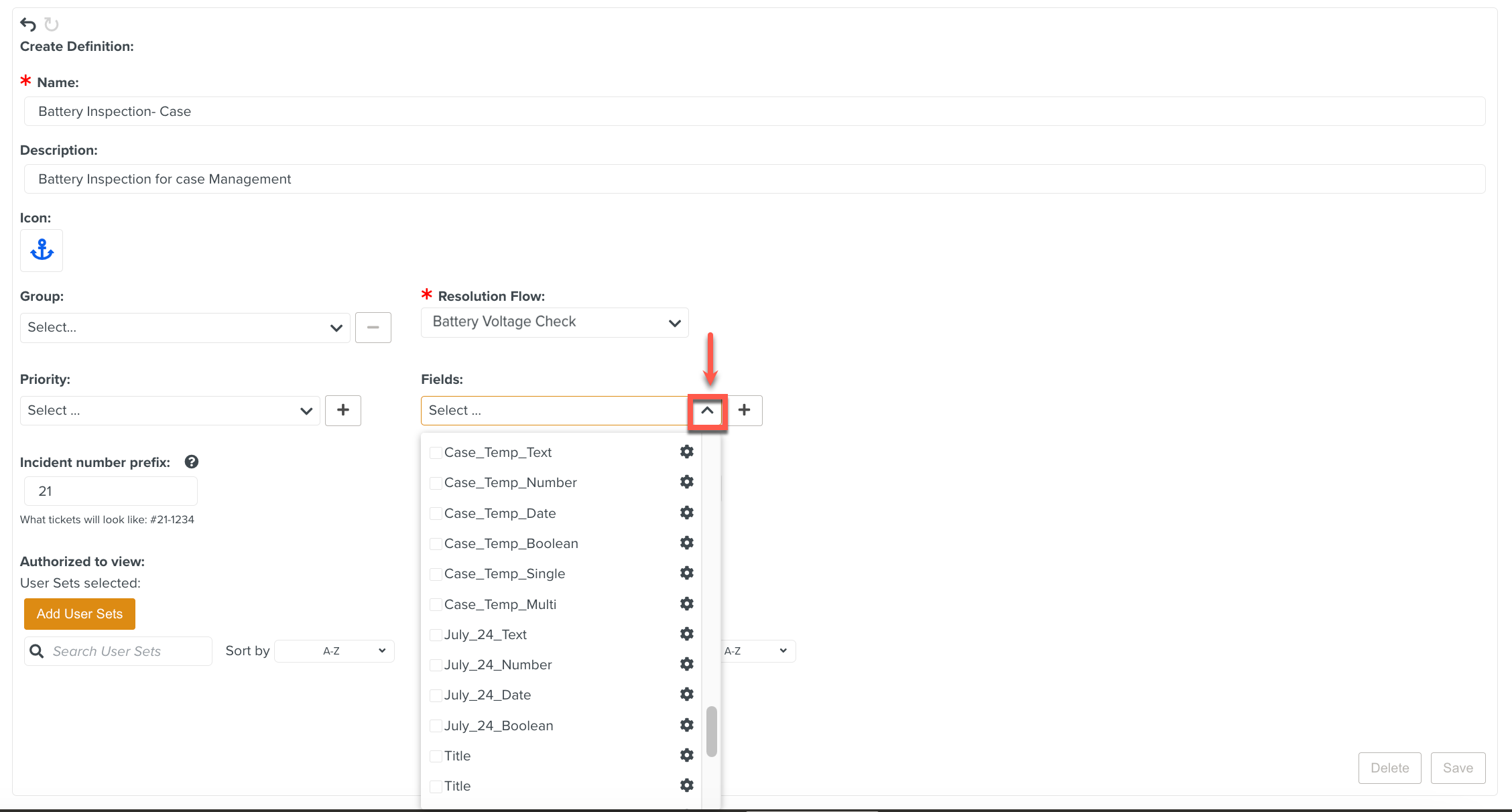
If required, you can create a new Field.
Click
as shown below.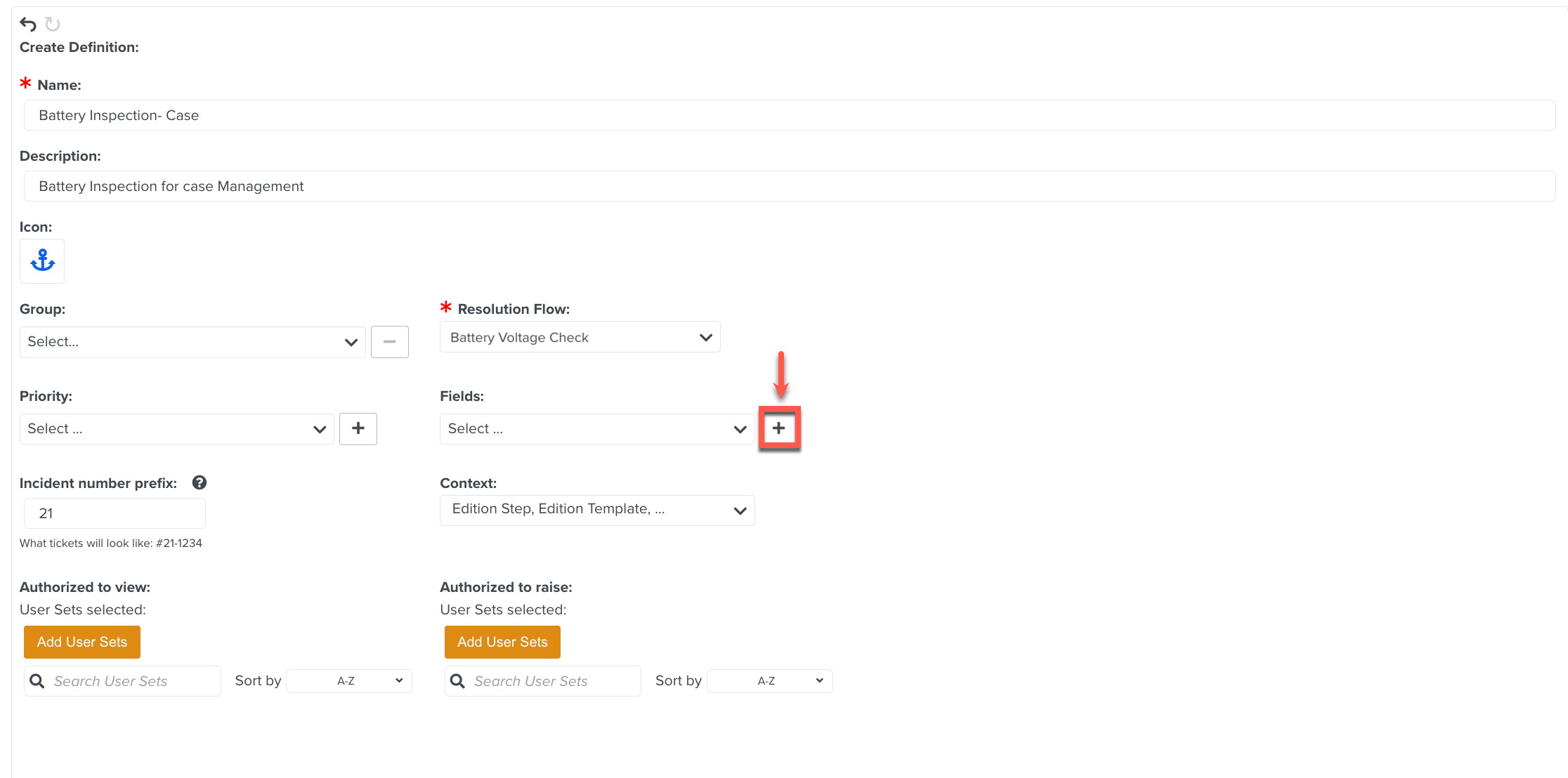
A dialog Field opens.
Enter the Name and Type of the Field.
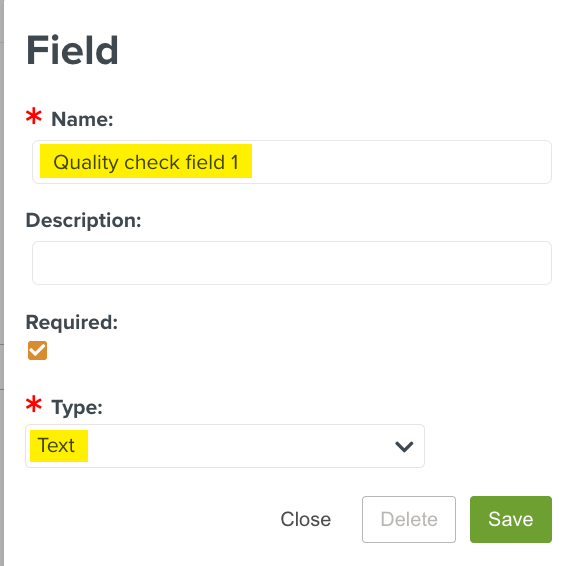
If you select Required, the Field is displayed as a mandatory Field while raising an Case.
To save the new Field, click .
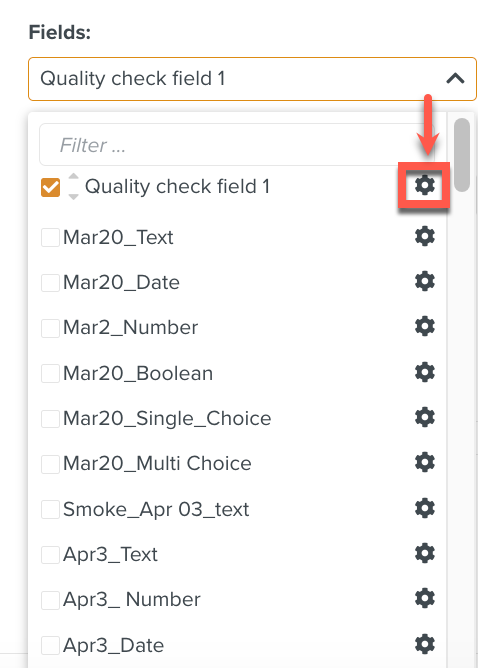
The created Field is automatically selected and added to the list.
Selecting the gear icon
opens a dialog where you can delete the created Field.When you delete a Field, it is removed from all Case Definitions. However, you can view the Fields in all the Case that were created before deleting the Field.
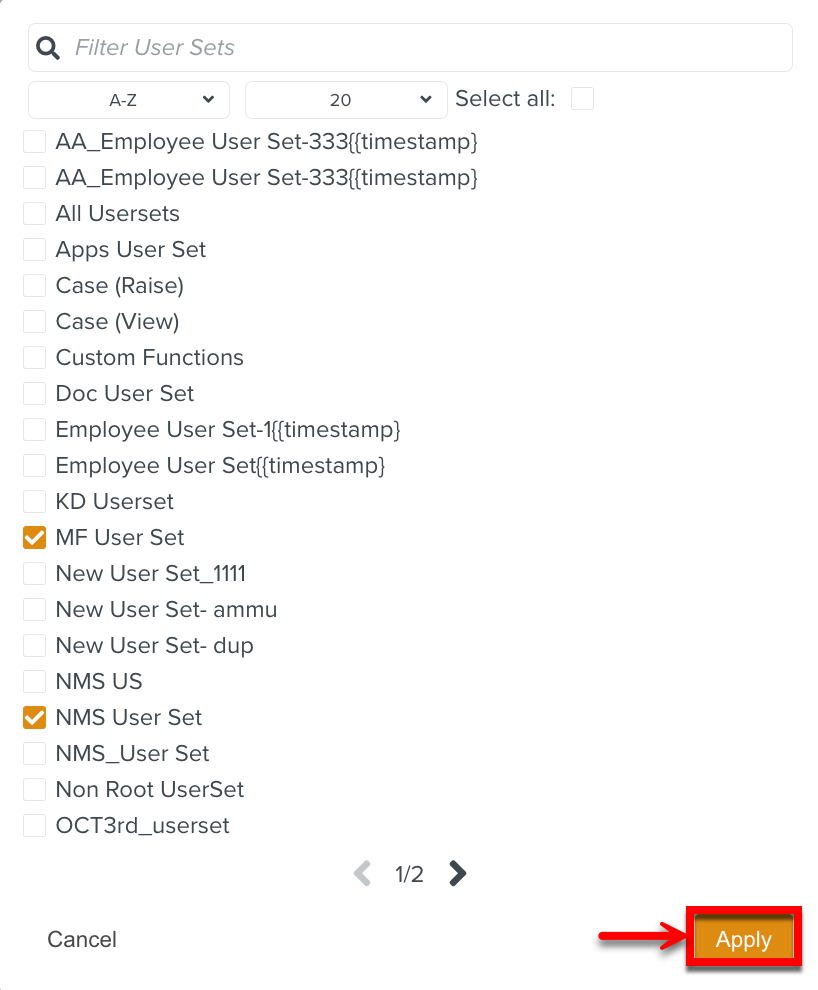
[Optional] Click Add User Sets in the sections below to authorize users to view or raise Cases.
Authorized to view: Users in the selected User Sets can view the raised Cases.

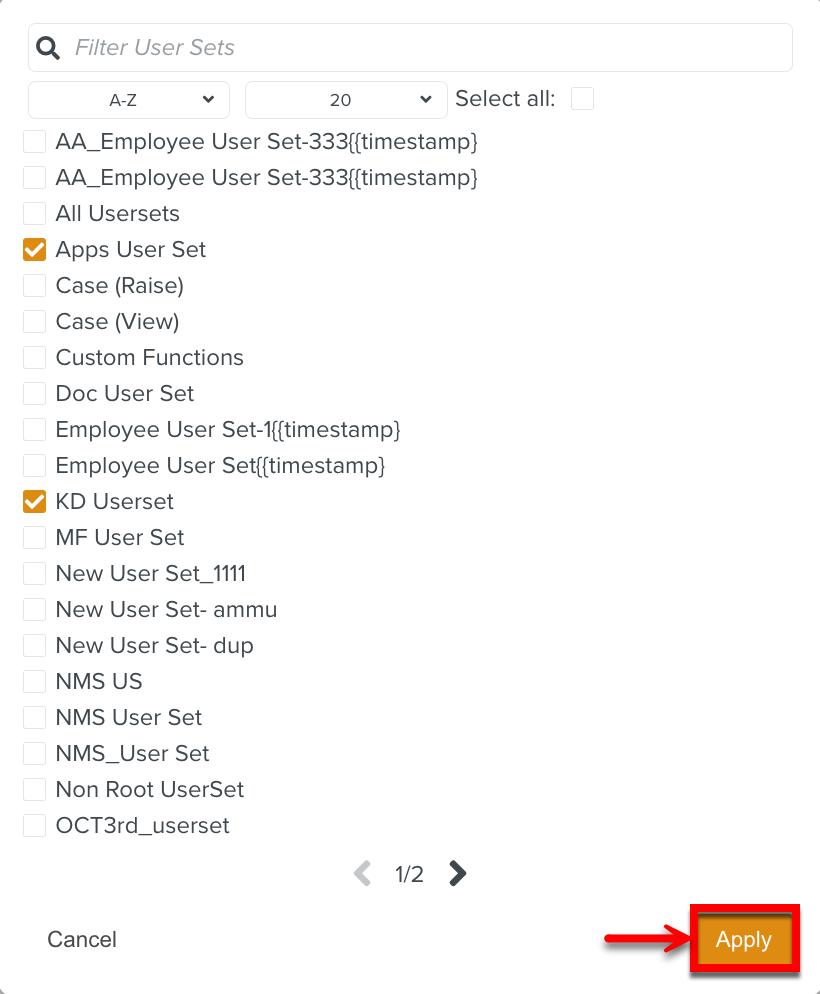
Authorized to raise: Users in the selected User Sets can raise Cases.

Note
If no User Set is selected, any user can view or raise Cases.
An Case Group logically groups related Case Definitions.
To create a New Group:
On the main menu, go to Enterprise > Flagging & More > Incident Definition.
The page Incident Definition opens.
Expand the dropdown to select .
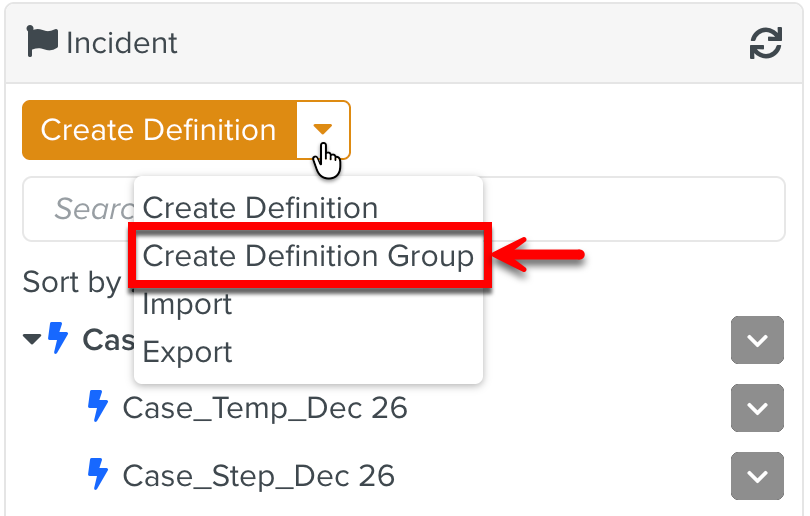
The page Create Definition Group opens.
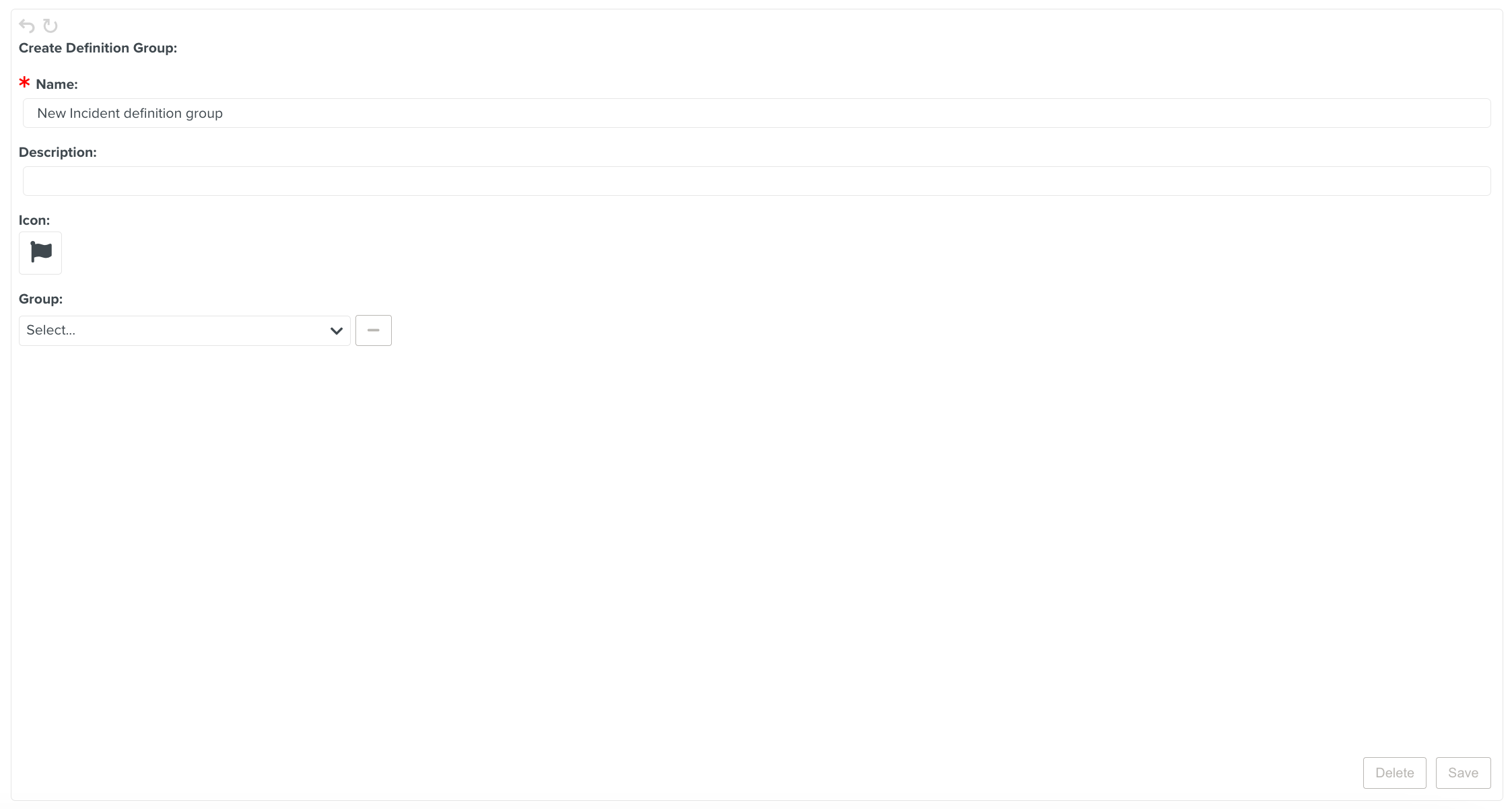
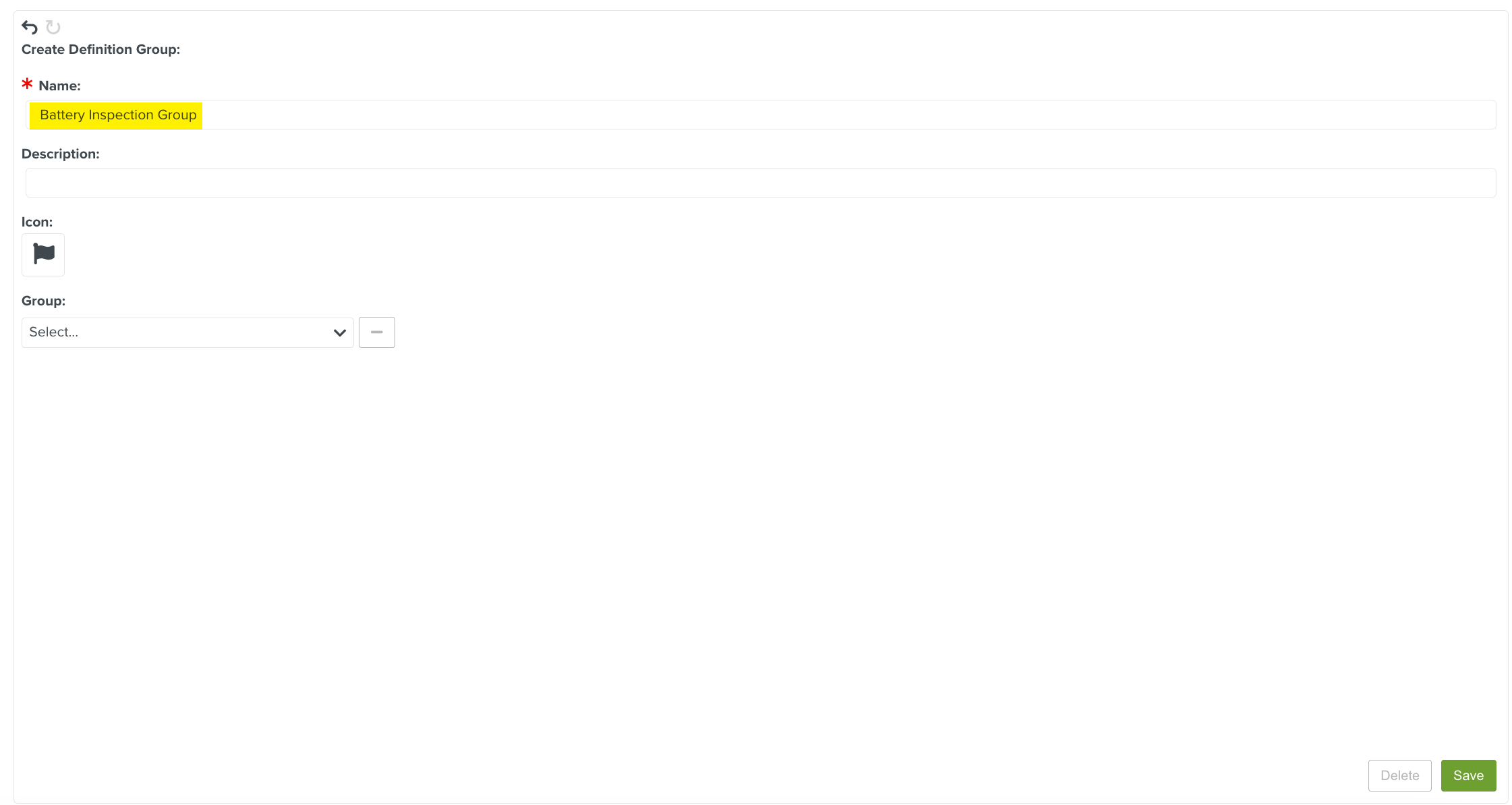
Enter a Group Name.
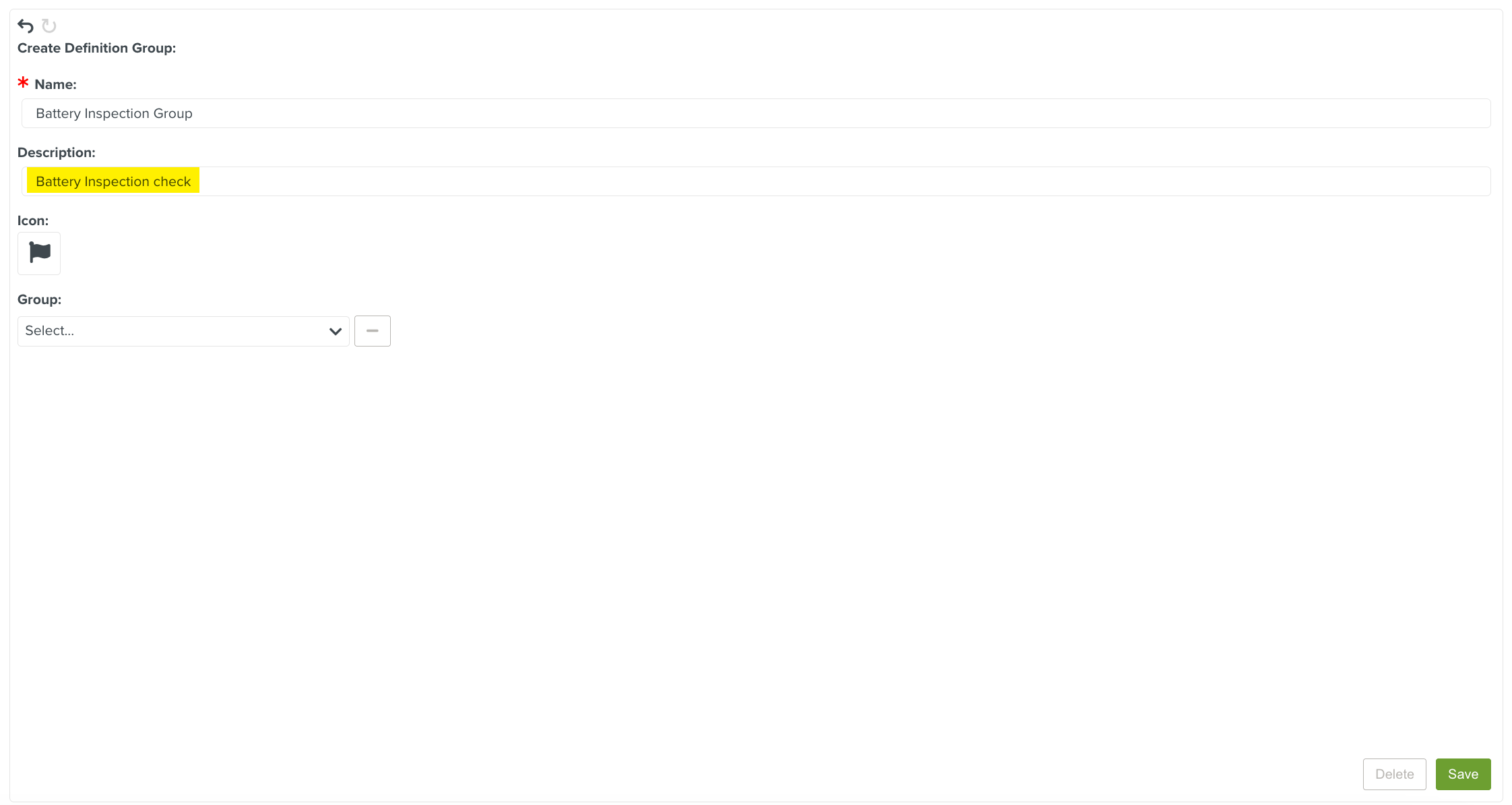
[Optional] Enter Description.
Click
to select an icon.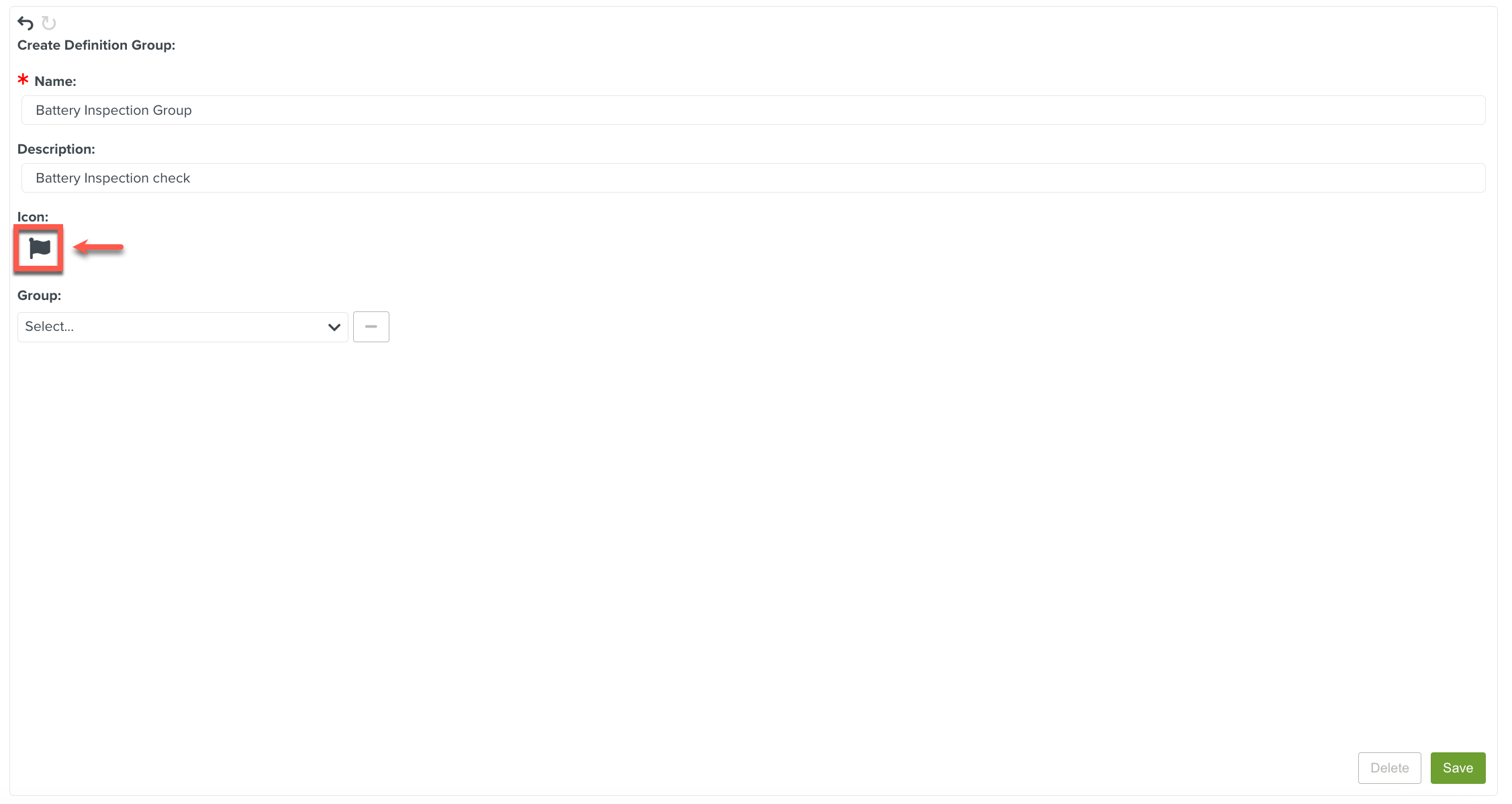
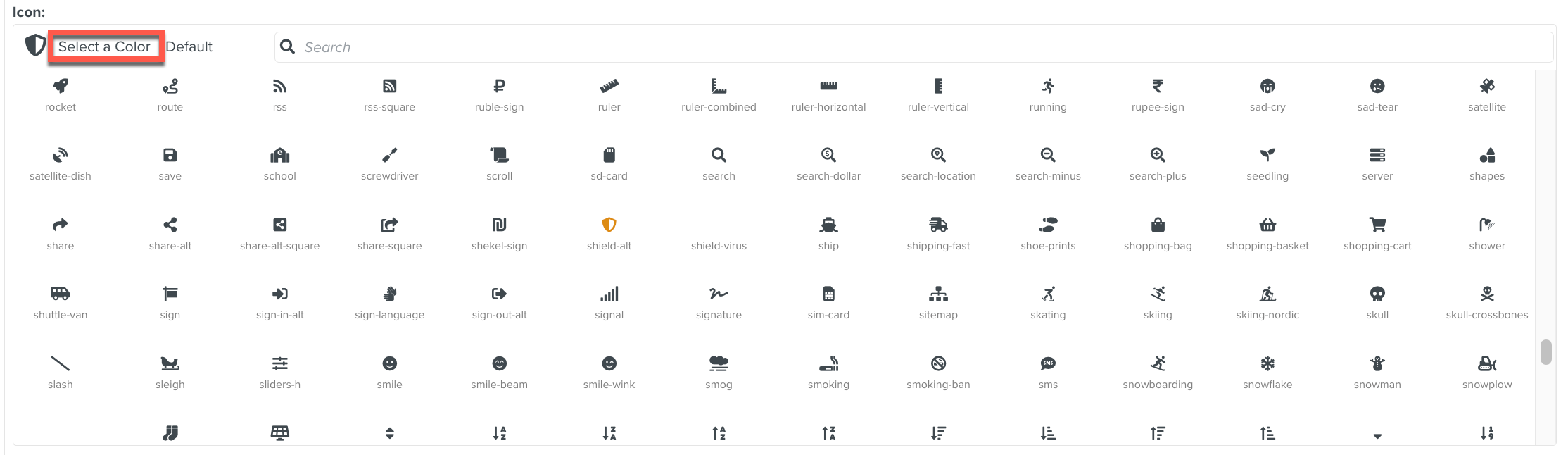
Select an icon from the list or search through the search option as shown below.
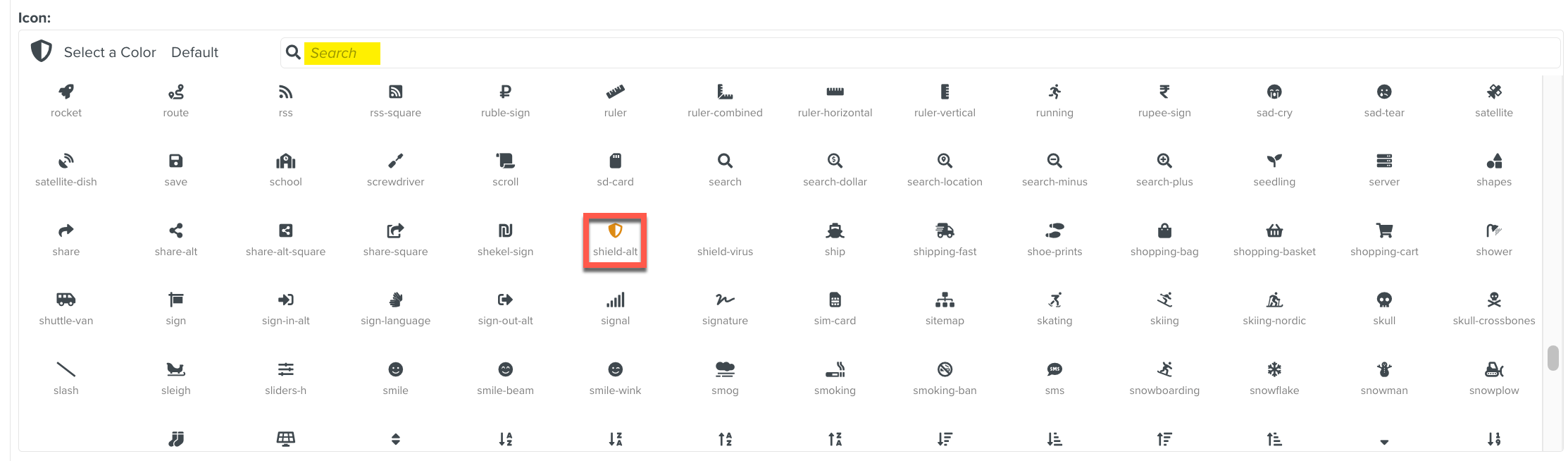
To add color to an icon, click Select a Color.
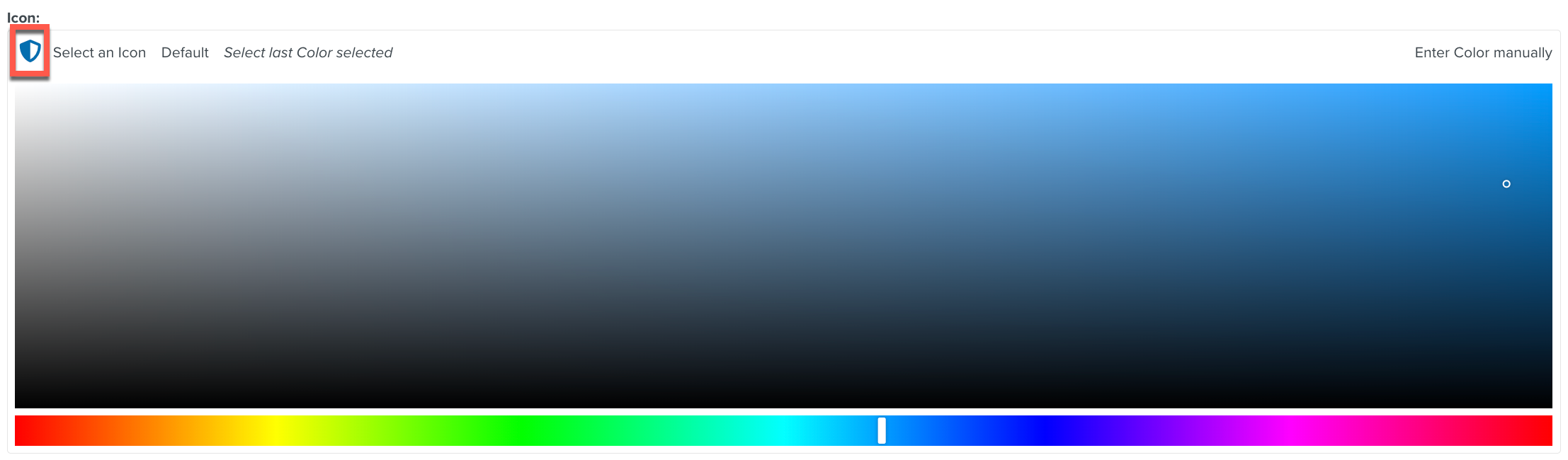
To use the last color selected for an icon, click Select last Color selected.
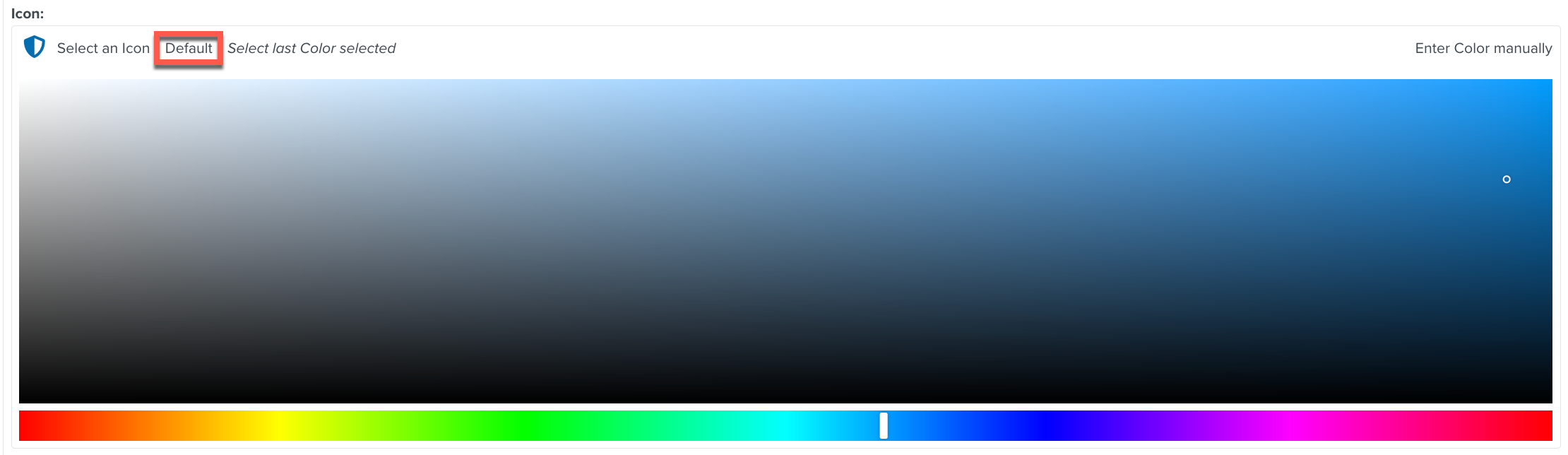
To select the previous icon, click Default.
[Optional] Select a required Group from the dropdown list as shown below.
The Group is used to logically group related Case Definitions.
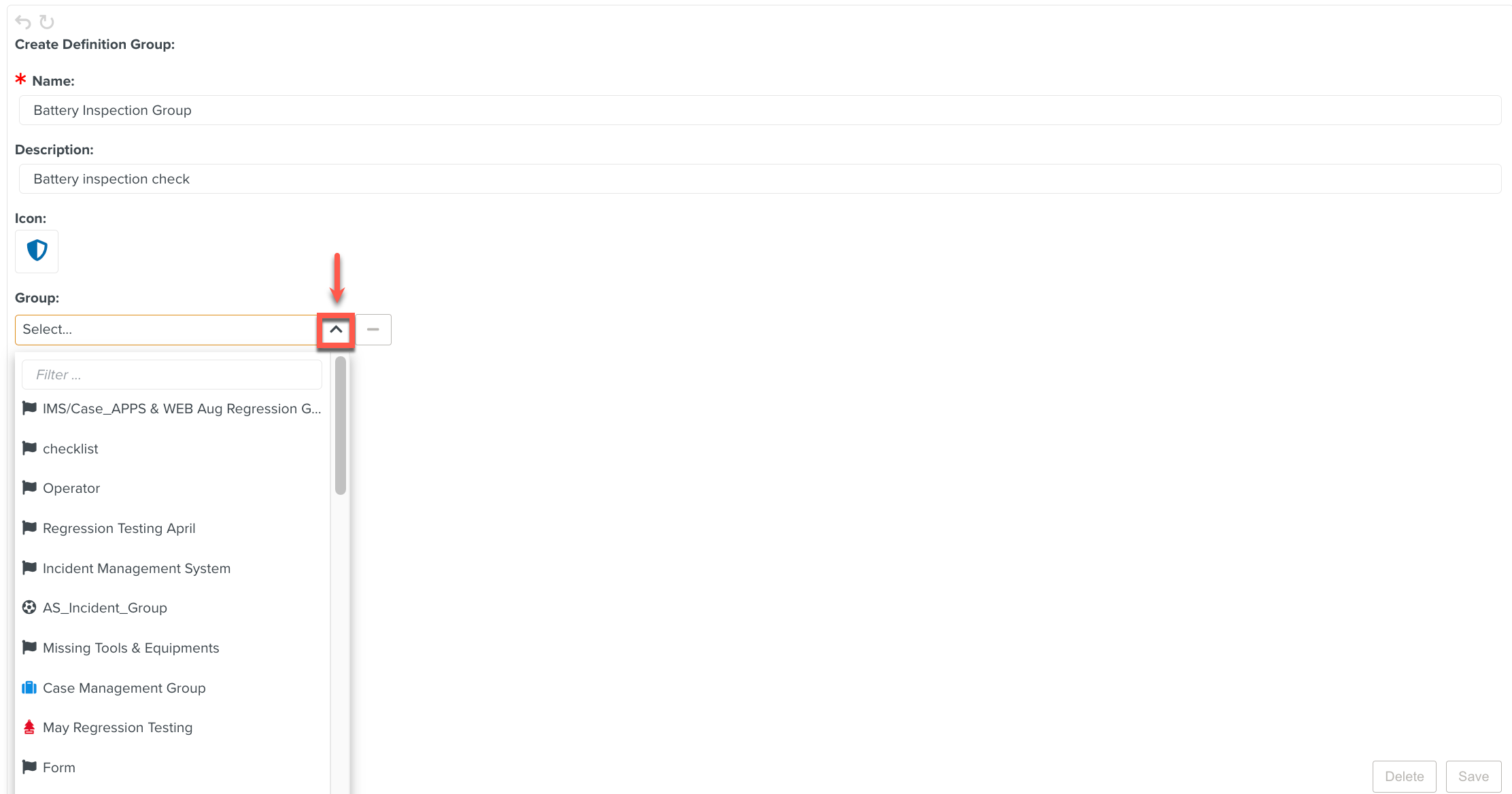
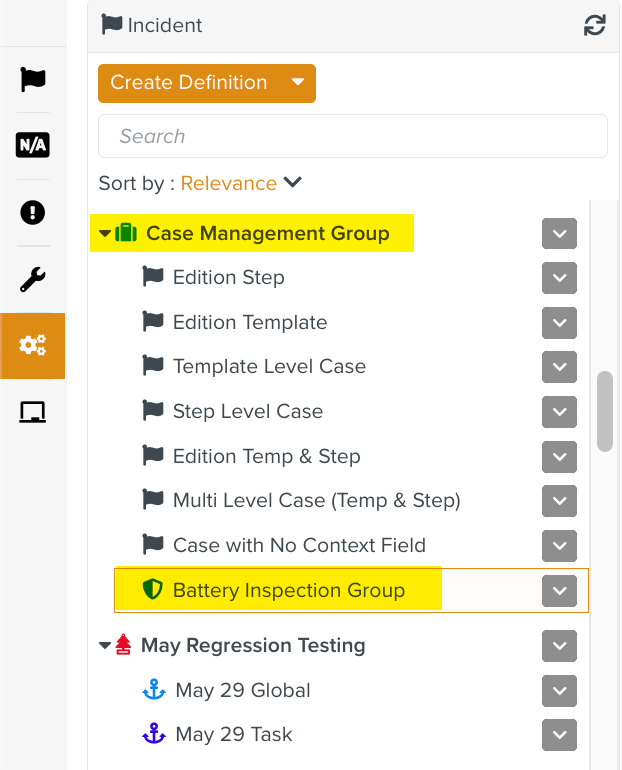
In the below example, the current group Battery Inspection Group is placed under the selected Case Management Group.
By clicking
 the selected Group from the dropdown list gets deselected.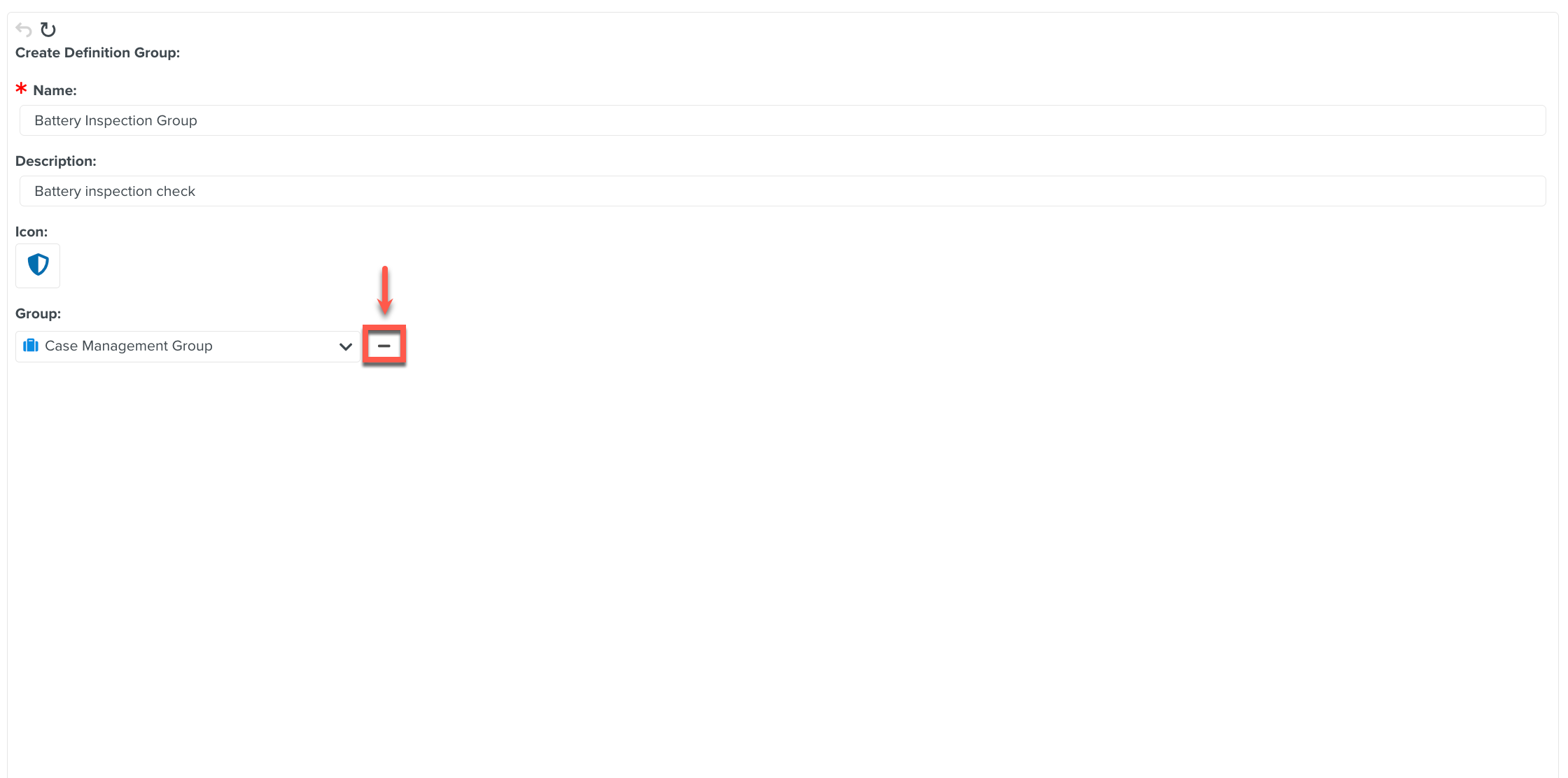
Click .
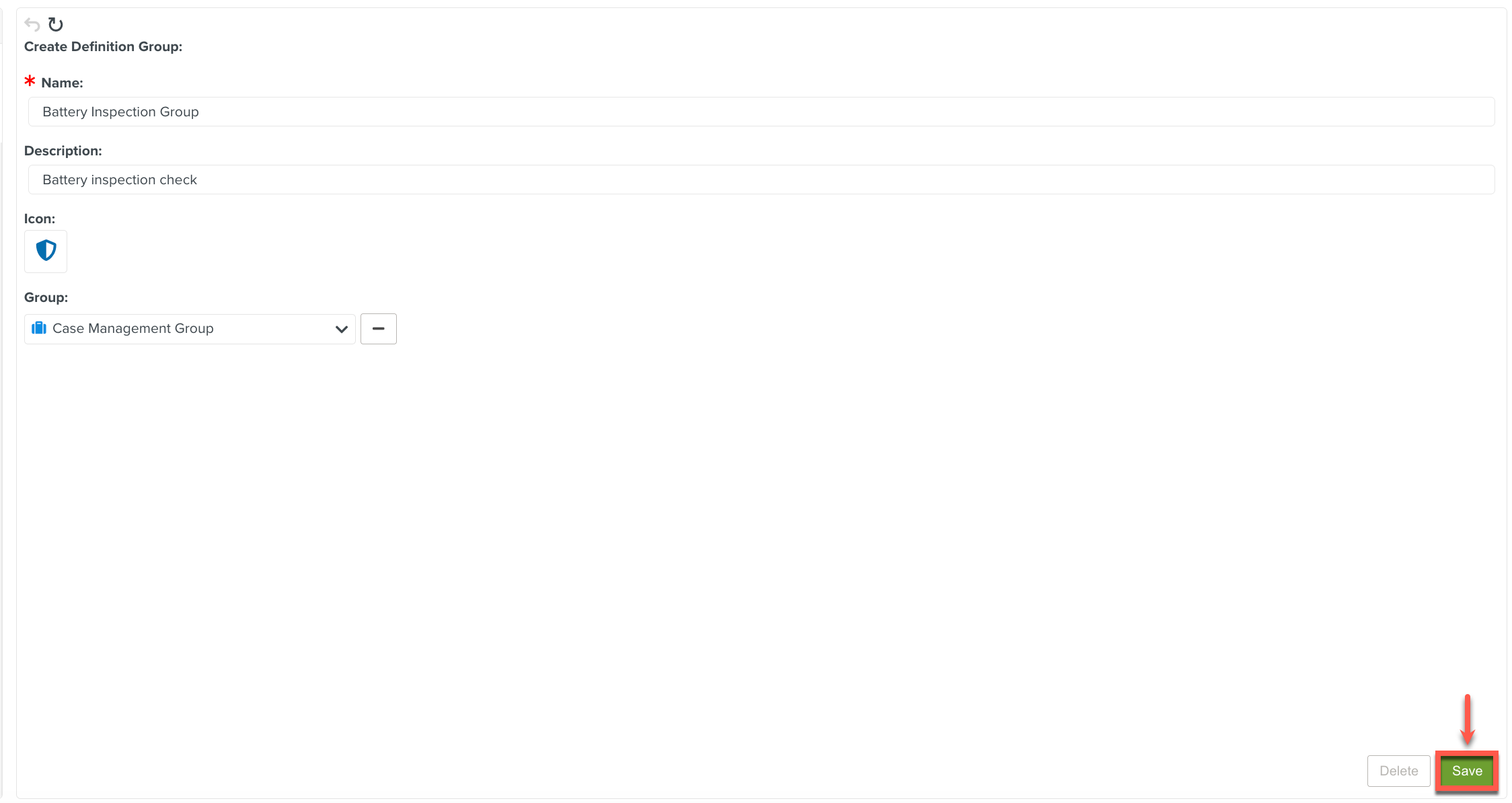
The New Group is created.
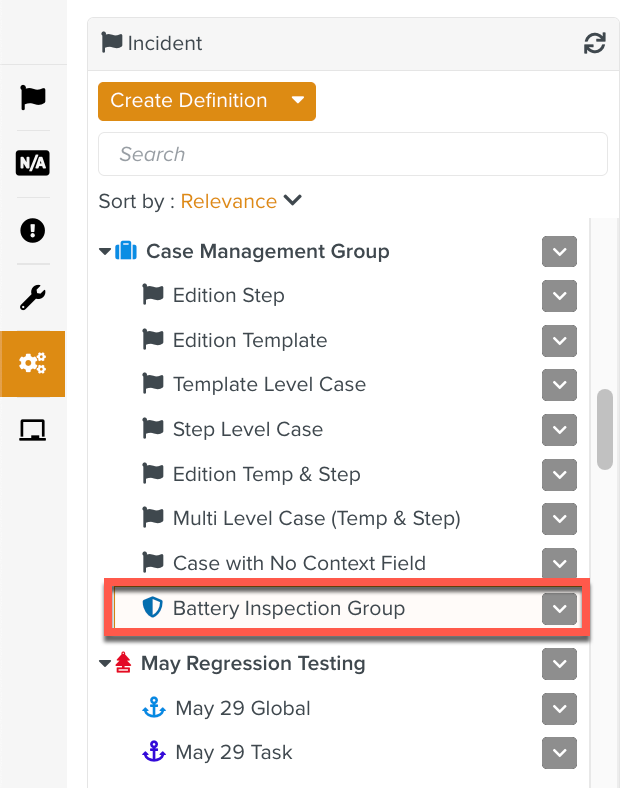
You can add Cases to the Battery Inspection Group while defining Cases as shown below.