Raising a Case
You can raise a Case to report an issue identified in a Template or a Template Step.
Cases can be raised in the following two contexts:
Context | Description | Example |
|---|---|---|
Template | To report an event or issue on a Template level, you can raise a Case of Edition Template context. | Missing PTC details |
Template Step | To report an event or issue on a Step level, you can raise a Case of Edition Step context. | Battery voltage is out of specification |
Note
You must have the appropriate access rights to raise an Incident.
Cases can be raised from Templates.
To raise a Case from a Template:
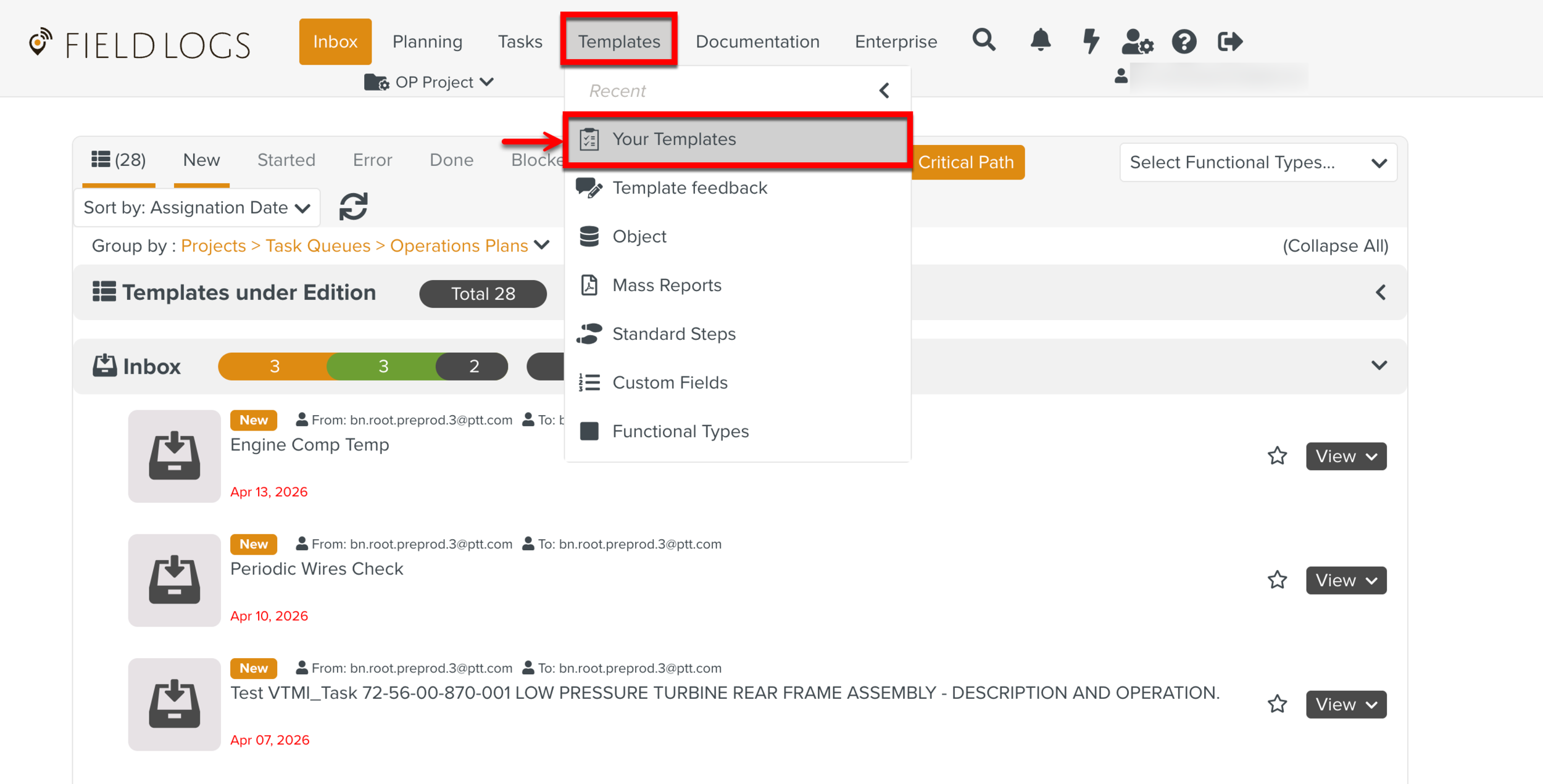
On the main menu, go to > .
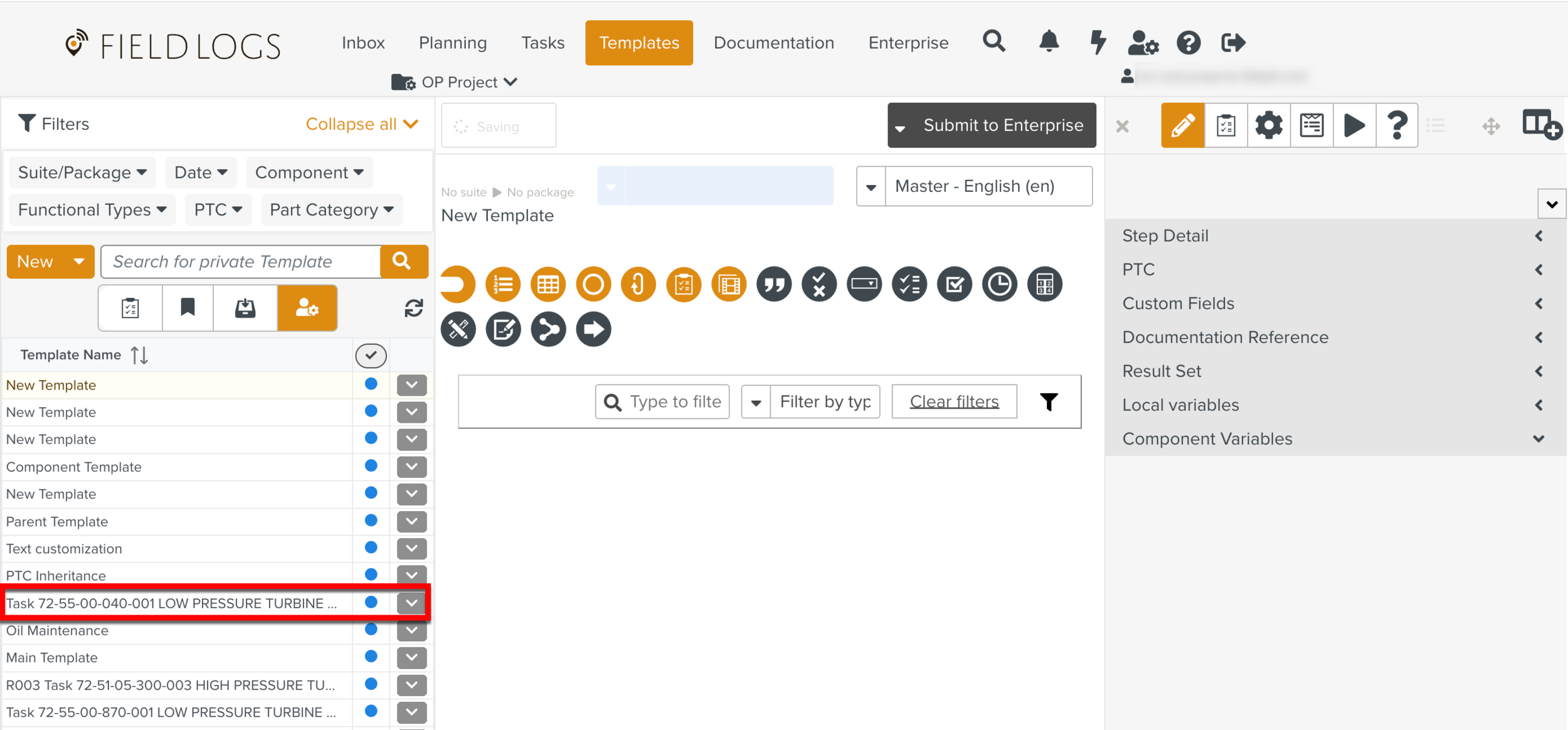
Select a Template for which you want to raise a Case.
Click
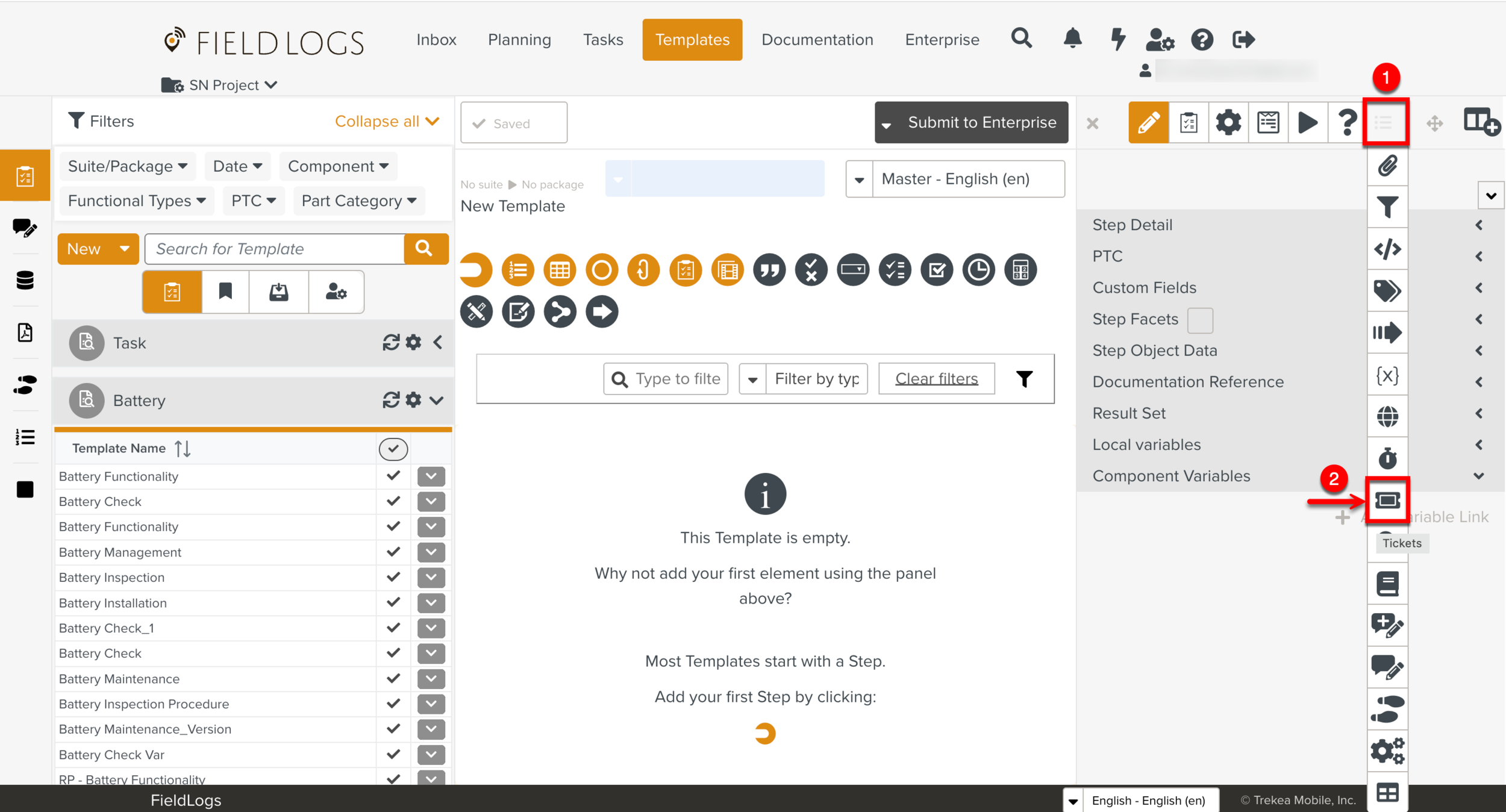
 to expand the options in the Property Pane.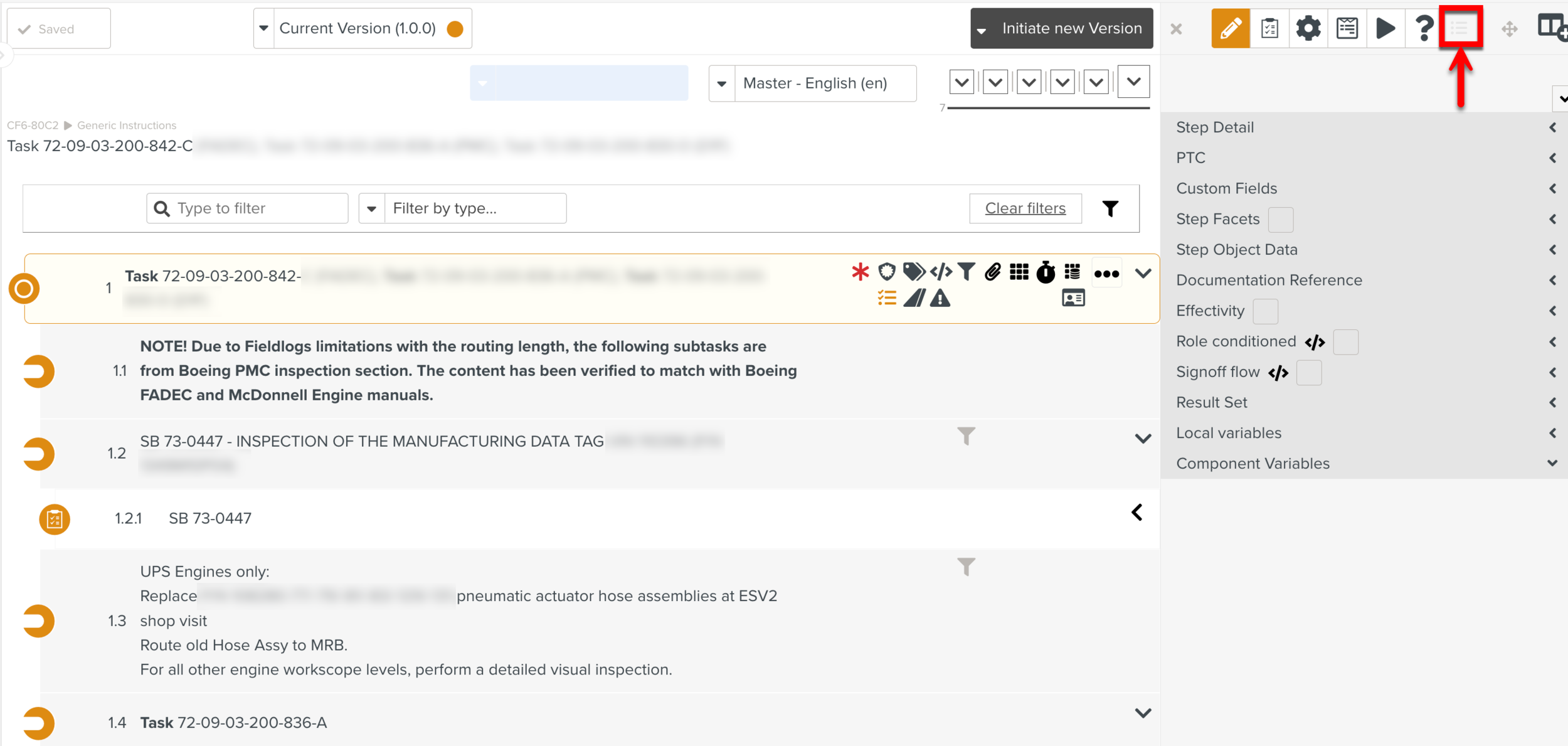
Click the Tickets
 icon.
icon.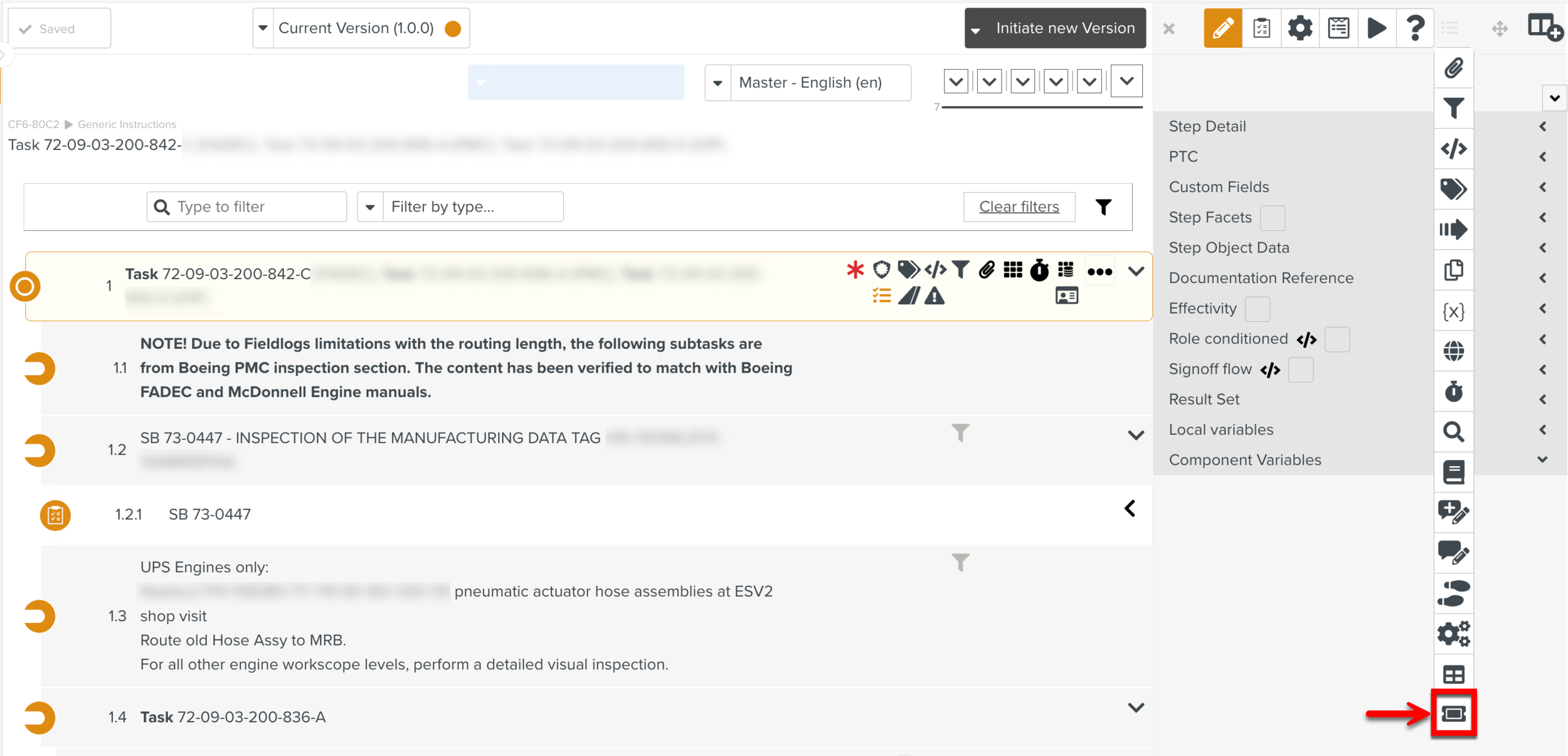
The section Case opens as shown below.
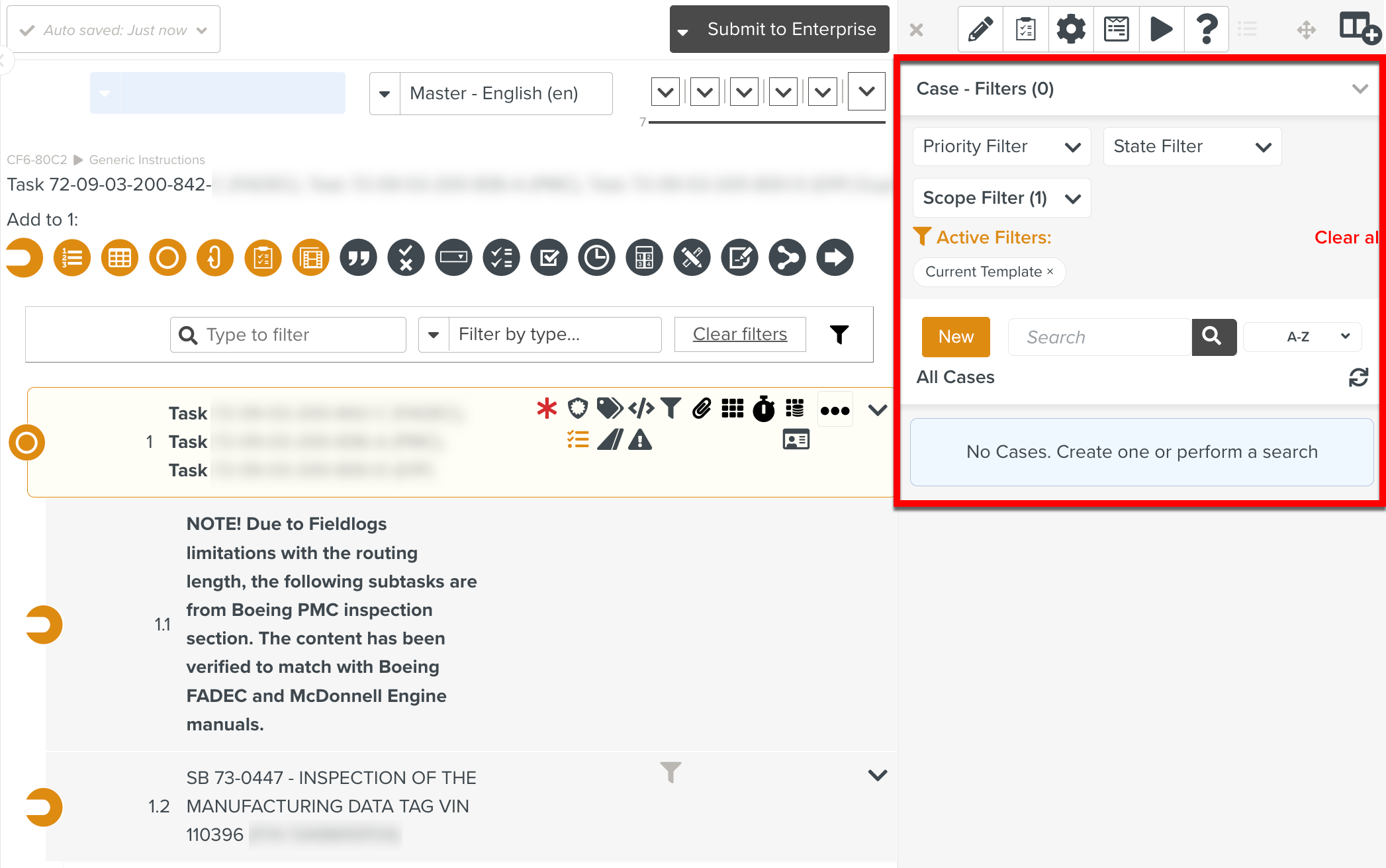
Click .
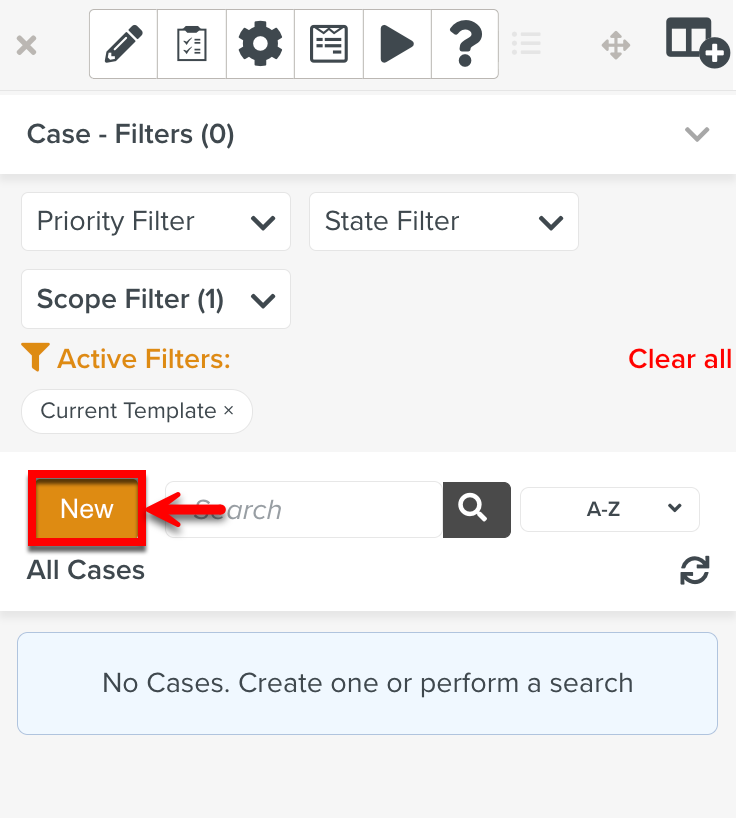
A dialog to raise a Case appears as shown below.
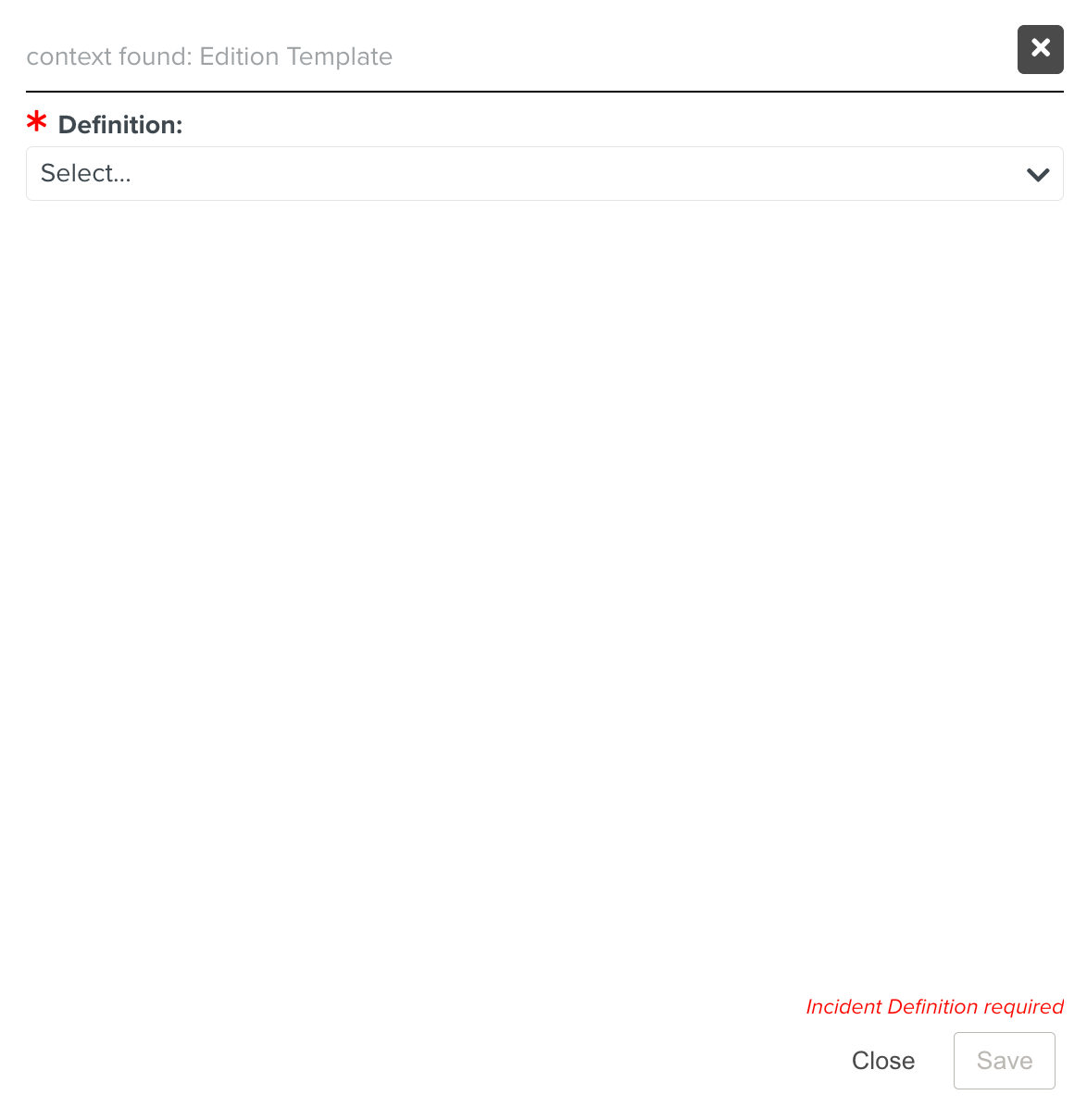
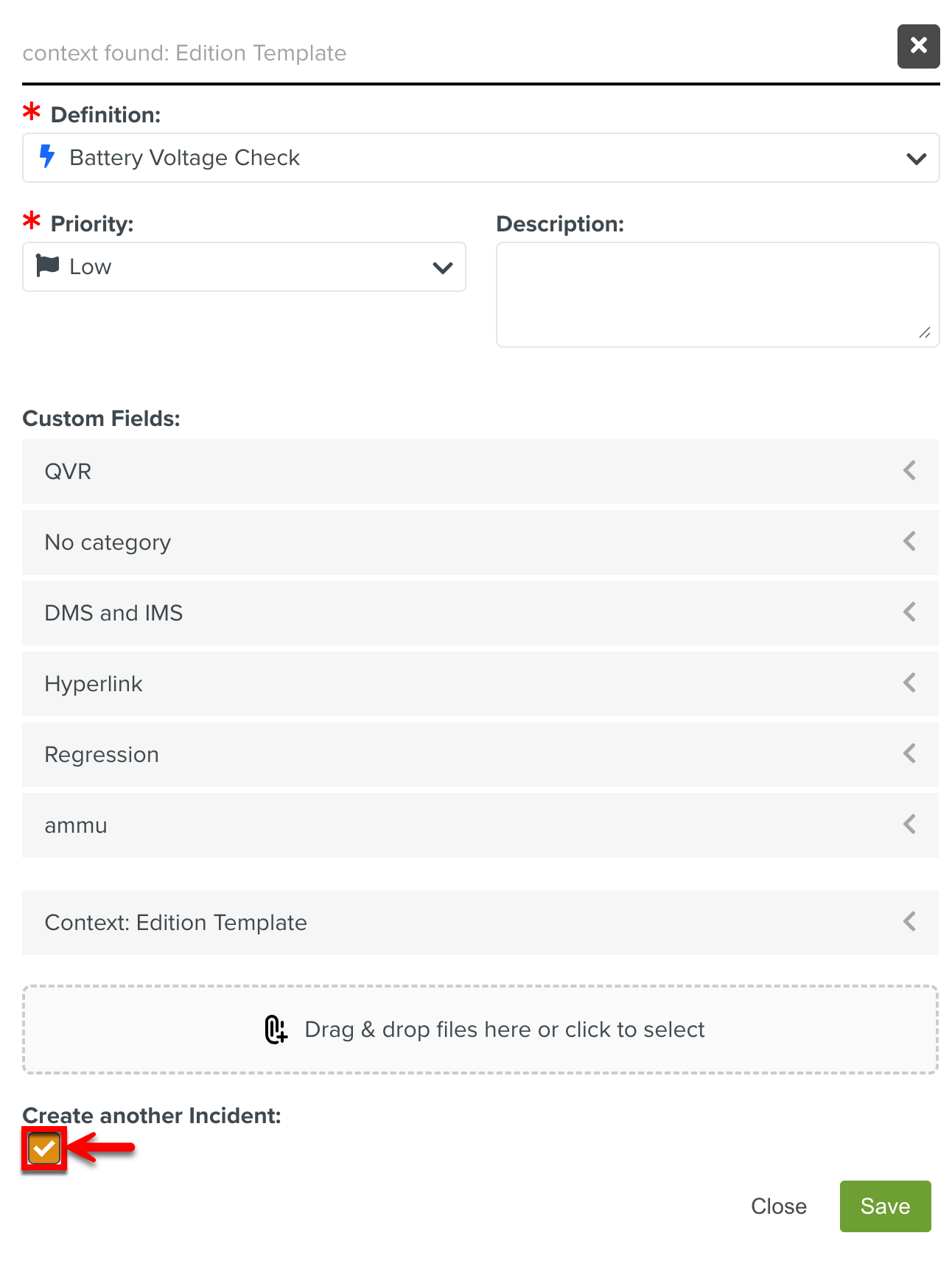
Select the required Case from the Definition dropdown.
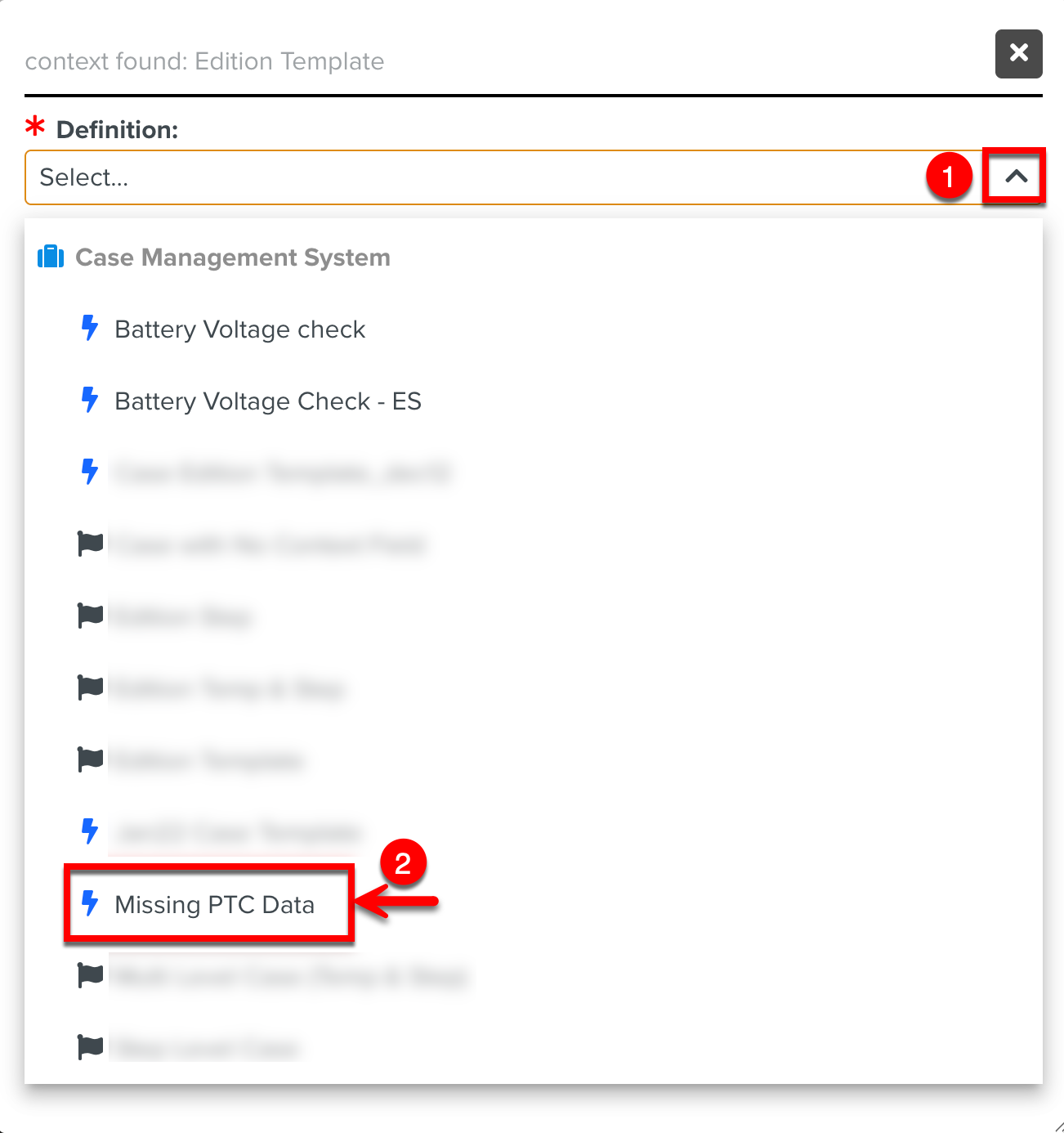
The Case for which the Context Type is set to Edition Template during Case Definition are displayed in the dropdown.
The fields configured for the selected Case are displayed.
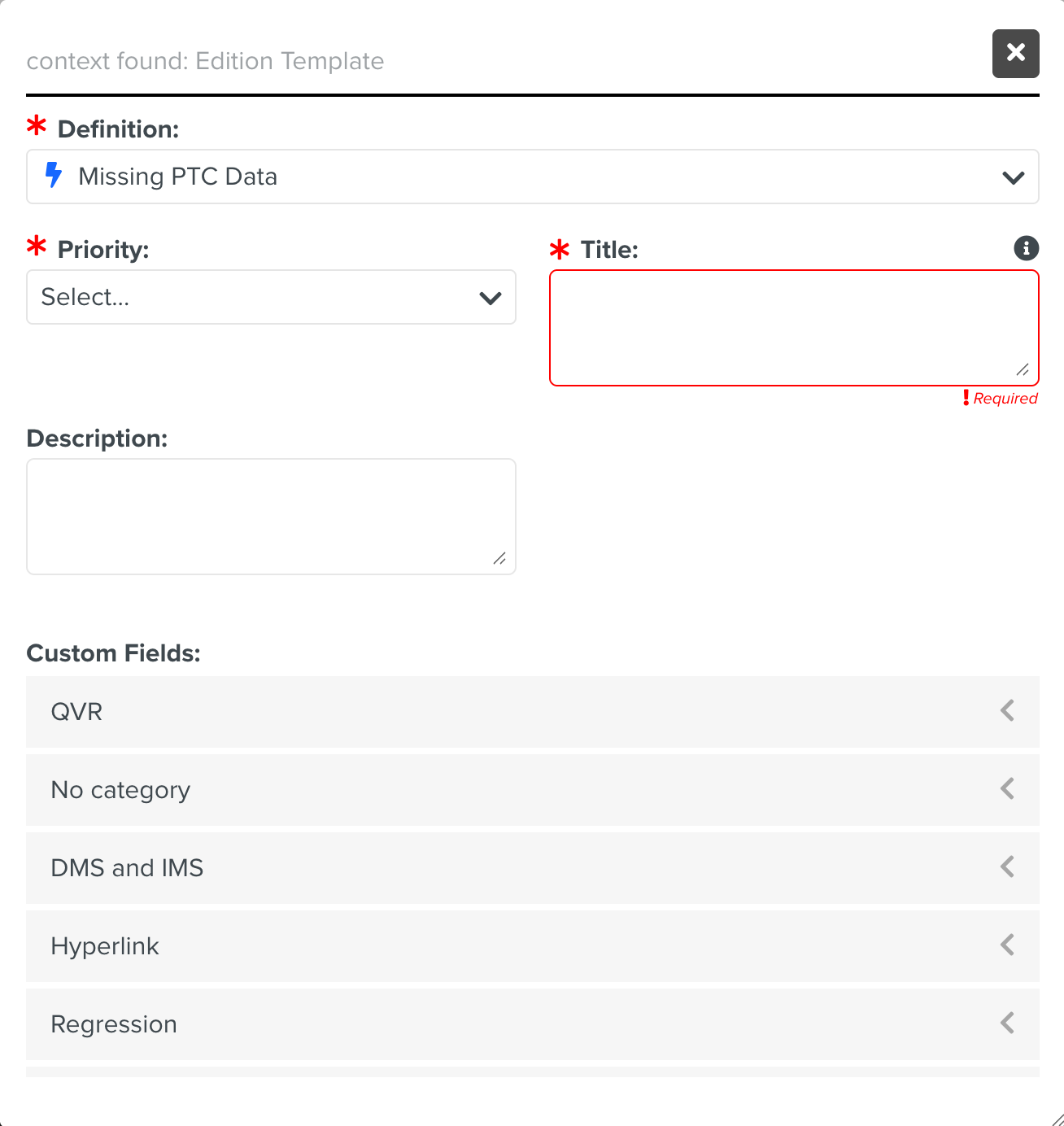
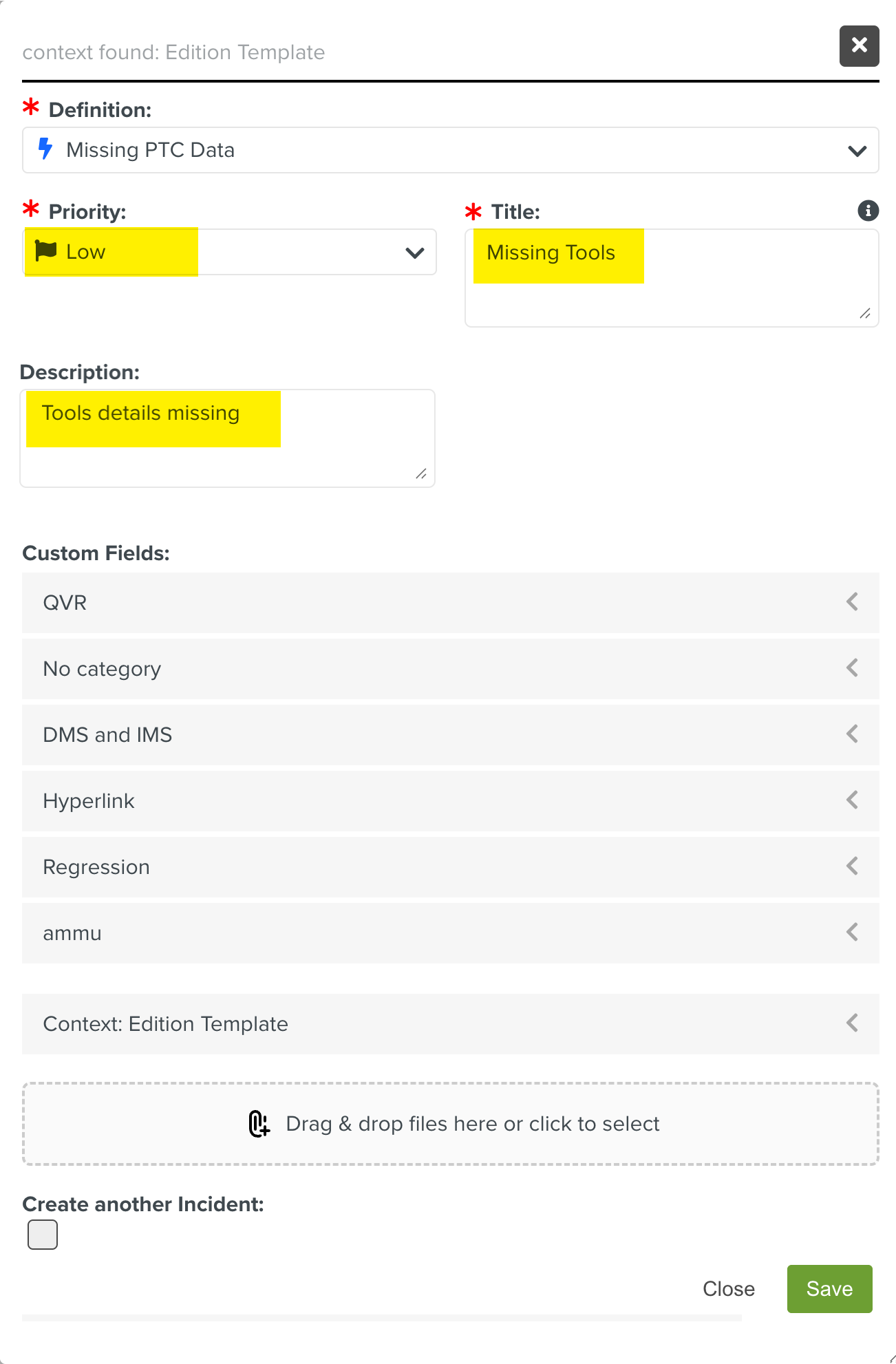
Add the details as shown below.
Note
For each Case, the displayed fields may vary based on the Case Definition.
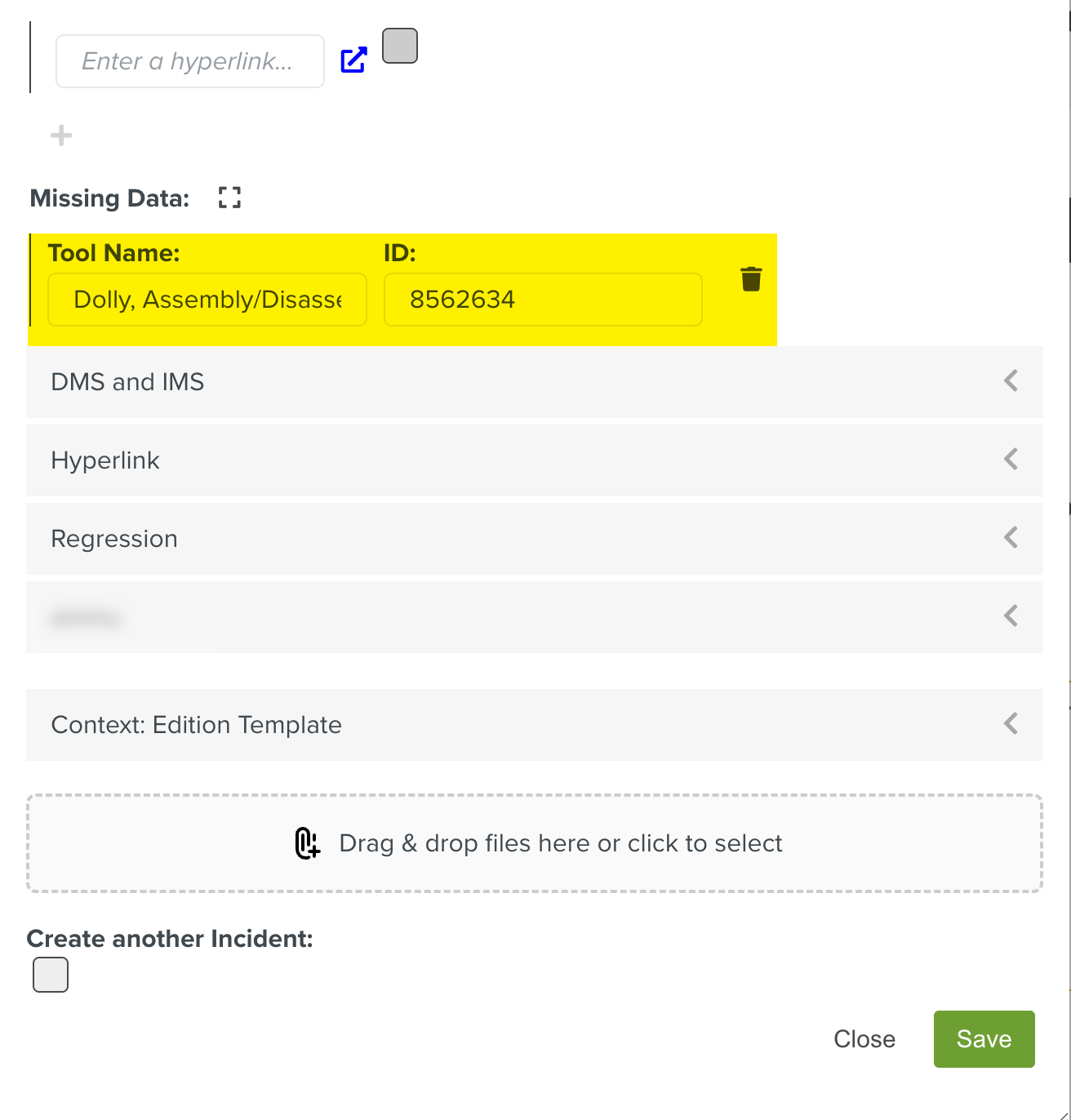
[Optional] In the Custom Fields section, select a Custom Field from a category and enter the values as shown below.
Note
All the Custom Fields that are available for Cases are displayed.
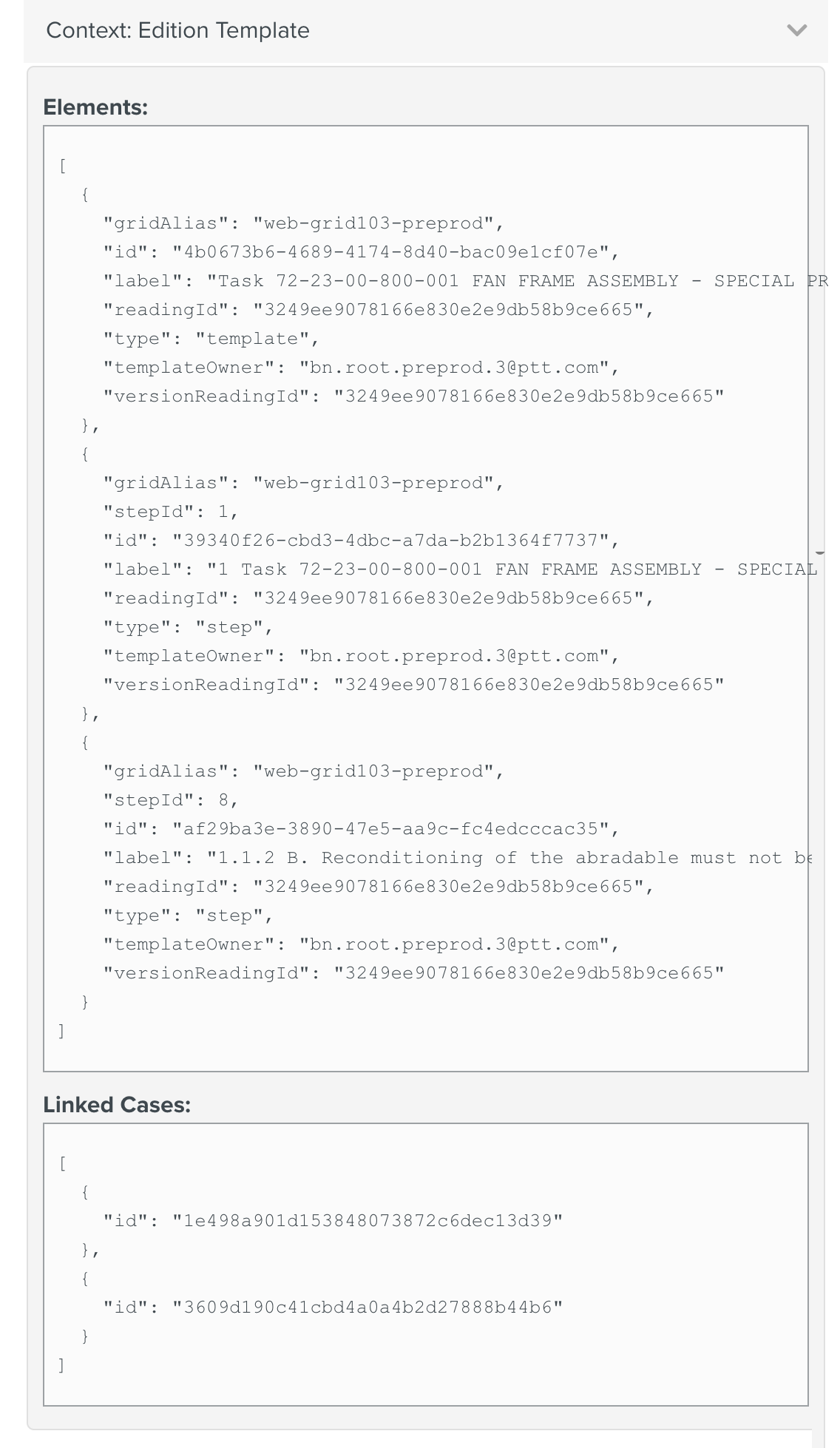
The Context in which the Case is available is displayed.
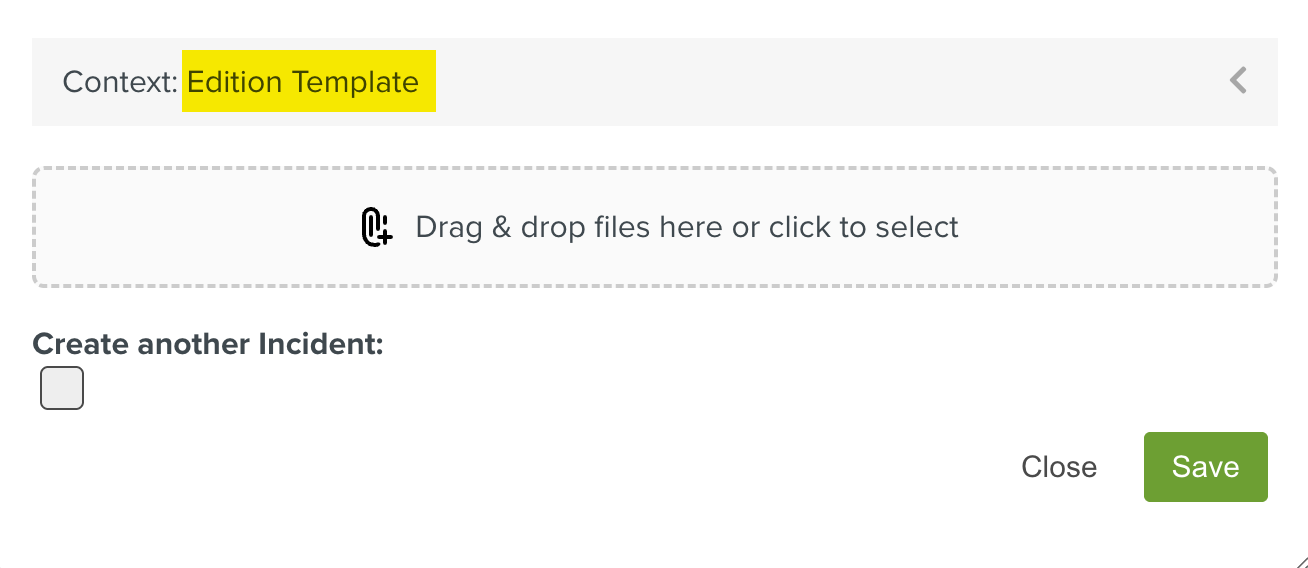
Expanding the Context section displays the Elements and Linked Cases field.
Template ID details are displayed in the Elements field and linked Case ID details are displayed in the Linked Cases field.
Note
The Elements and Linked Cases fields visibility is determined by the Case definition.
[Optional] Click the button to add images or files to the Case. You can add multiple files as shown below.
Note
All types of documents and media file formats of size under 30 MB are supported.
To remove a file, click
 and Yes, Remove.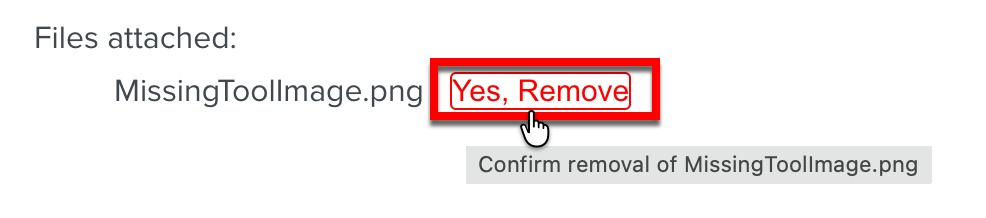
The dialog with all the details filled is shown below.
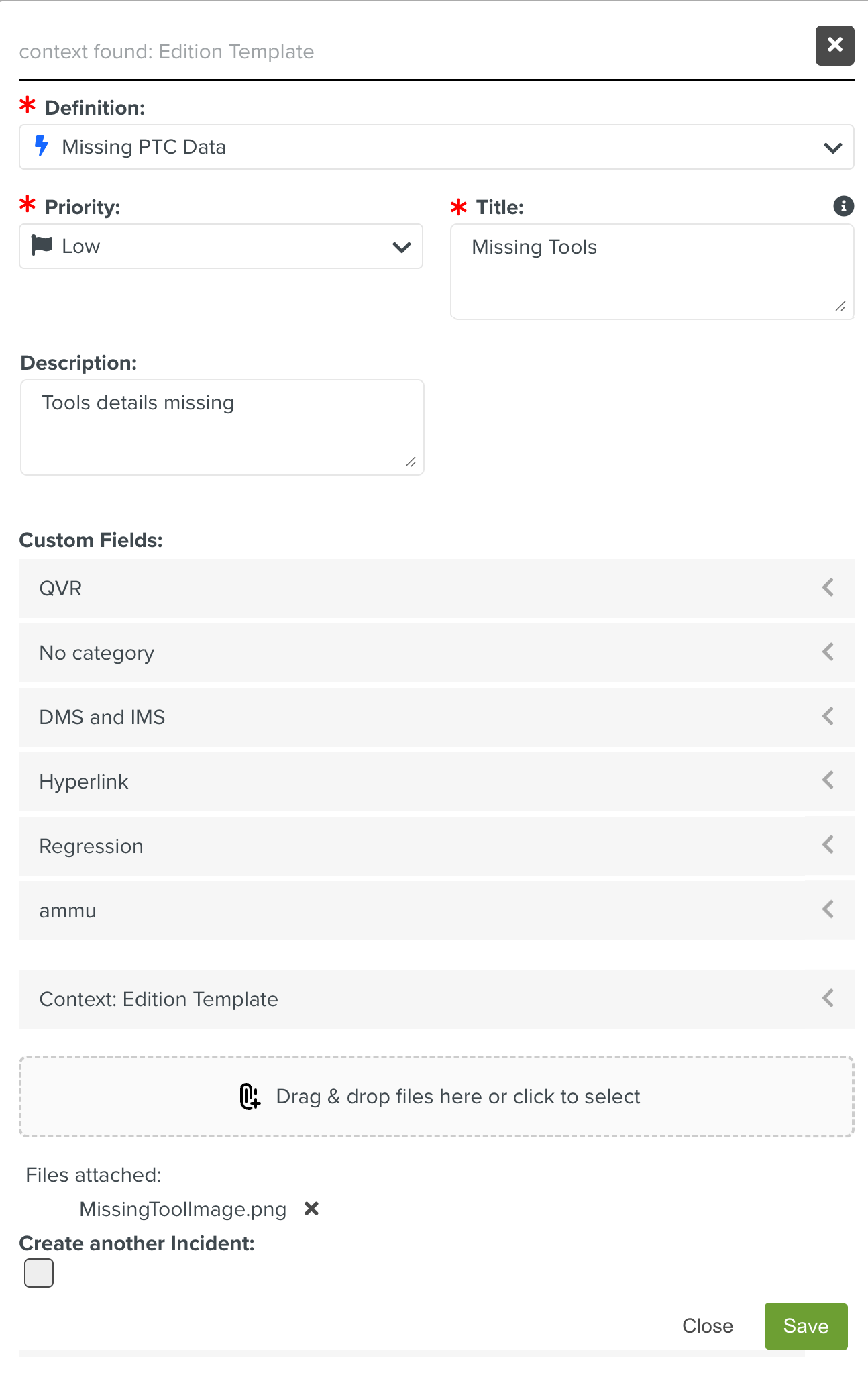
Click .
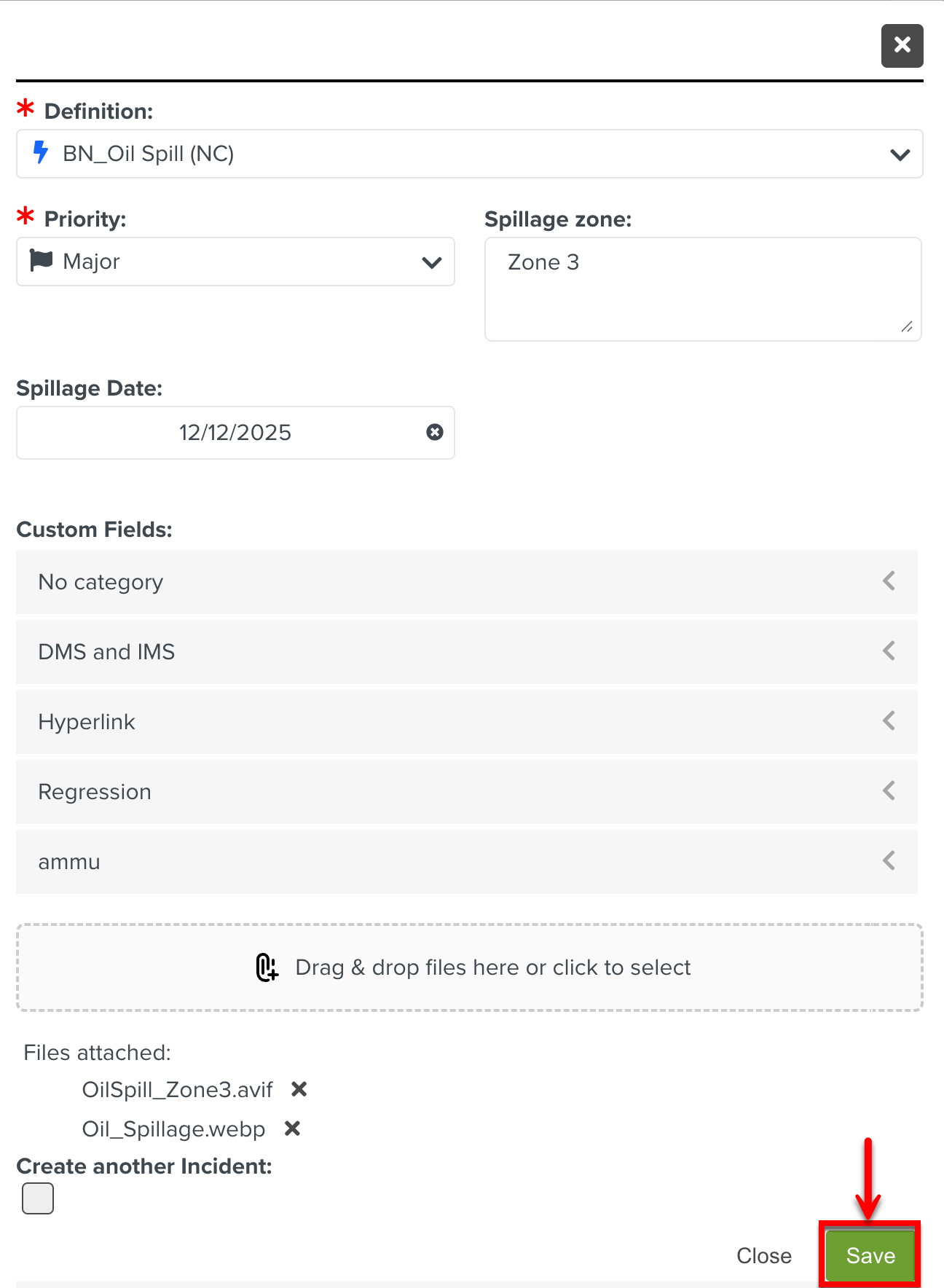
The Case for missing PTC details is raised.
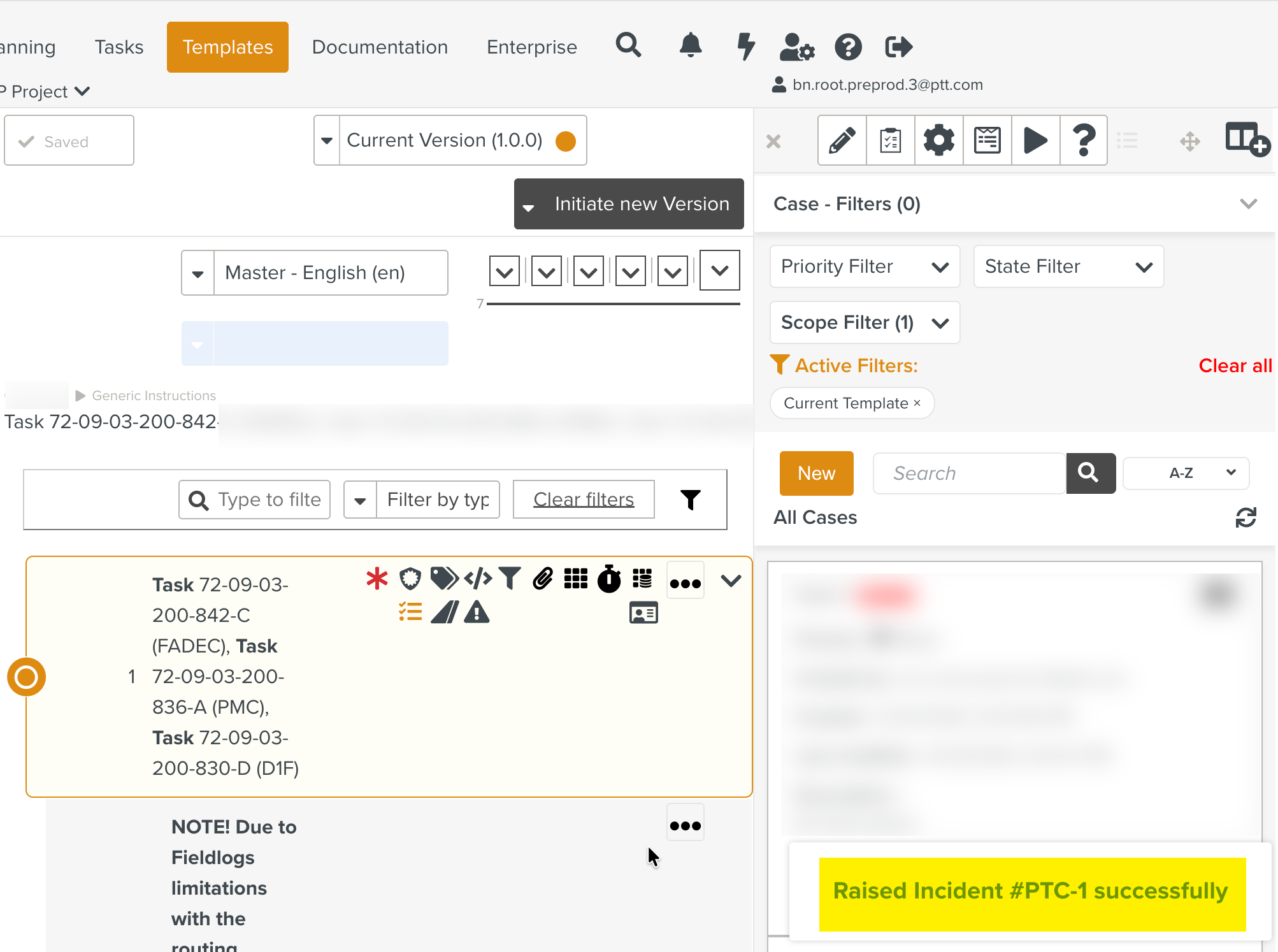
Note
Click Create another Incident checkbox to raise the same Case again. The same dialog is open with the details filled. Even when the dialog is closed and reopened, the same Incident Definition is auto-selected.
You can view all the raised Cases for a selected Template or across multiple Templates.
In the Template property pane, click the Cases  icon.
icon.
The Case section appears.
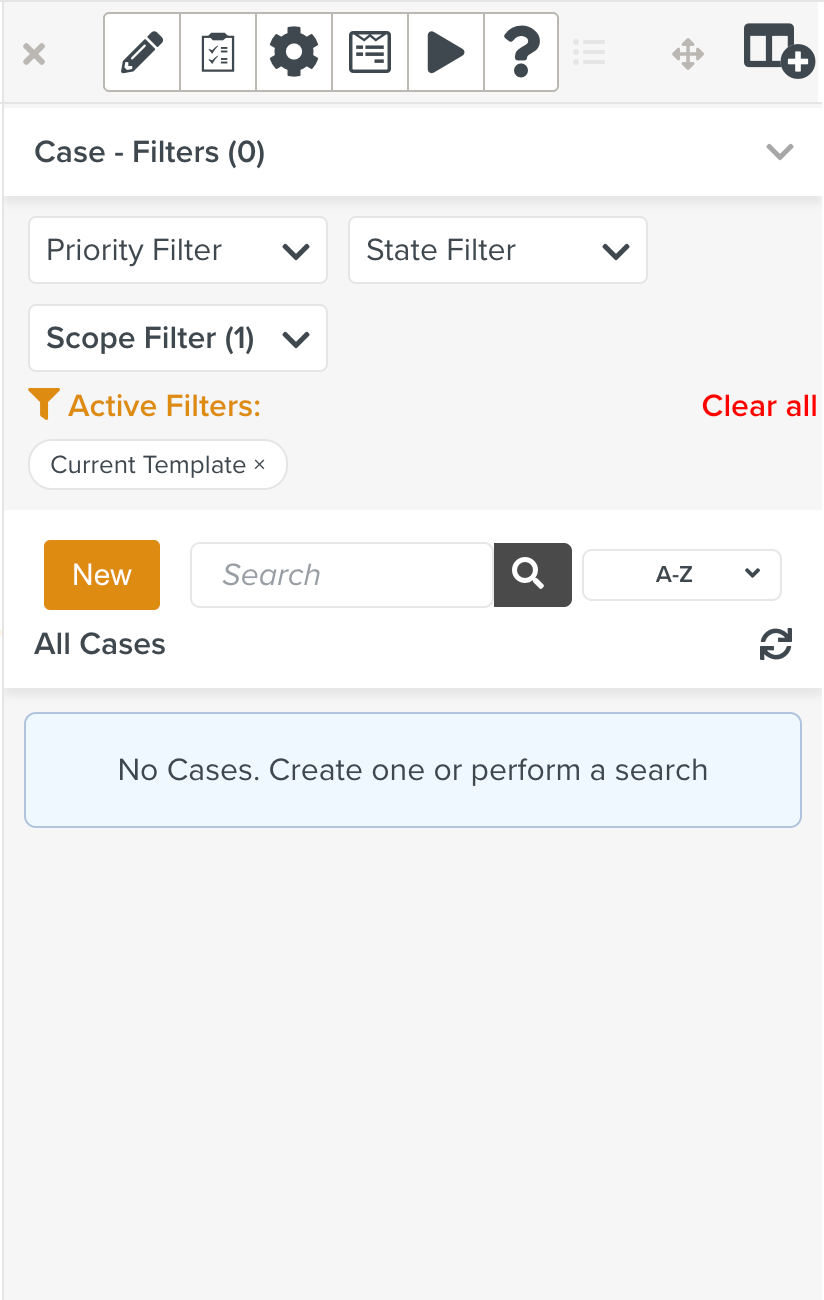 |
By default, the Scope Filter Current Template is applied. When this filter is applied you can view only the Cases raised for the current Template.
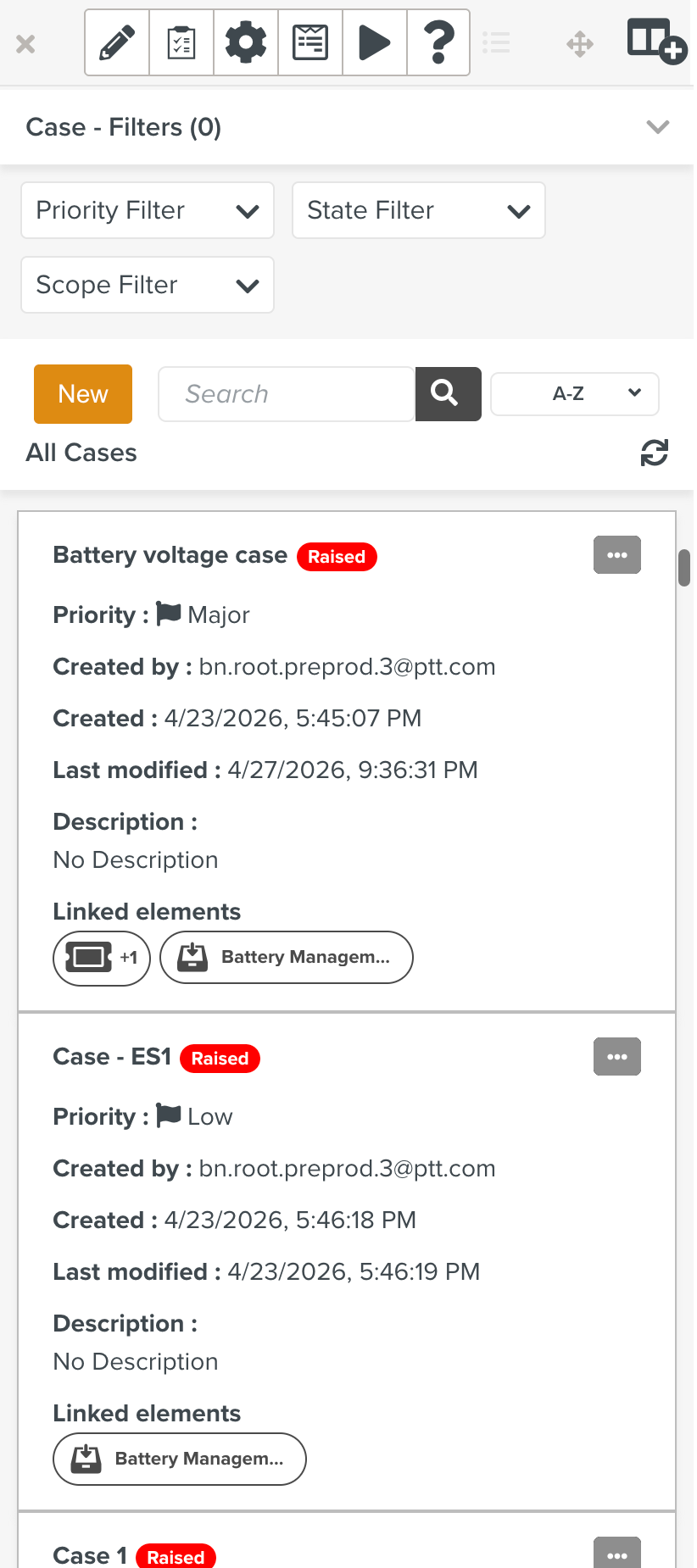
To view all the raised Cases associated to different Templates, change the Scope filter to All and click Refresh  .The Cases raised so far are displayed.
 |
You have the following options to filter, search, and sort the cases.
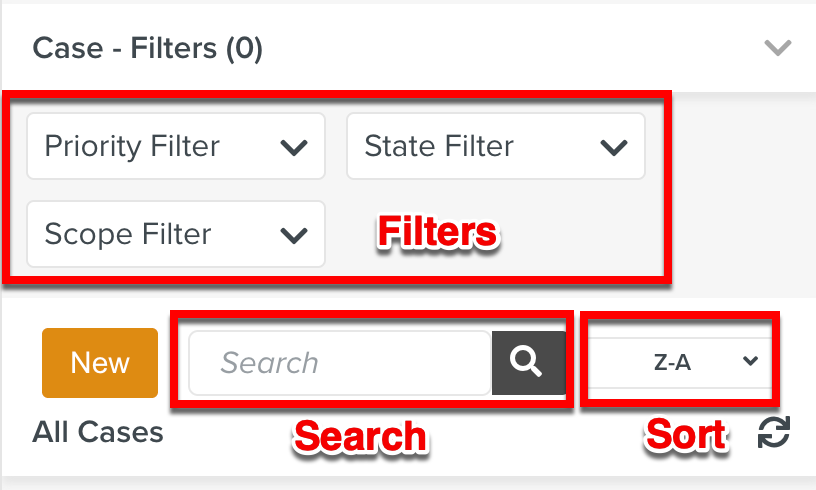 |
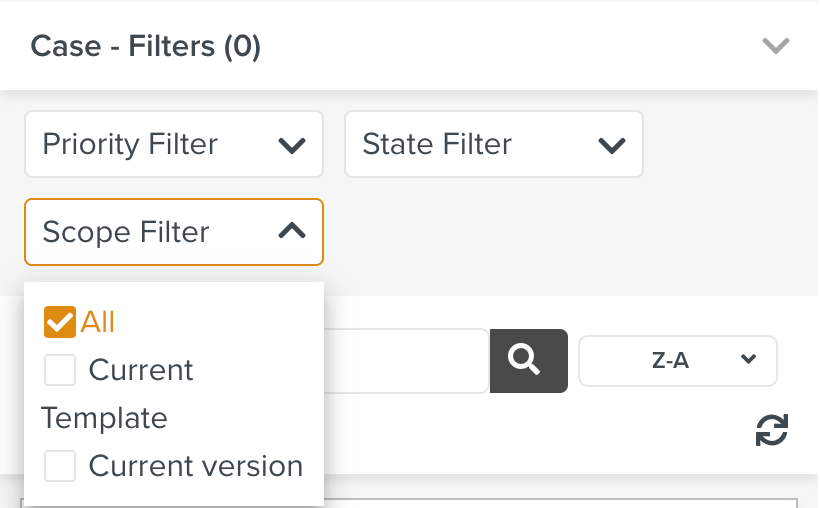
Filters: You can filter the Cases based on their Priority, Status, and Scope as shown below.
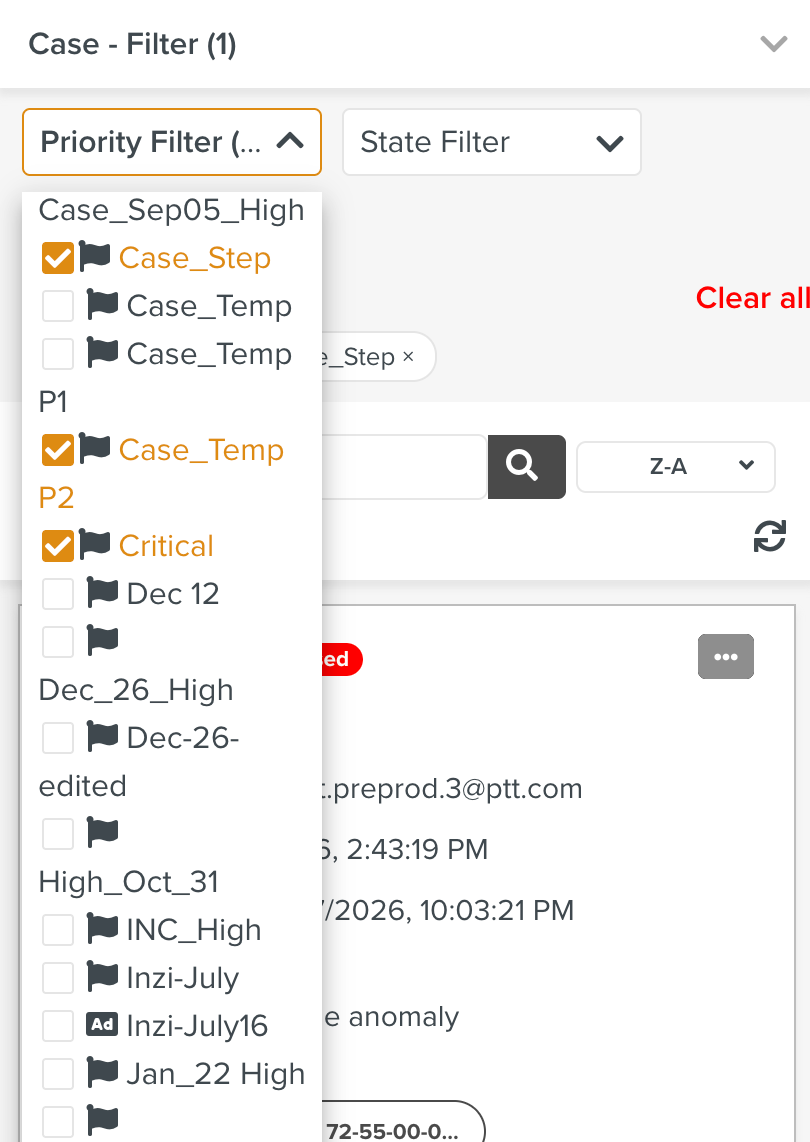
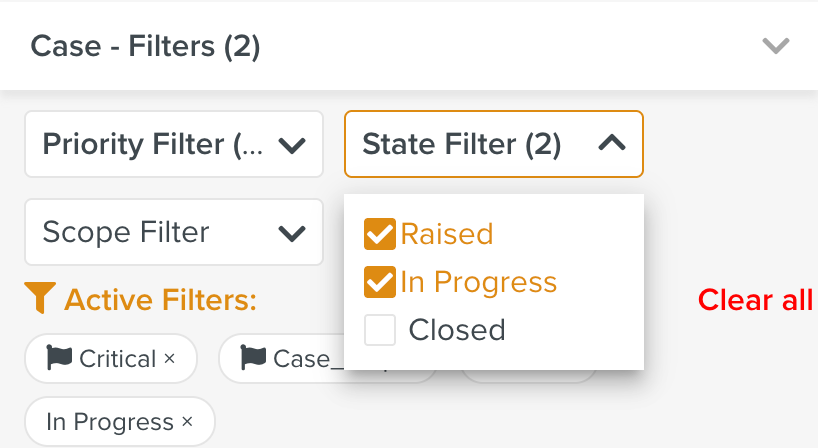
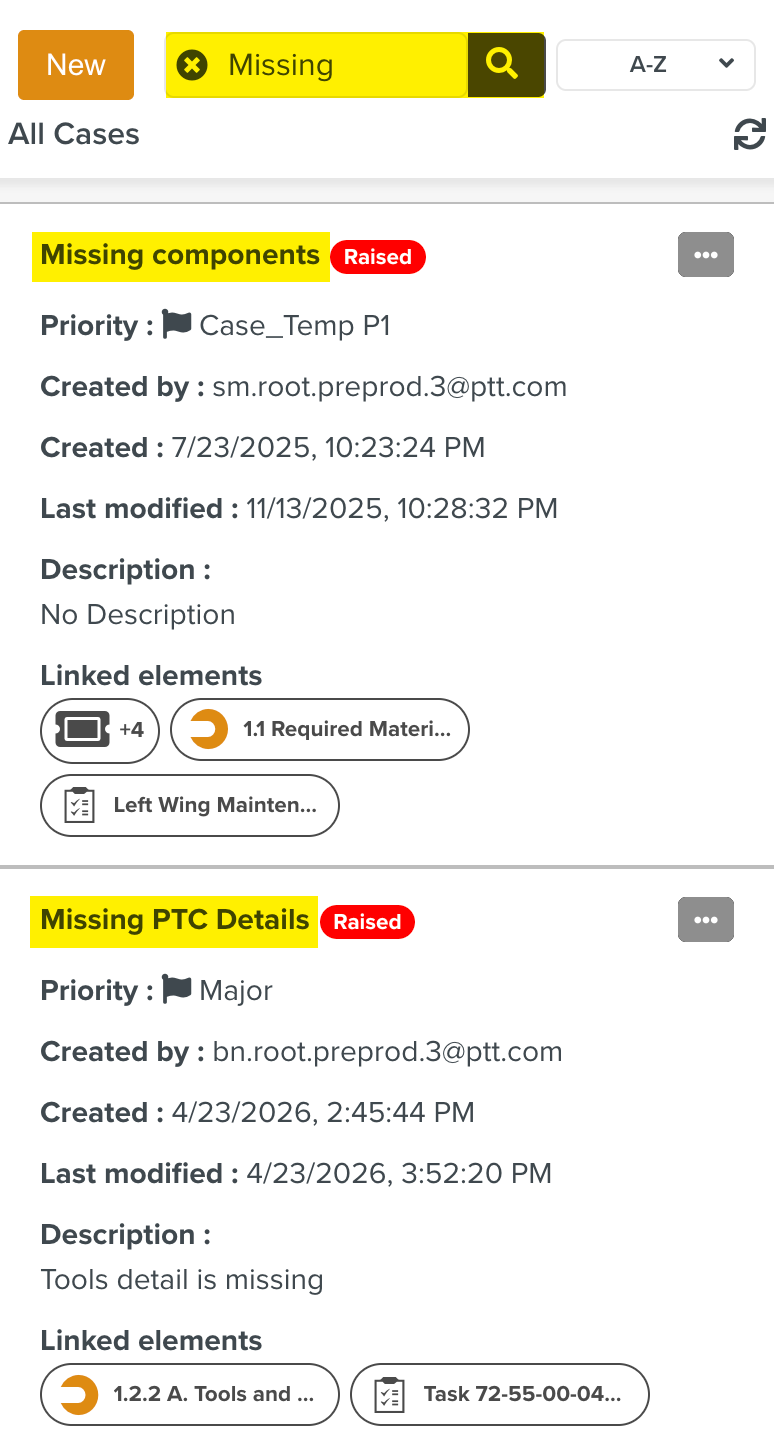
Search: You can search for the required Case by performing a keyword search.
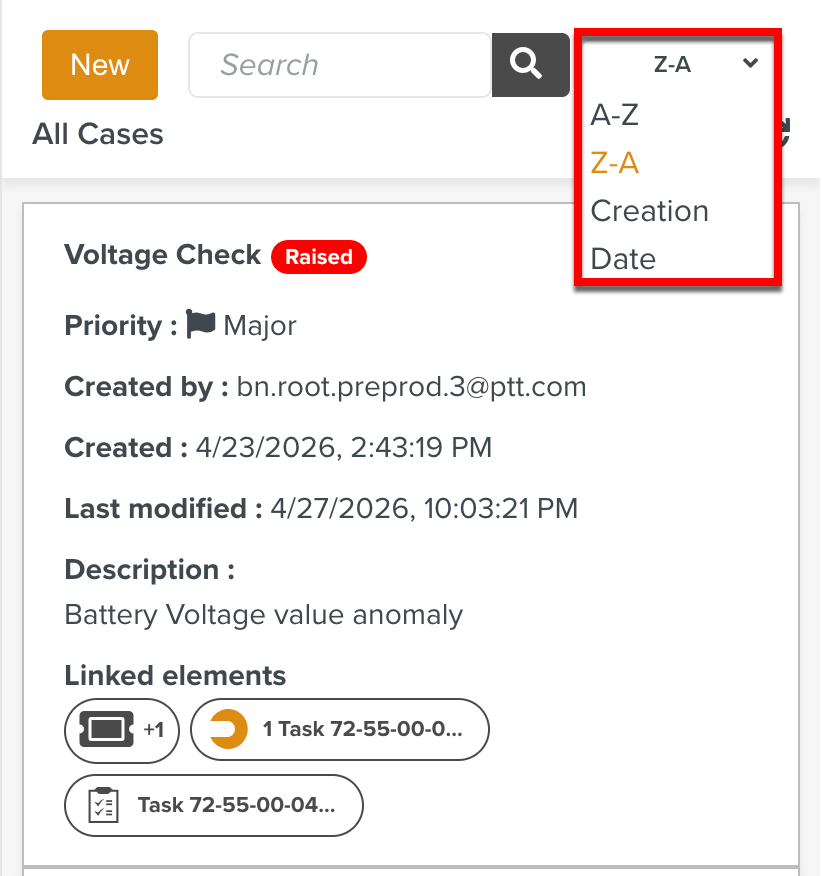
Sort: You can sort the Cases based on the available criteria shown below.
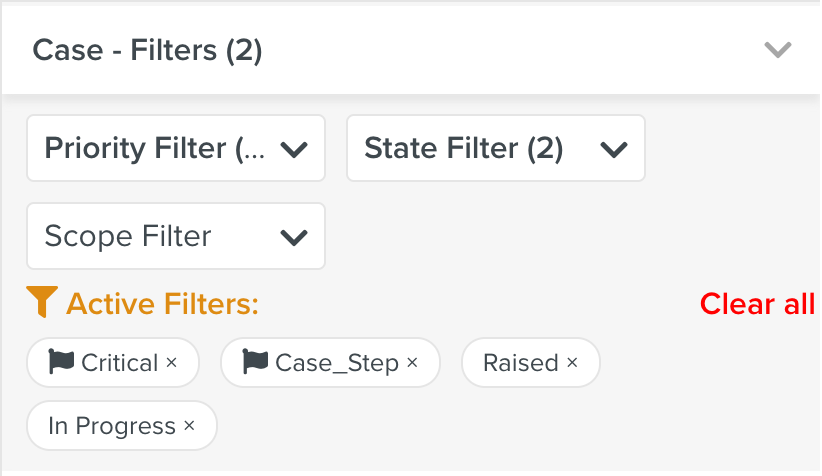
The applied active filters are displayed as shown below. You can either clear all the filters or each filter individually.
 |
For each raised Case, the following details and linked elements are displayed. The details may vary based on the fields defined for each Case.
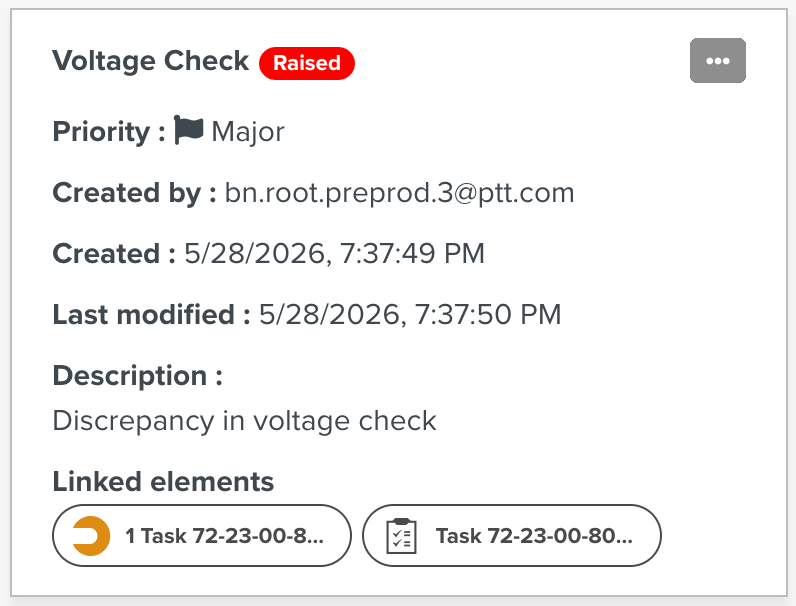 |
For every raised Case, a list of options are available.
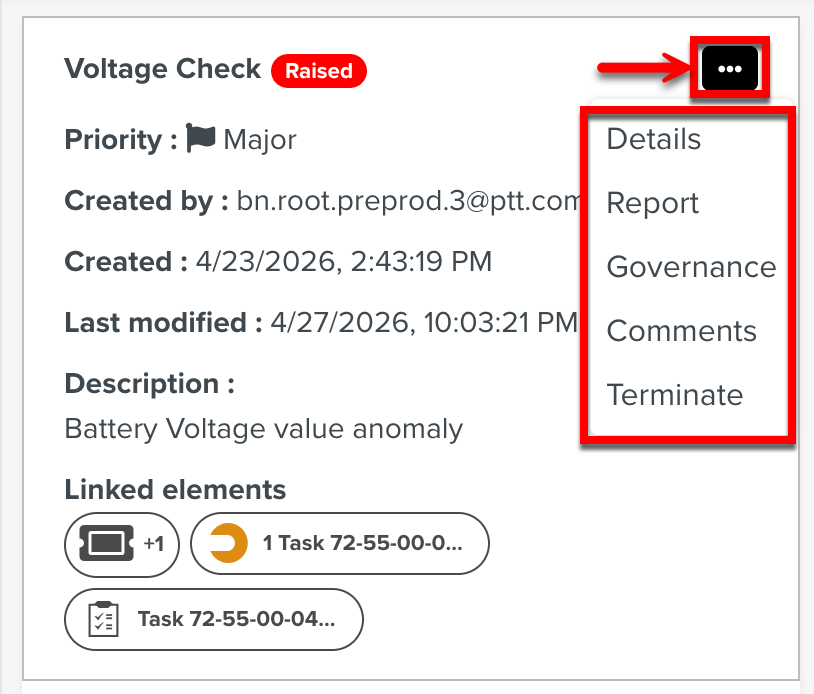 |
The options are listed below:
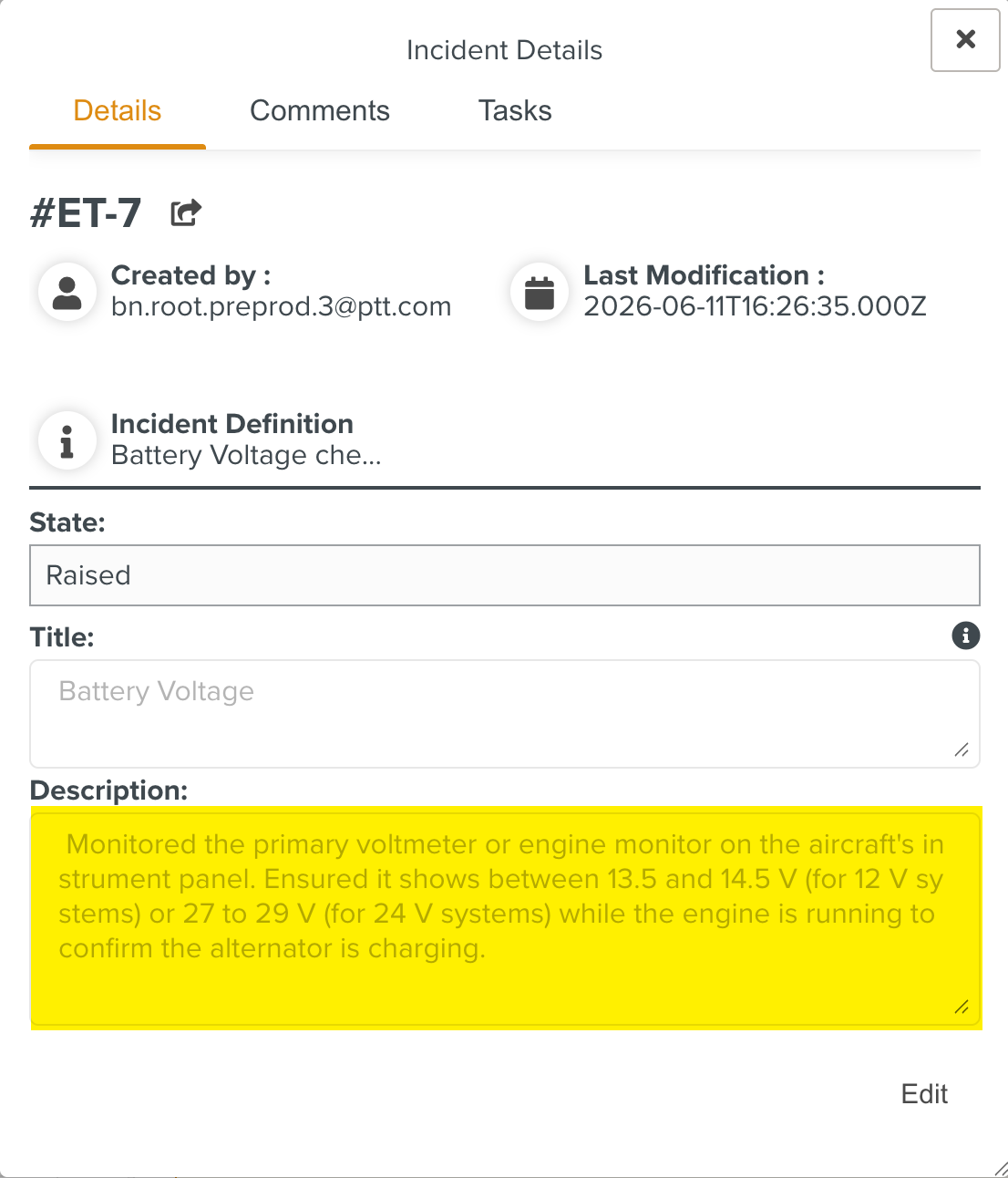
Details: Displays the Case details entered as shown.
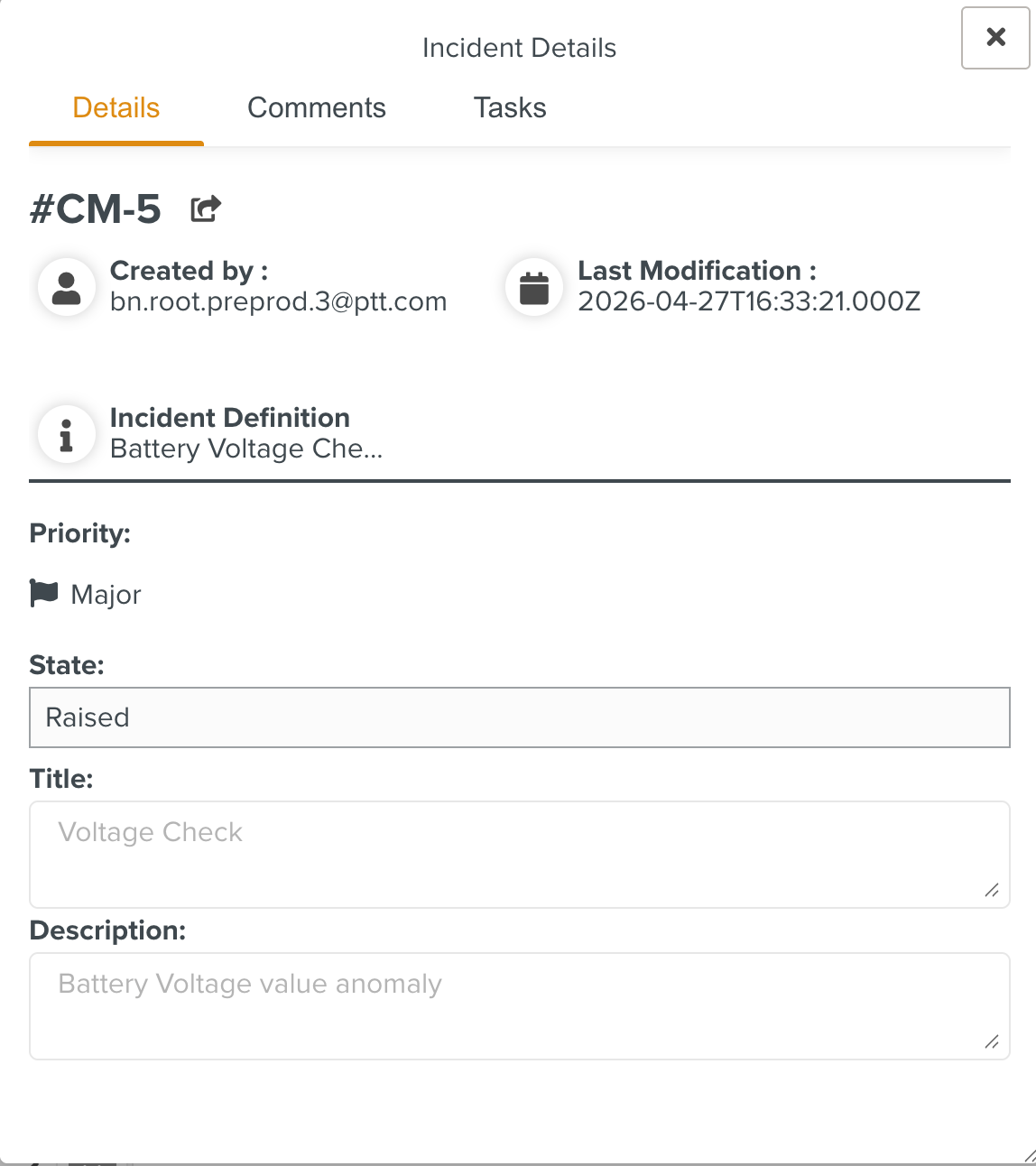
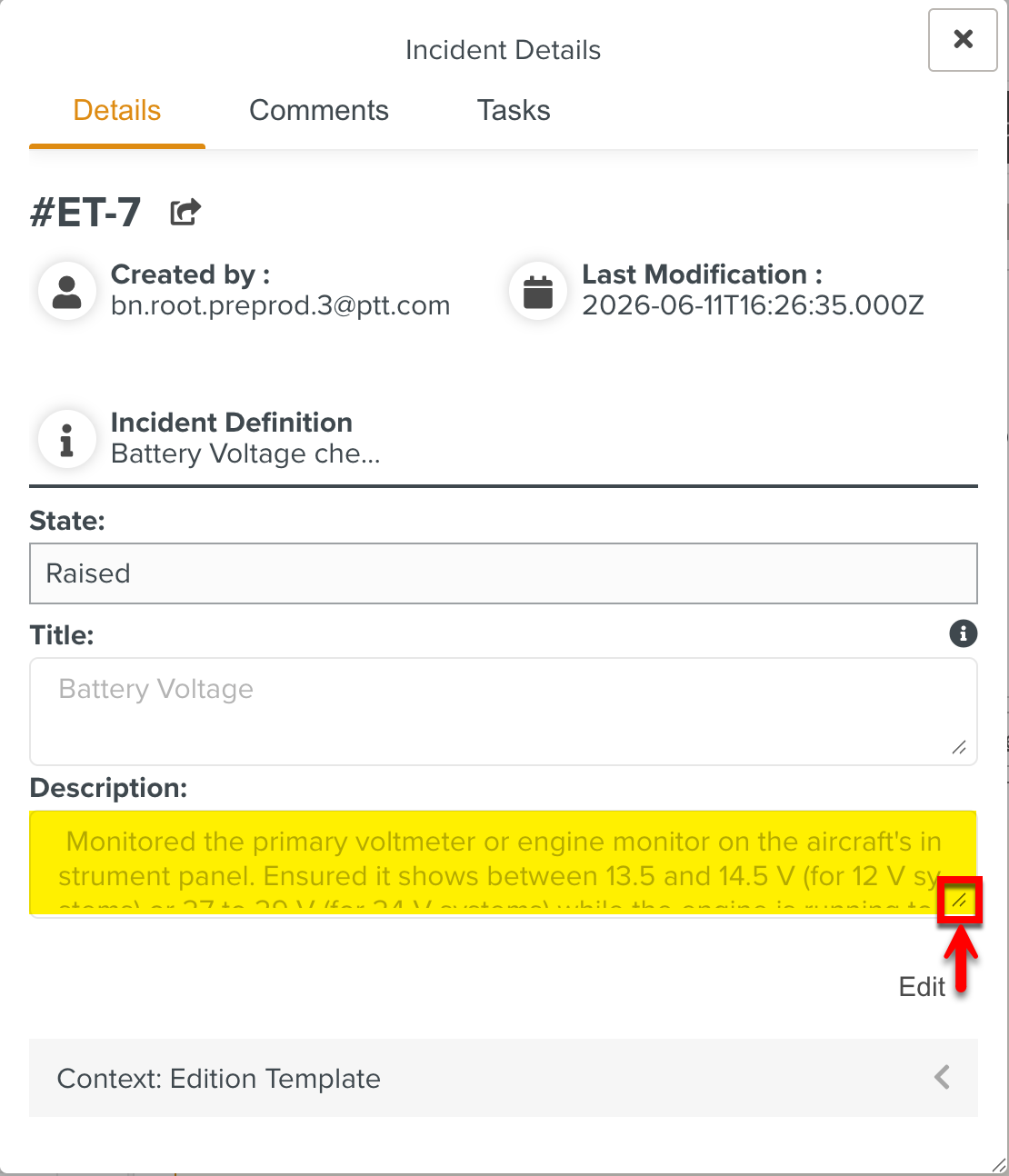
The text boxes can be vertically resized to view the complete details entered. In the below example, the text box Description is resized.
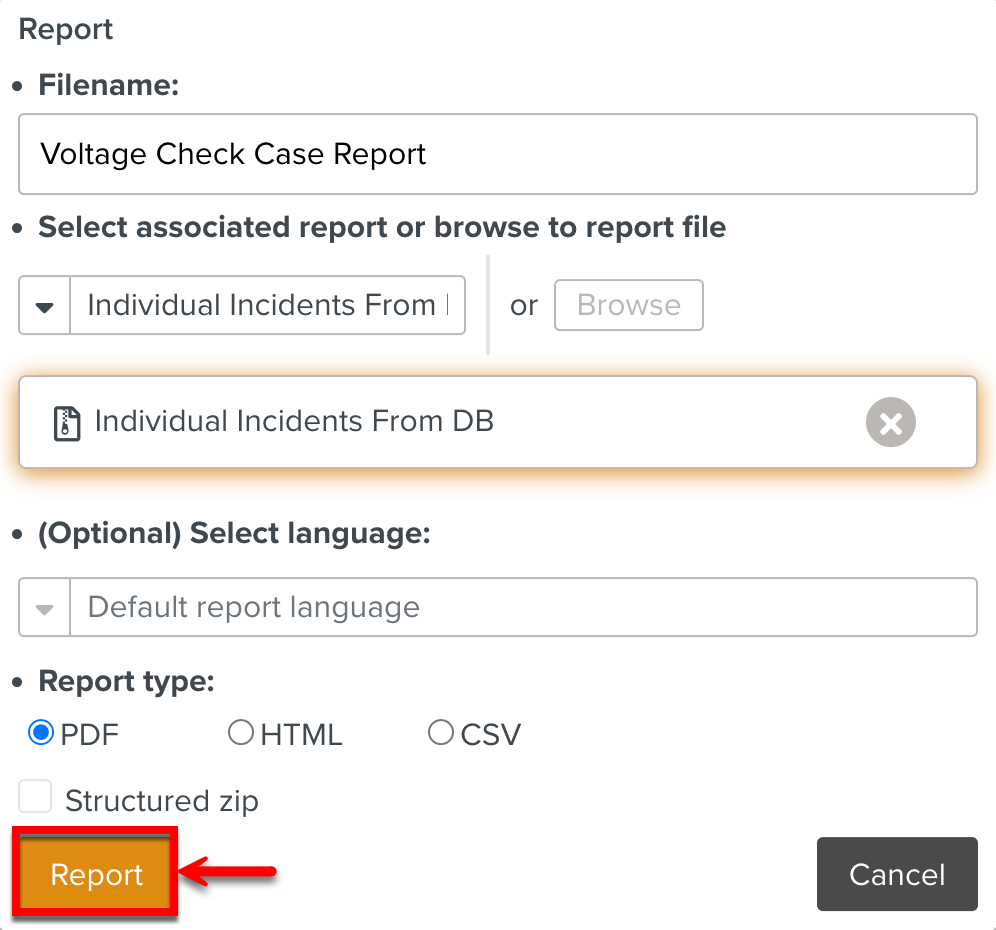
Report: Allows you to generate a Case Report.
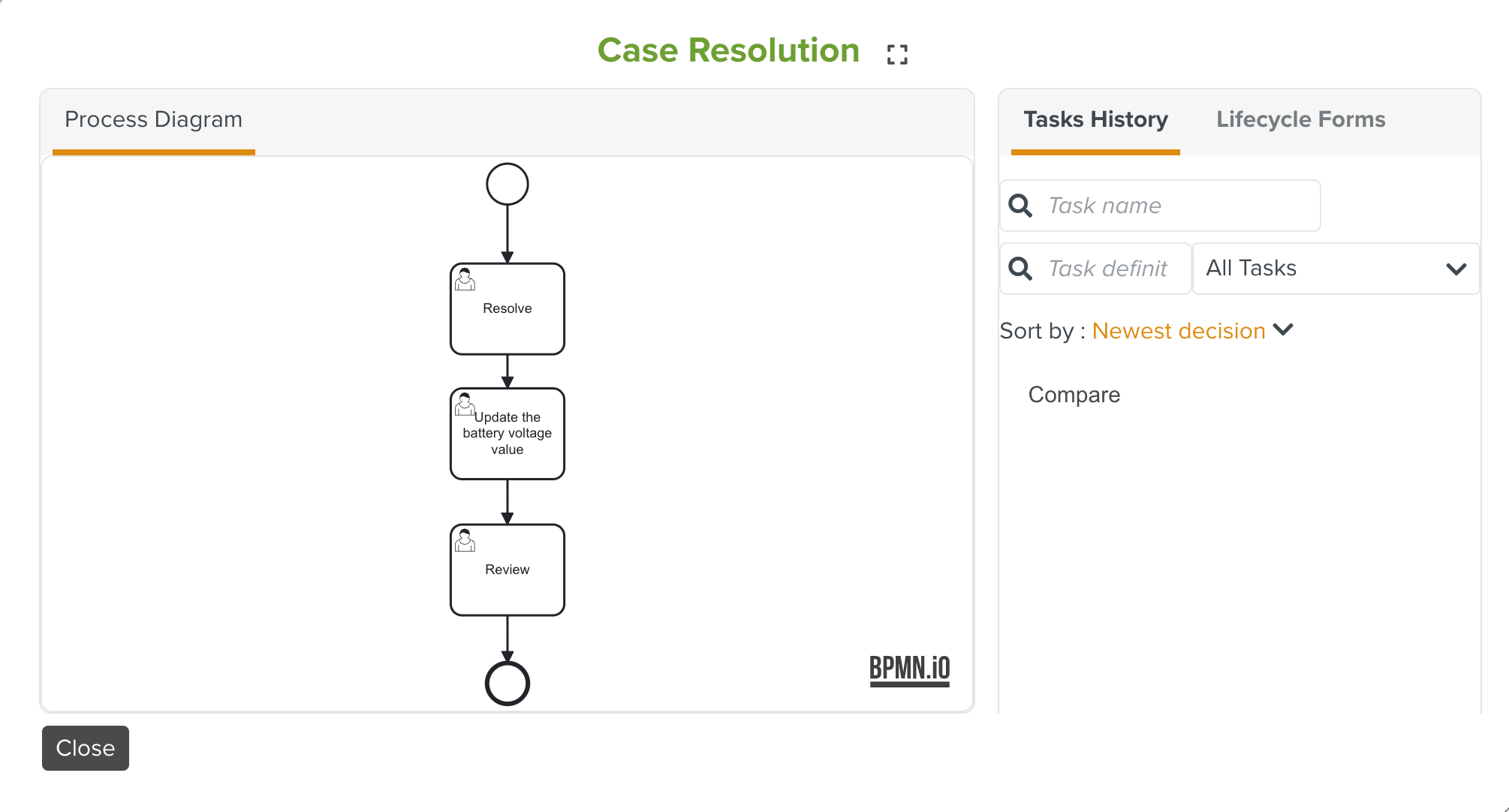
Governance: Displays the Resolution Flow used for the Case. You can also view the Task History and Lifecycle Forms attached.
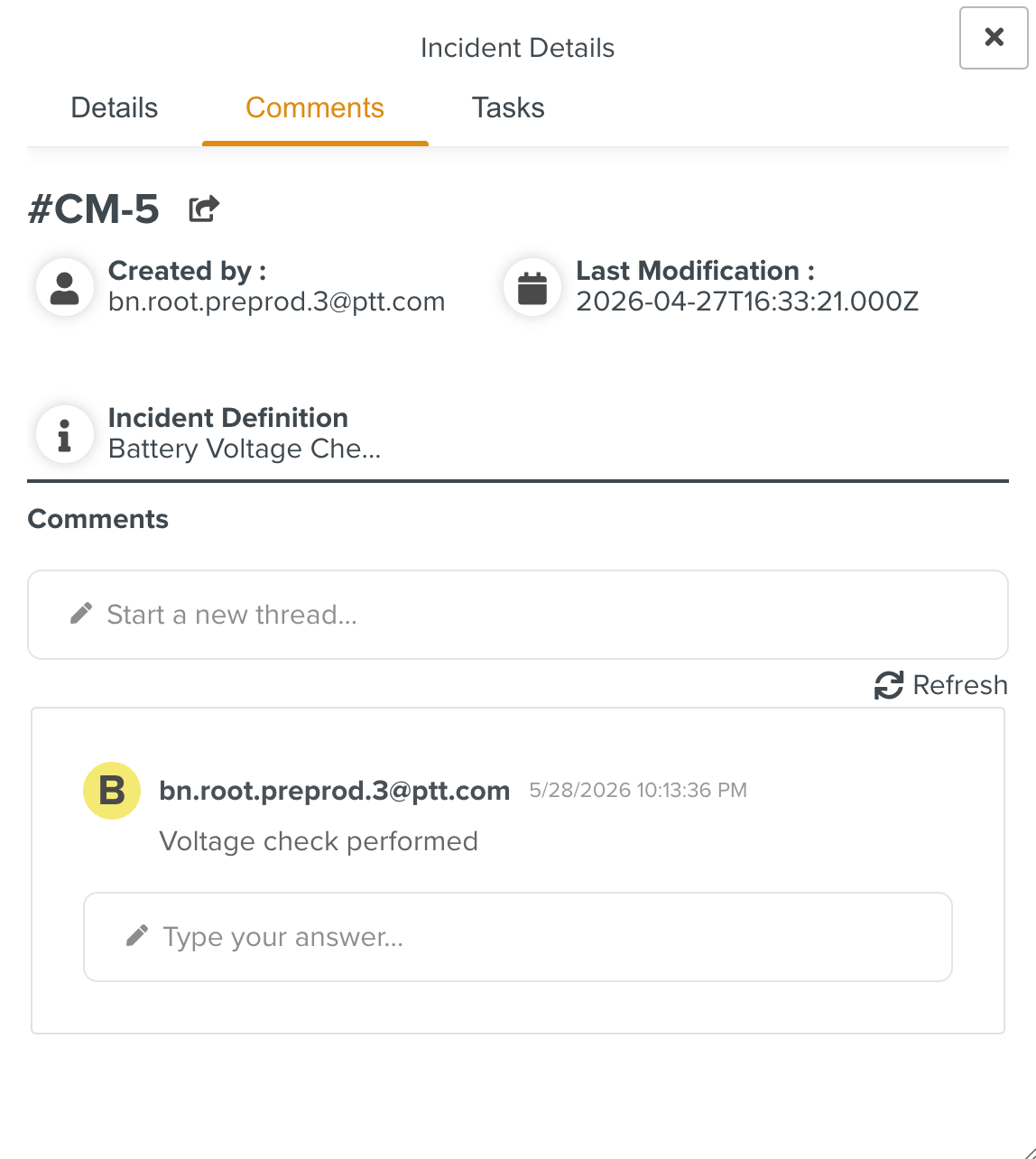
Comments: Displays the comments.
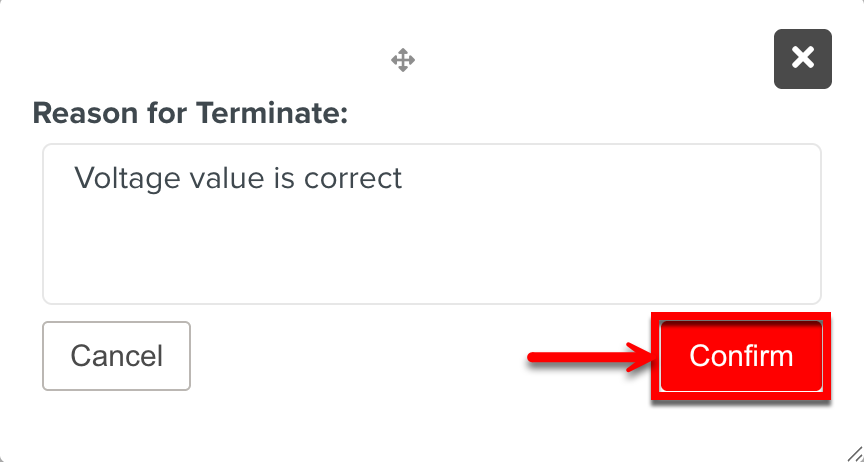
Terminate: Allows you to end the Case. You can end the Case by providing the reason and clicking .
When you click on the Case, the Linked elements and Linked Cases sections are displayed allowing you to link new elements or other cases to the selected Case.
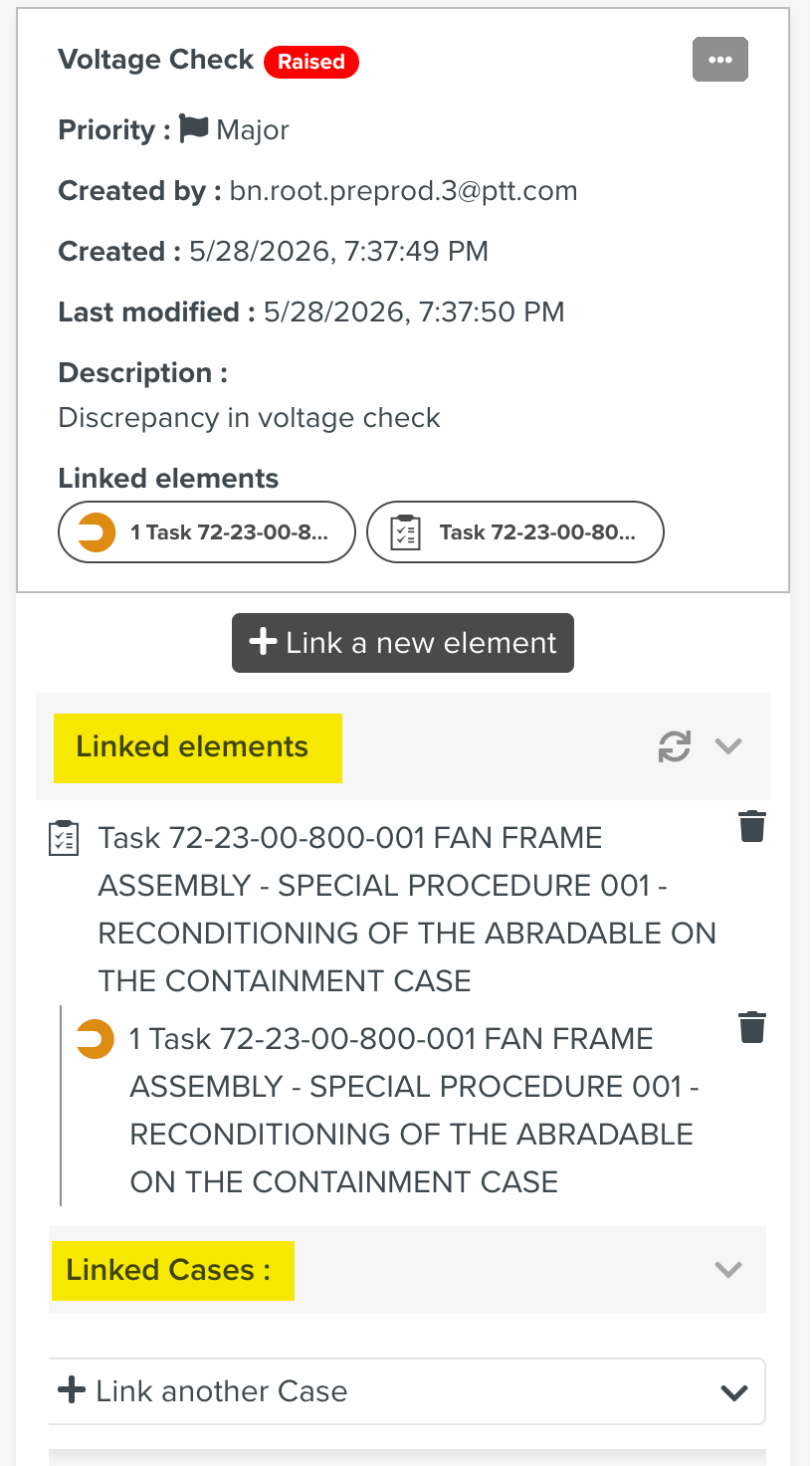 |
Elements such as Templates and Template Steps can be linked to a Case.
To link an element to a raised Case:
Select a Template or Template Step and click .
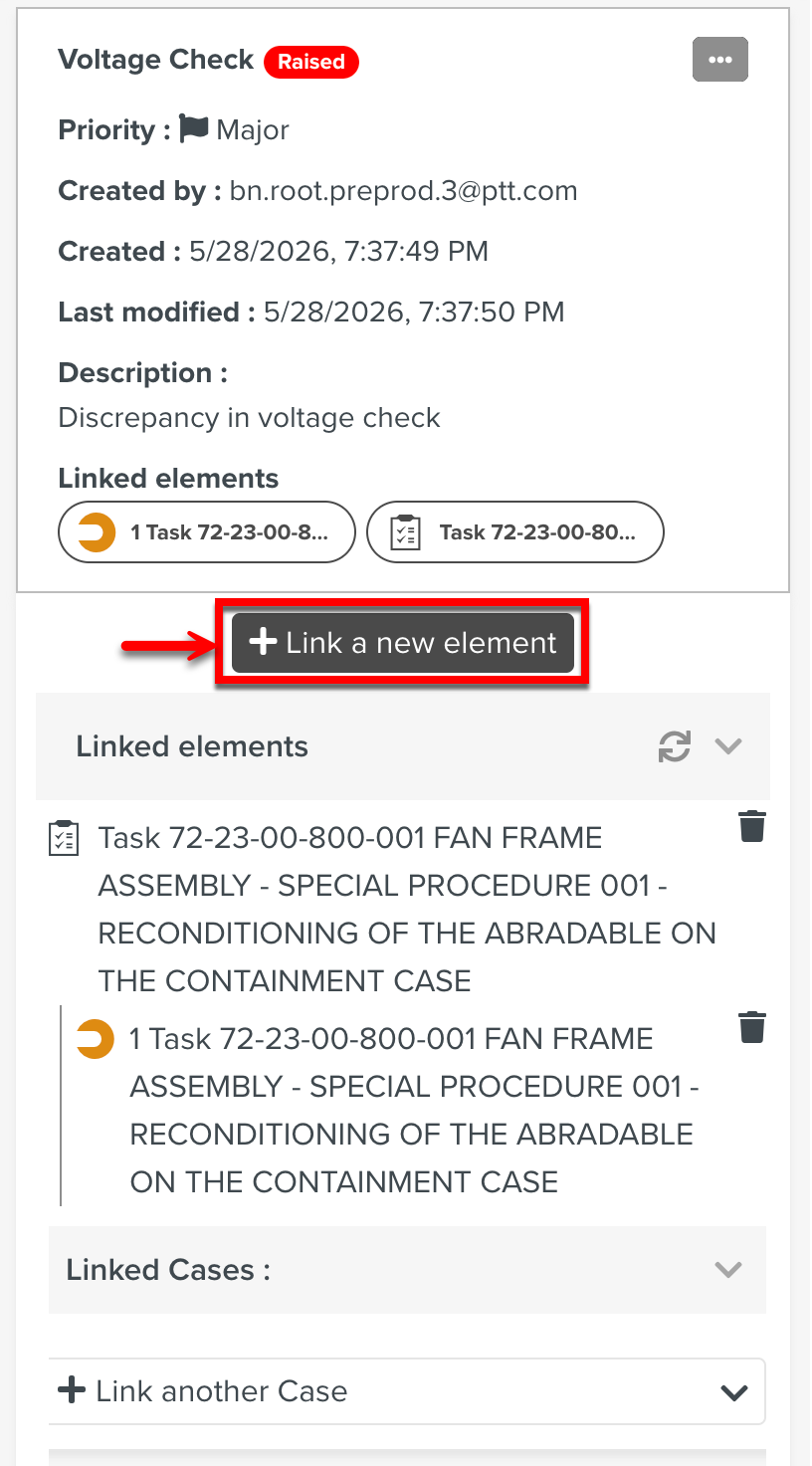
The Currently selected section displays the relevant Steps.
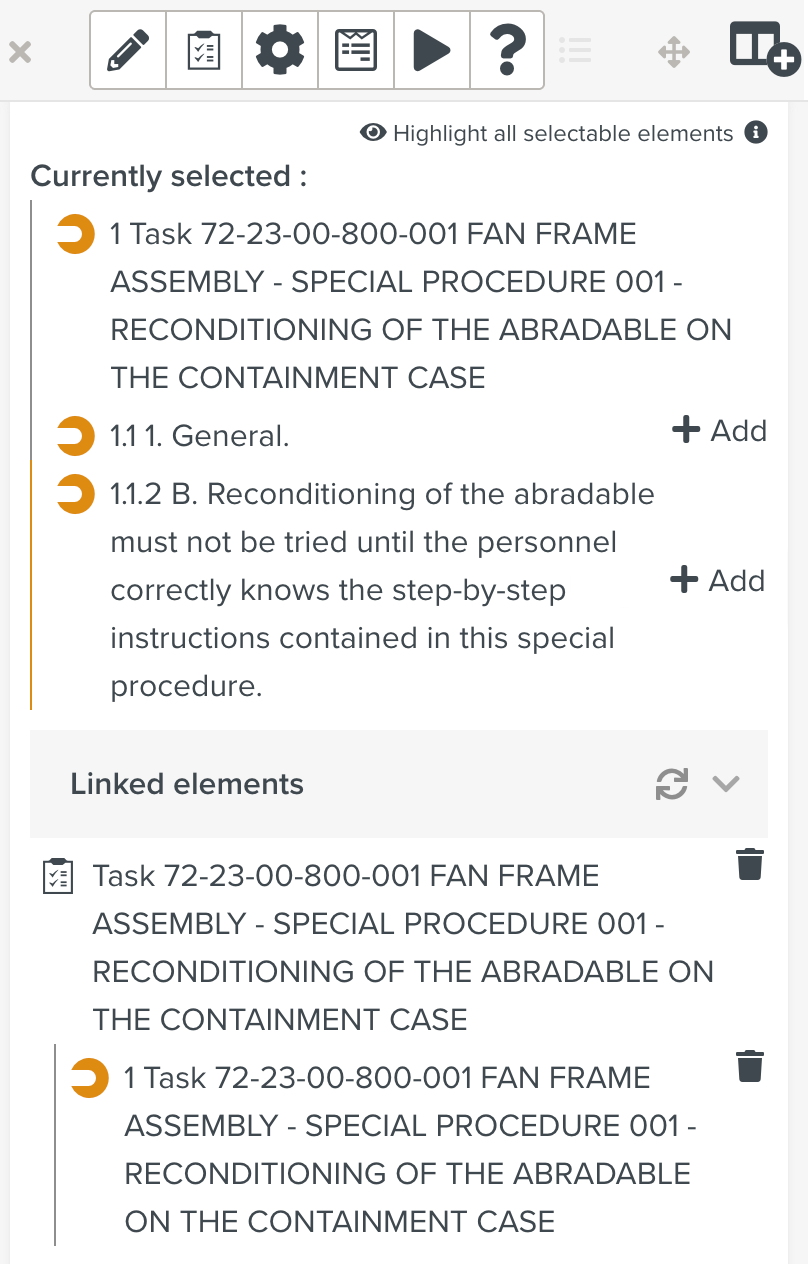
Click on the required Step to link it to the raised Case.
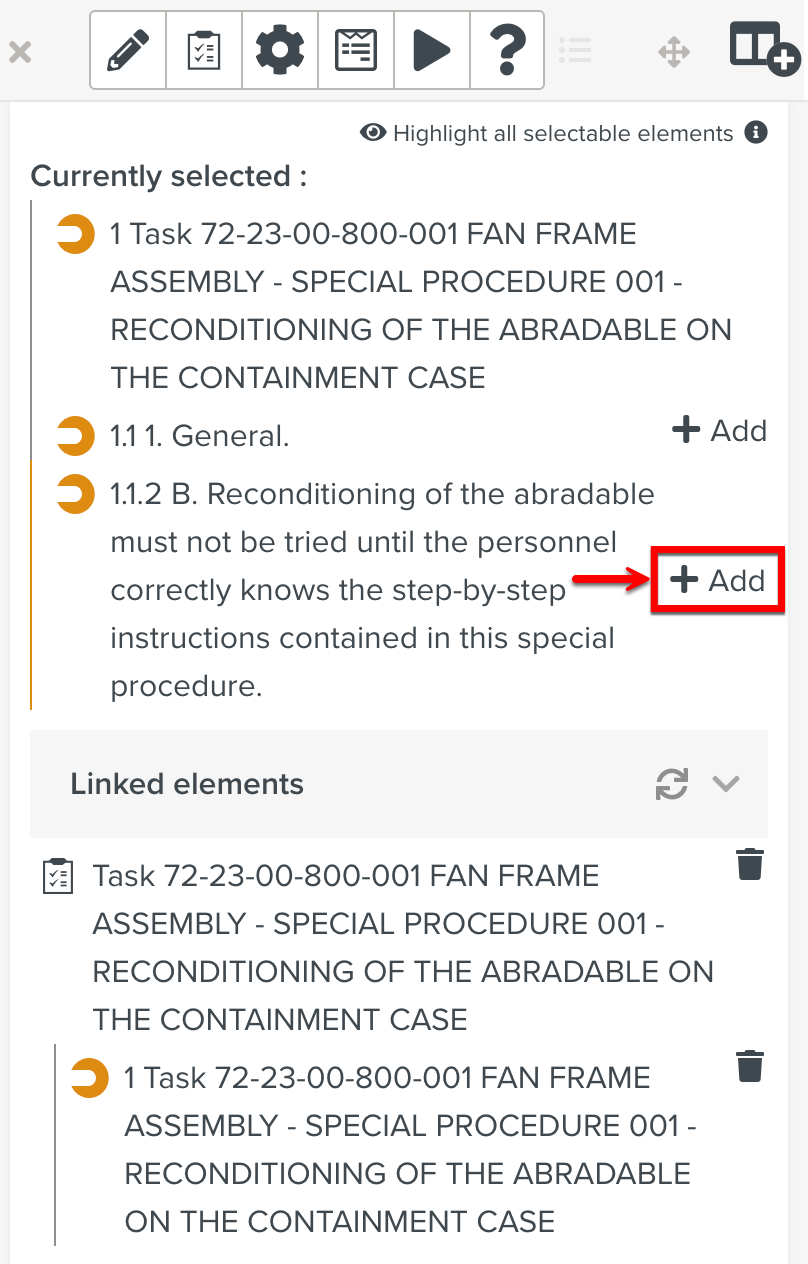
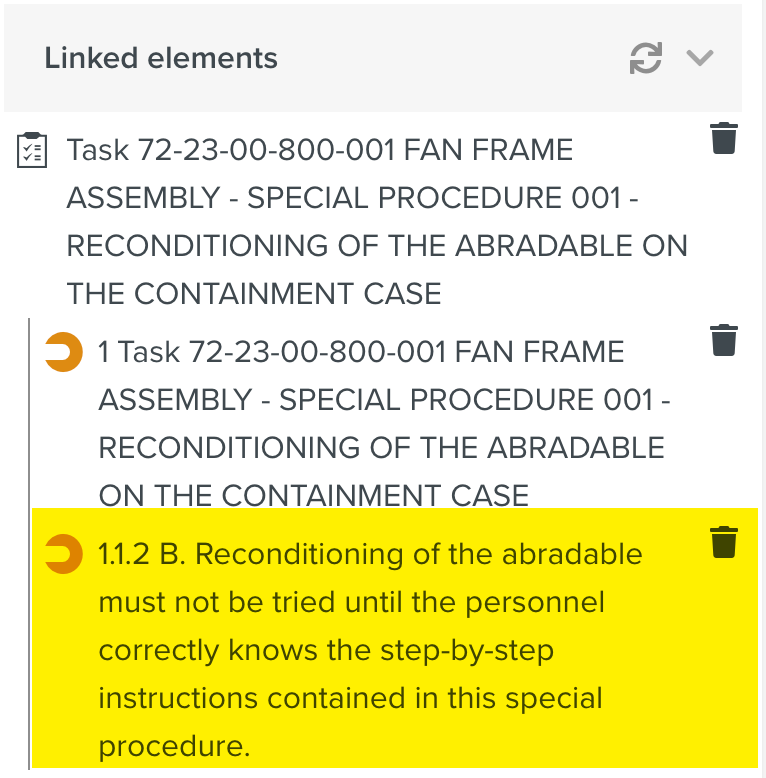
The selected Step element is linked to the Case.
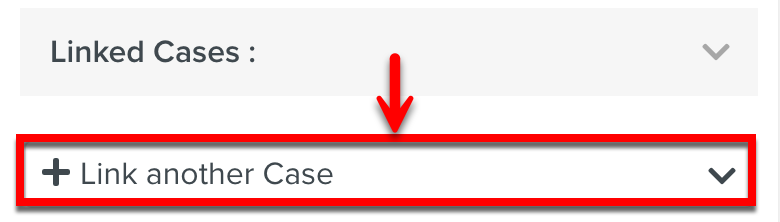
You can link already raised Cases to a Case.
To link a Case:
In the Linked Cases section, click .
Select the Case to be linked.
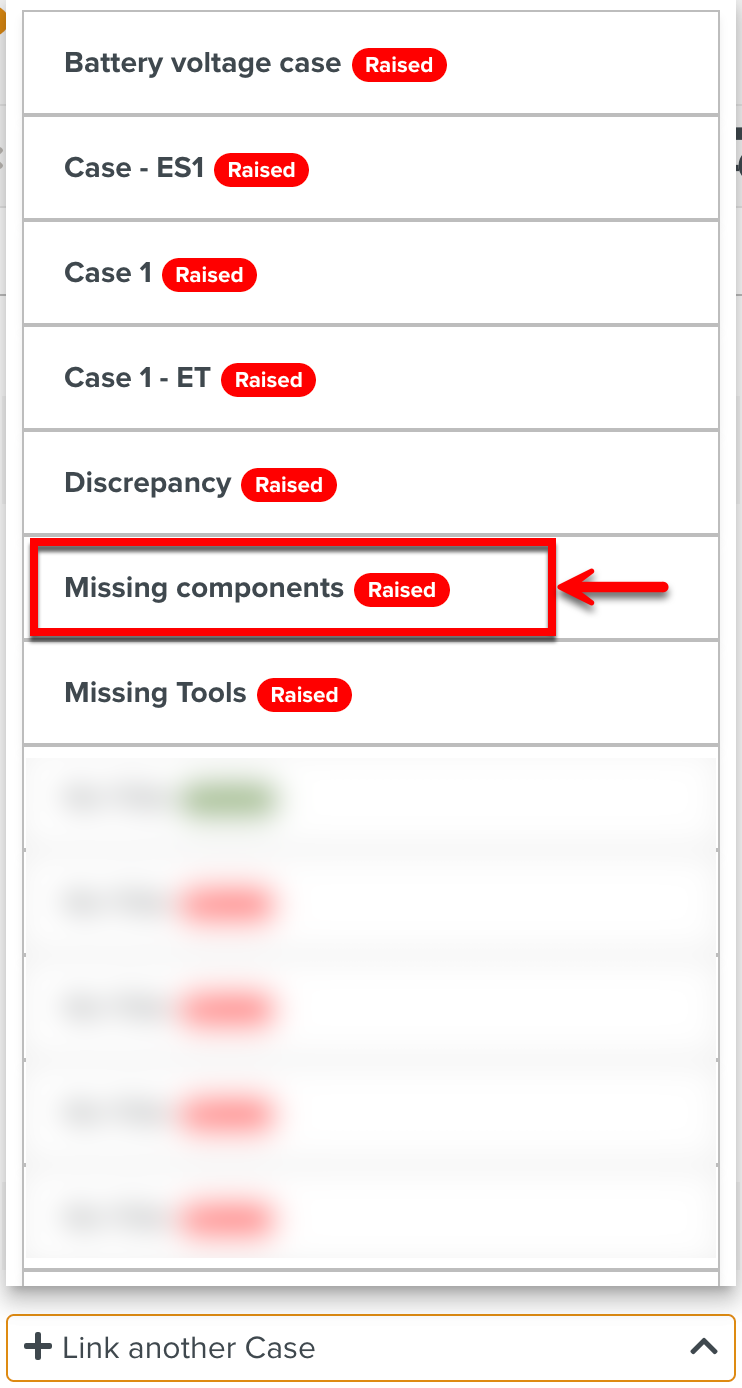
The selected Case is linked to the current Case.
You can view the linked elements and Cases as shown. Hovering over the elements display the details of the elements and the ID of the linked Cases.
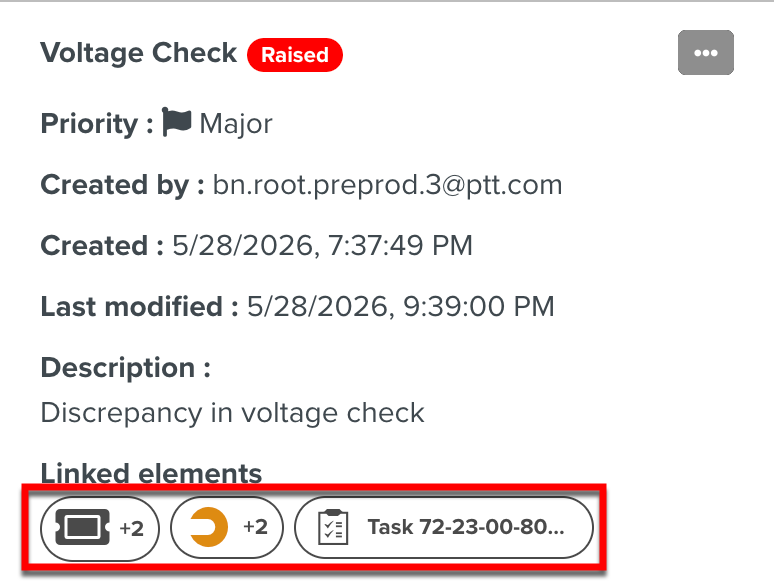 |
These details can also be viewed in the Context details section of the raised Case as shown below.
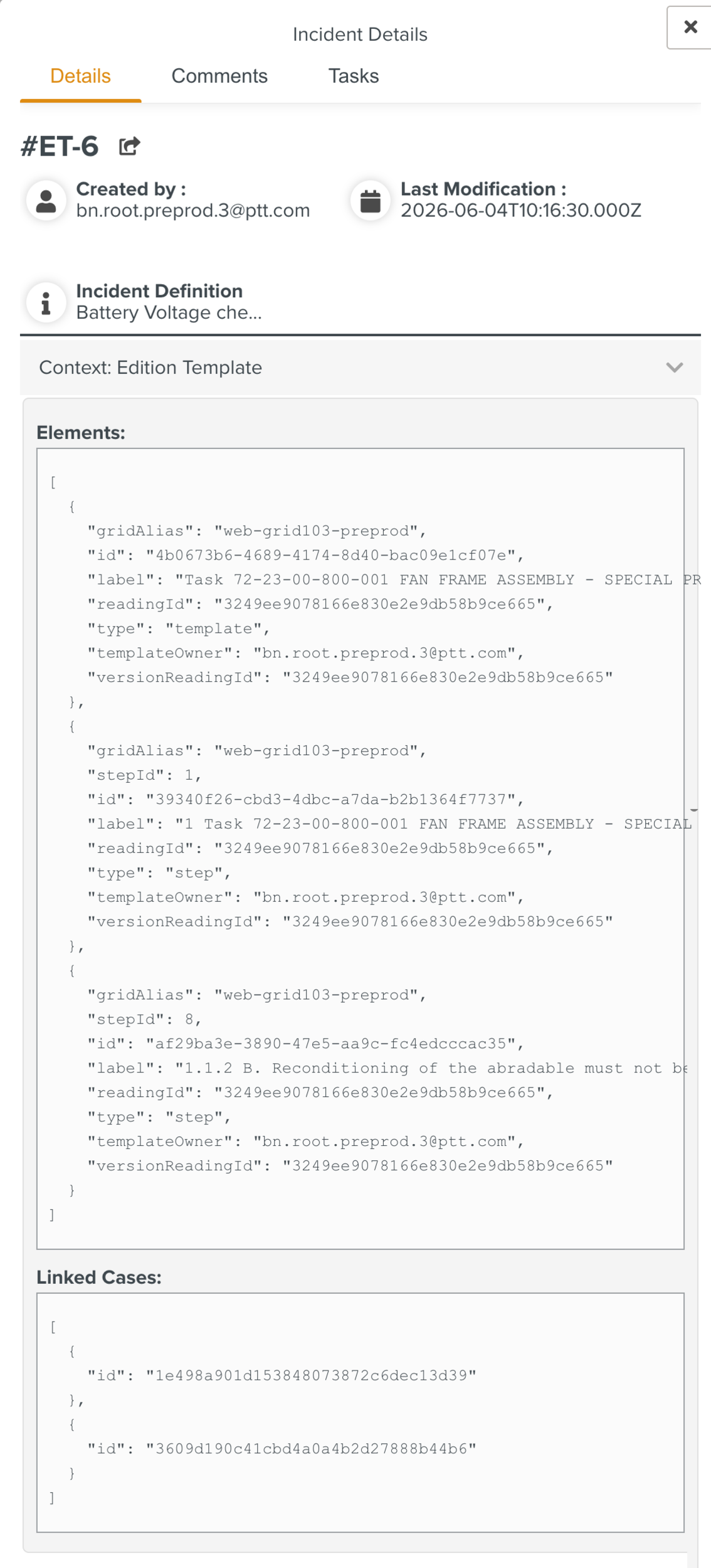 |