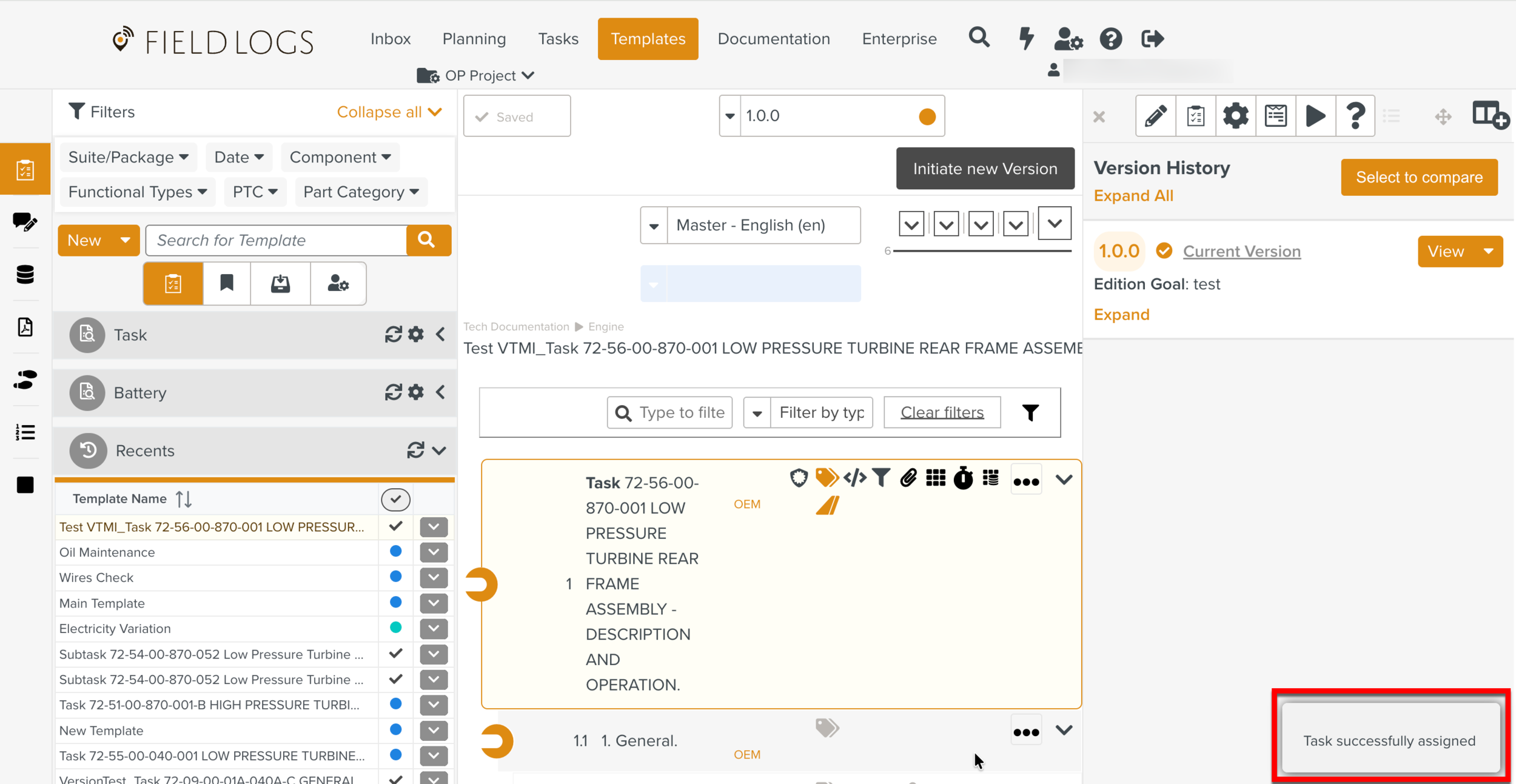
Assigning a Task from the Template section
It is possible to assign a Task directly from its Template. The Task can be assigned to a Task Queue or a team member.
To assign a Task from the Template section:
On the main menu, go to > .
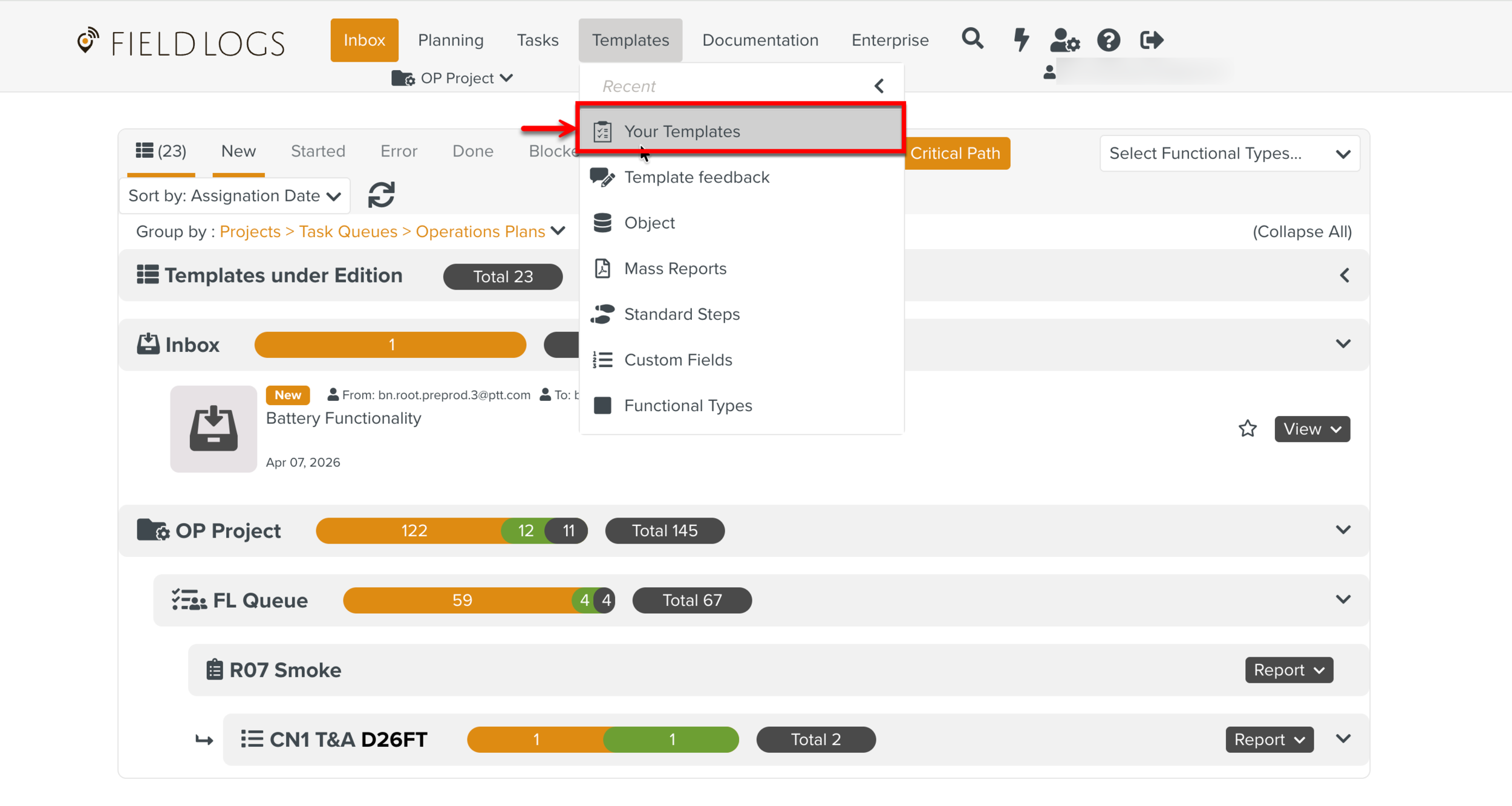
The section opens.
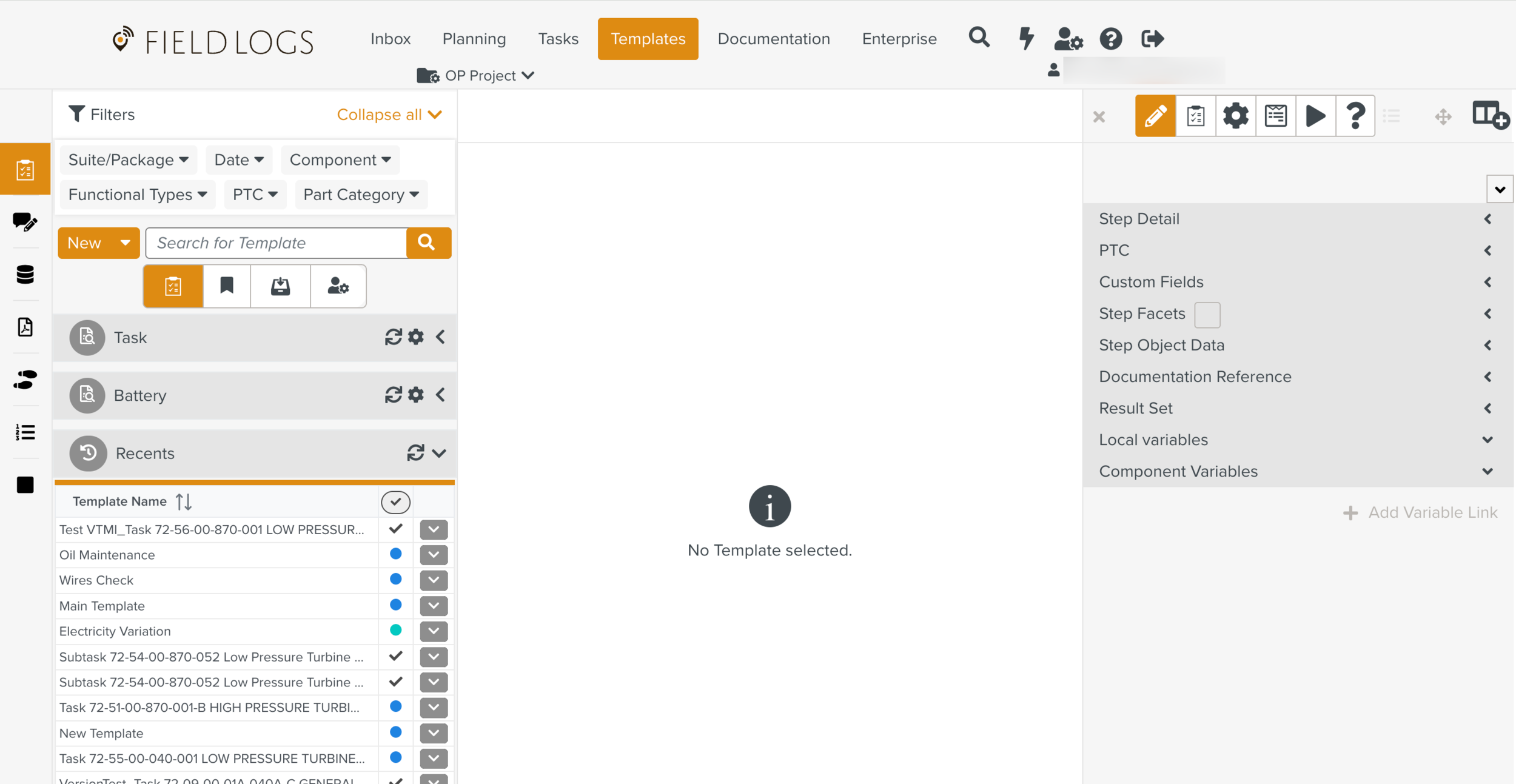
Select the Template that you want to Assign.
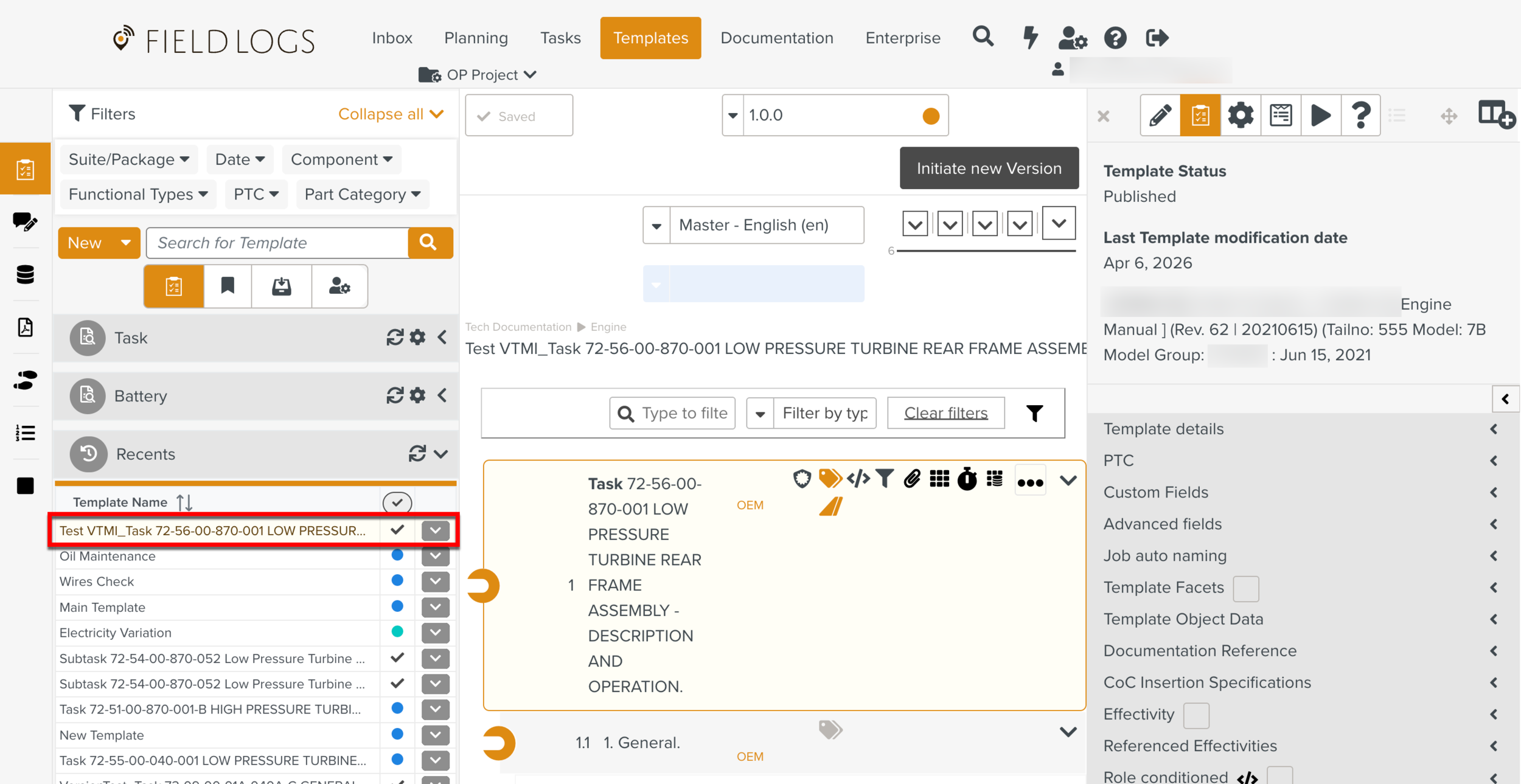
Note
You can assign both Private and Published Templates, but it is recommended to use only the Published Templates.
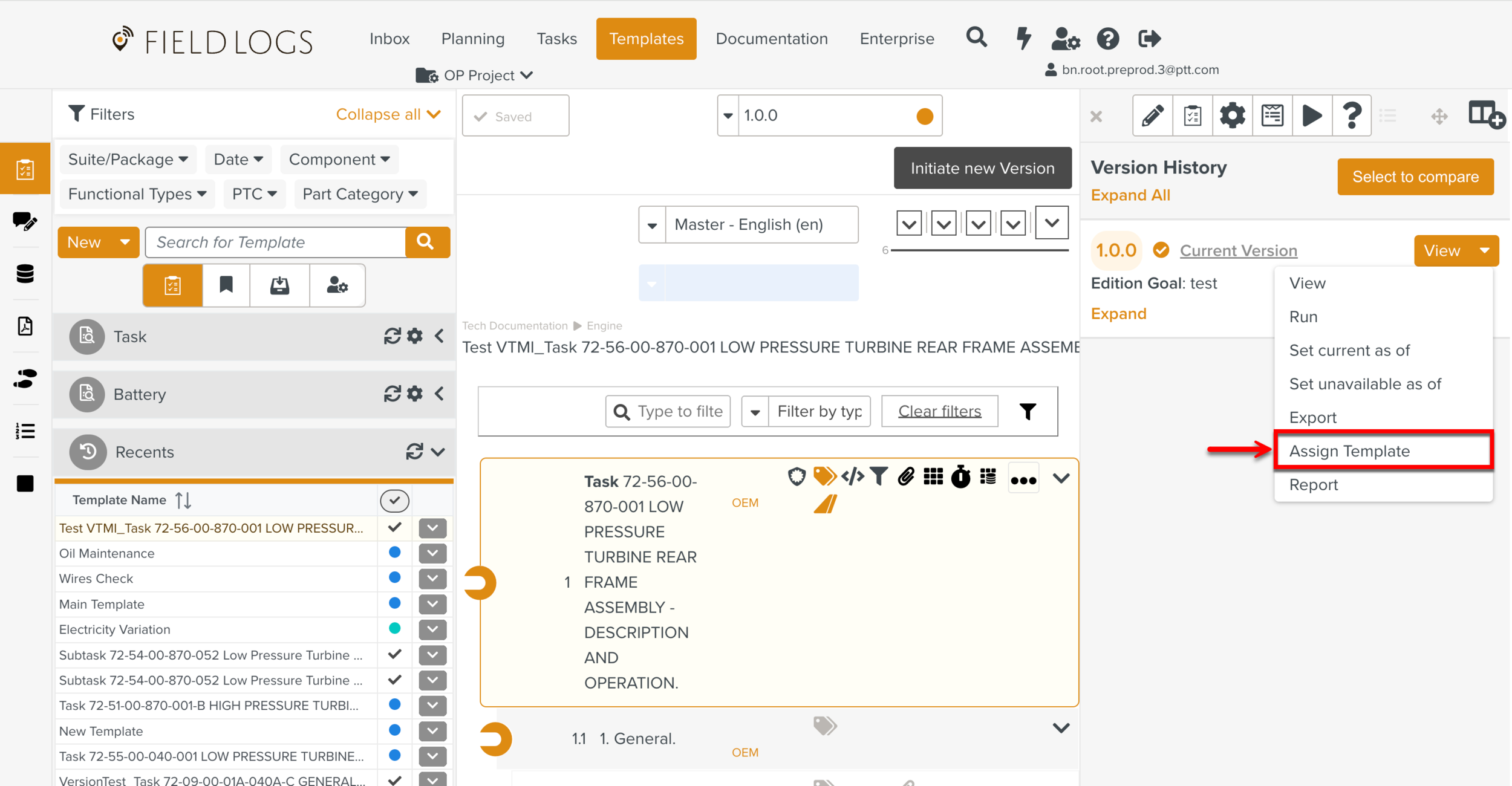
You can also assign a Template from the Version History as shown below.
Click
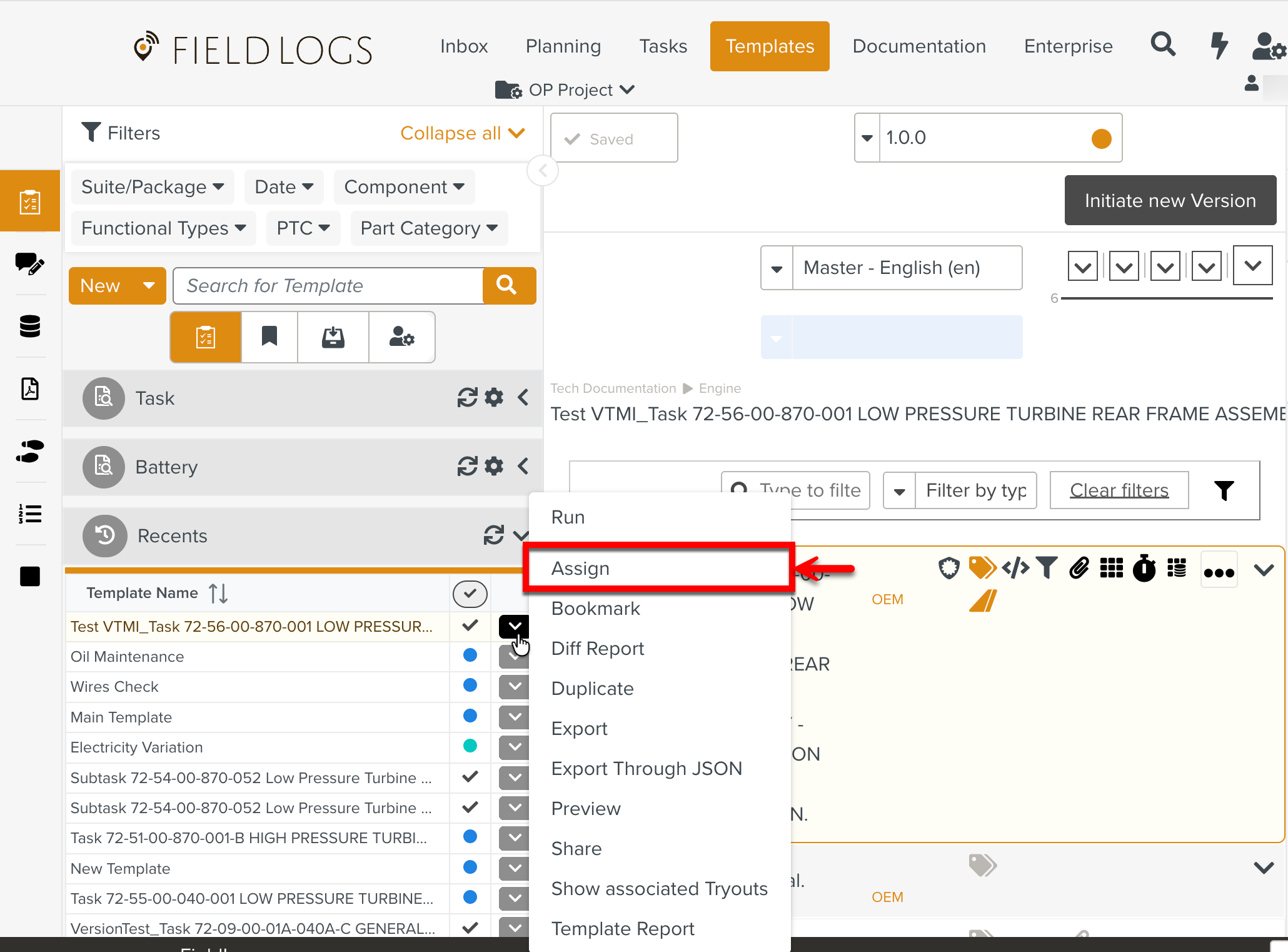
 to display the list of options.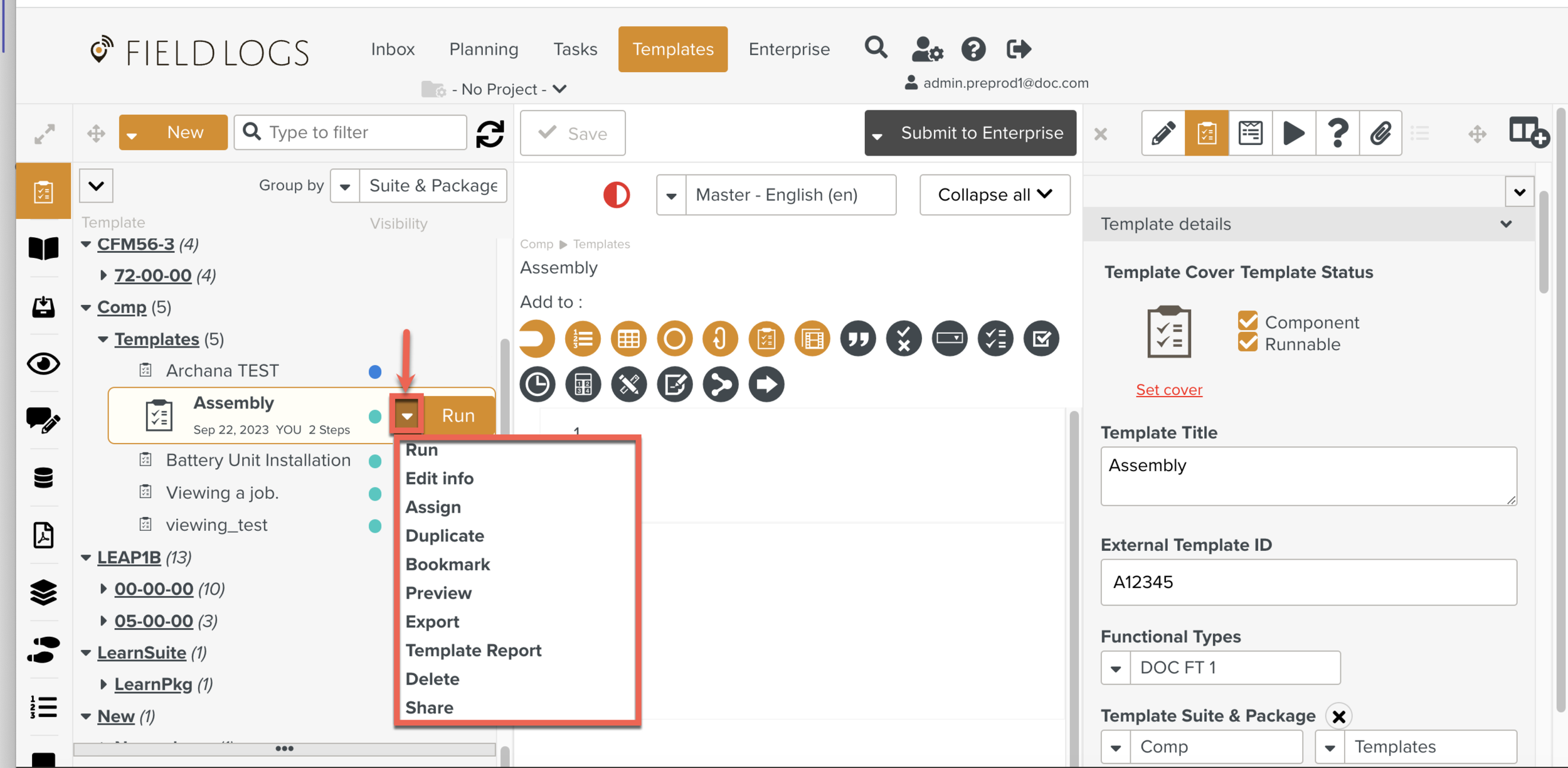
Click .
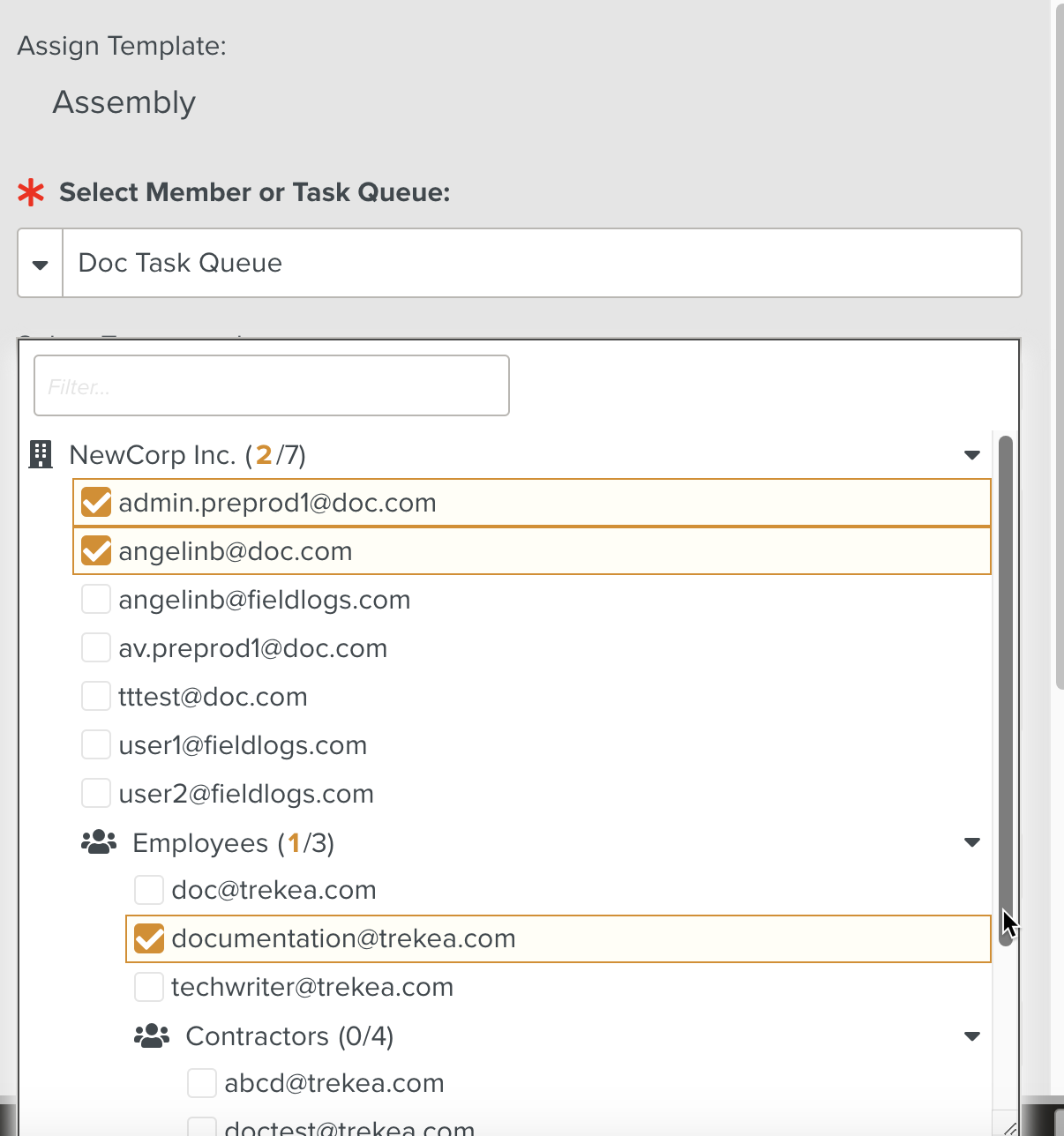
Select a Member or Task Queue from the dropdown as shown below.
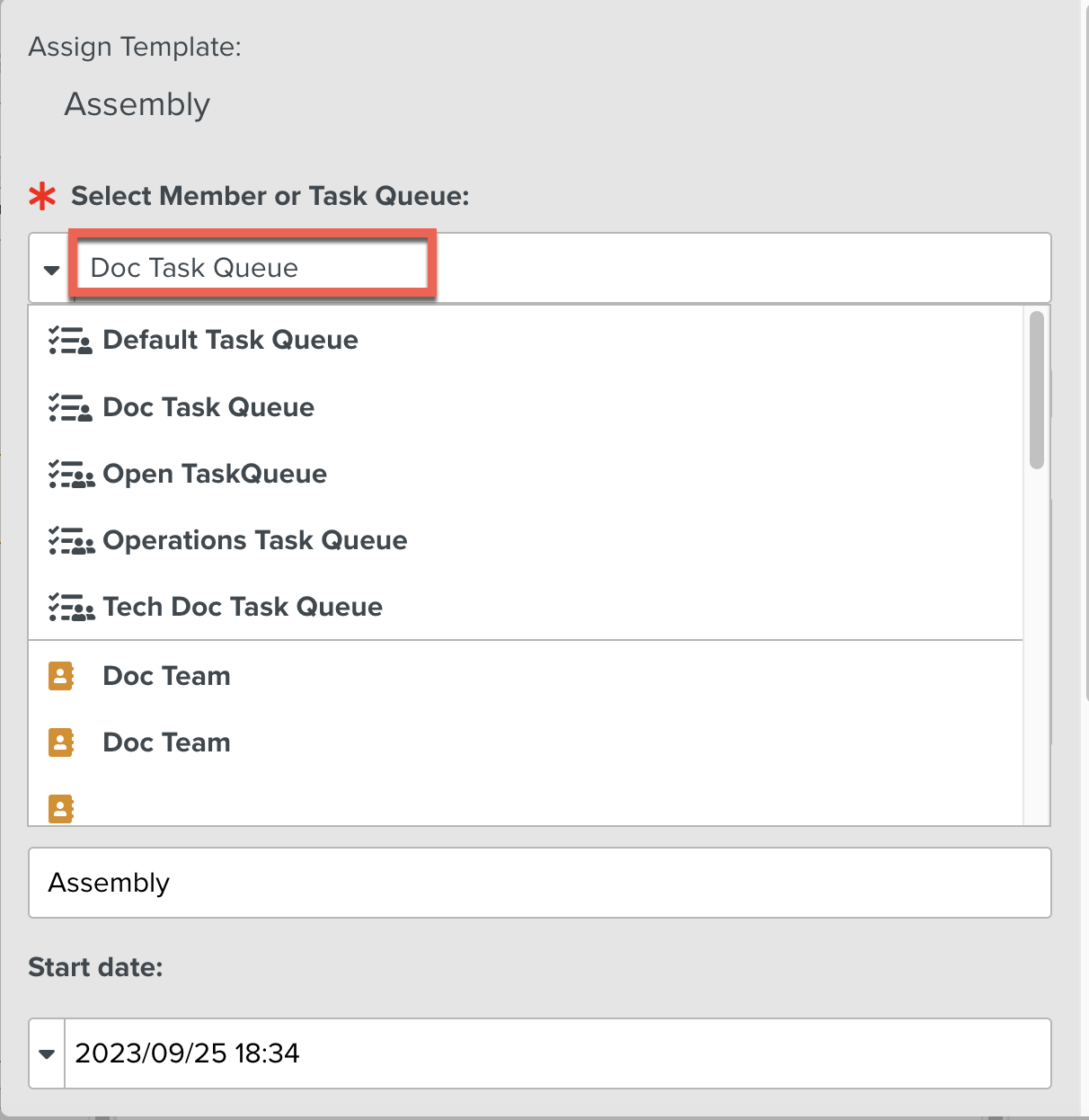
Select one or more Team members from the list.
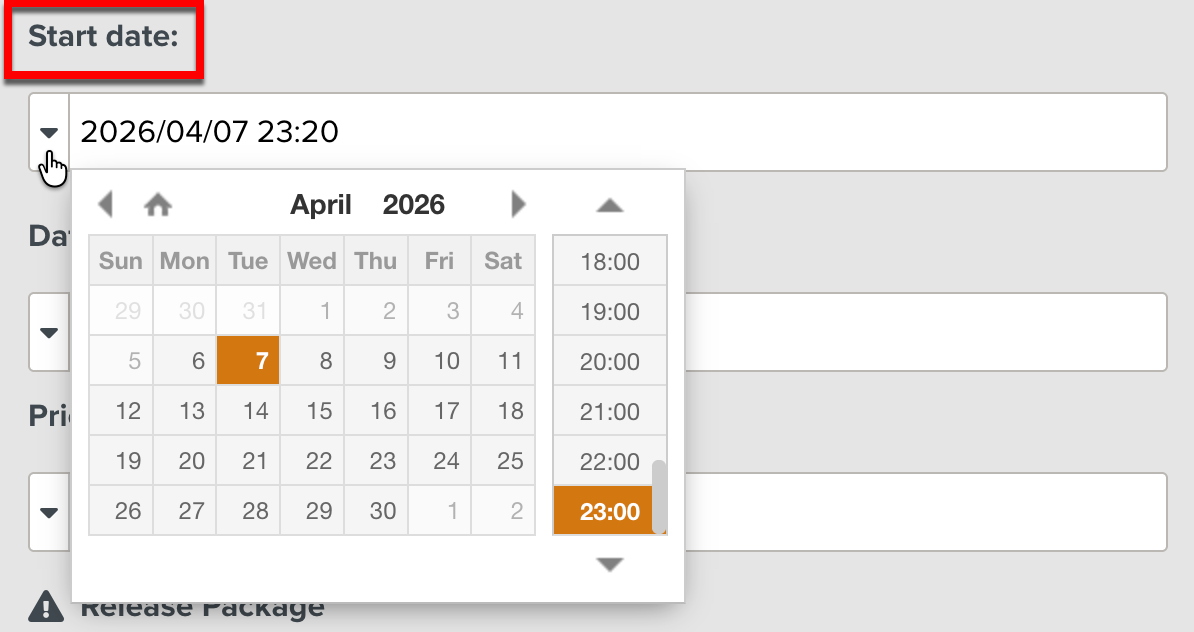
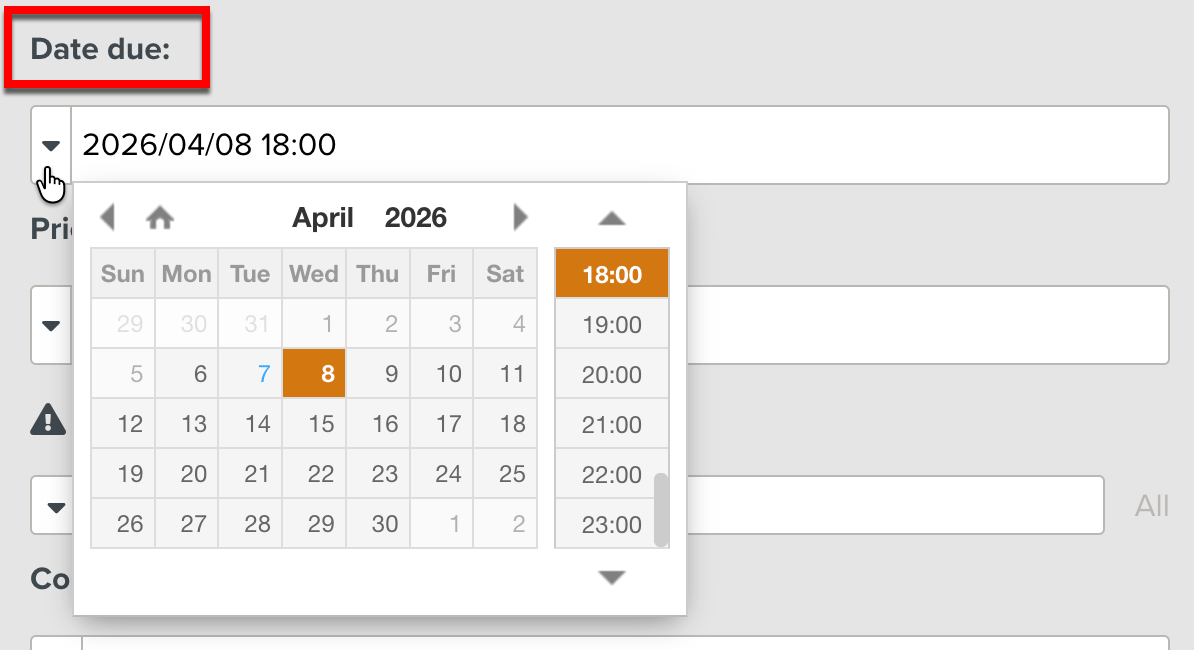
[Optional] Select a Start date and Date due.
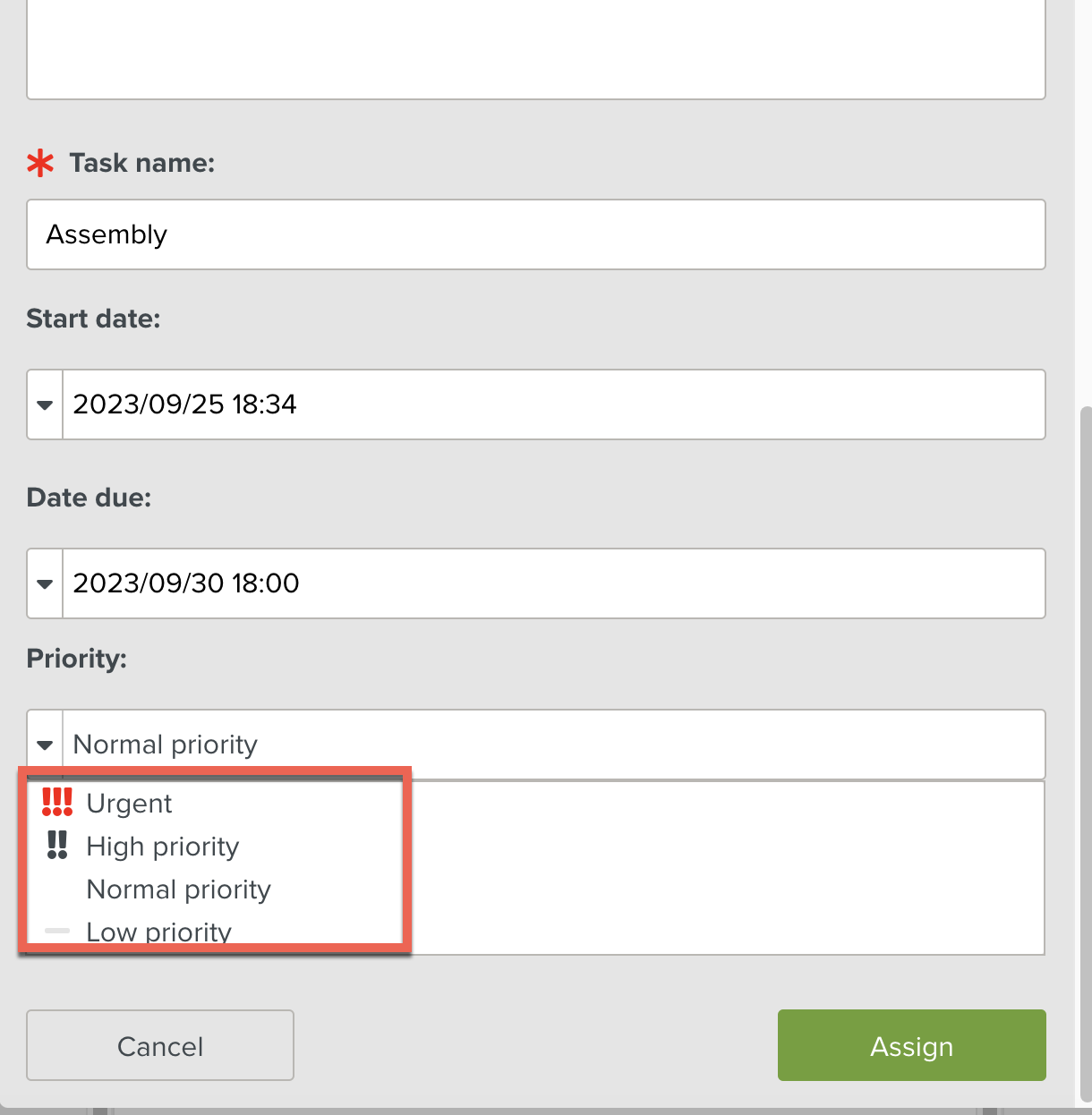
[Optional] Select a Priority level.
[Optional] Select Release Package.
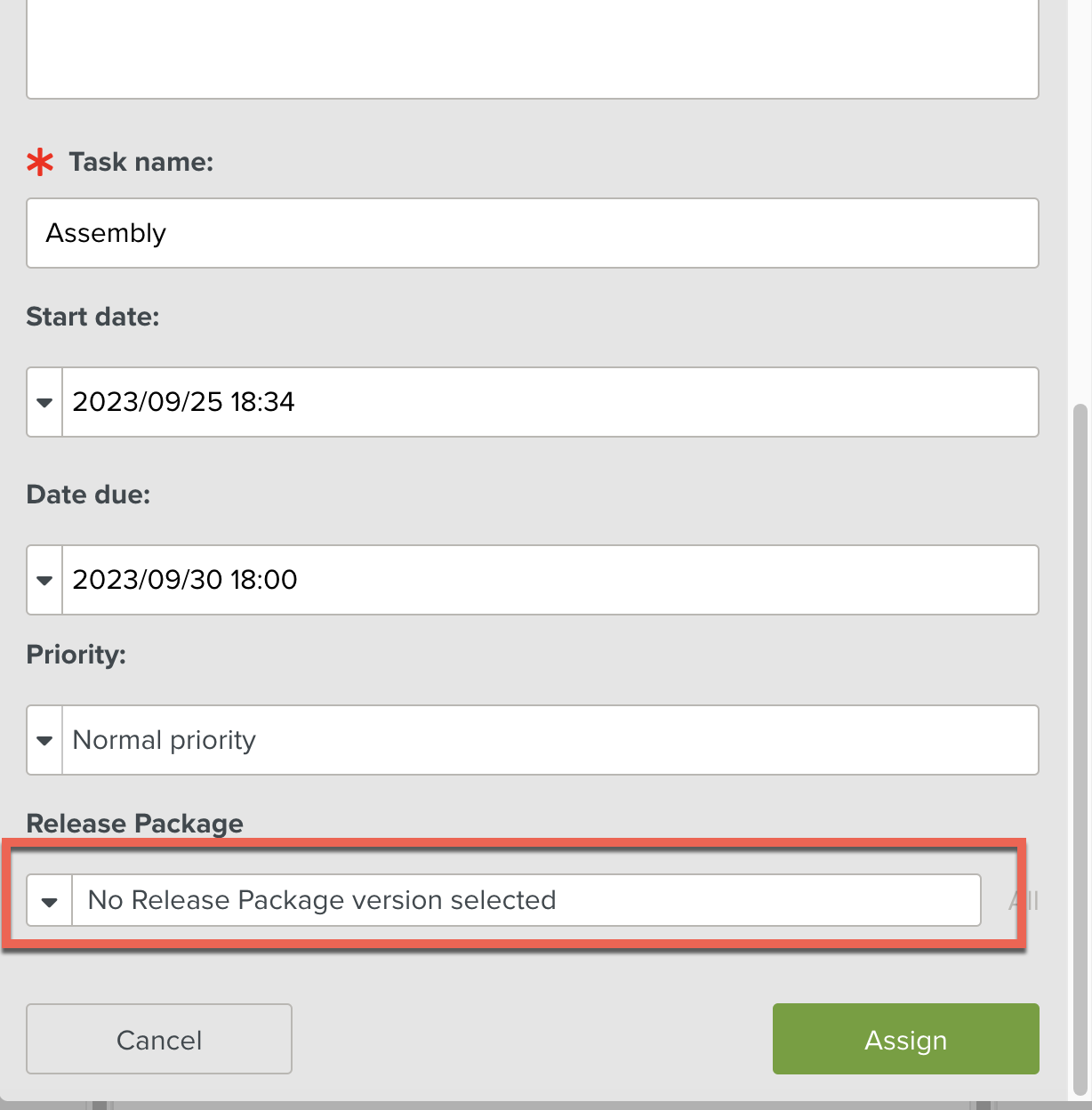
When the Release Package is selected, the Template version to be used is selected too.
Note
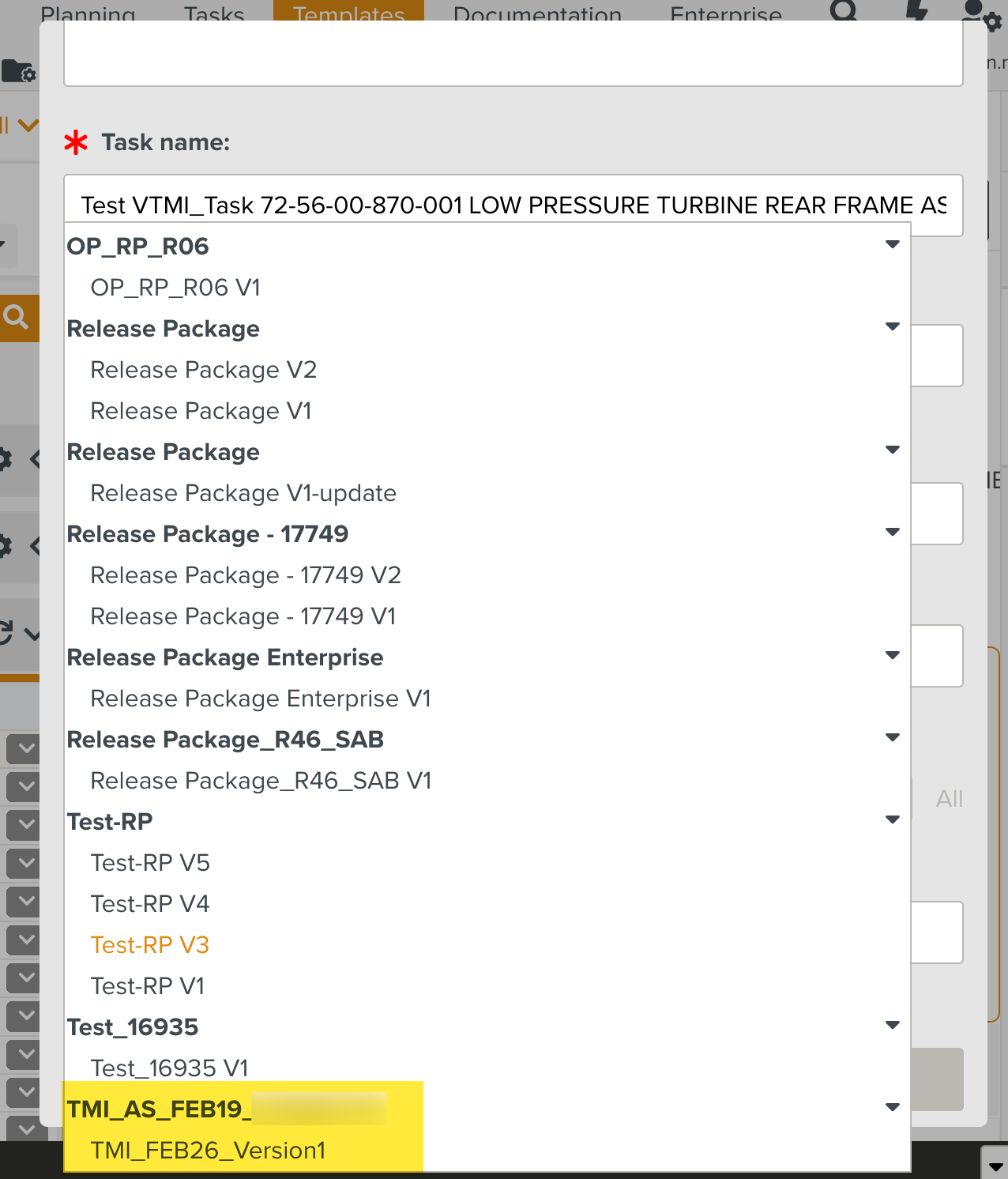
The Release Package dropdown also displays Technical Manual Index versions as shown below.
Click .
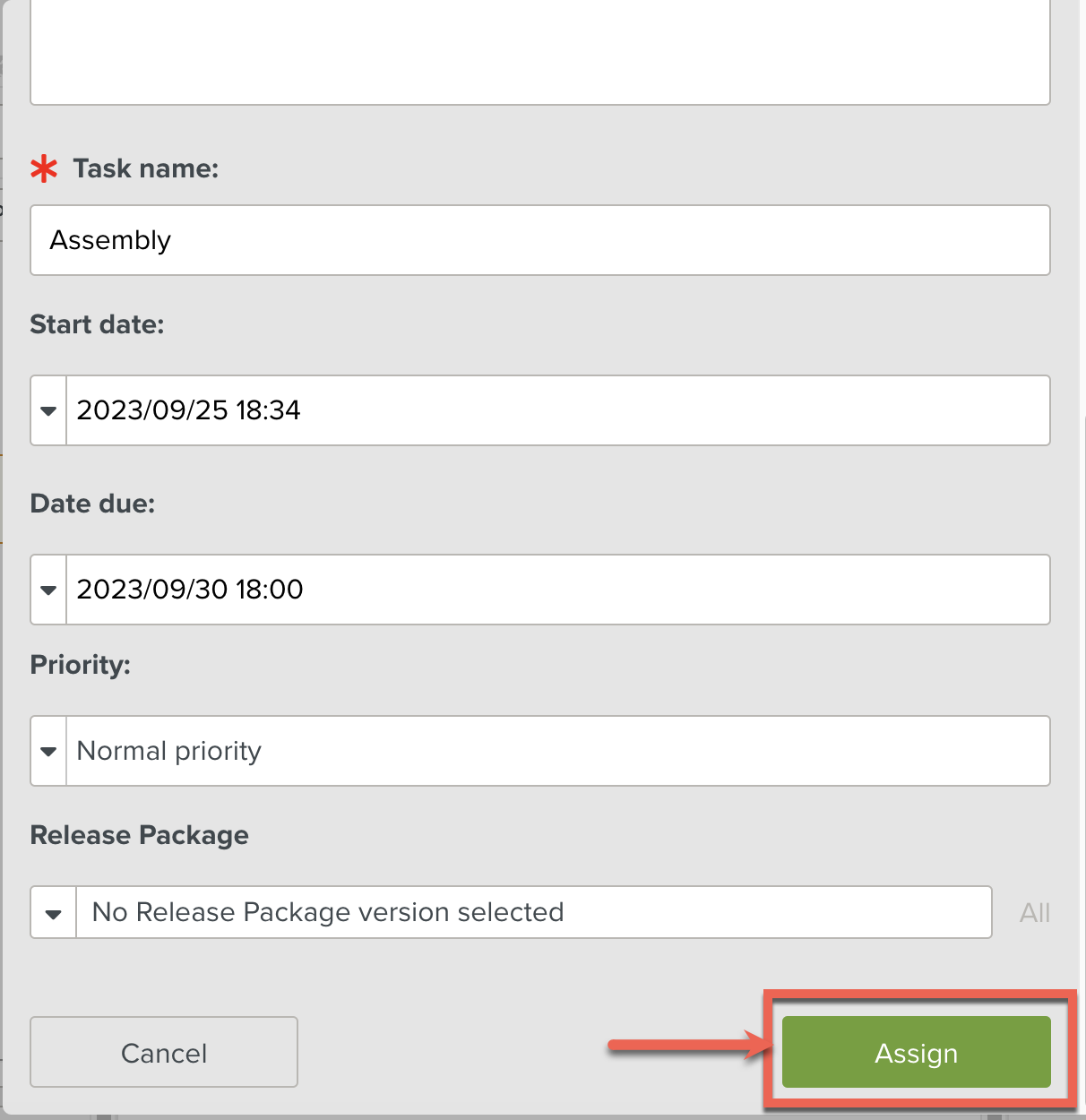
The Task is successfully assigned to the selected Members or the Task Queue.