Uploading a Document in a Document Space
You can upload different types of Documents to a Document Space in the tab Process Flow Task.
To upload a Document in a Document Space:
From the main menu go to > > .
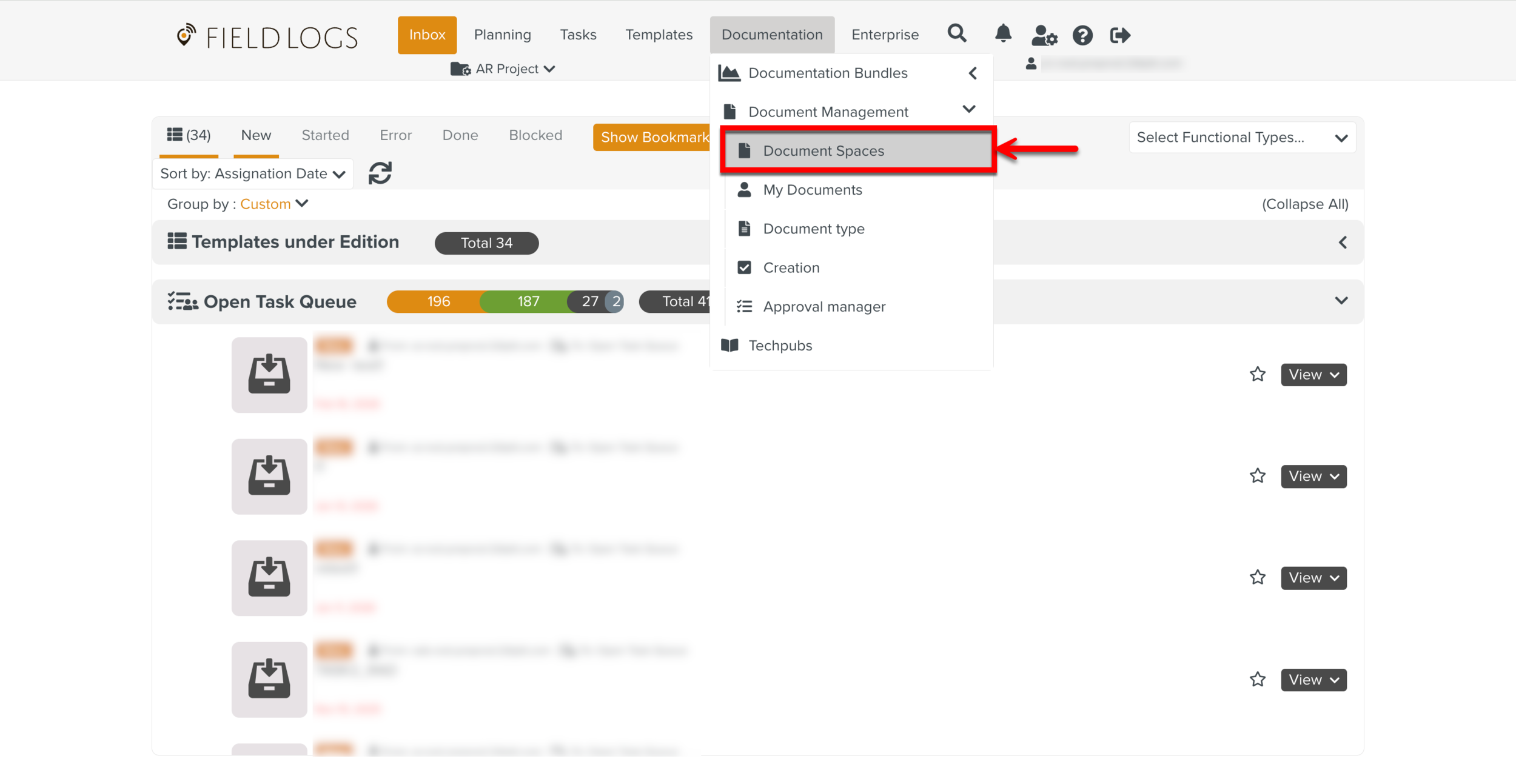
Select the Document Space you want to upload a Document to.
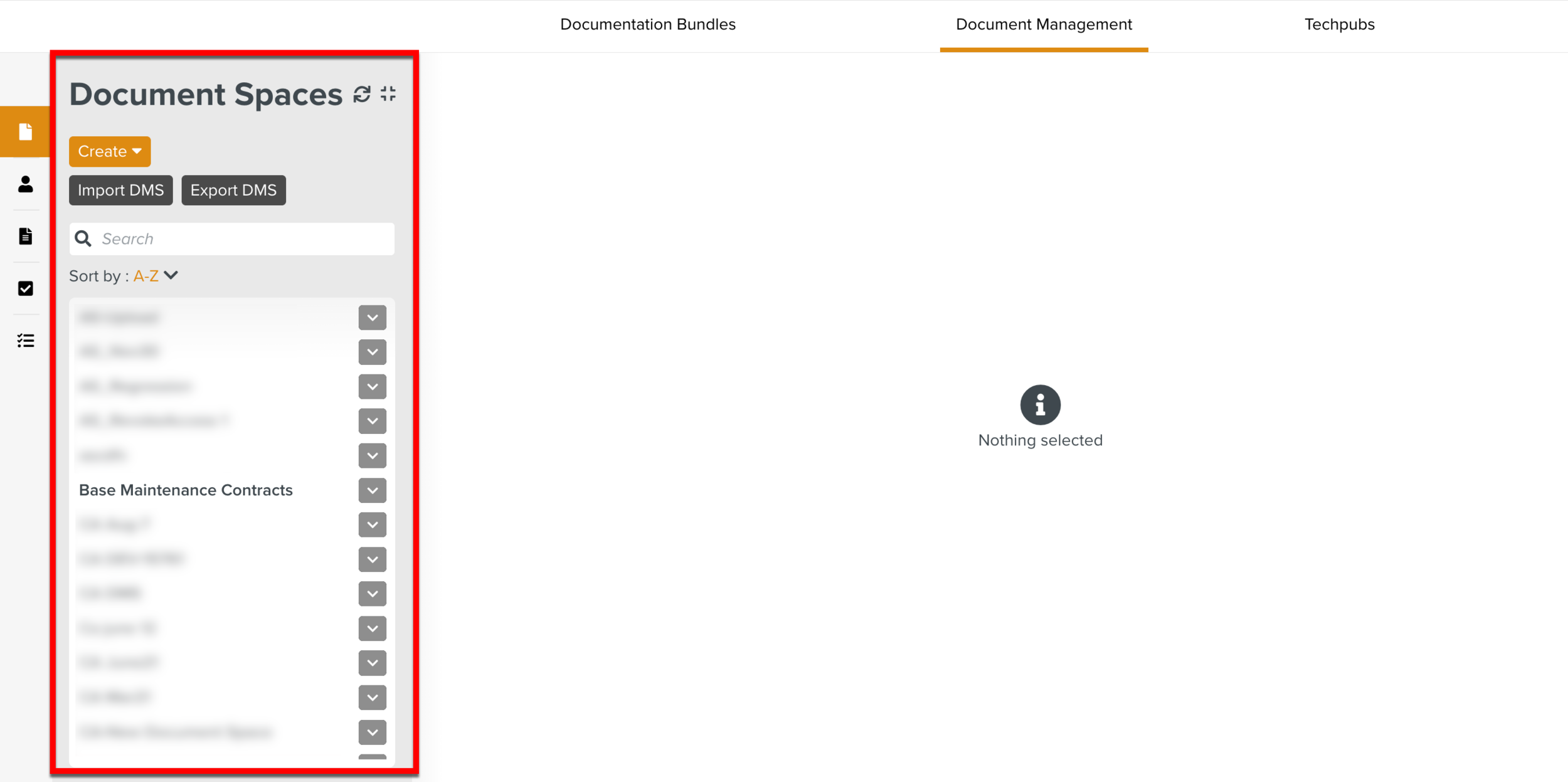
The tab Documents opens.
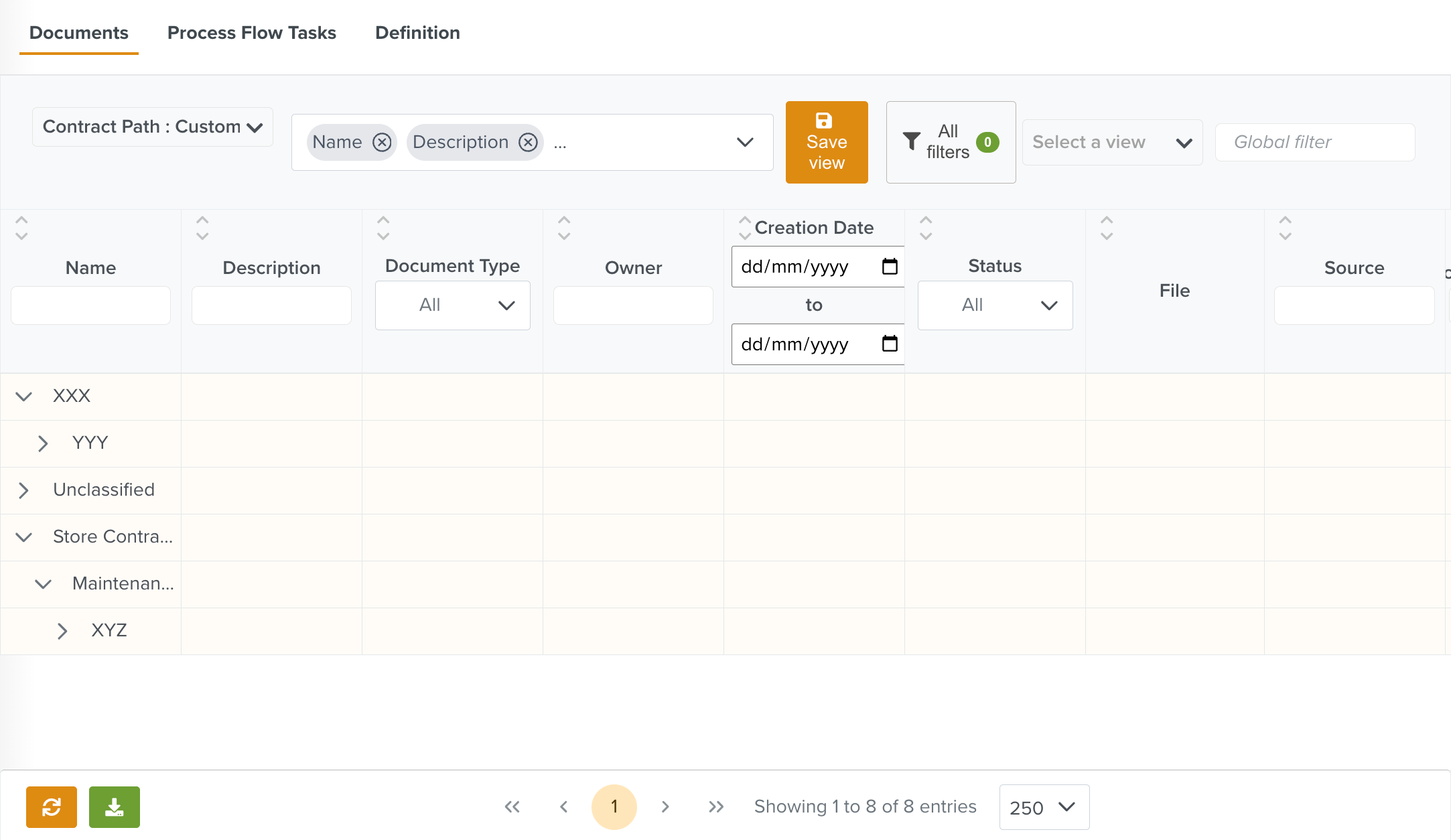
Click the tab Process Flow Tasks.
Click .
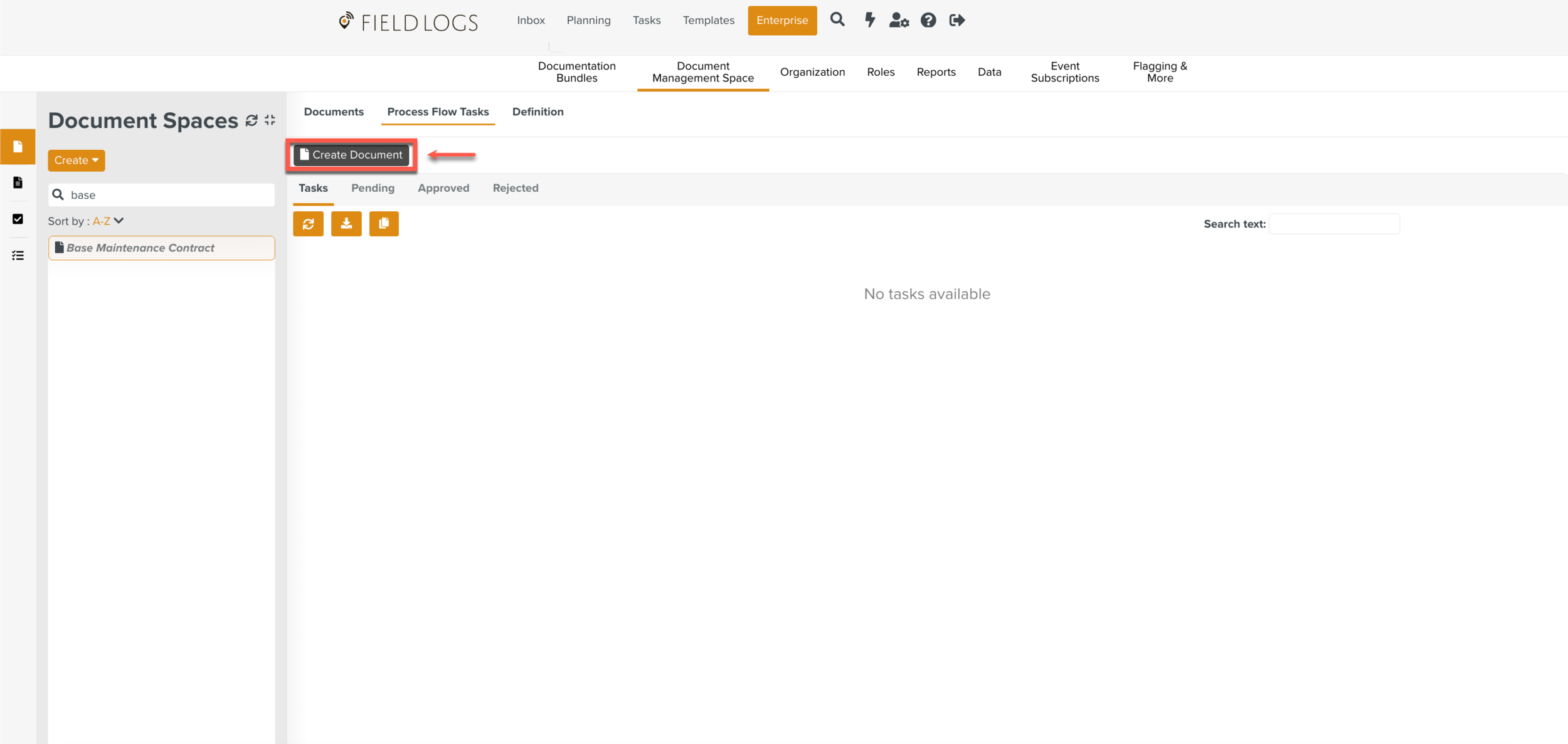
The Create Document dialog is displayed.
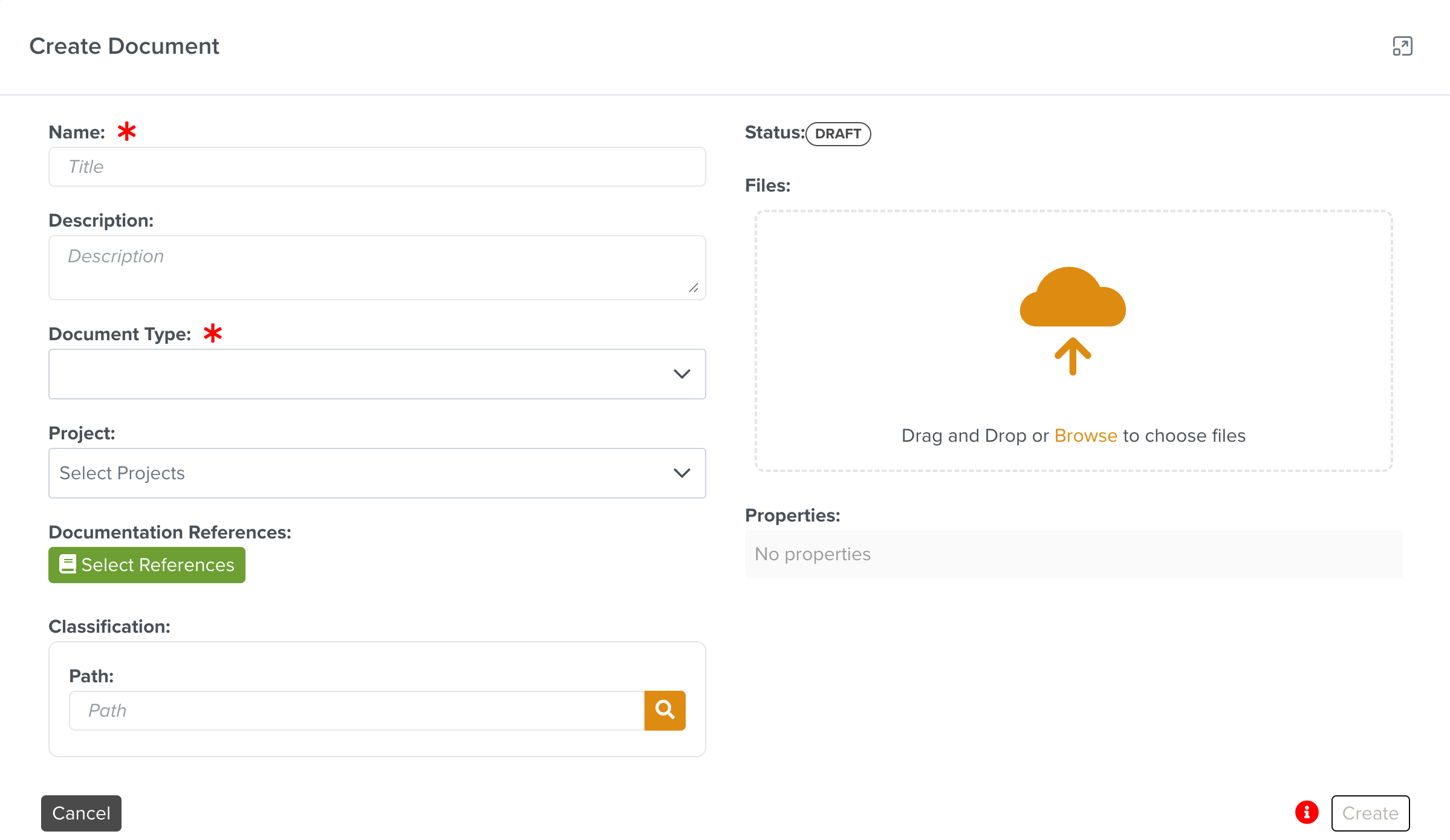
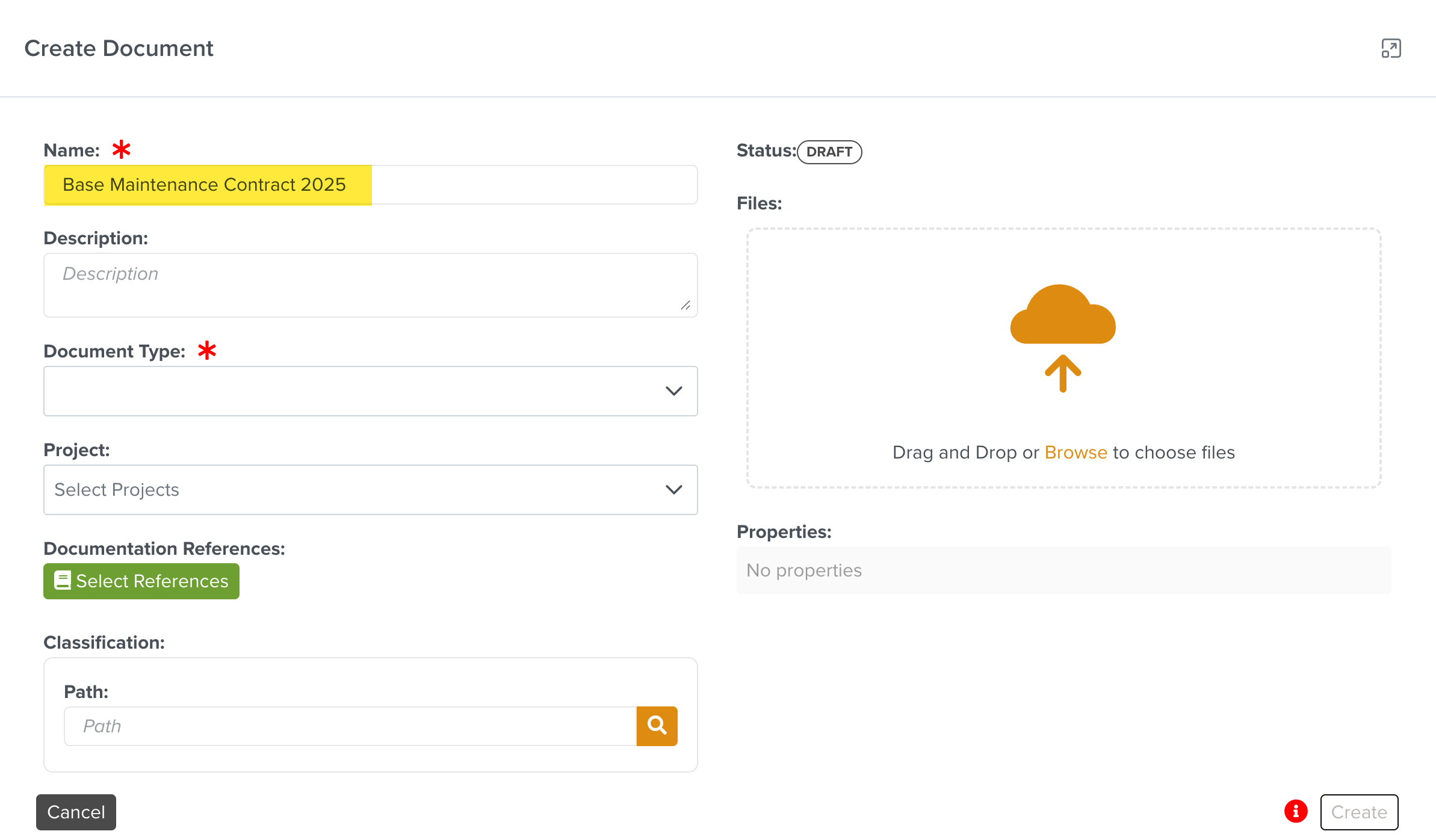
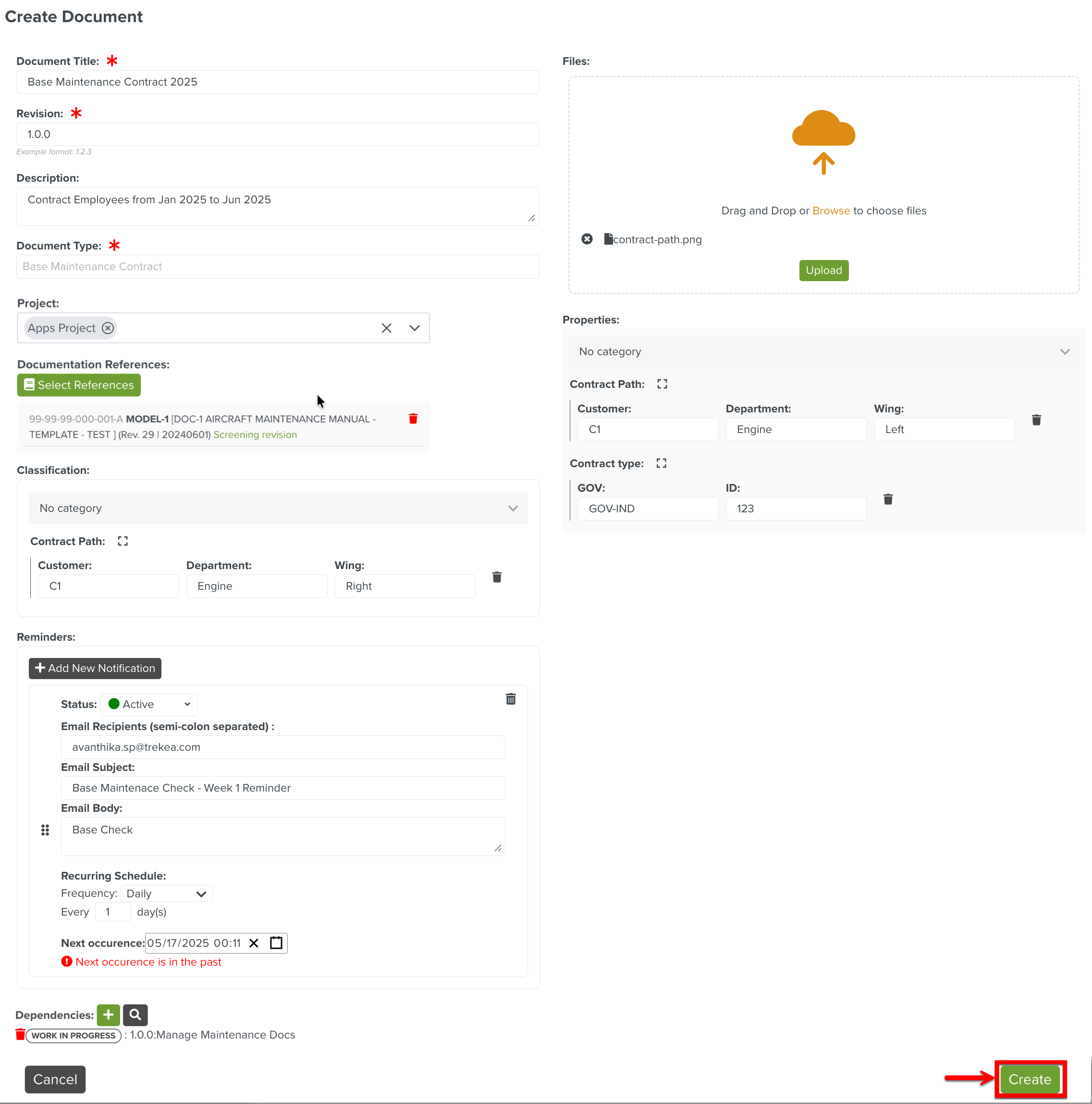
Enter the Document name.
[Optional] Add a description.
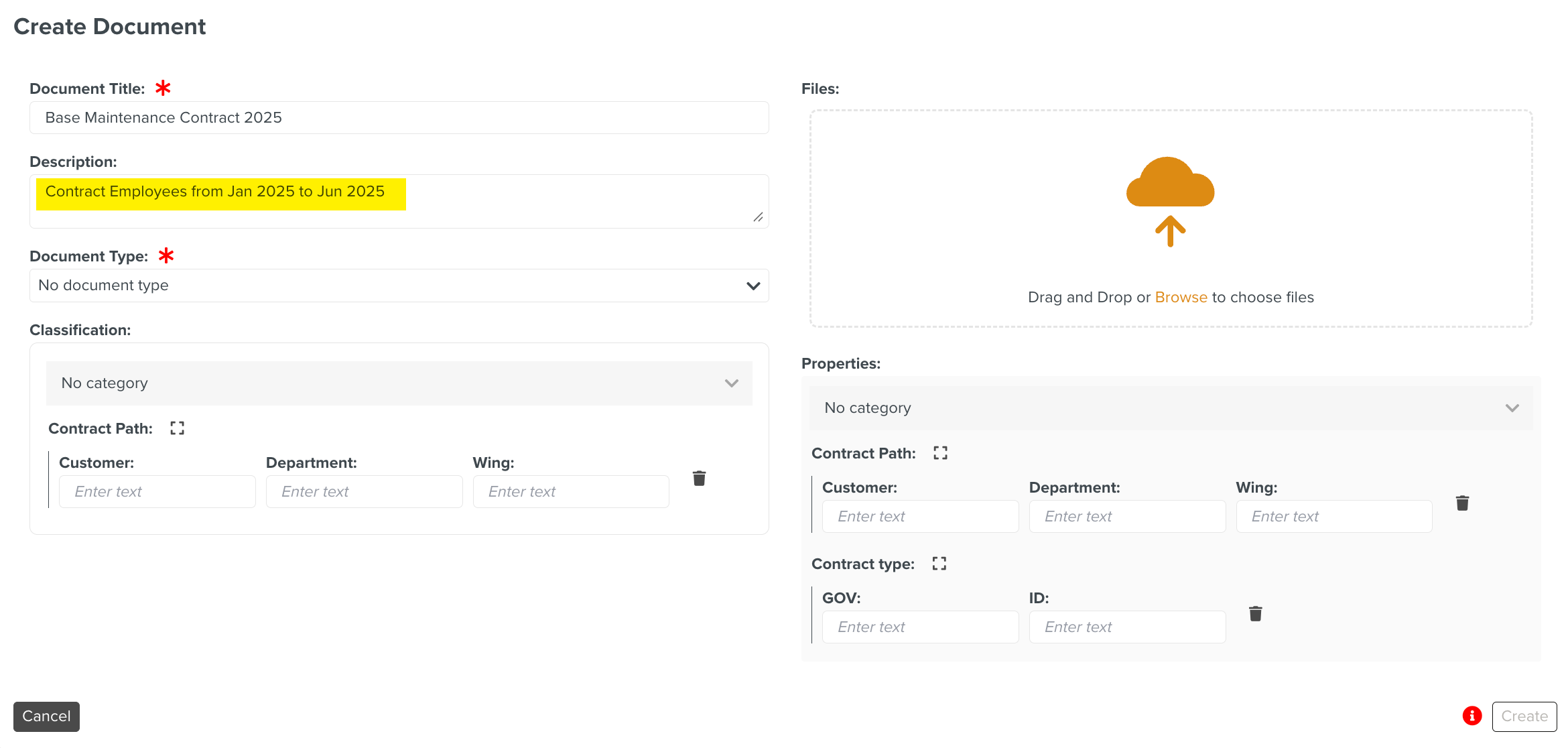
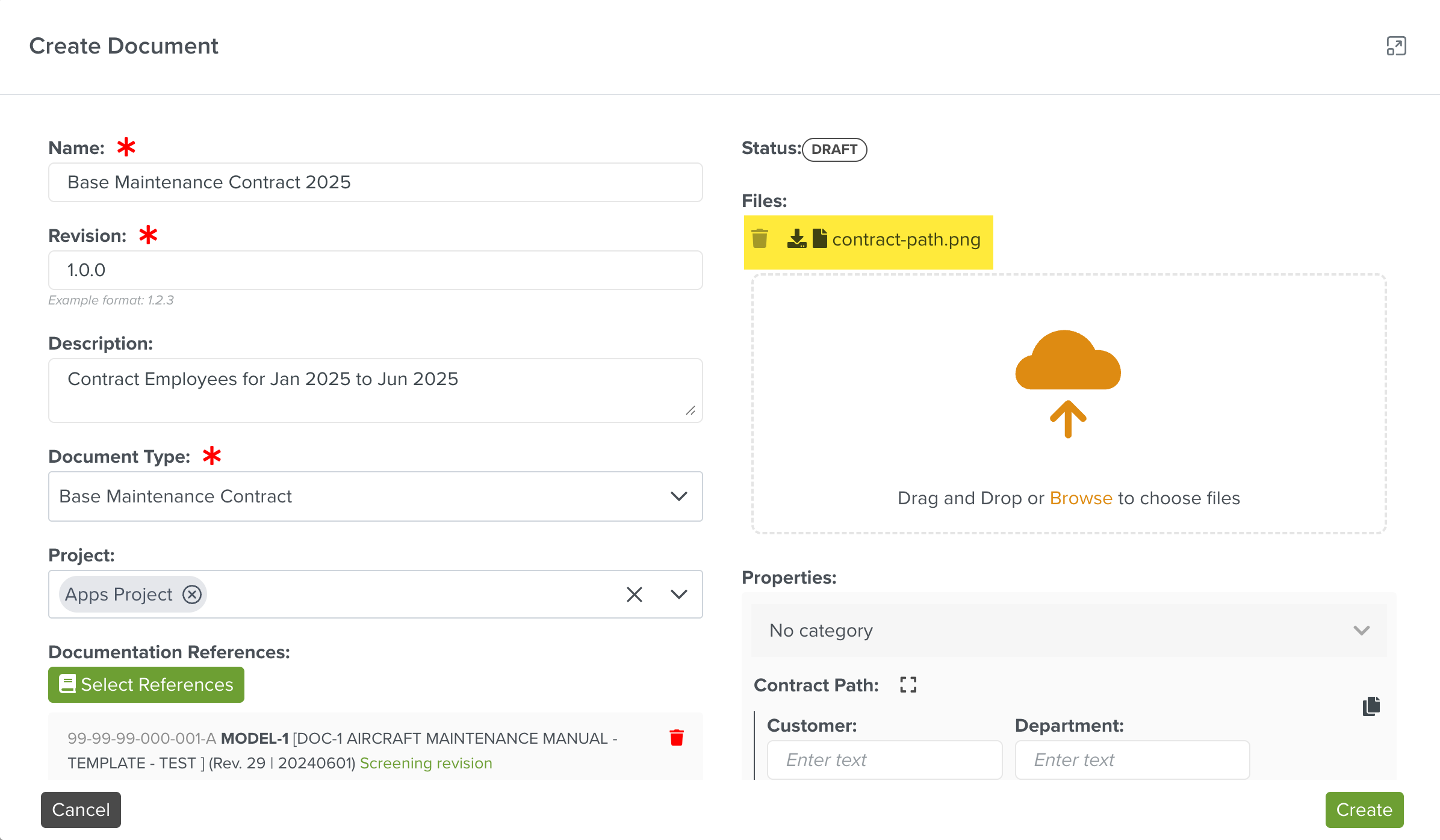
Expand the Document Type dropdown to associate the document to a Document Type.
In the example below, Base Maintenance Contract is selected.
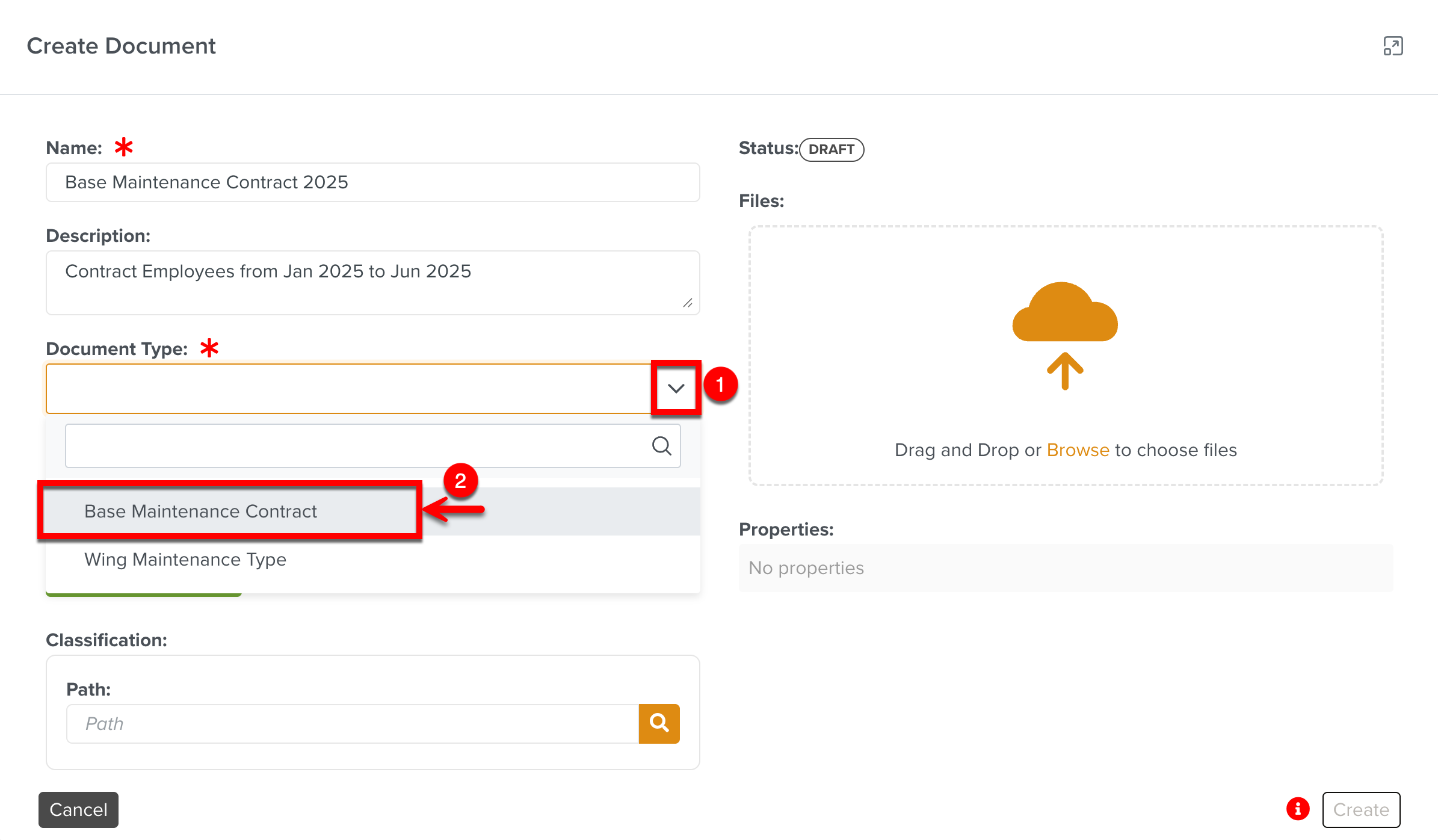
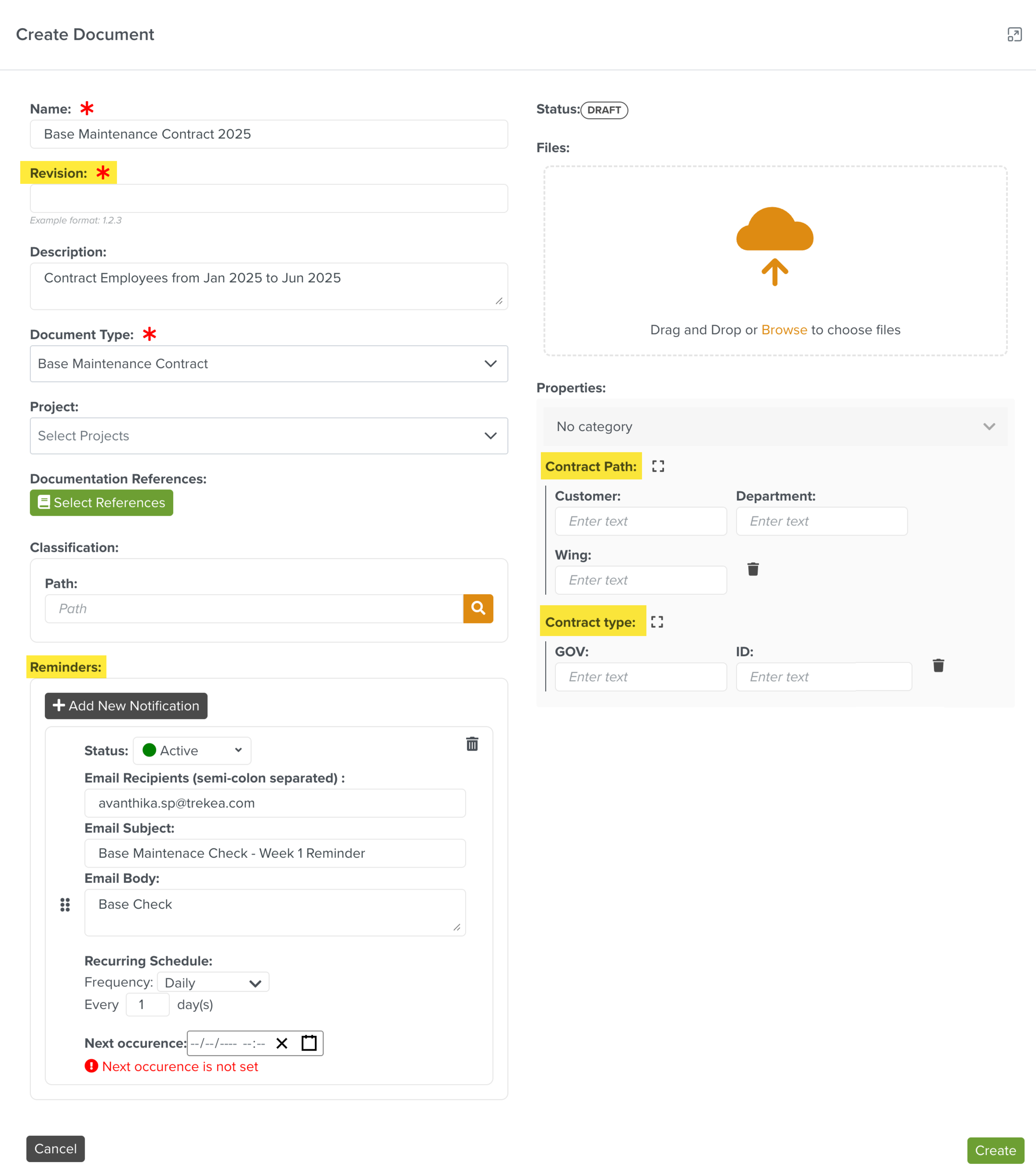
When you select the Document Type, the Revision field, Reminders section and the corresponding Properties are displayed.
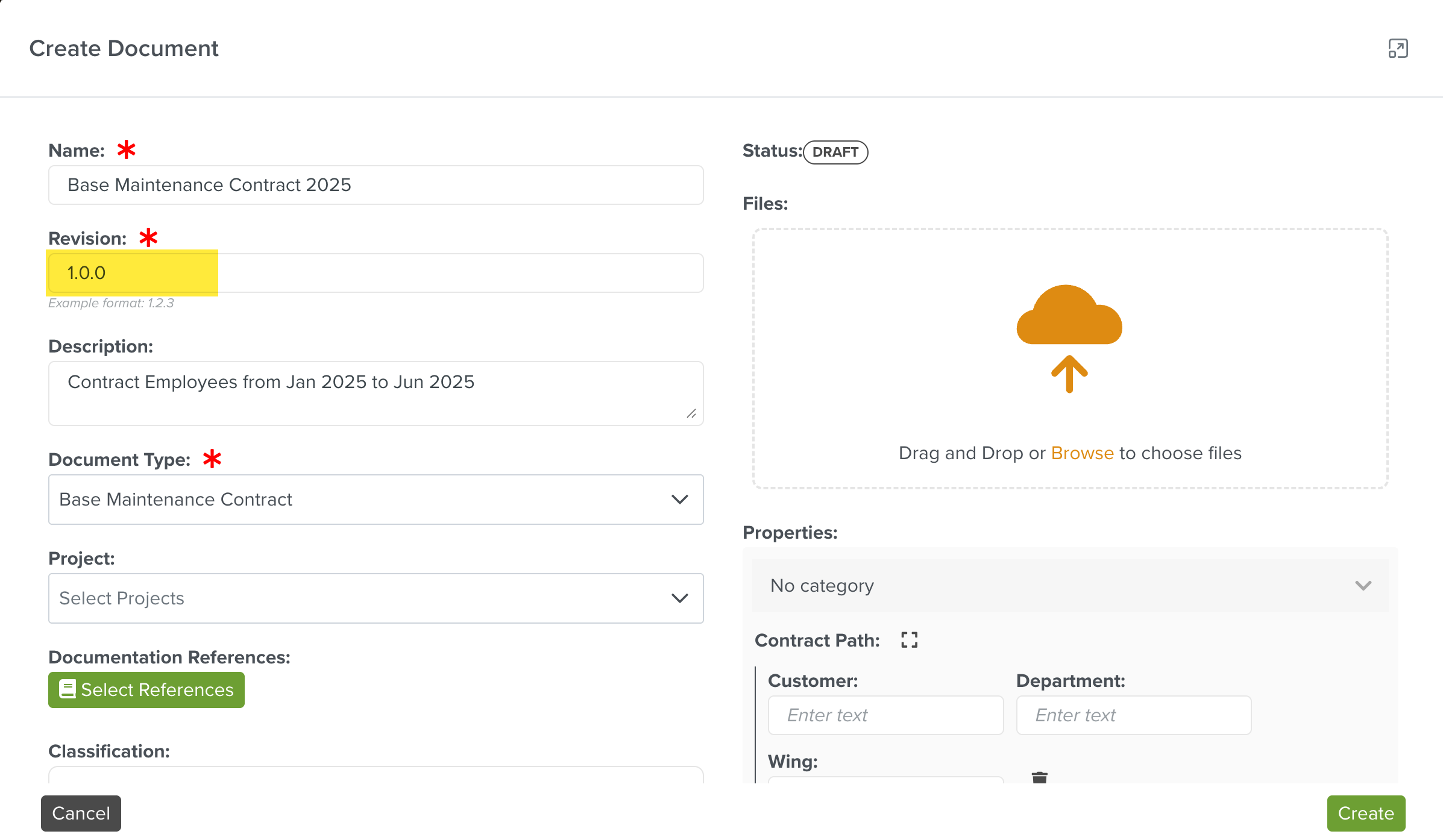
Enter the Revision number for the document.
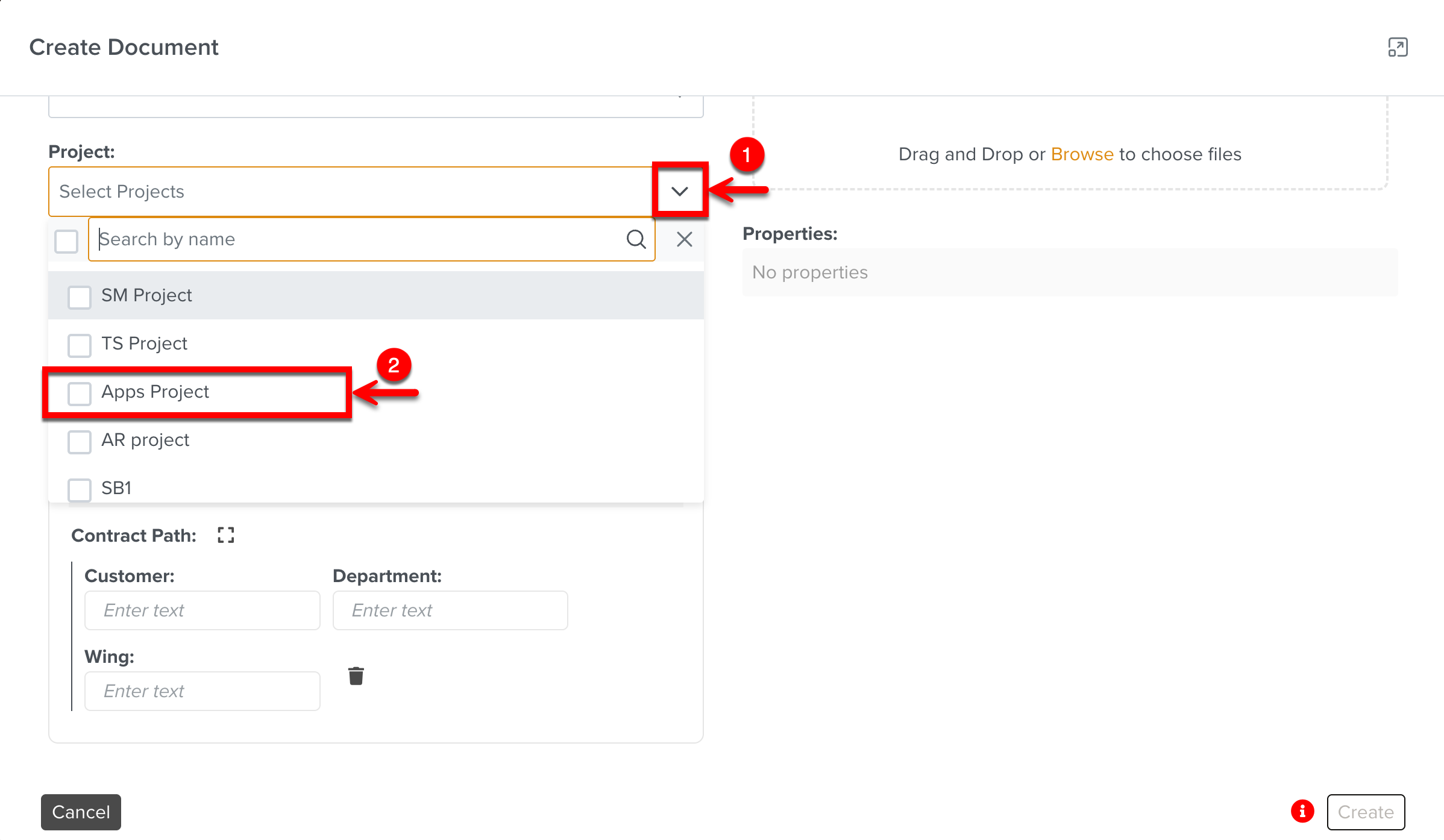
Select a Project.
[Optional] Add one or more Documentation References.
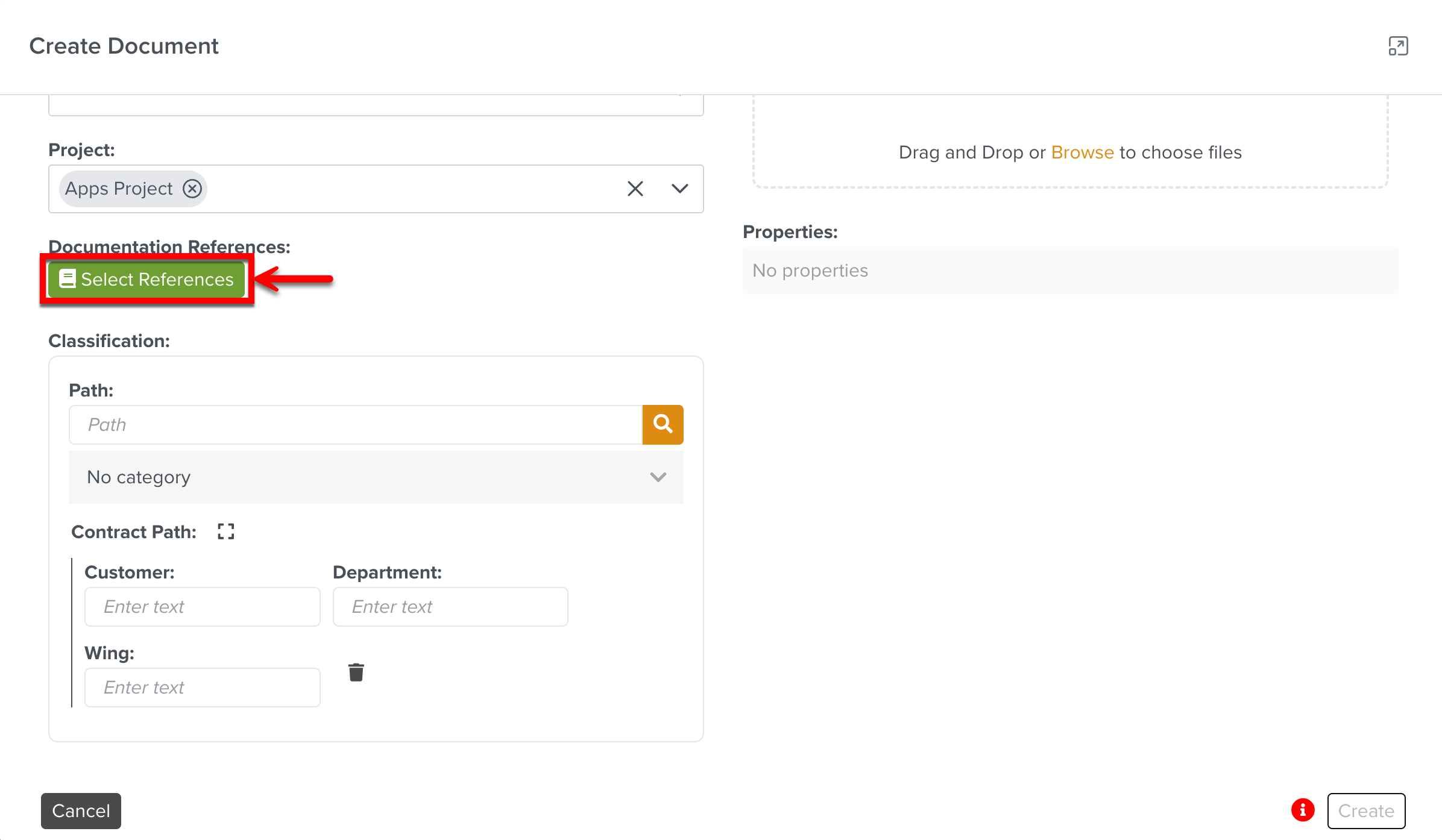
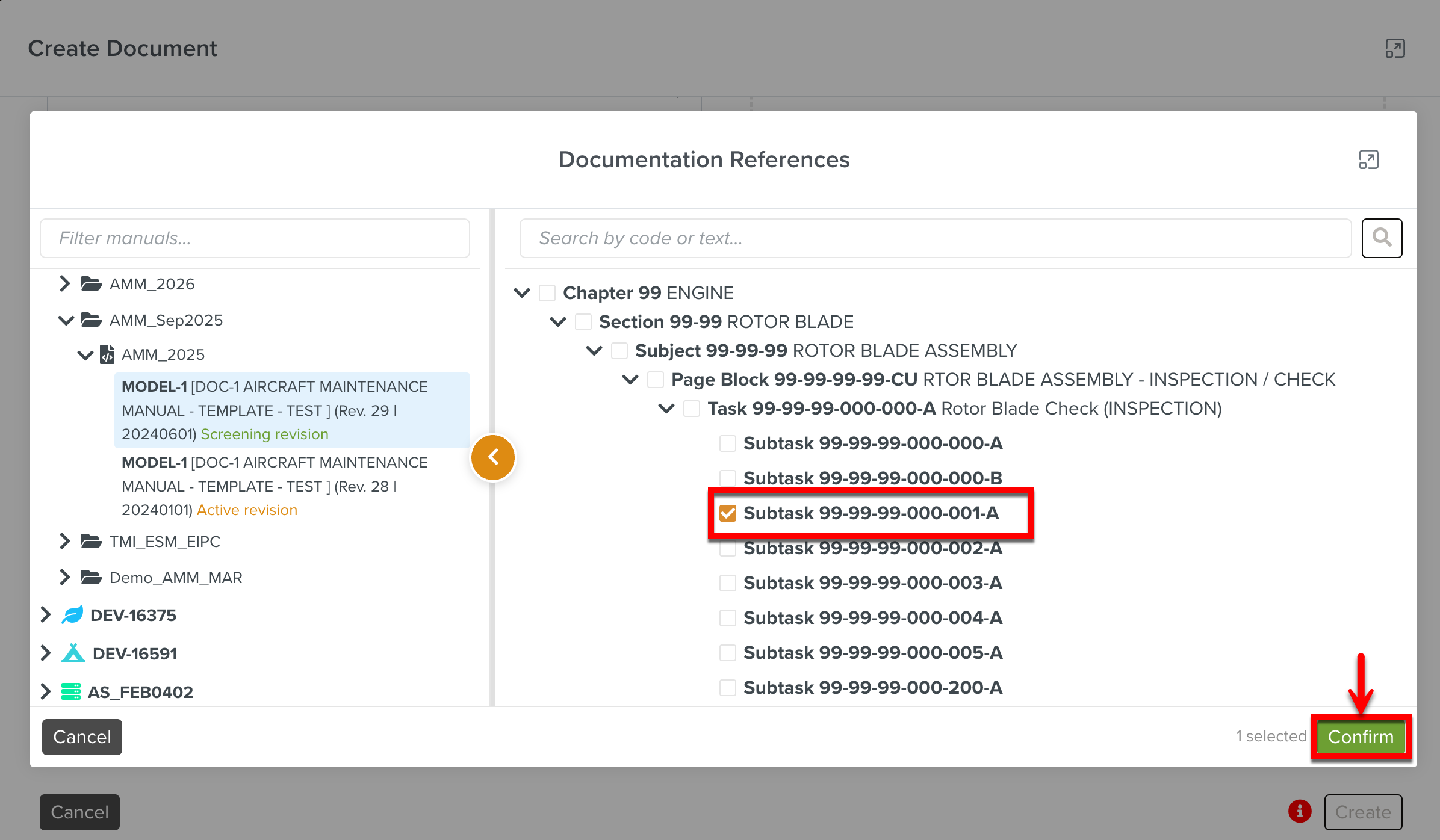
Enter Contract Path details defined under Classification. You can enter data for Customer, Department and Wing as highlighted below.
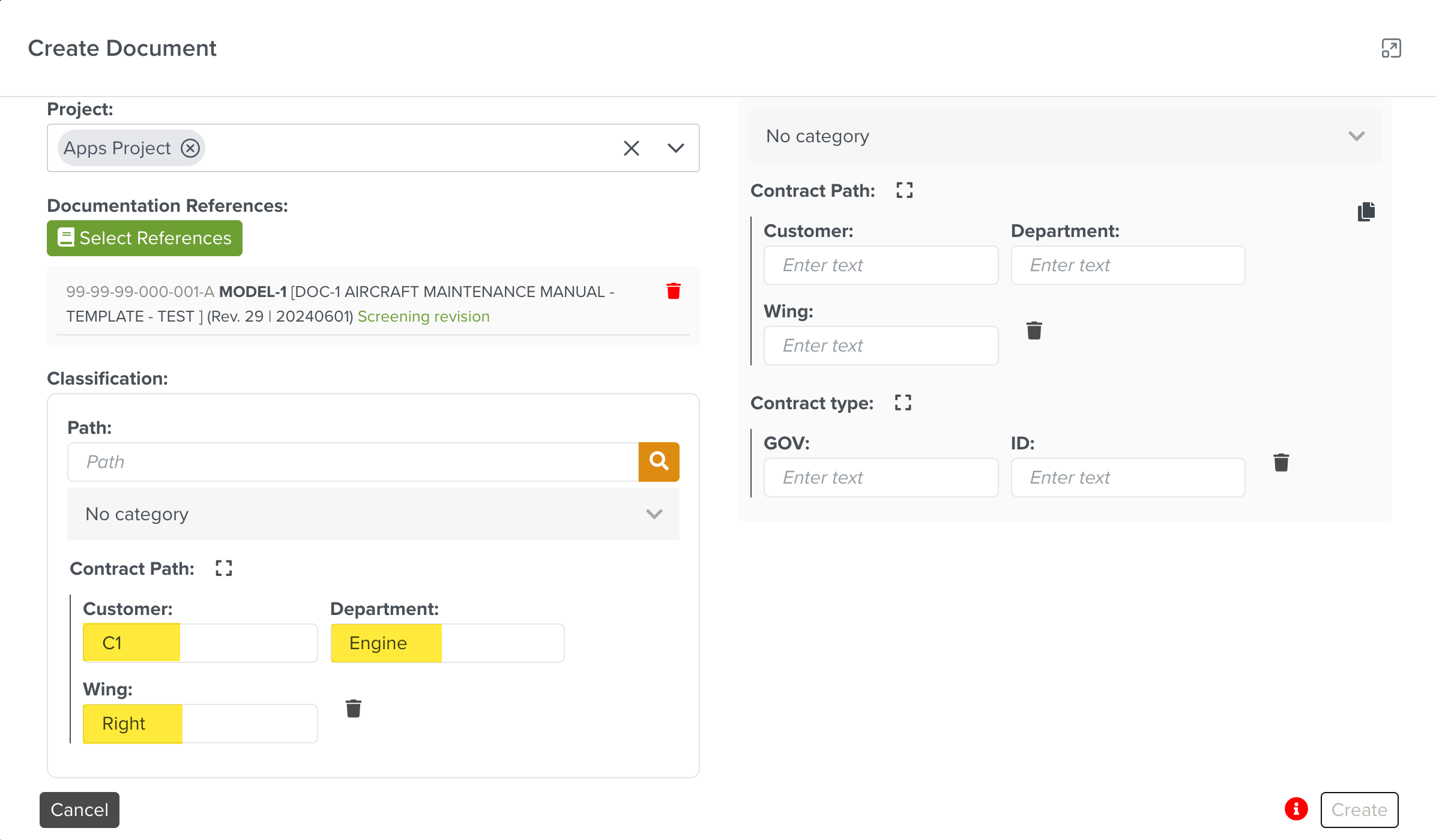
Click Browse to upload a file from your local device.
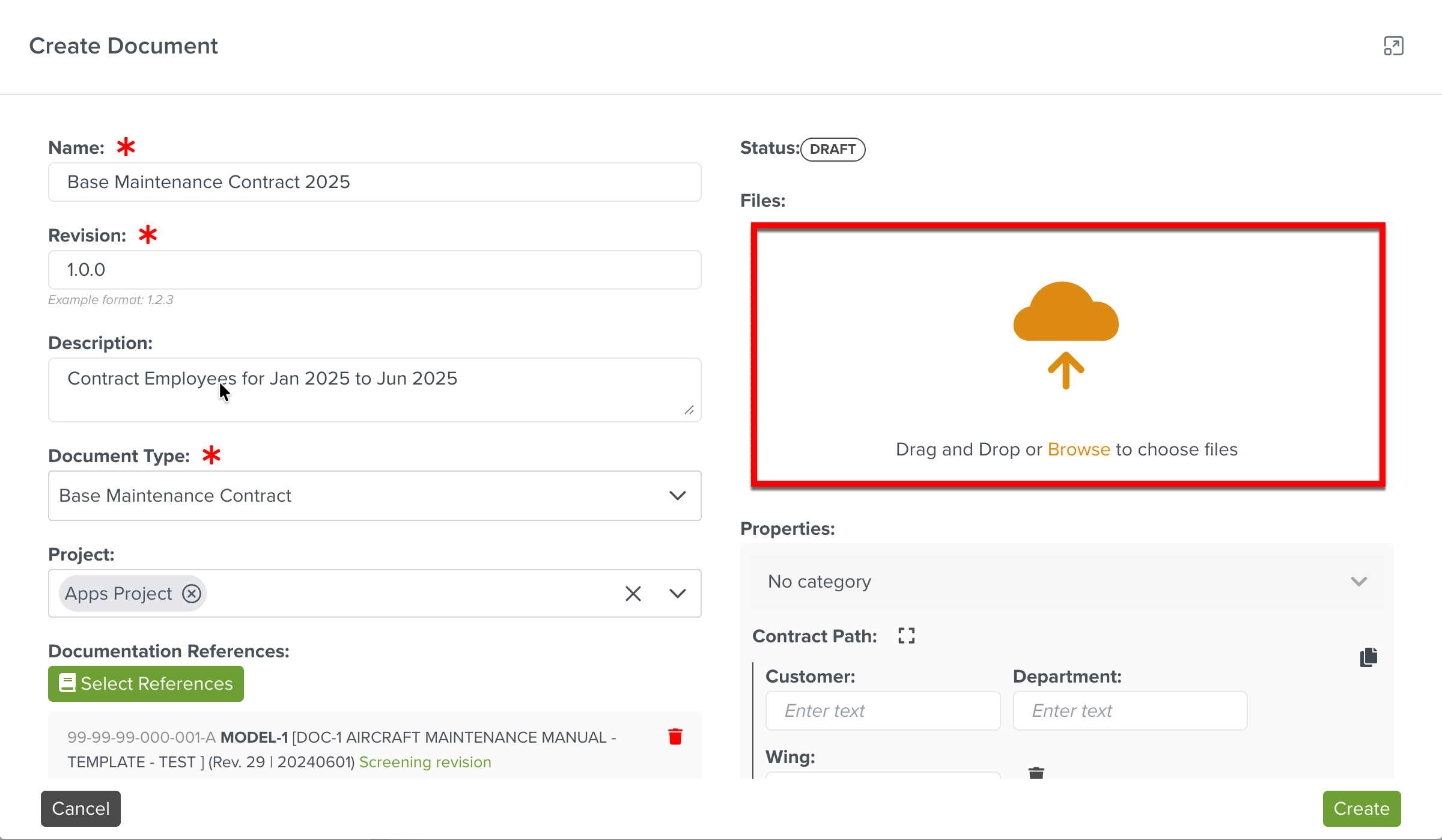
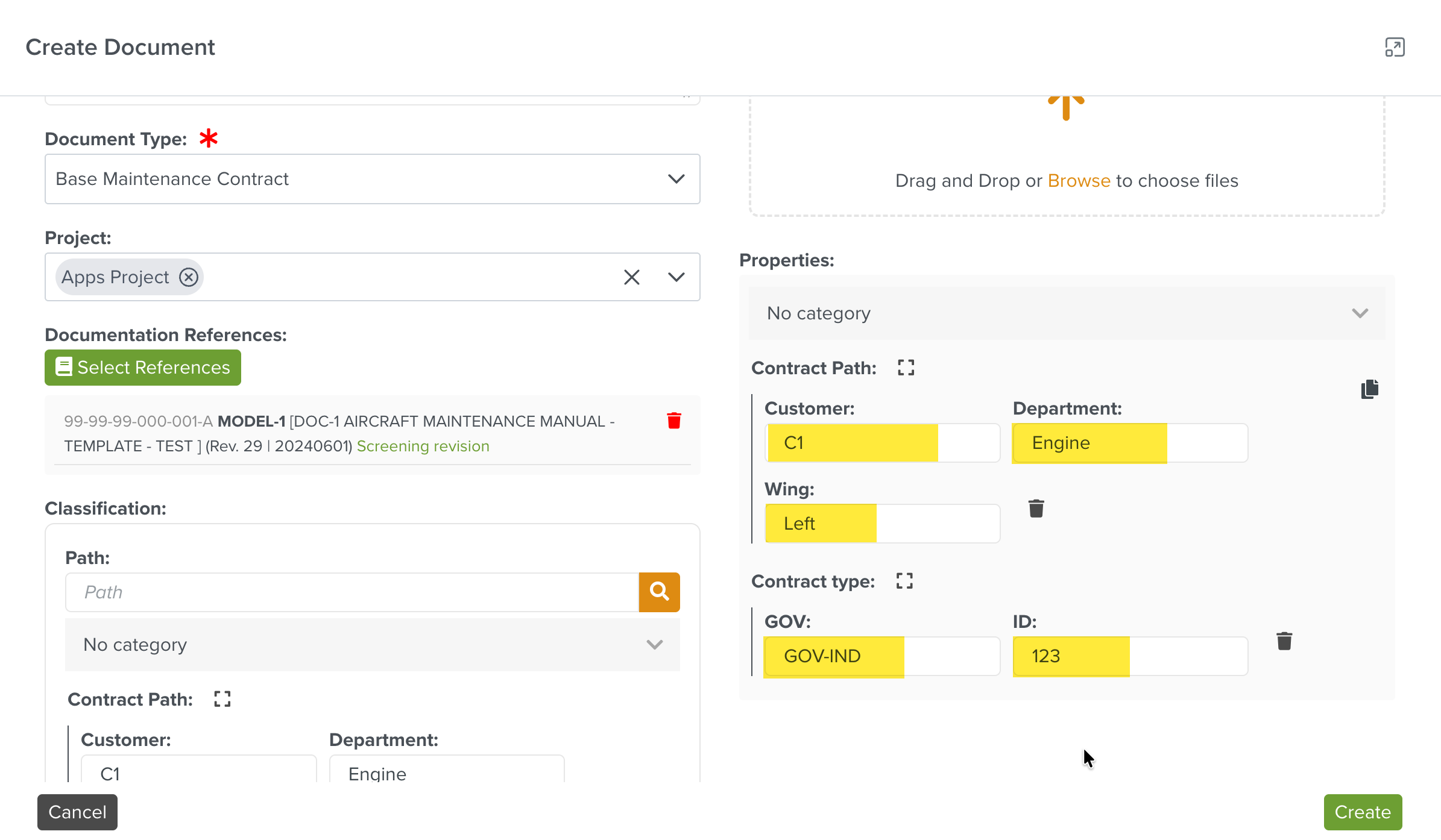
Enter Properties defined by custom field property while creating a Document. The required details are added as highlighted in the example below.
If same Custom Fields are added to both the Classification and Properties section, the Mirror to Properties
 option is displayed. Click this option to populate the Custom Field values from Classification to Properties.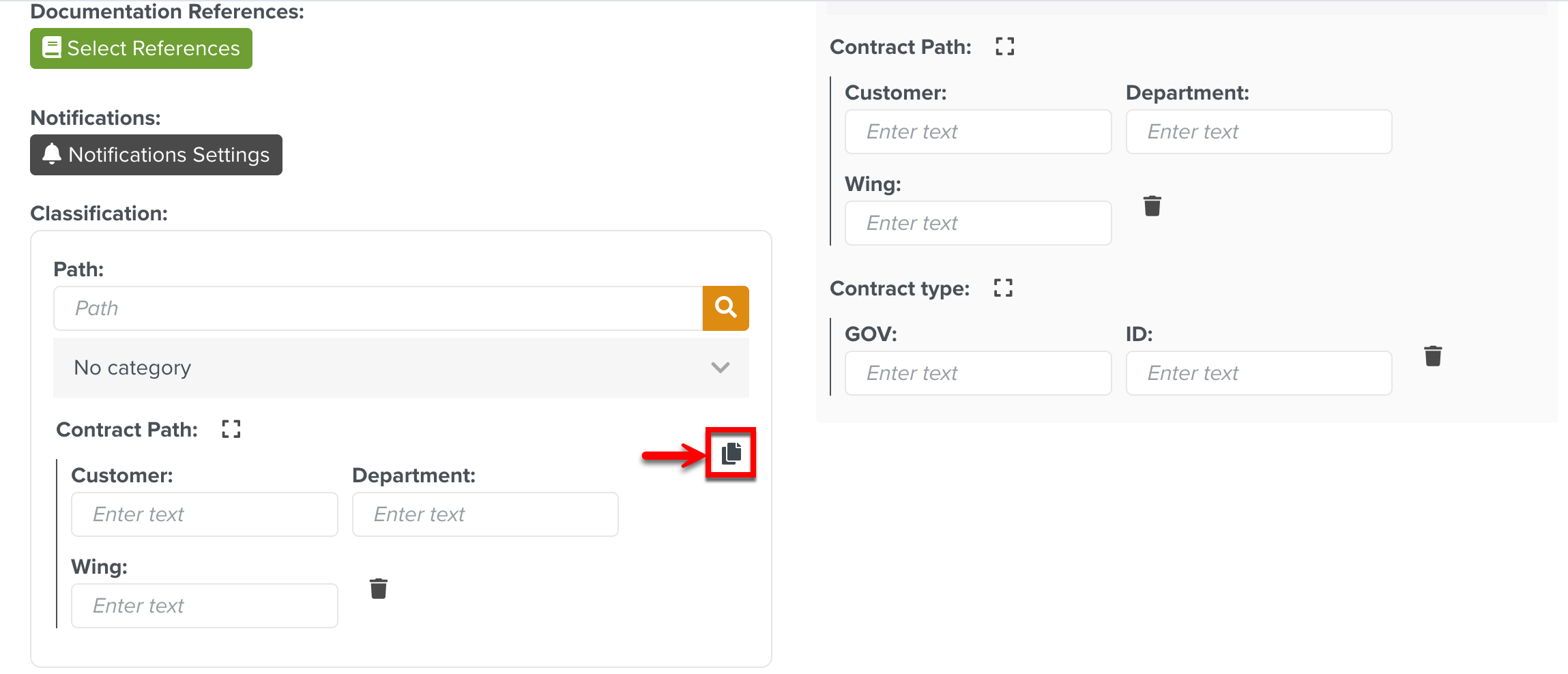
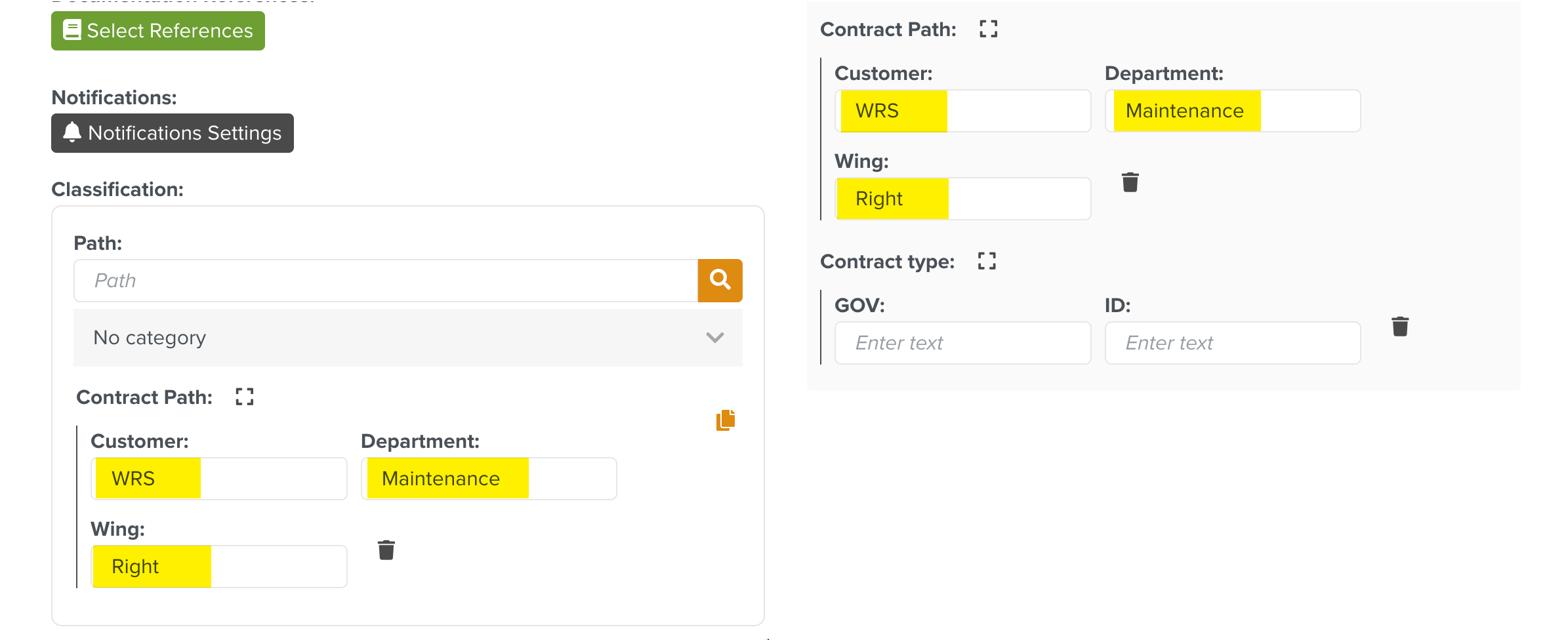
Note
Modifying the Custom Field values in the Properties section does not reflect in the Classification section.
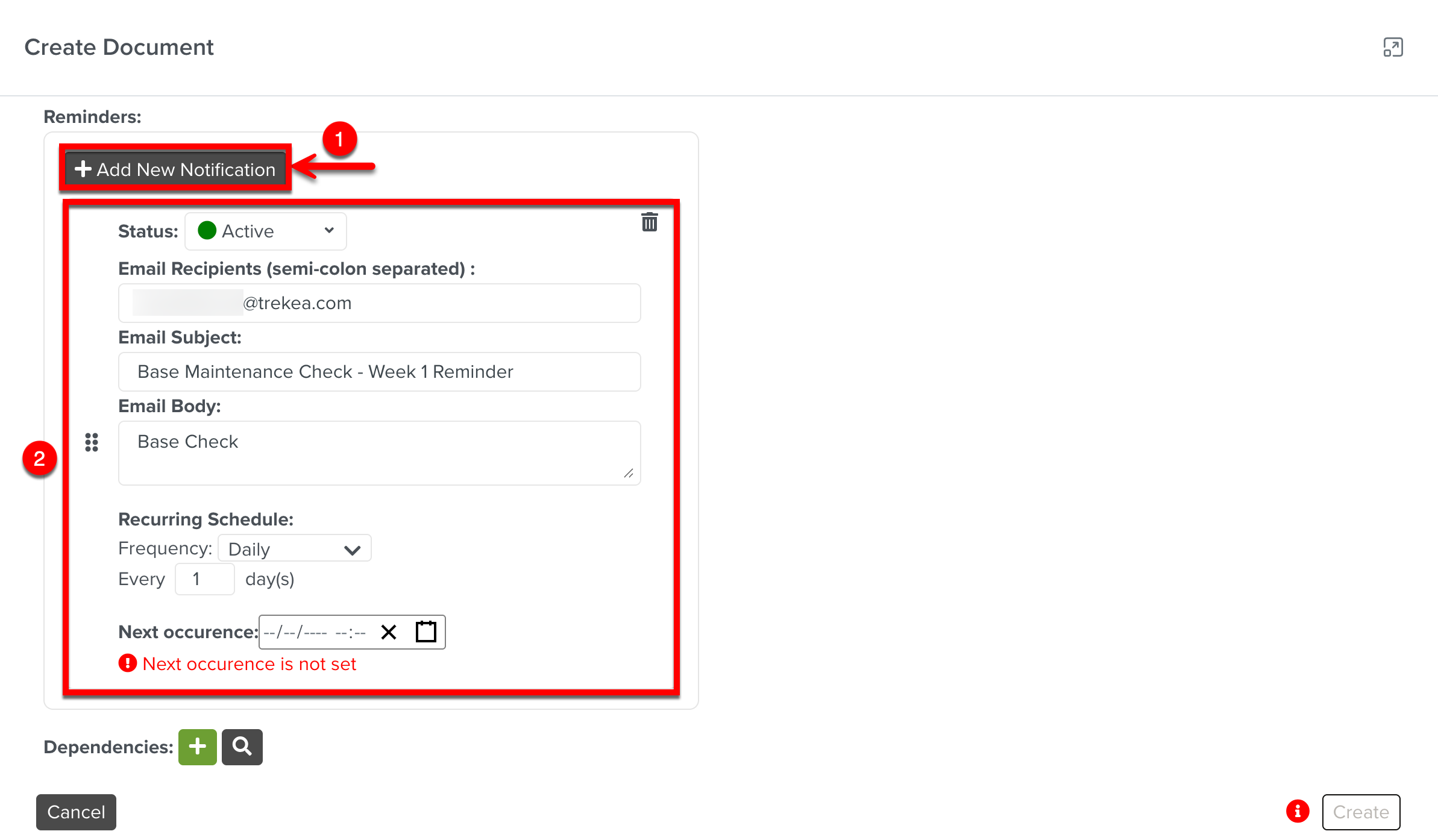
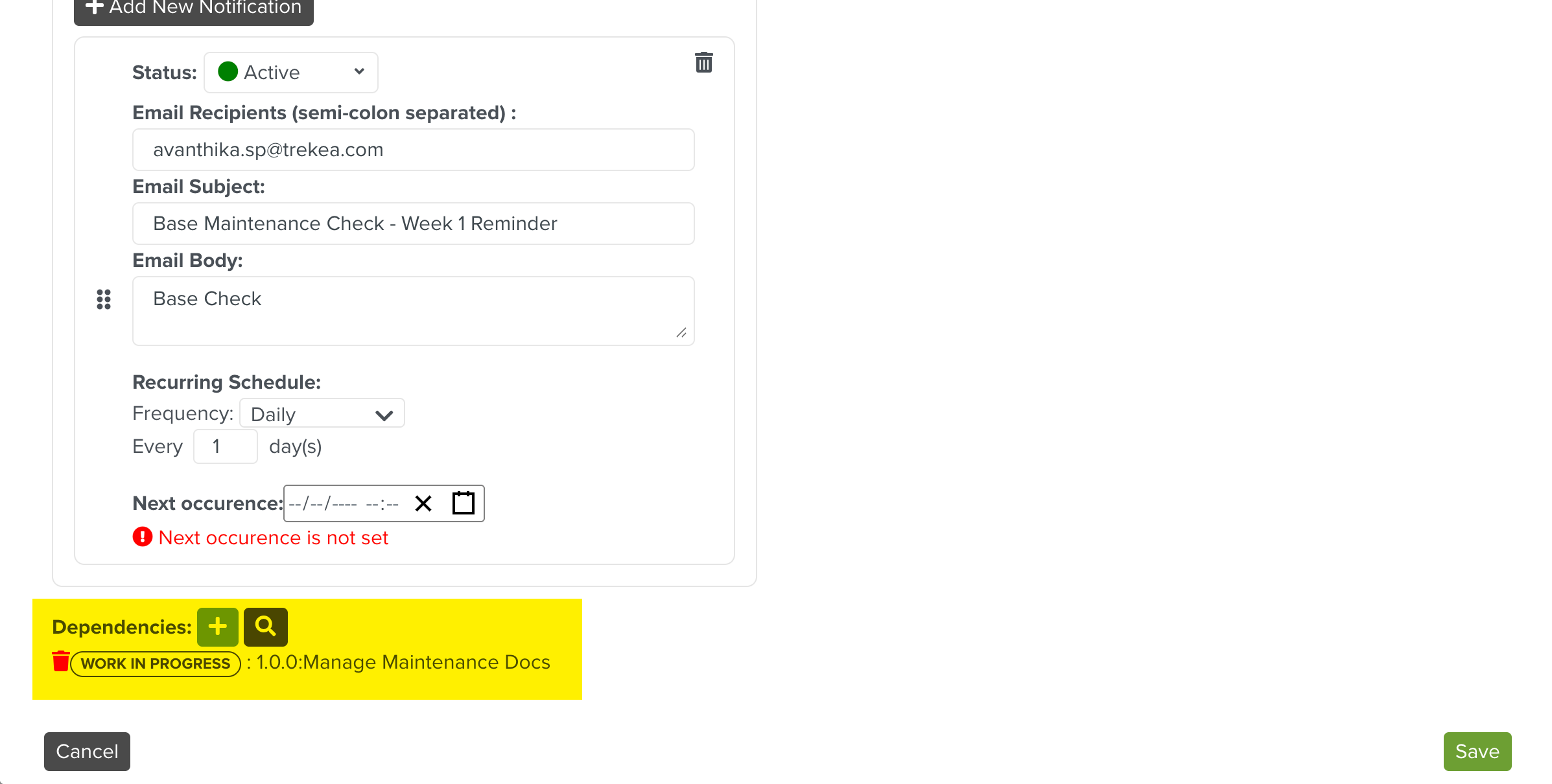
Set up reminder notifications to be sent to users as shown below.
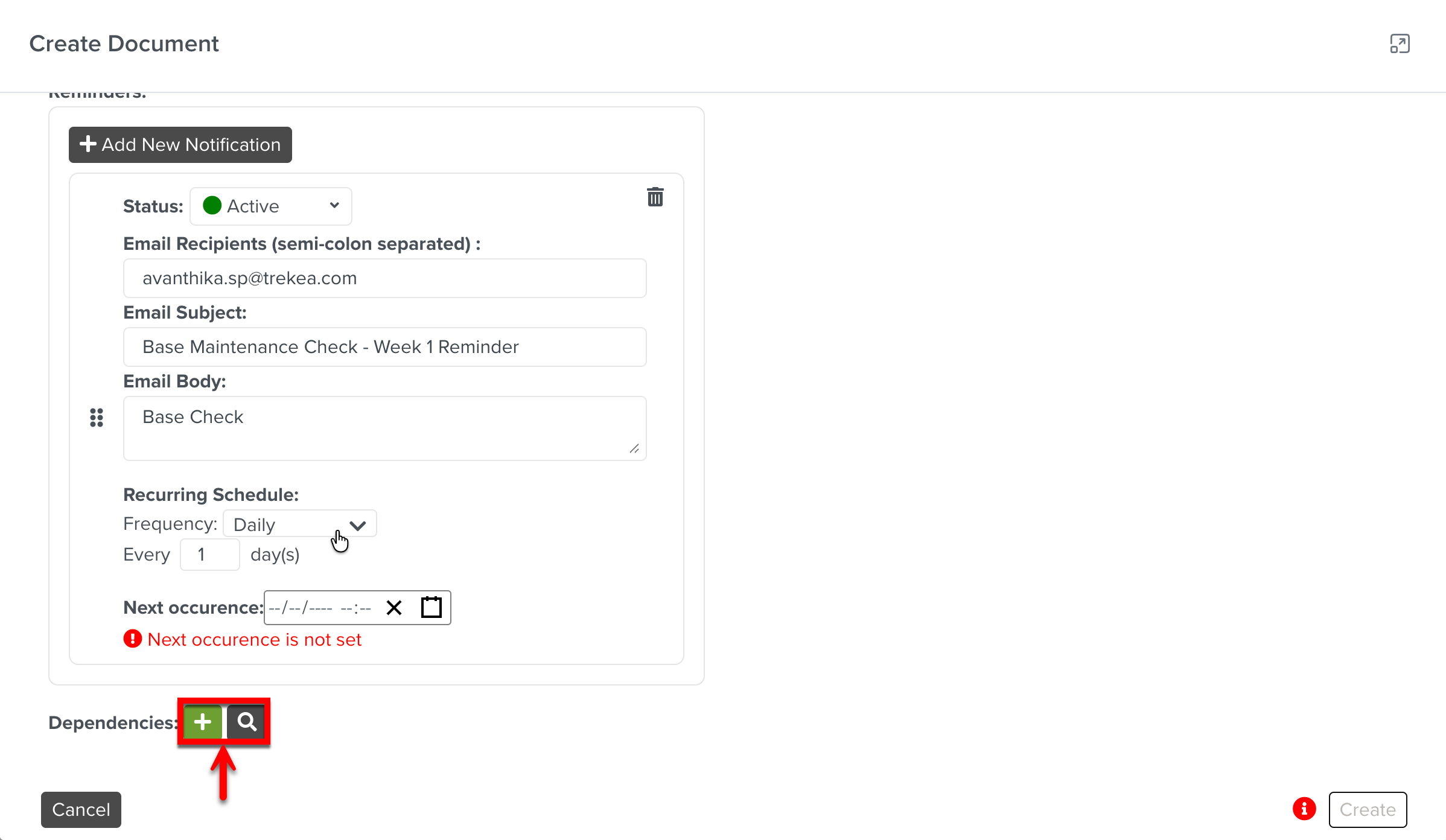
[Optional] Add new or existing Documents as Dependencies using the options below.
Caution
These options are available if the Documentation Type linked to this Document Management Space includes Dependency Documentation Types.
If the revision number of the Document is not entered, these options are disabled.
Dependent documents are sub documents linked to a primary Document. It will follow the Approval cycle associated with the Document type selected for the Dependent document.
To create a new Dependency Document:
Click
 to create new Dependencies.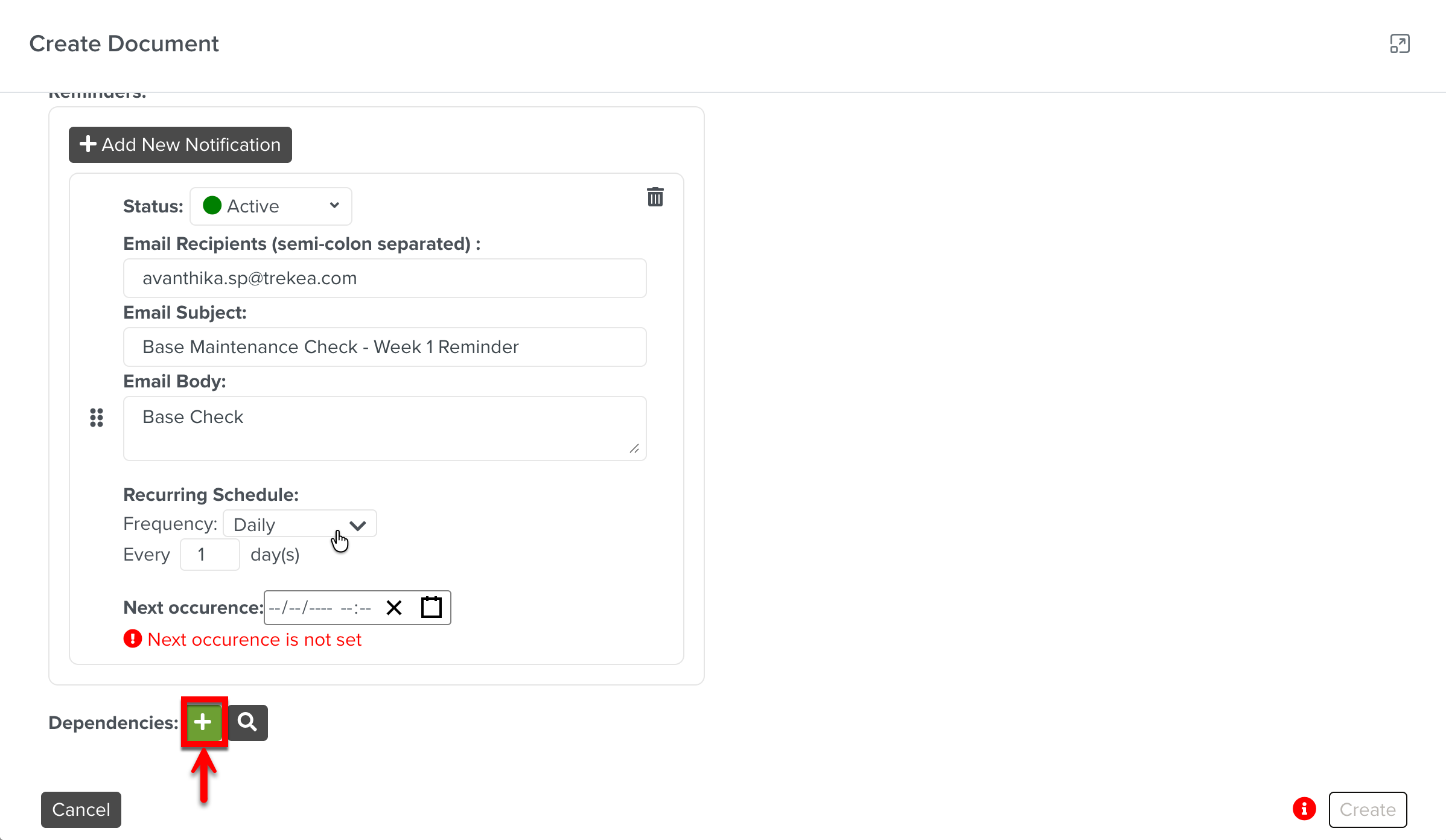
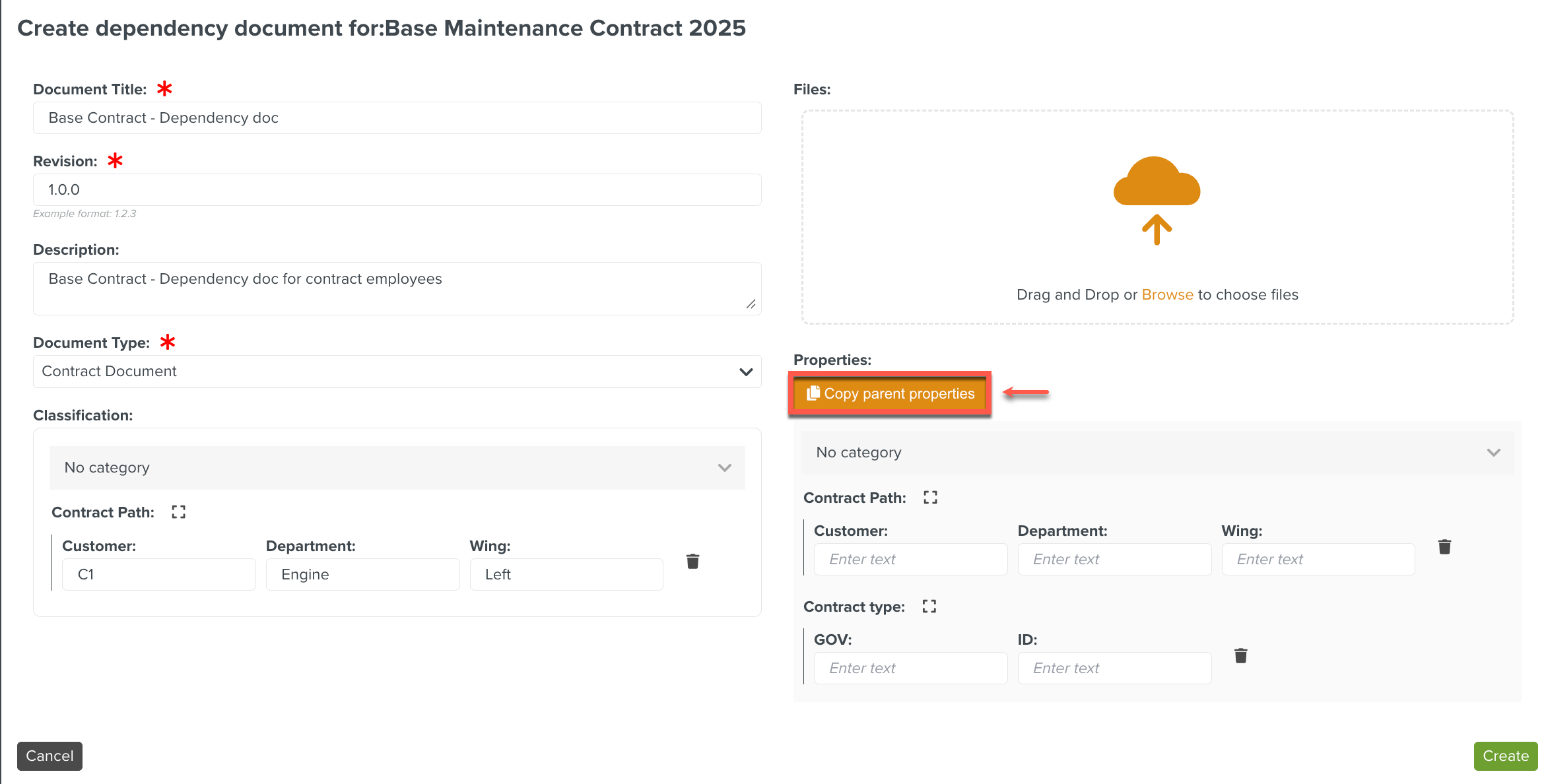
The Create dependency document for:Maintenance Contract dialog is displayed.
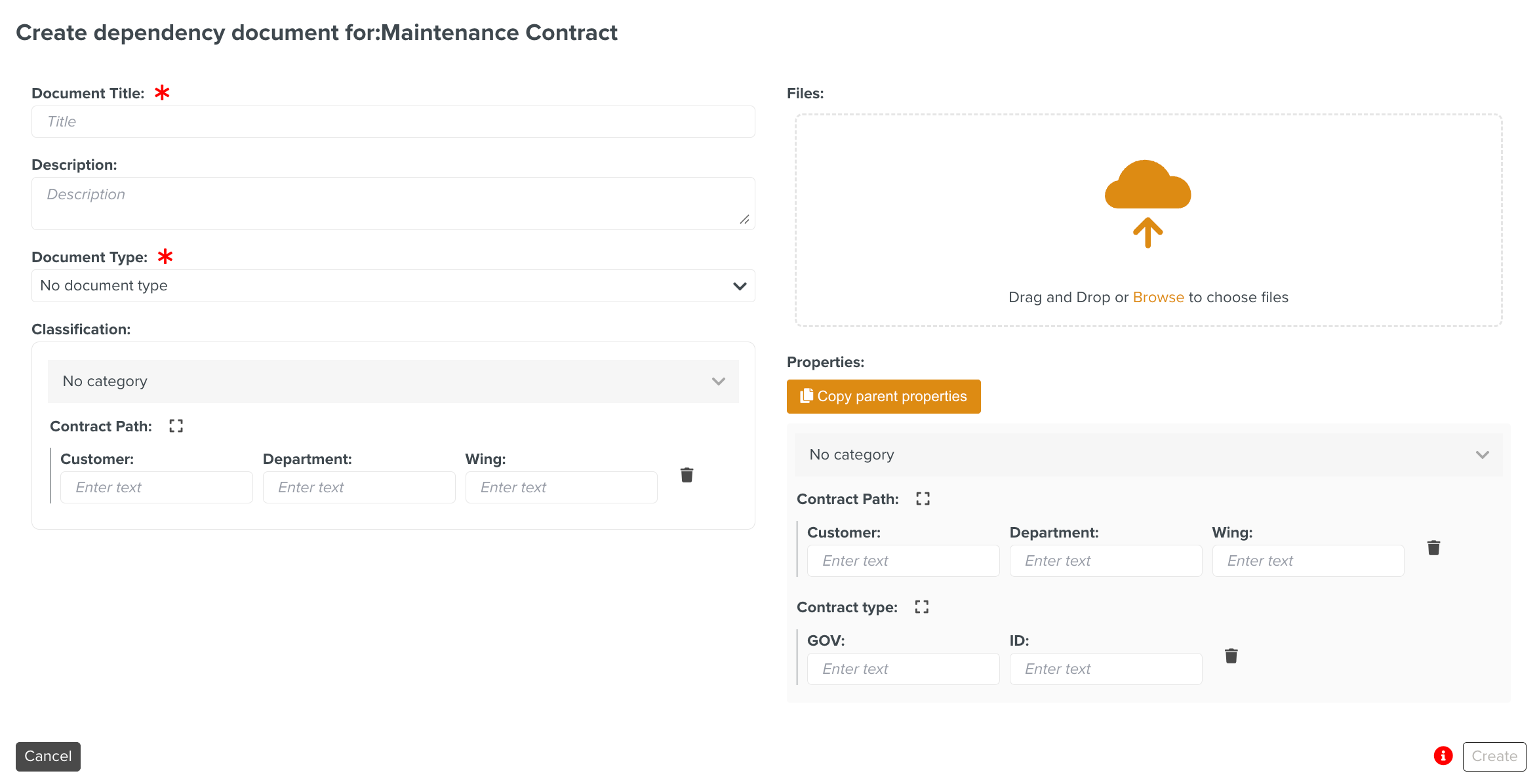
Enter the required details for the dependency document.
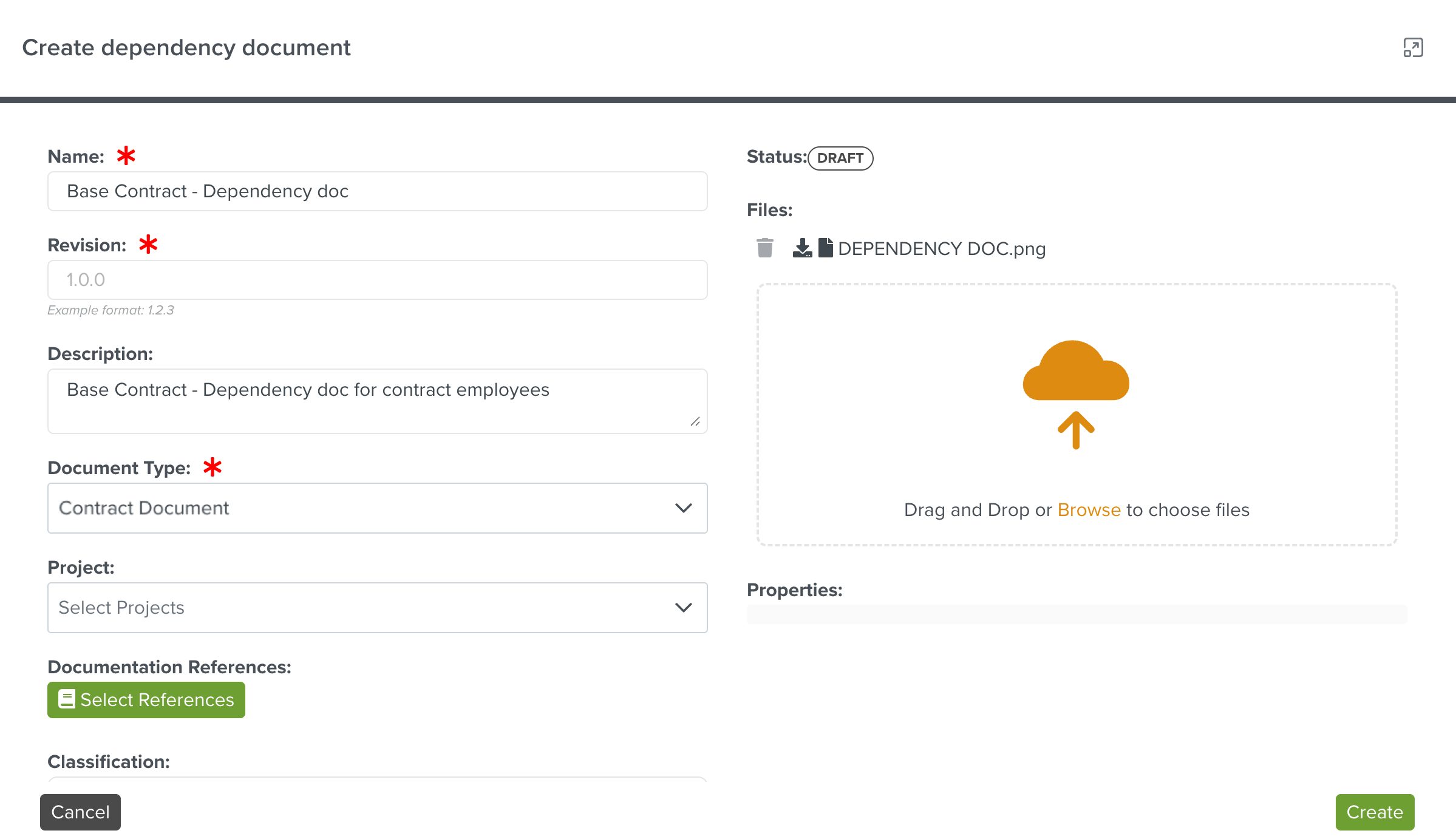
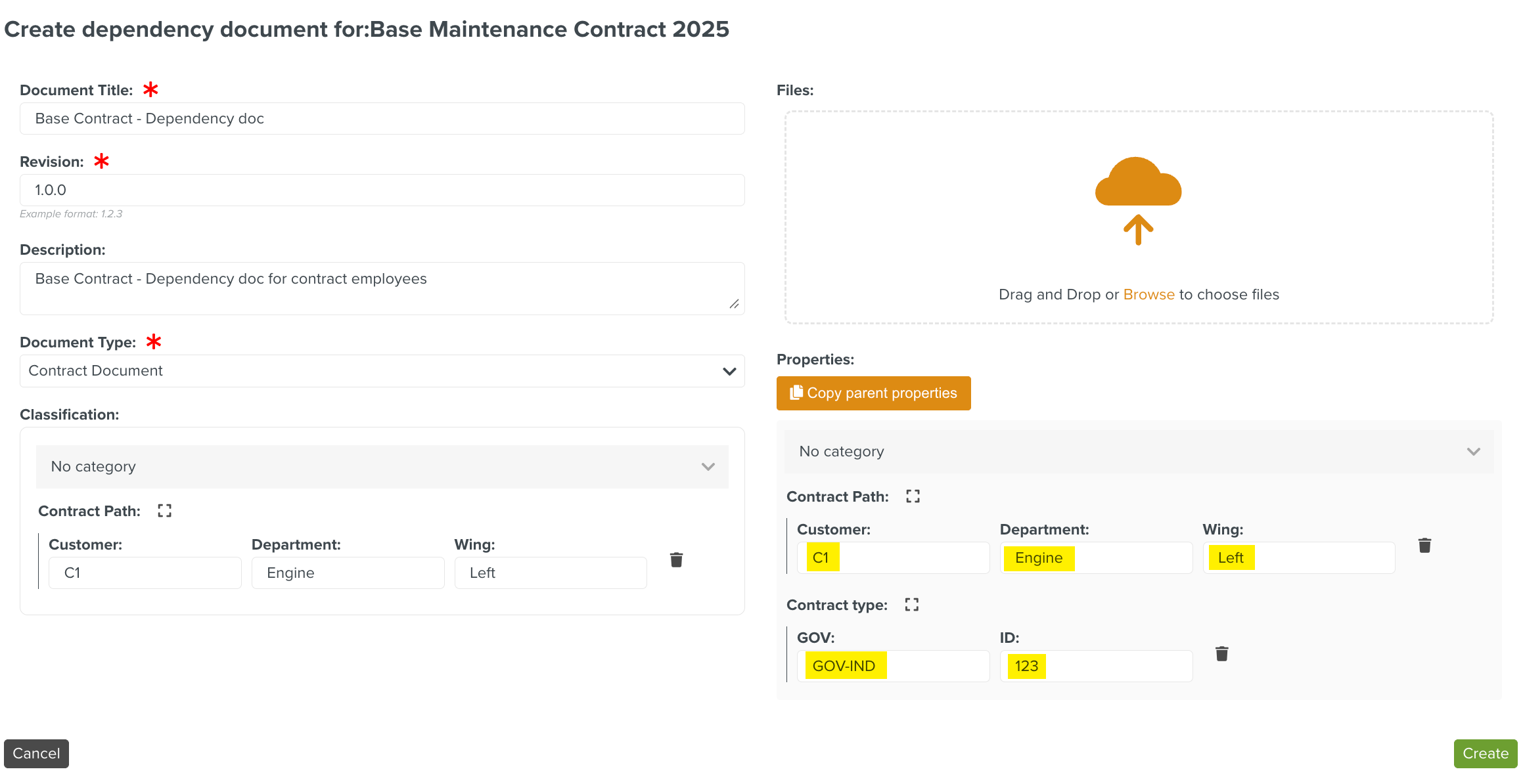
Enter the values for the Properties.
[Optional] Click to populate the properties from the parent document.
Click Create.
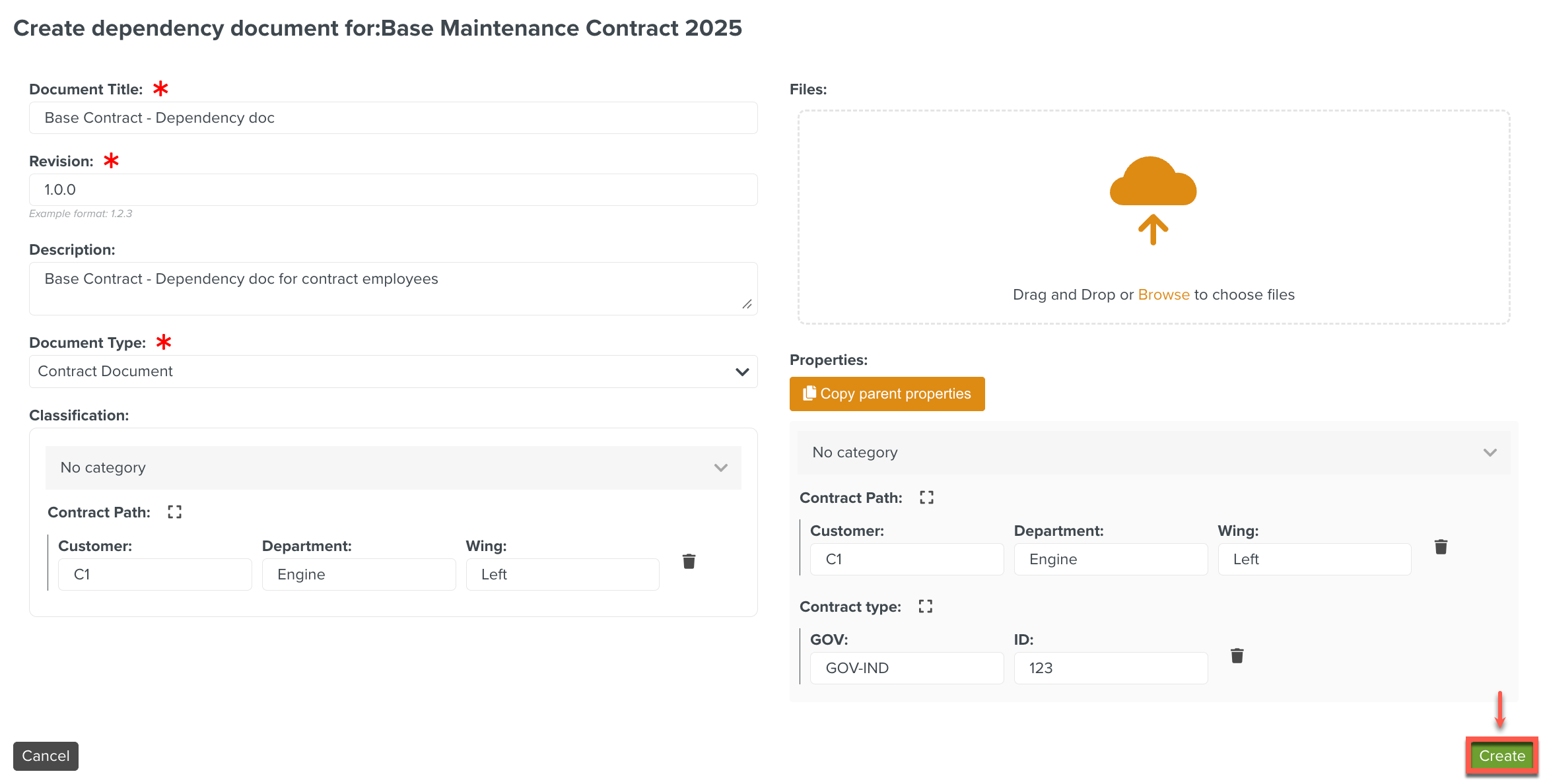
The Base Contract - Dependency doc is created. The latest version of the dependency document is always linked and a label (Latest version) is added.
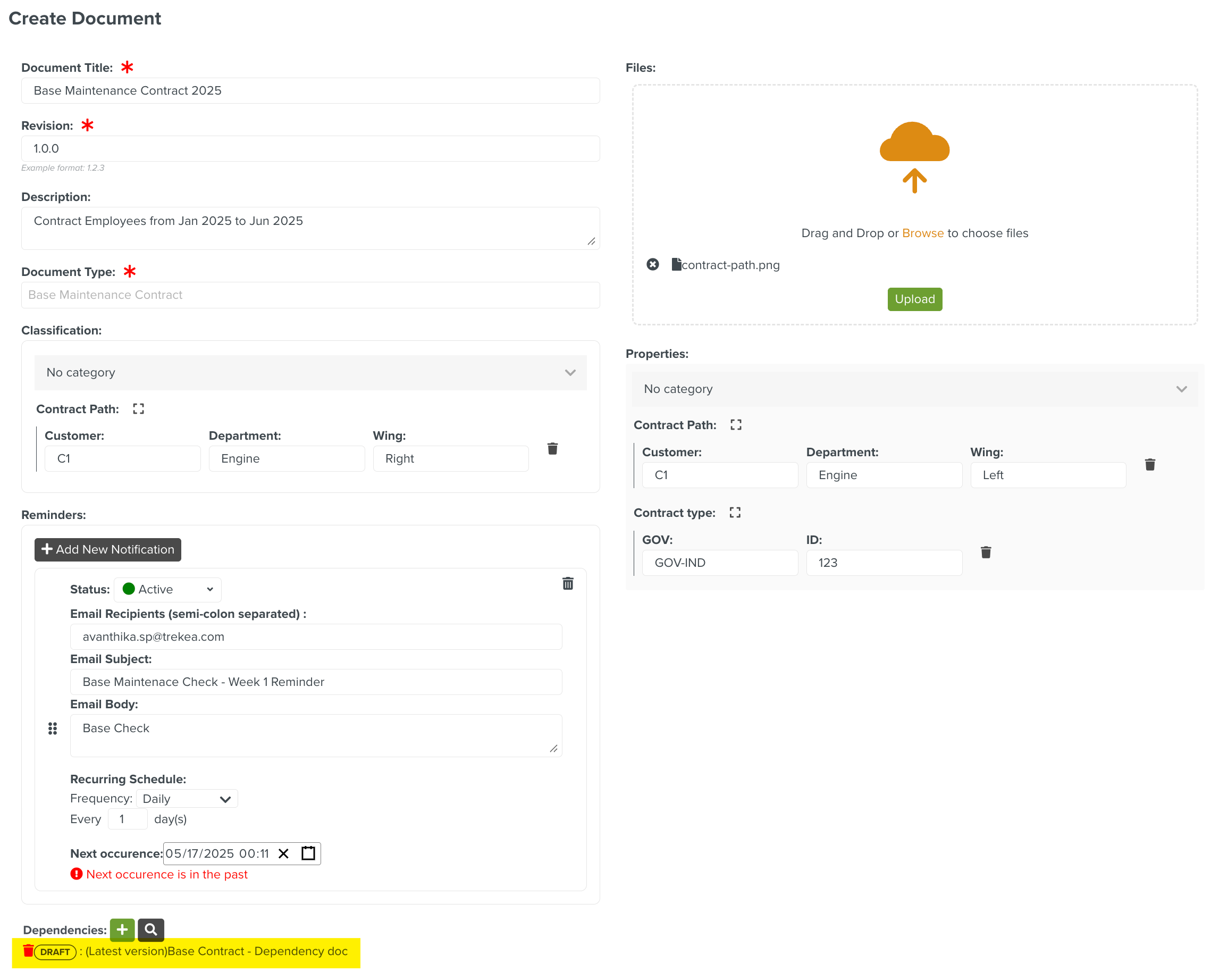
If an Approval Type is associated with the Document Type then the approval process is initiated. If not, it is directly created.
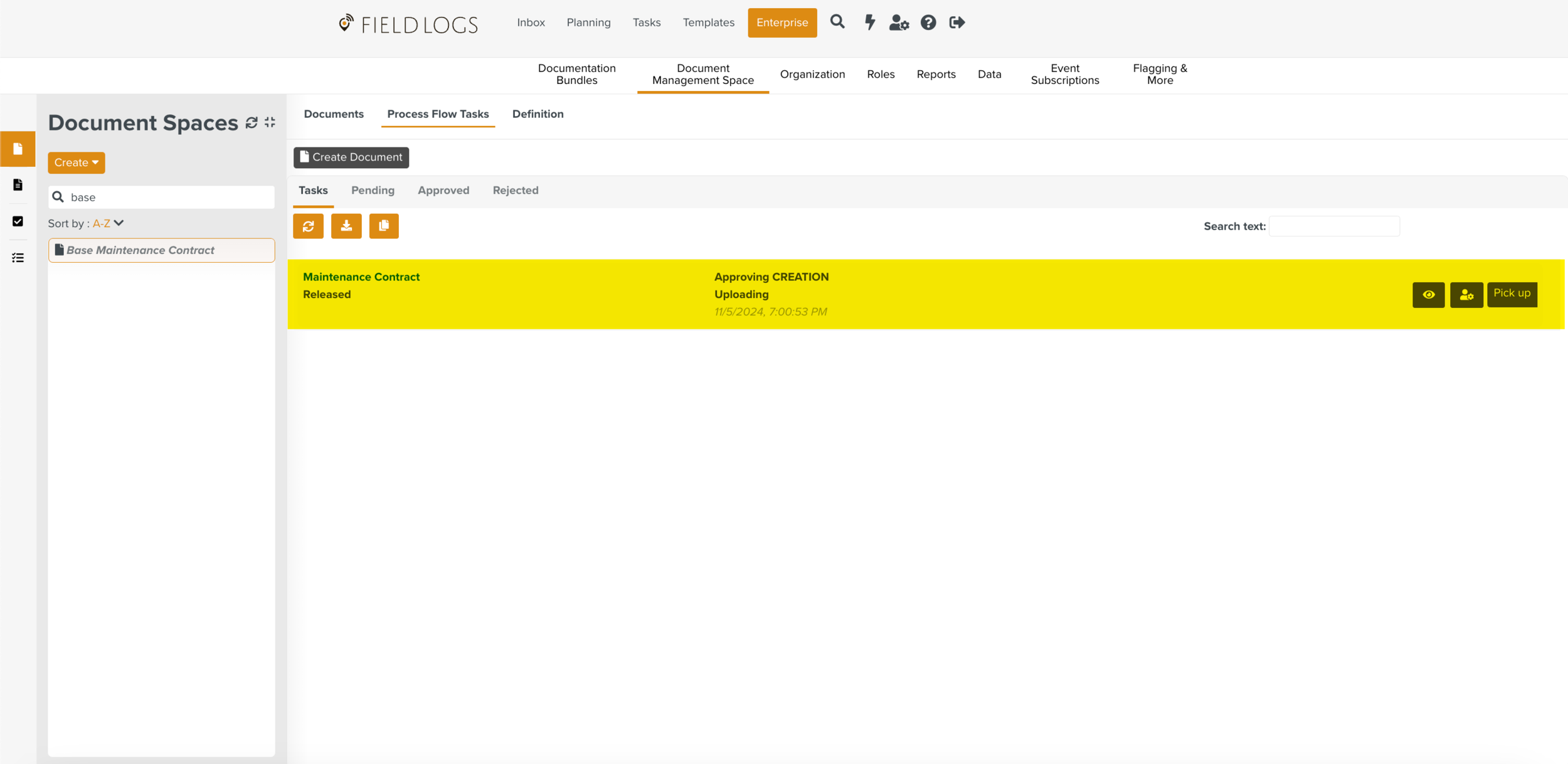
You can choose the date and time pattern for the Approval Tasks.
Note
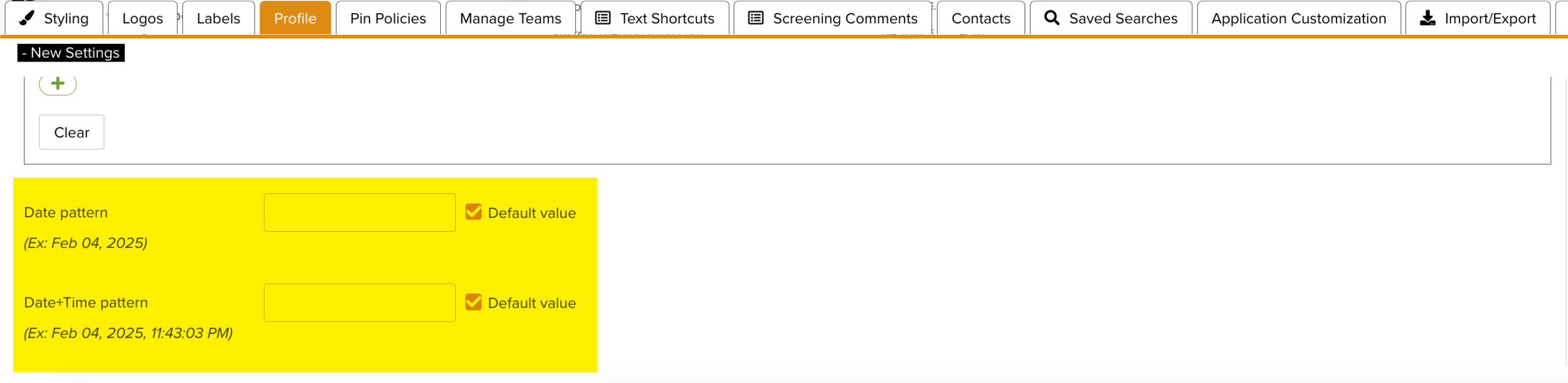
The pattern in which the date and time is displayed can be customized using the Enterprise Setting Date + Time pattern as shown below.
Once the Document is created, it appears in the Document Space. You can view the details of the Document.
To add an existing Document as Dependency Document:
Click
 .
.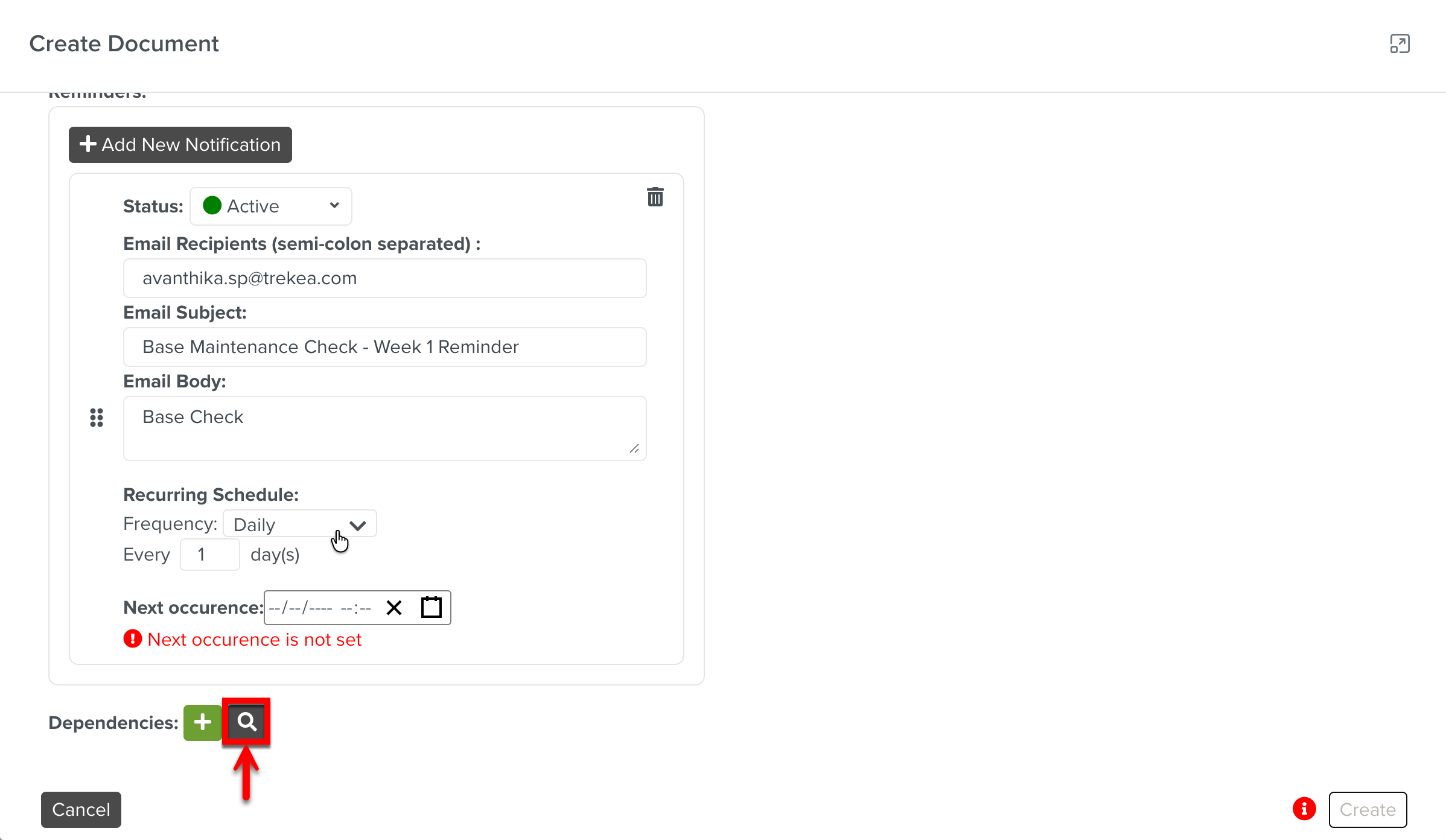
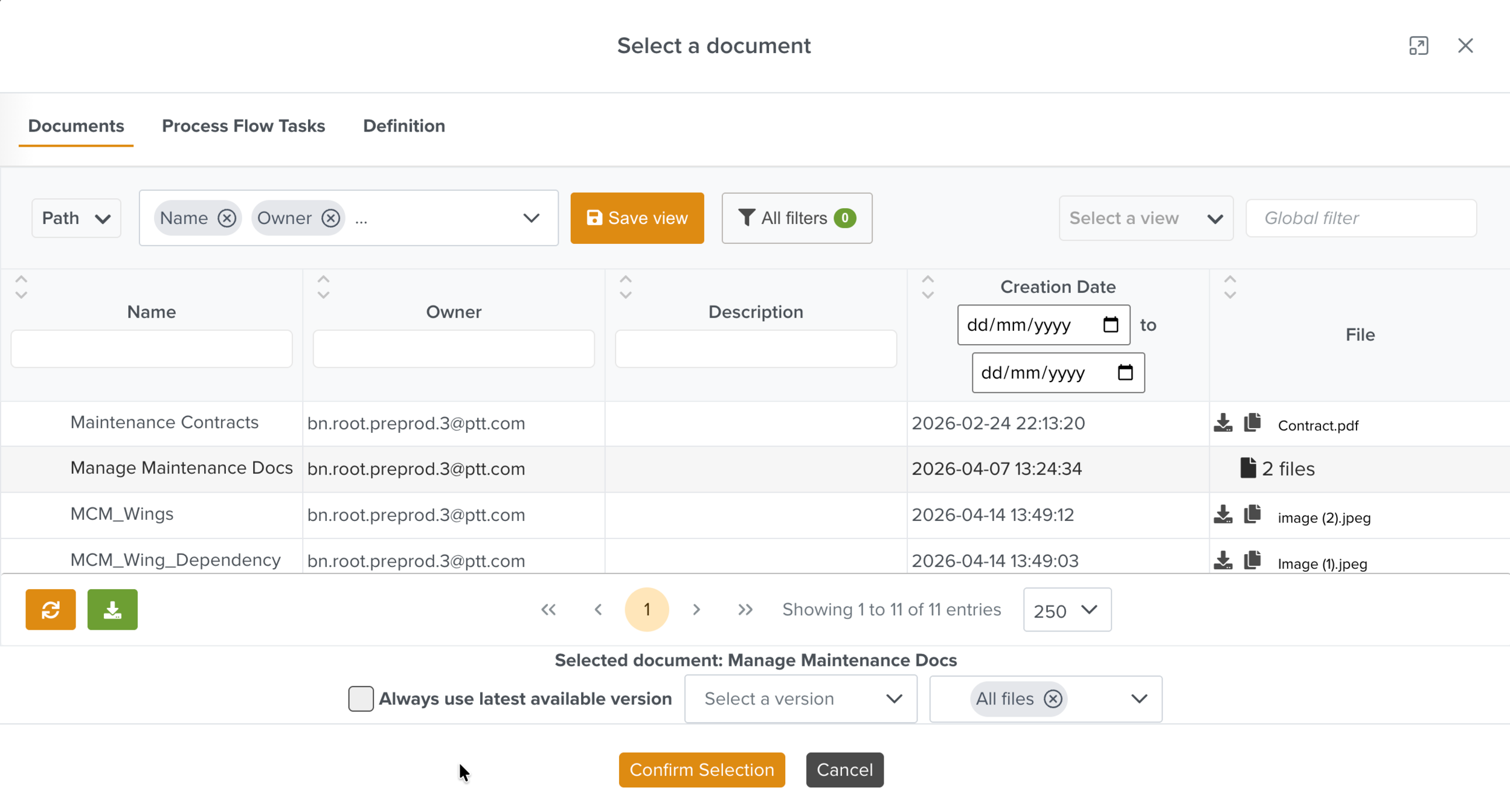
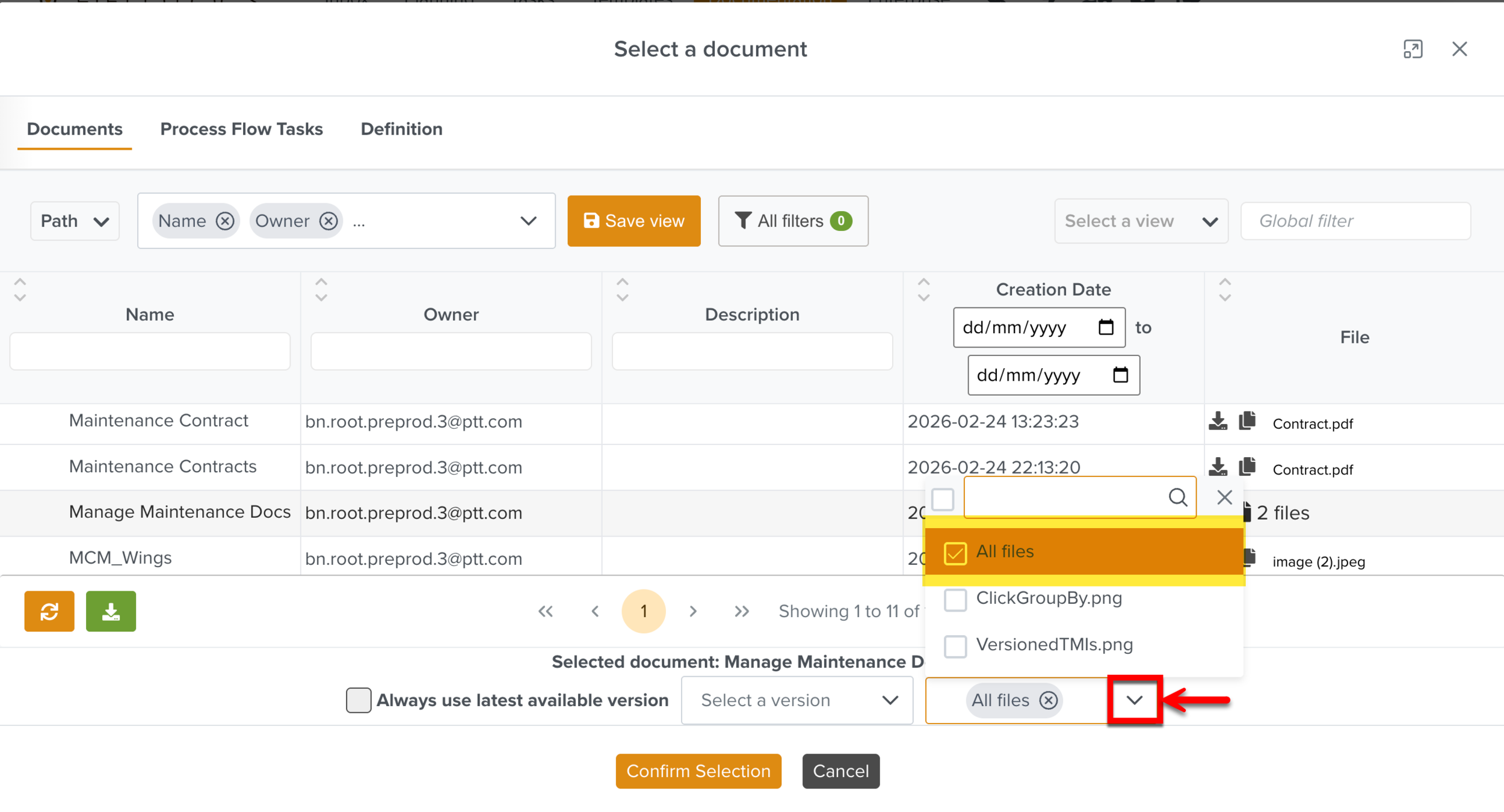
Select the dependent Document. If there are multiple files in the document, select the required files or All files.
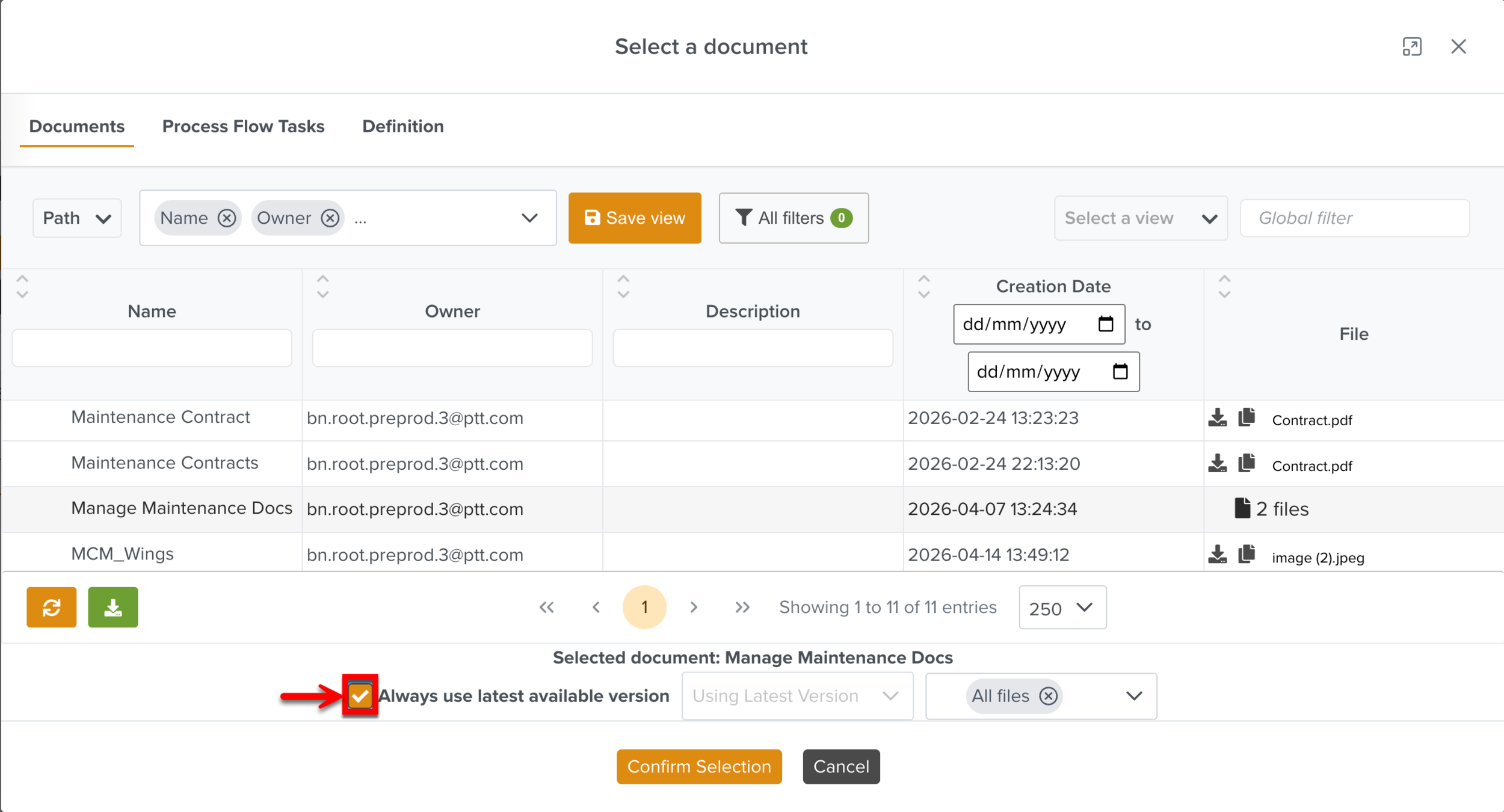
Click Always use latest available version to use the latest version of the document. When the dependency document is linked, a (Latest version) label is added.
If required, you can select a specific version of the document from the Select a version dropdown.
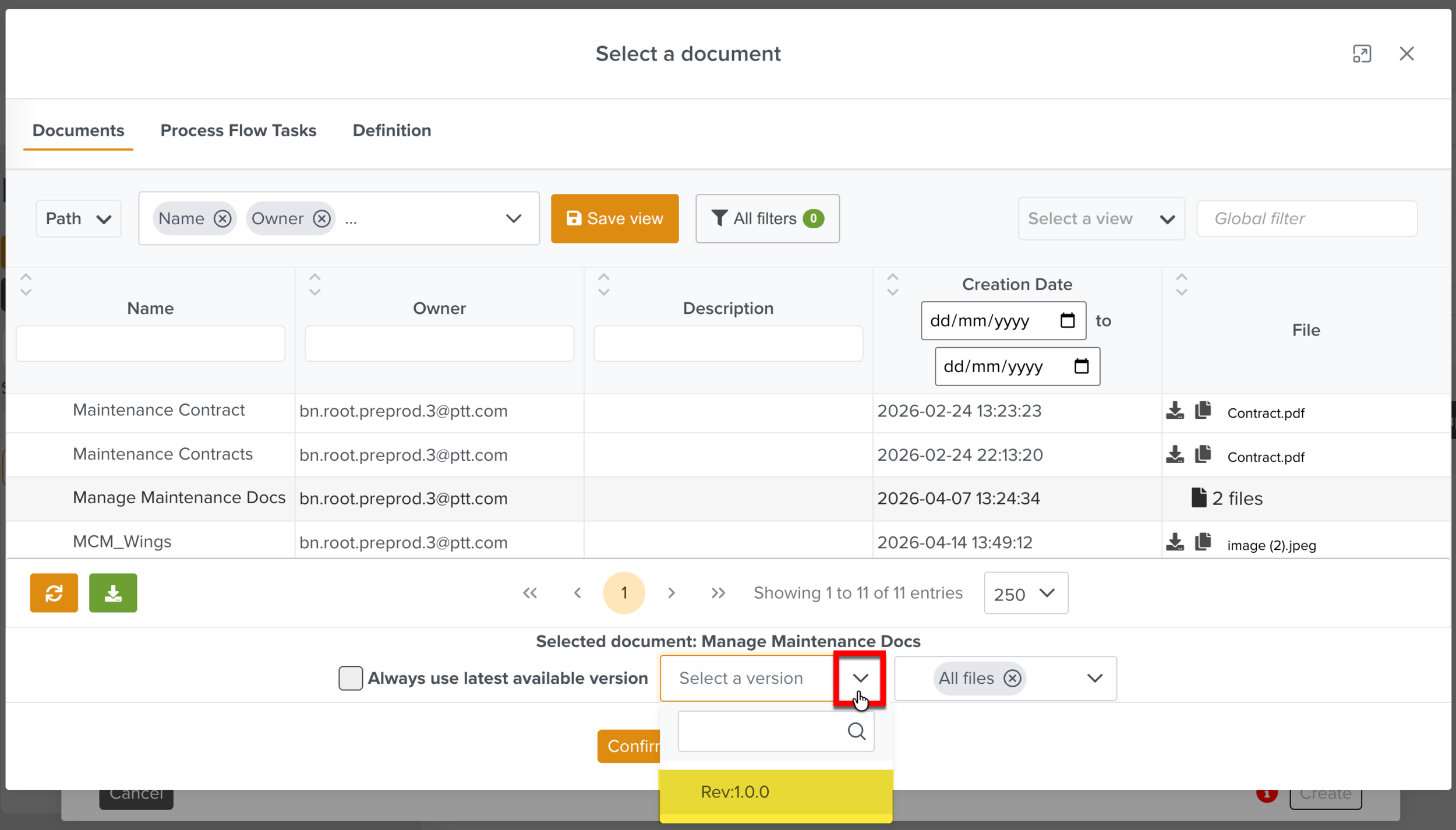
The selected revision of the Dependent document is added to the Dependencies section as shown below.
Click .
Note
Based on the Document Type definition, the button may be enabled or disabled if no documents are uploaded.
When disabled, the reason is displayed when you hover over the
 icon.
icon.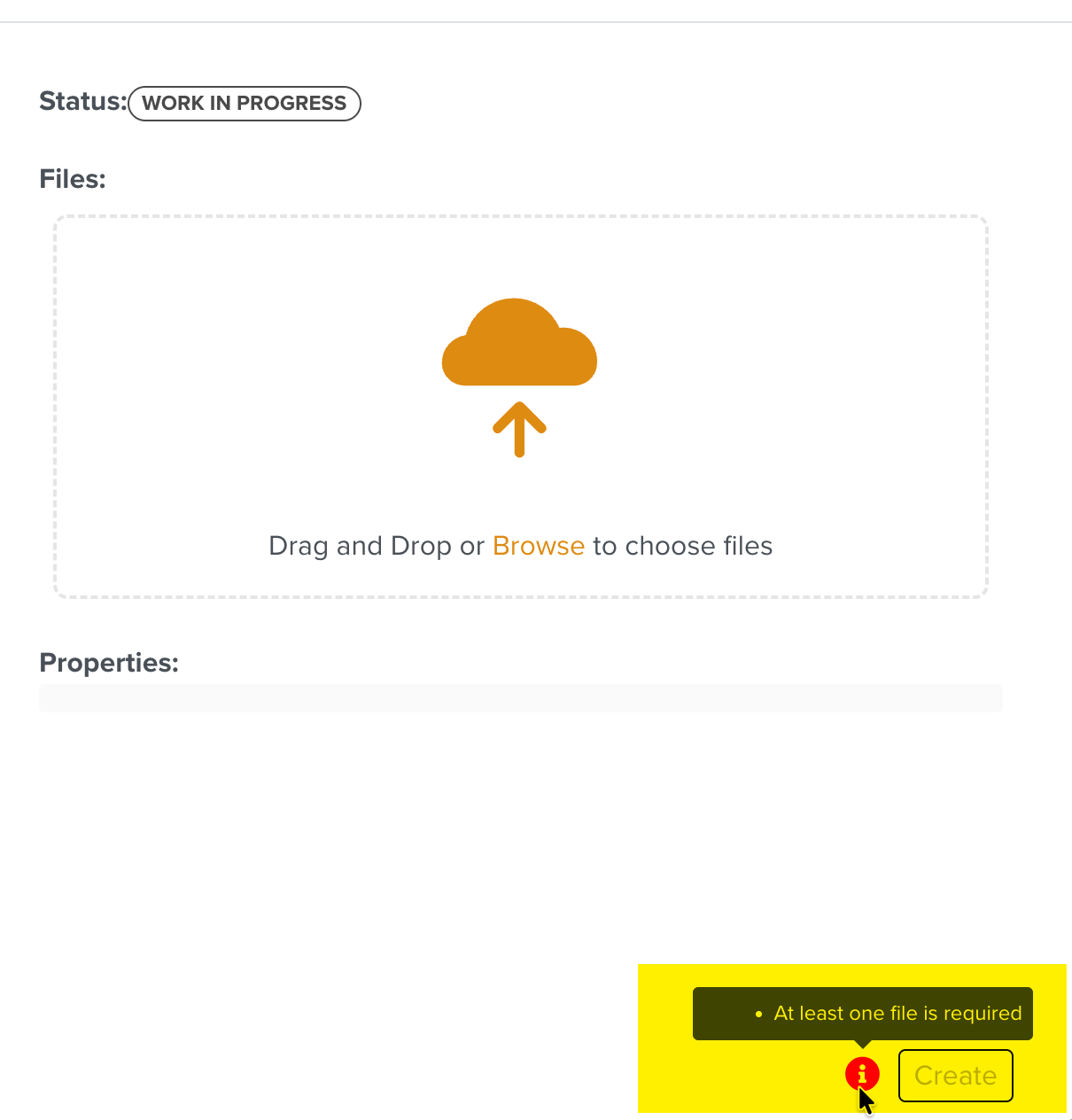
This feature allows a user to open a specific Document via a link that would directly launch Document Management System and display the correct Document.
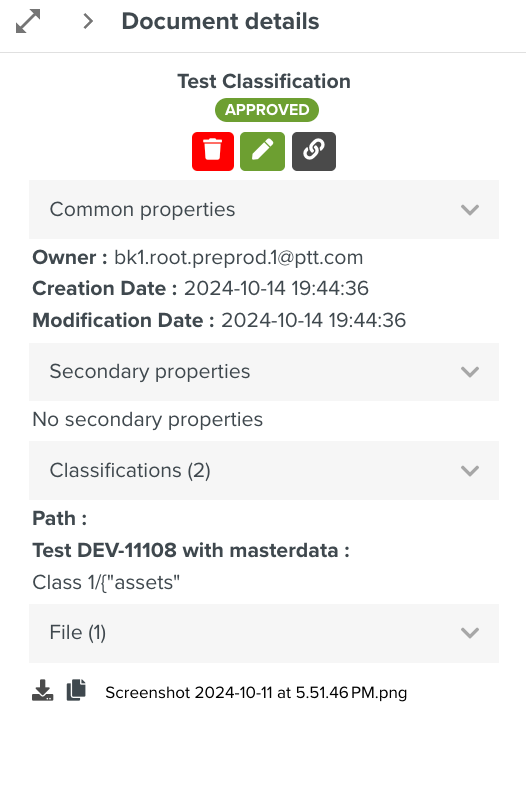
In the example below, Test Classification Document is selected.
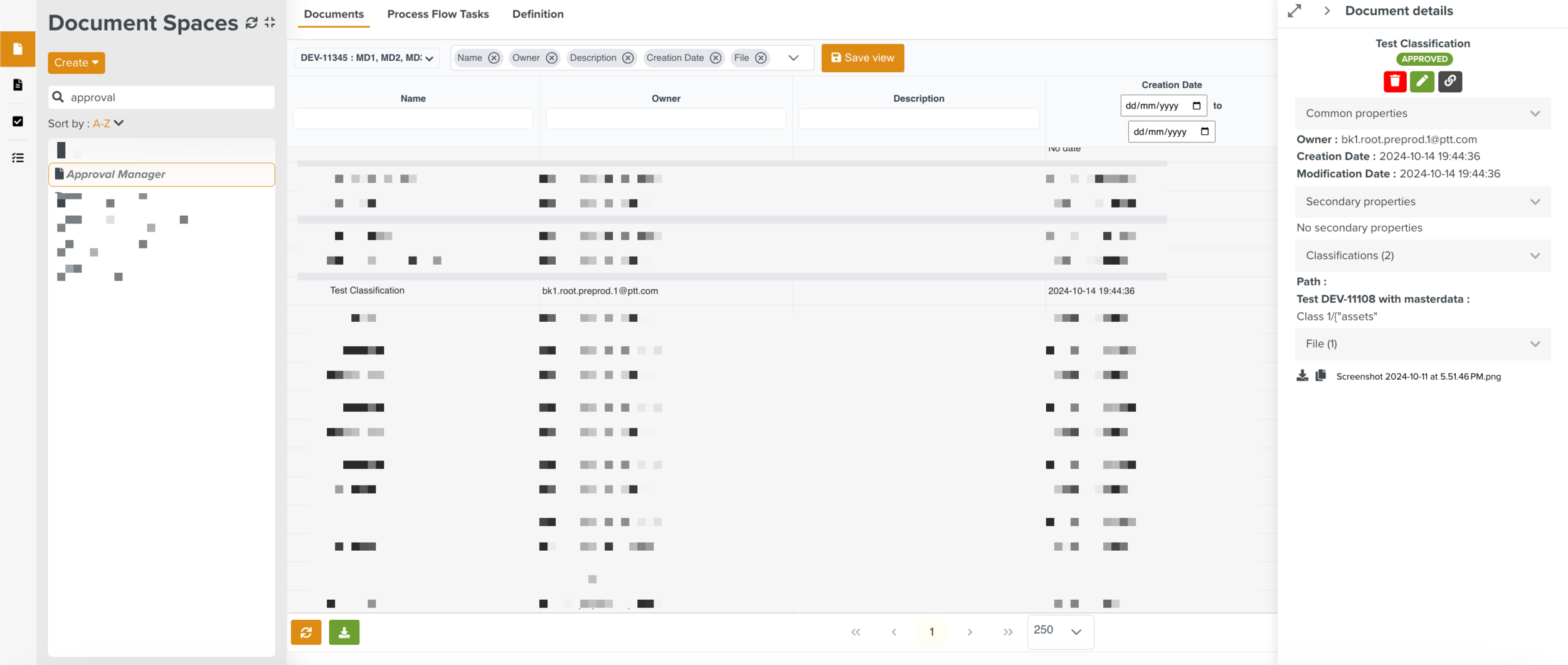 |
The Document details dialog is displayed.
 |
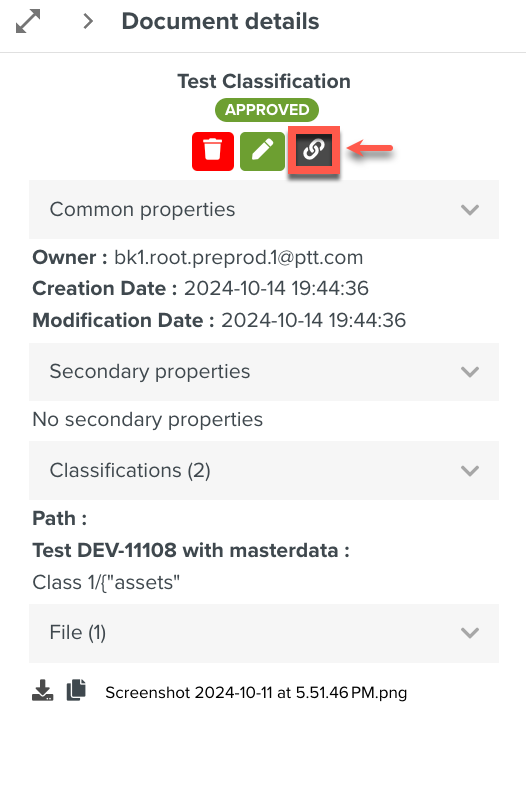
Click  to share link.
 |
The Share link dialog is displayed.
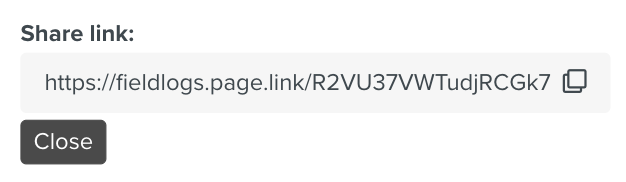 |
Click  to copy the link and paste it in the browser.
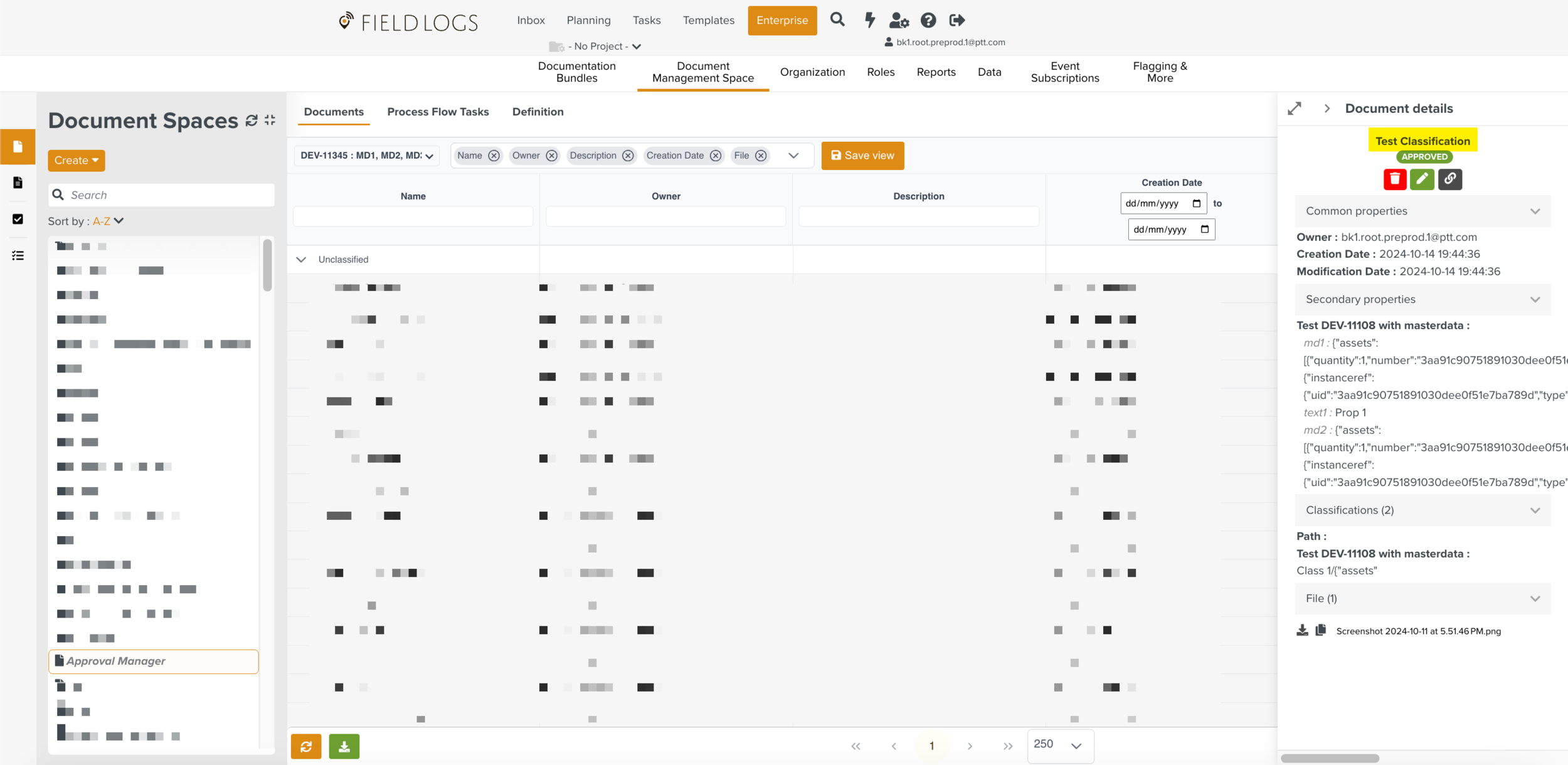 |
The selected Document is displayed.
Note
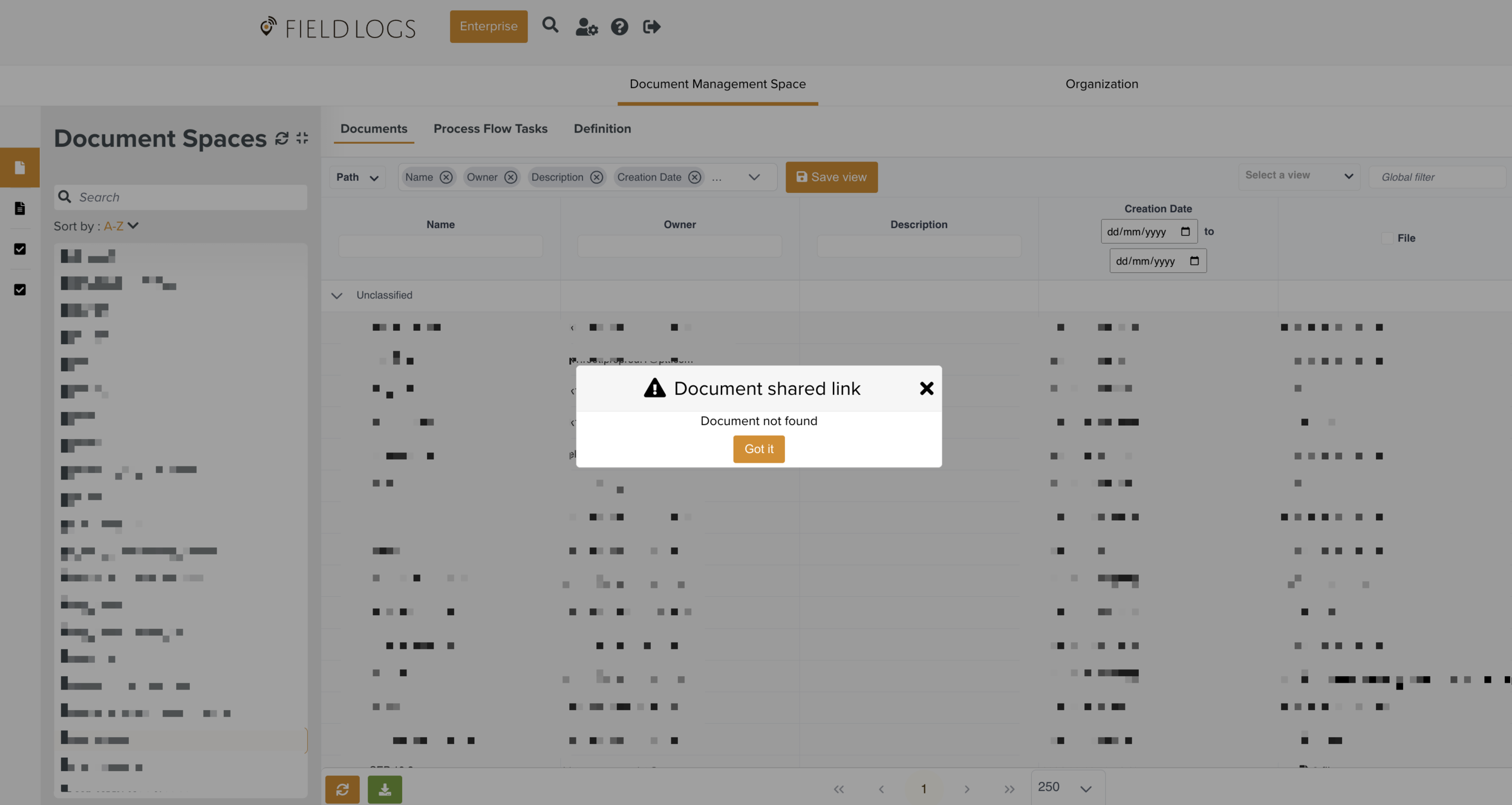
If the Document is deleted, the shared link shows a Document not found error message.
 |
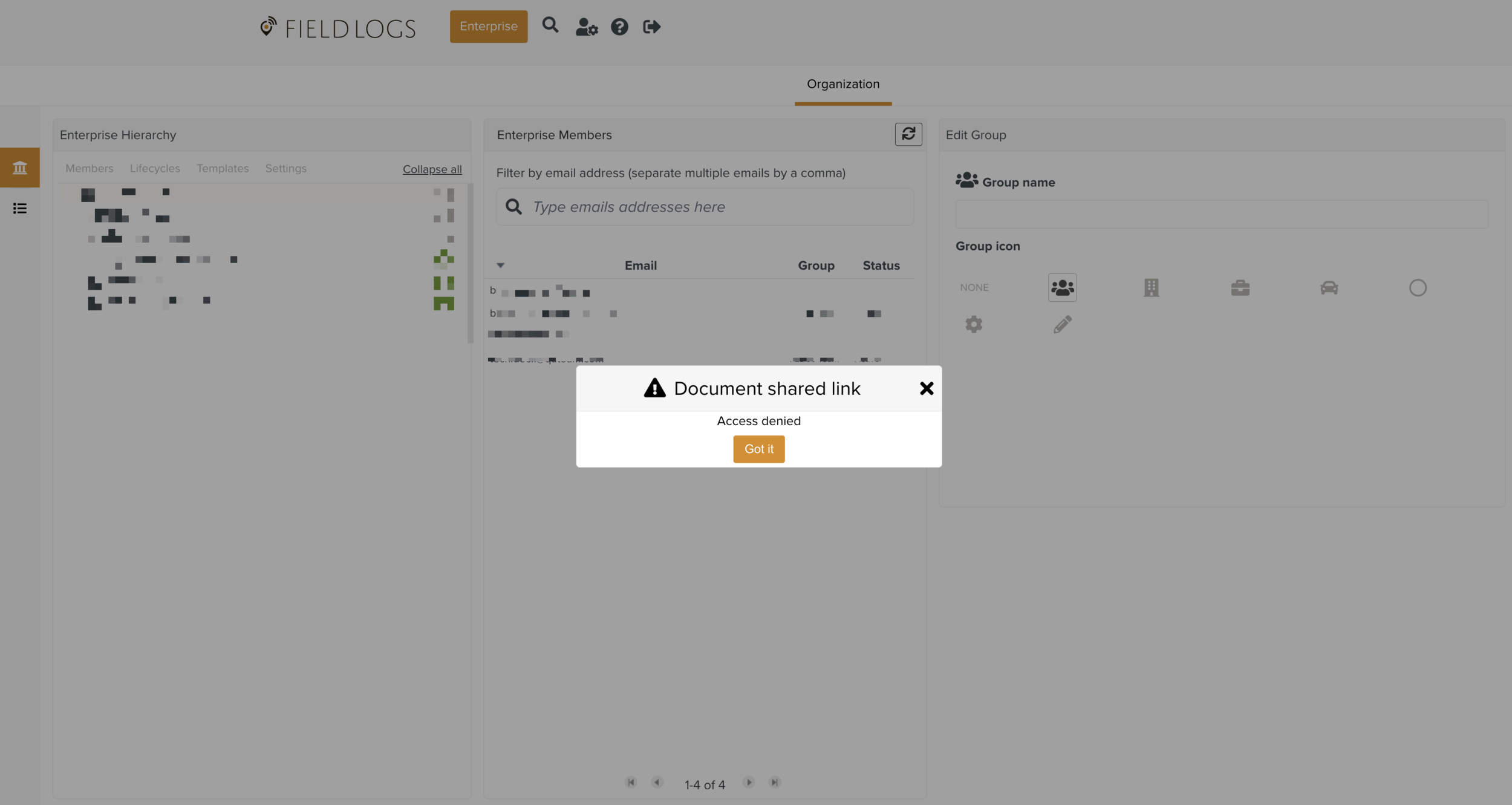
If the user has no access to DMS, then an Access denied popup will appear.
 |