Adding a Blog to a Step
While running a Task, you can add Blogs to any Step. Blogs are pictures, videos, audio files or comments added to a Step. Blogs provide supporting information related to the Step execution.
To add a Blog to a Step during execution:
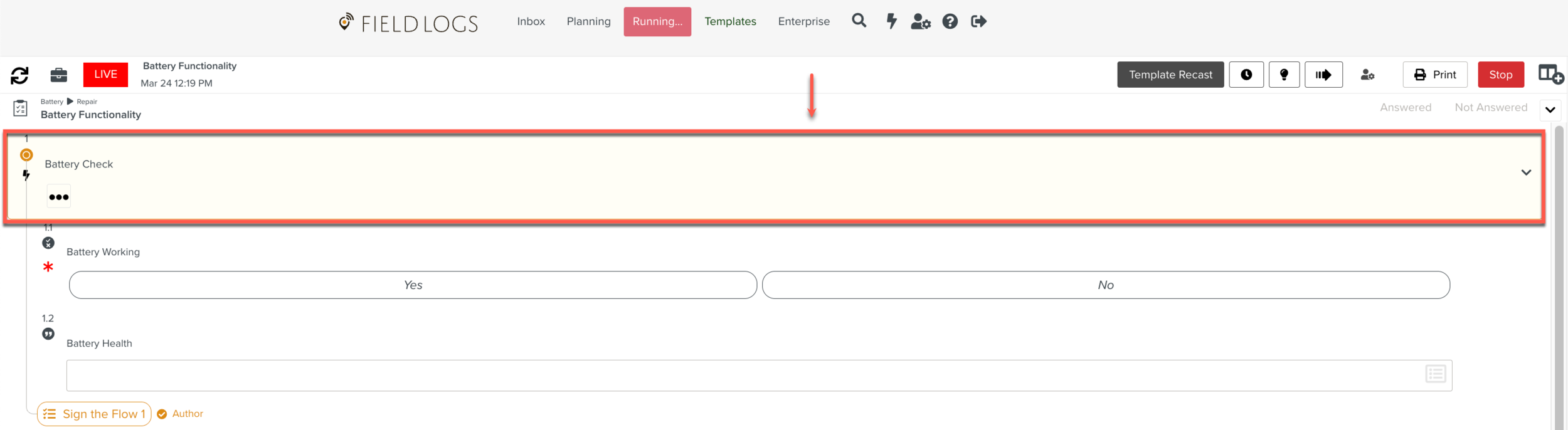
Select a Step to which a Blog needs to be added.
Open the options panel.
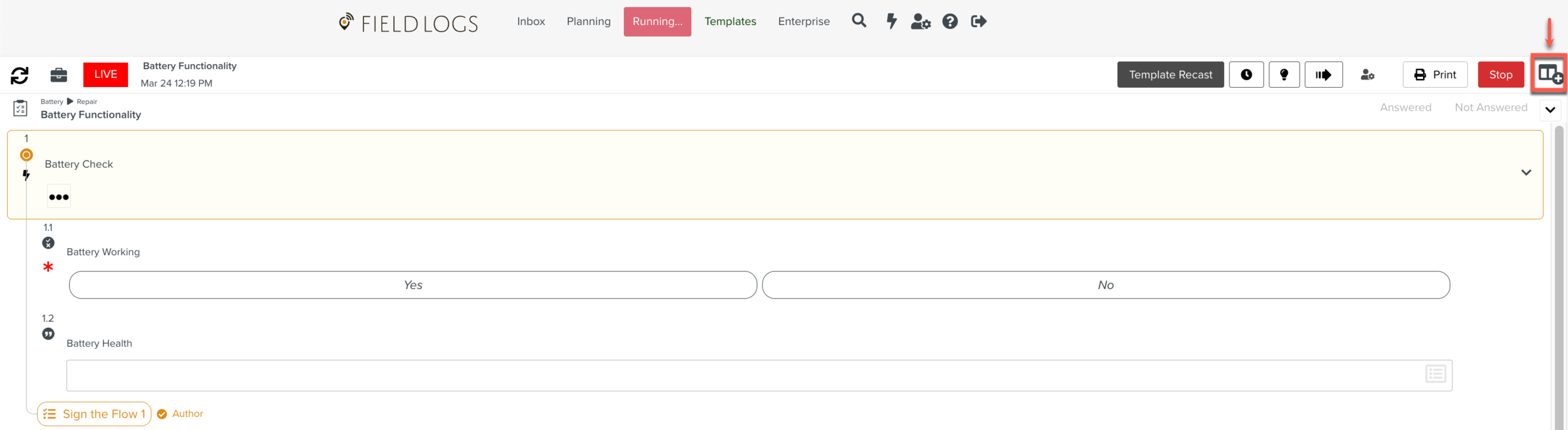
Click

Click .
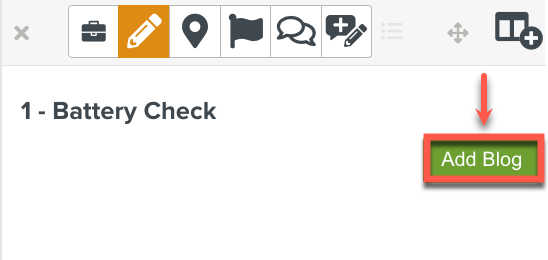
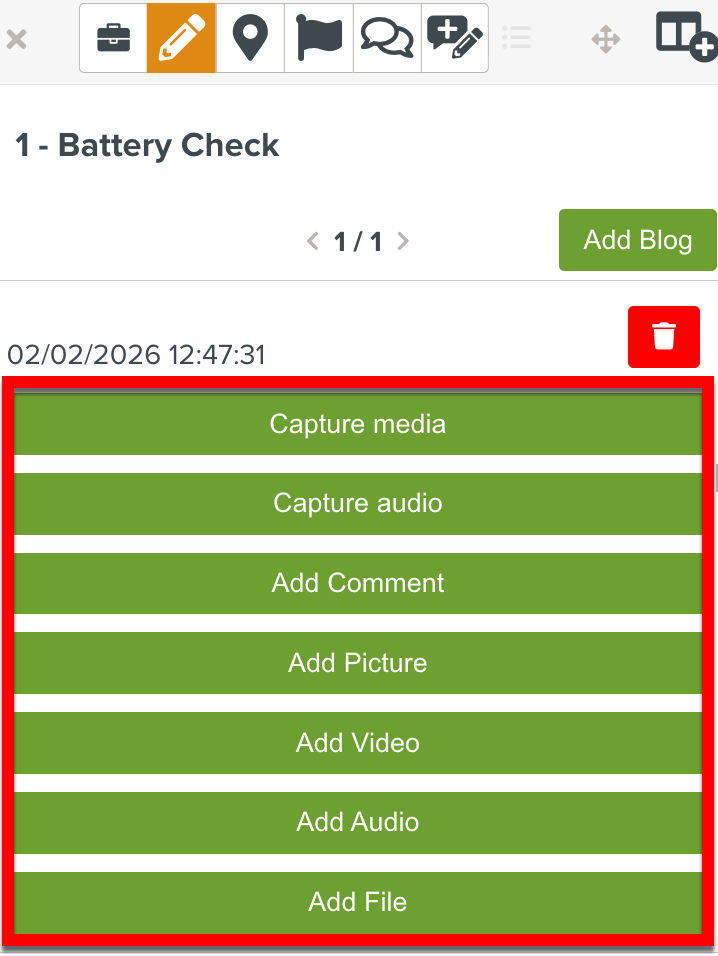
Choose the required option from the list shown below.
Note
The camera and microphone settings must be enabled, or a warning message will be displayed.
Blogs
Description
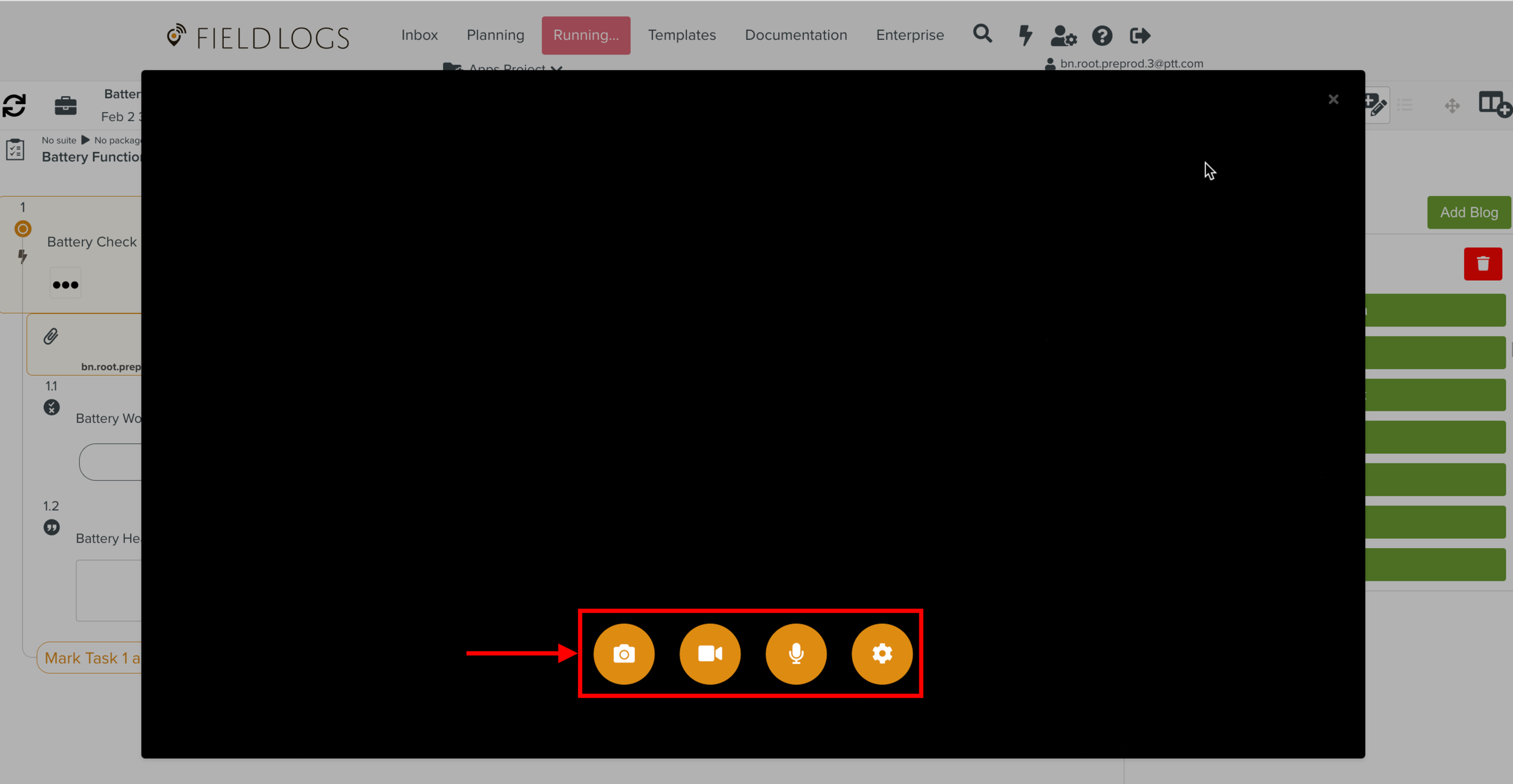
Capture media
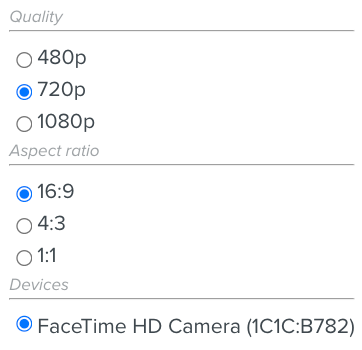
You can add photo and video files captured using the device camera.
Capture Audio
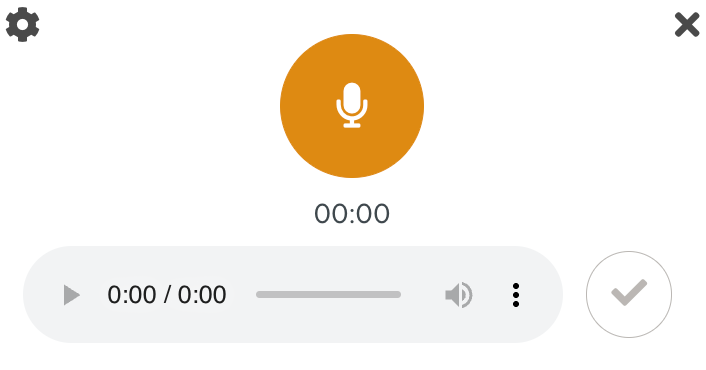
You can add audio files captured using the device microphone.
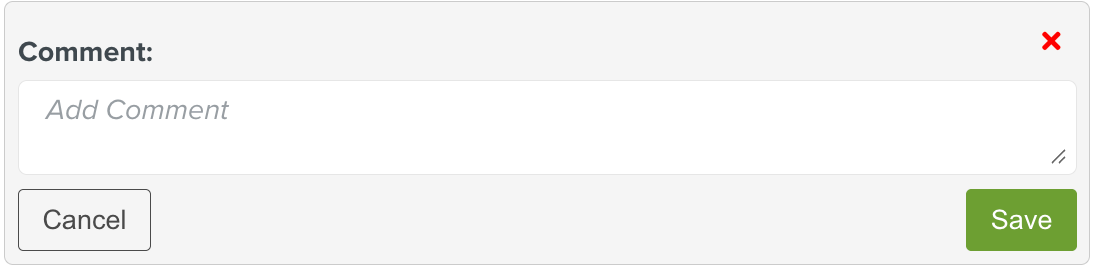
Add Comment
You can add a comment during runtime.
Add Picture
You can add pictures from your device.
Add Video
You can add videos from your device.
Add Audio
You can add audio from your device.
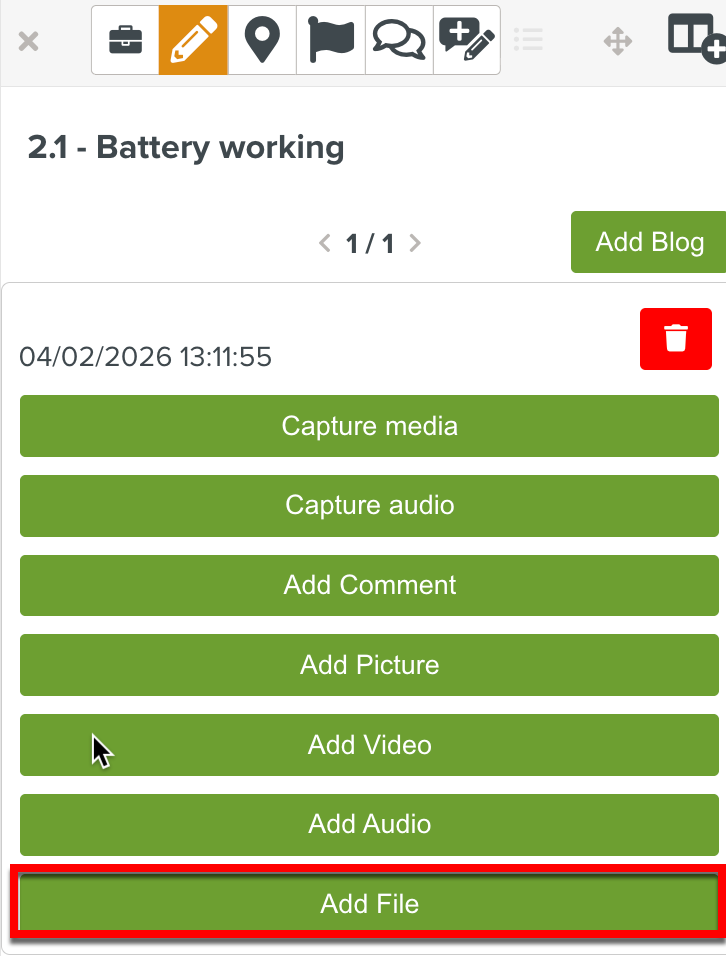
Add File
You can add files from your device.
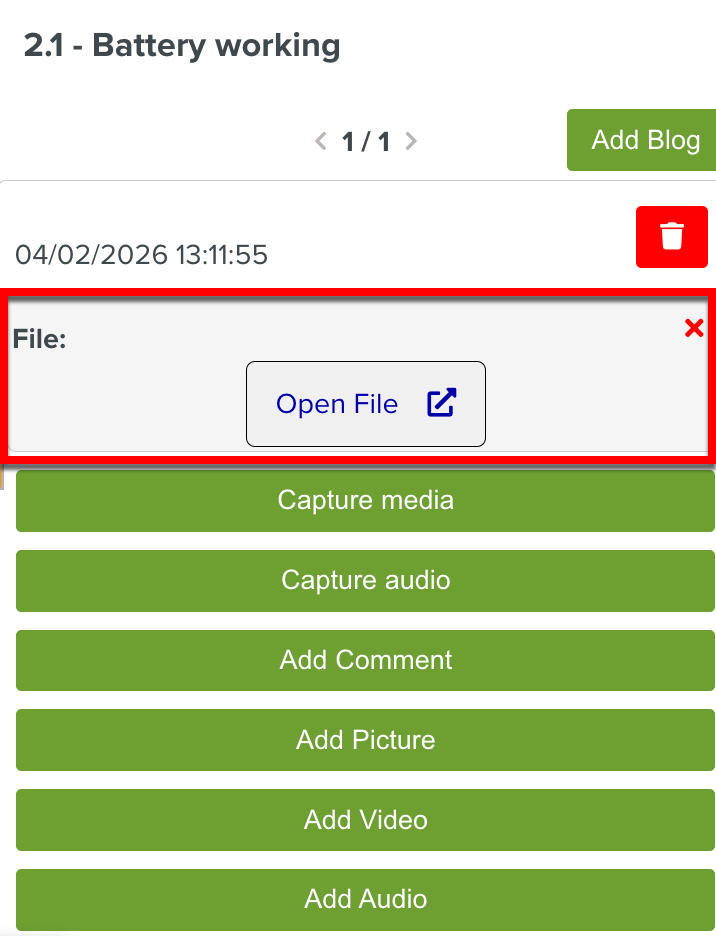
You can click the external link to view the file.
Note
Please contact FieldLogs support to turn on this feature.
After adding a Step Blog, you can modify it using the options available in a Step Blog editor.
The following options are available on a Step Blog.
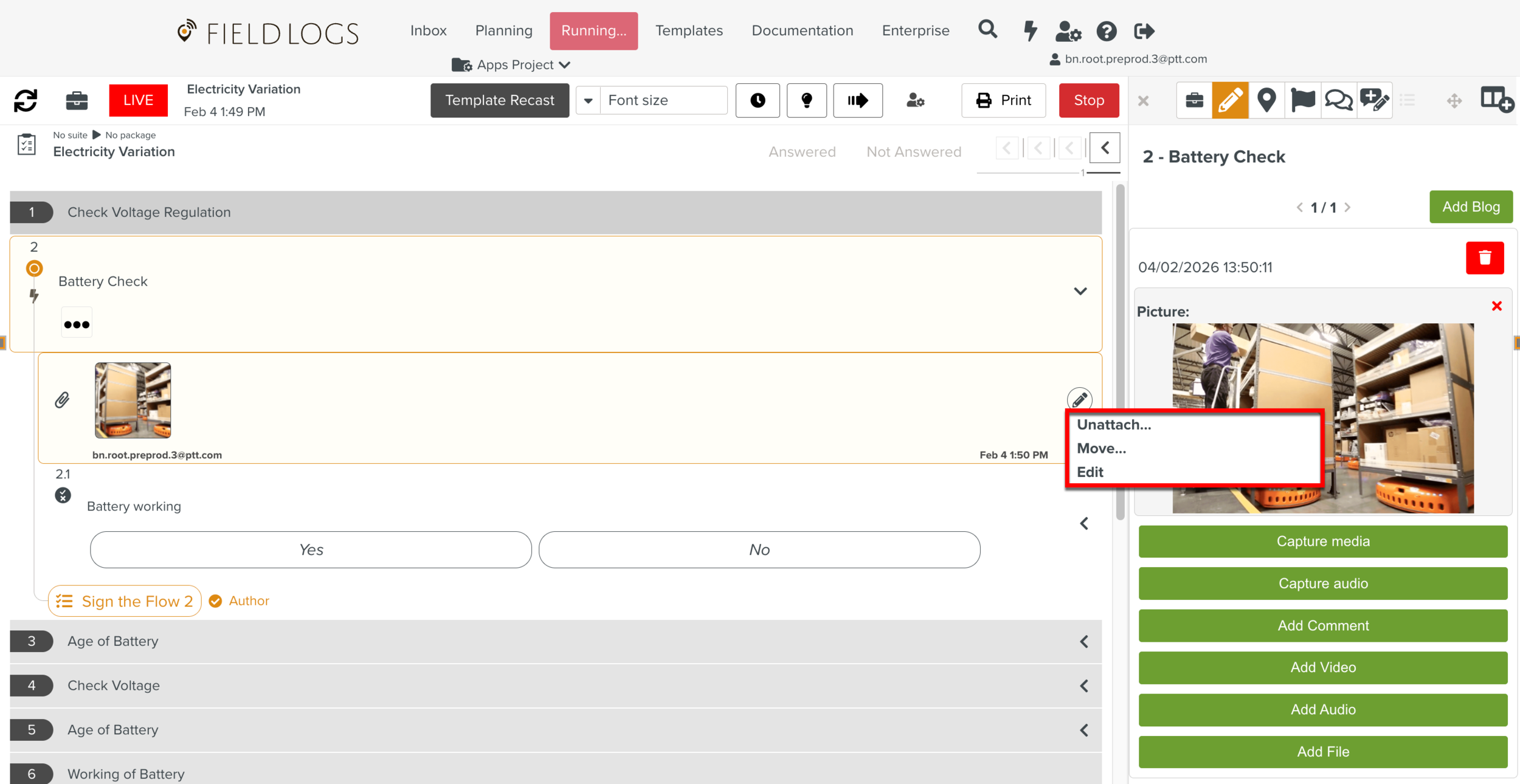 |
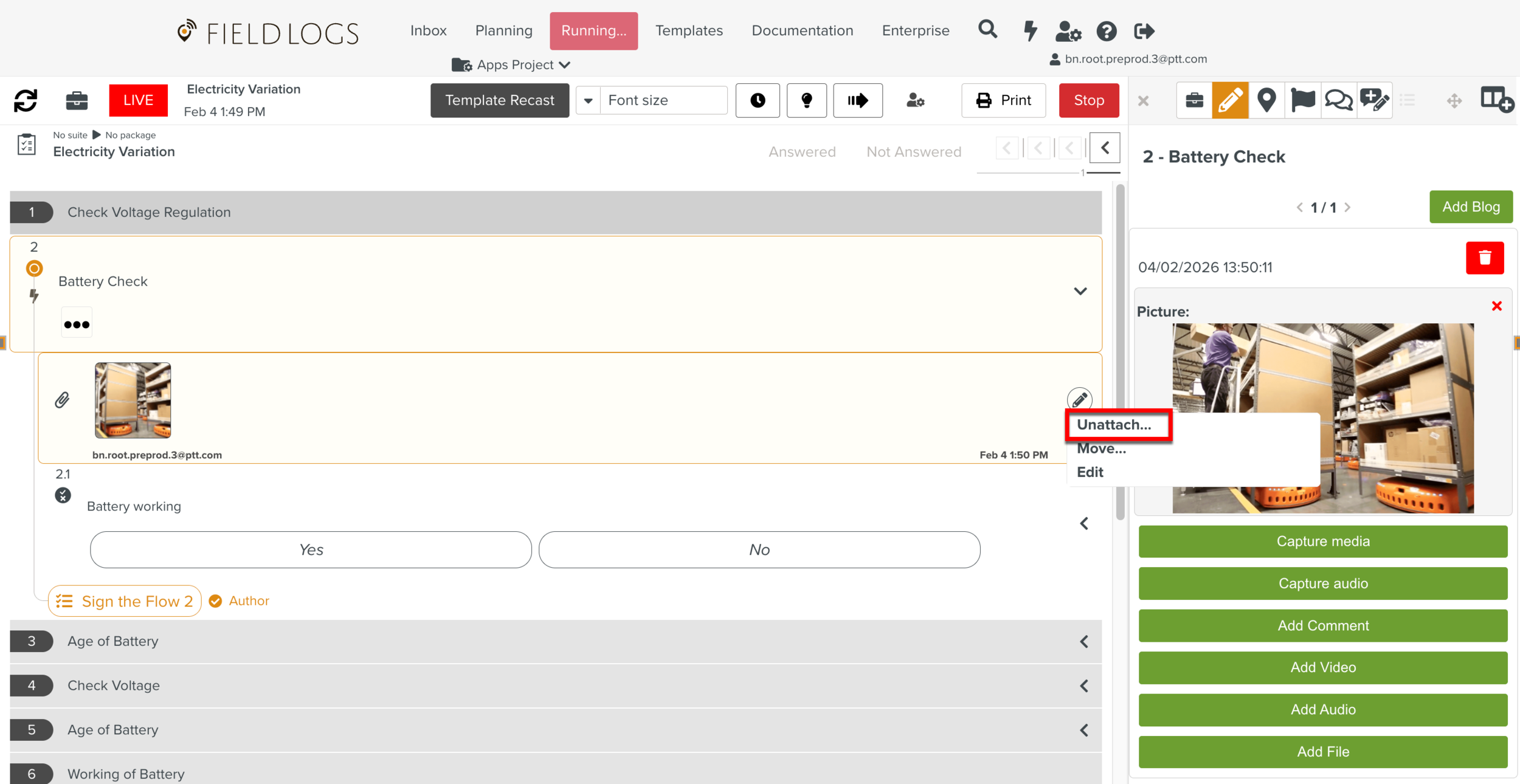
: This option detaches the Blog from the Step and attaches it to the Task.
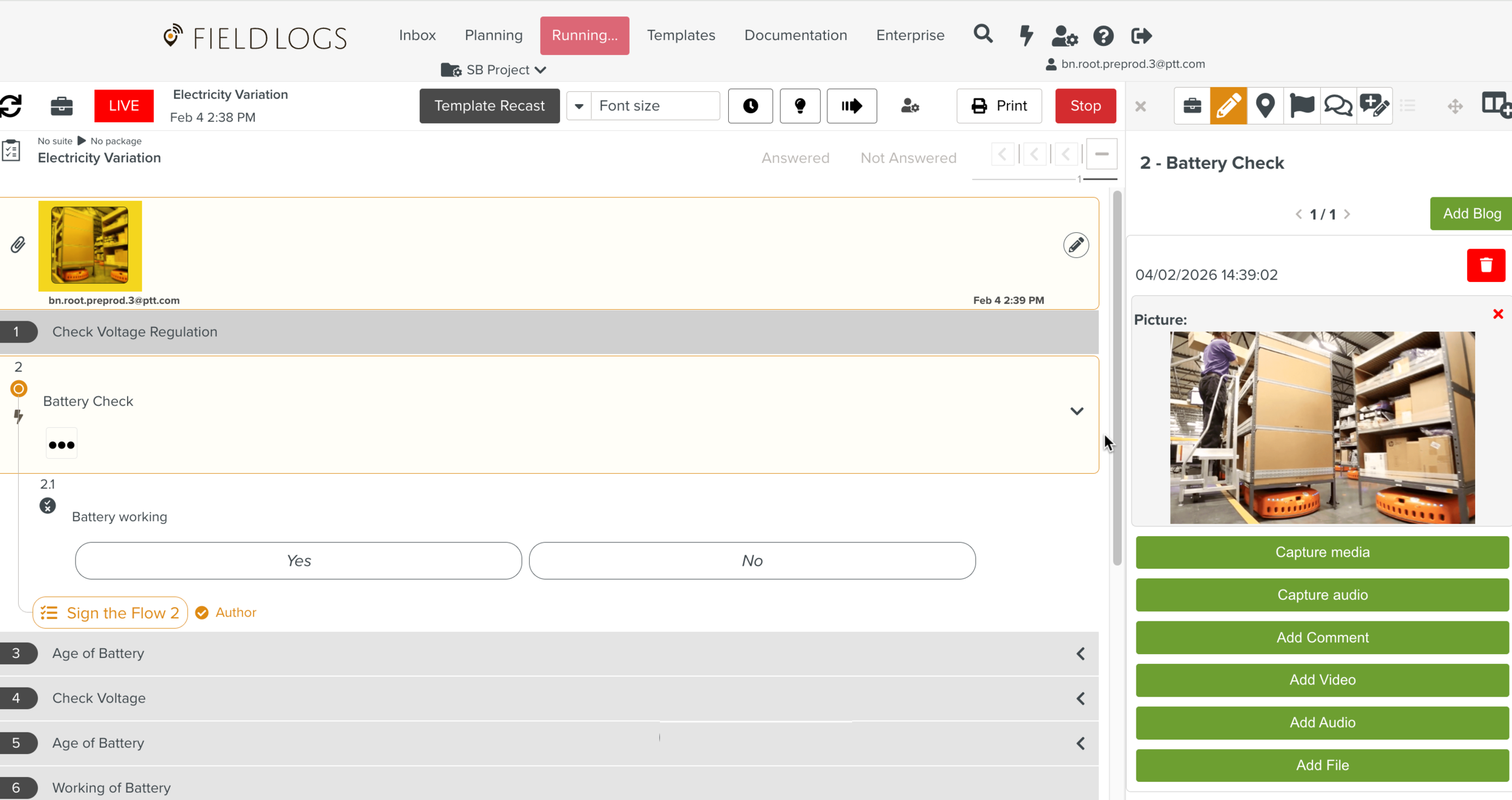
In the example below, note that the Blog has been unattached from Step 2 and appears above all the Steps. It is now linked to the Task.
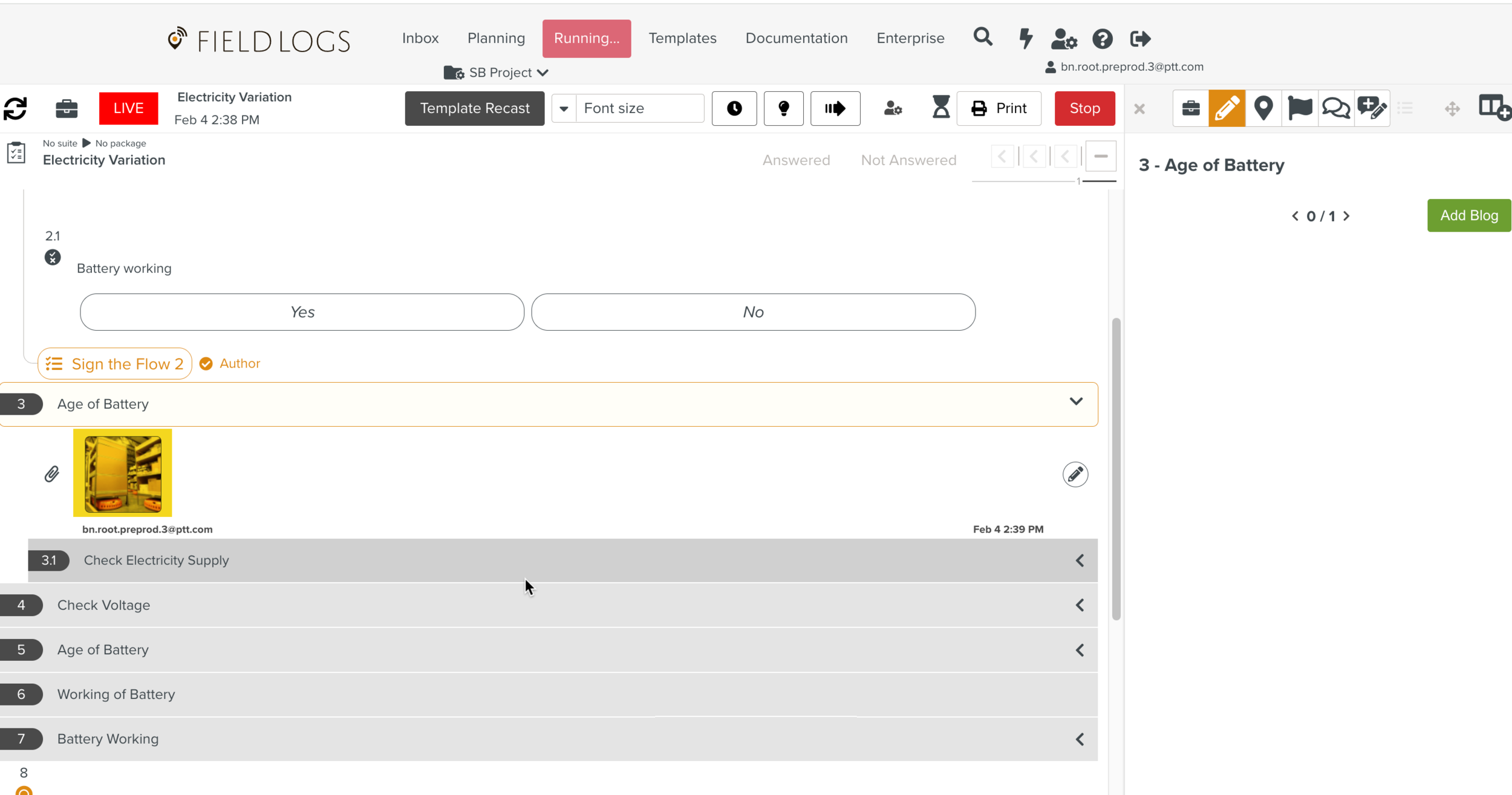
- This option moves the Blog within a Task from one Step to another Step.
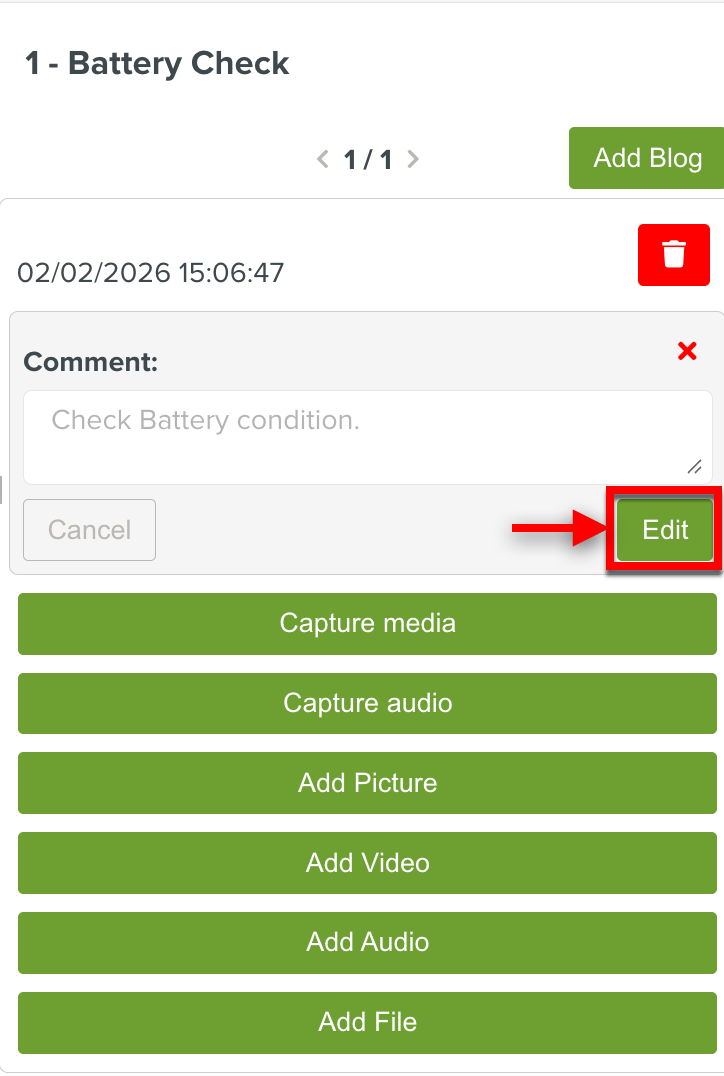
: This option is used to Edit the Comment.
Note
Only the user who created the Blog can edit it.
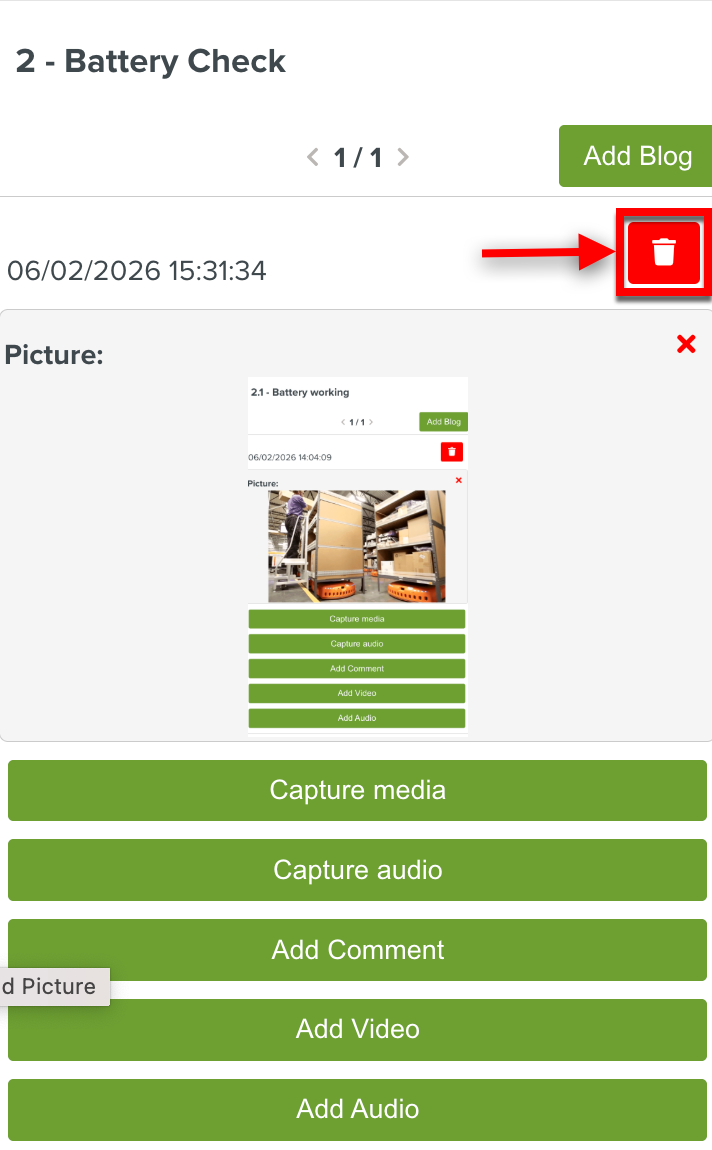
: Delete a Blog using the delete icon as shown below.